
AI at Attia
What Attia Agent reads, what it can change, where it stops, and how to guide or switch it off.
Overview
Attia Agent is a general-purpose AI assistant that lives inside your workspace. Ask it something in plain language and it reads the jobs, candidates, and applications you are allowed to see, then answers from what it found. It can also change a small set of things for you.
It works from your own access. A conversation acts as the person who started it, so the agent never returns a record you could not open yourself, and every change it makes names you as the person who asked.
Every plan includes it, Free among them.
What kind of AI it is
Attia Agent runs on general-purpose AI models from third-party providers, the same kind of models behind other AI assistants. It does what you ask, within your access and the limits on this page. Your workspace decides what to use it for, through what you ask, your guidance, your skills and your loops.
It is not a hiring decision system, and Attia does not build or sell it as a high-risk AI system under the EU AI Act. The Acceptable Use Policy asks your workspace to use it as that Act and other law allow. These are uses it is made for:
- Draft a job ad, a job update or a note for you to edit.
- Summarise the facts in a job, an application or a document, in the same format every time.
- Find records and keep them tidy, such as labels and assignees.
- Remind the team about applications that have waited too long, and post a weekly report.
The people who use it decide about candidates. The agent does not.
Where you talk to it
A new chat is your workspace home. Opening a workspace by its bare address lands there unless you pick something else under Default home view in Settings > Preferences, which also offers Inbox and My Applications. With Attia Agent off for the workspace, you land on the jobs list.
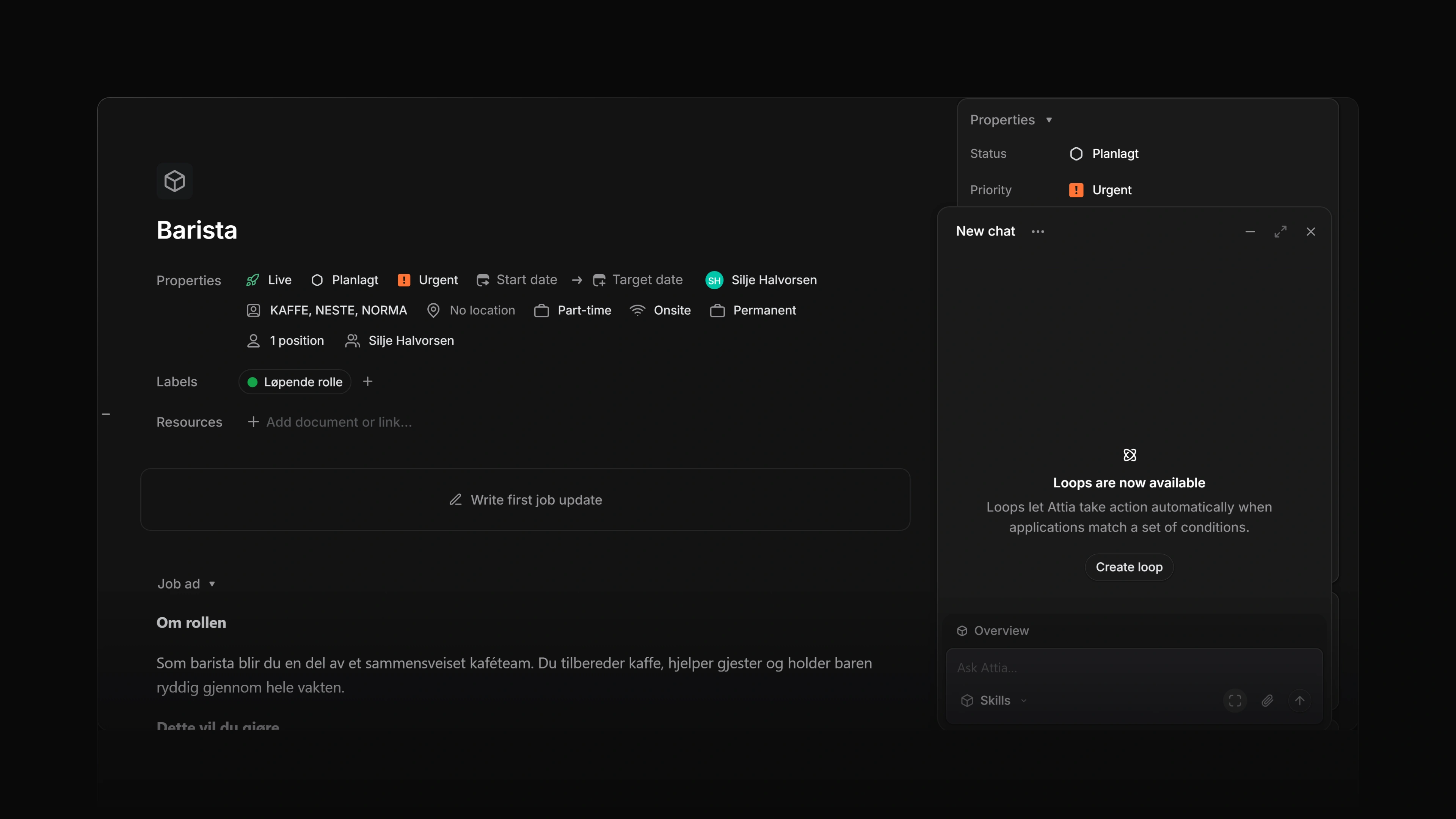
Everywhere else in the app, Cmd/Ctrl J opens the chat panel and the same keys put it away. The Agent button in the top band does the same, Chat history beside it lists your earlier conversations, and Open full page moves the current one onto its own page. The band is hidden on a narrow screen, so the full page is the way in there.
Conversations are yours alone. Nobody else in the workspace can open one, and Delete chat removes it and its history permanently.
The composer offers Use this page as context, which hands over the record you are looking at, so "summarise this job" means the one on screen. You can attach images and files to a message, and Skills drops a saved instruction into the turn.
 Zoom image
What it can read and change
It reads the jobs, candidates, and applications you can see, a workspace document you can edit, a job's description, and the teams, members, statuses, and labels the workspace has configured. It can also read a recent window of activity, which is structural: that a status changed or a label went on, never what anyone wrote.
Its writes are a closed list. It can create a job, edit a job's fields and description, set a job's status, post a job update, move an application to another status, assign an application, add or remove a label, write and edit its own comments, and edit a document body.
Nothing else moves. It cannot archive or delete a record, delete a comment other than one it wrote, or create a label, a team, or a document.
Where it stops
The agent does not judge people. It will not rank or score candidates, compare them on fit, recommend anyone, or pick anyone for an interview. In a chat, it moves an application only to the status you name, after you approve the move. In a loop, it moves an application only to a status the loop's instructions name, with no approval. It sends a candidate a message only after you approve the exact text. Ask which candidates are strongest and it says that judgement is your team's. It then sets out what each application says, side by side, and names the CV, the letter or the answer each fact comes from.
A loop can also change an application's status in a Change properties step, to a status you pick or with Use AI to determine optimal answer, and it applies the change without asking anyone. Your team decides what each loop may change and answers for the result. If a change has a legal or similarly significant effect on a candidate, such as an automatic rejection, Article 22 of the GDPR applies to it.
No tool returns a candidate's email address or phone number from their record. It can read a CV or another file you can open, and the answers a candidate gave, and a CV may state those details.
Everything it produces is AI output, and it says so as it hands a draft over. Your team makes each hiring decision and answers for what it does with that output.
Approvals and questions
In a chat, some actions wait. Publishing a job, closing one, changing what candidates see on a published or scheduled job, such as its title, salary or description, and deleting a comment park under Approval needed until you answer in the chat. When the agent needs something you have not told it, such as which team or which status, it asks under Attia has a question rather than guessing.
A loop does not wait for these. When its instructions ask for it, a loop acts with no approval. It can publish, unpublish or close a job, change a job's visibility, and change a published or scheduled job's description or another field candidates see, such as its title, salary or location. It can also create a candidate, and delete a comment or a career-site page. It can do only what the loop's owner may do.
A change a loop proposed earlier still waits in the Inbox and at the top of the job until the owner or an admin approves or rejects it. If a scheduled job's proposed publish date, or a proposed deadline, has passed by the time someone approves, the approval is refused and the job keeps its dates.
Drafting is the default for comments and job updates. It shows you the text and posts only once you ask it to.
Guidance and skills
Settings > Agent personalization holds the instructions the agent follows for you: standing guidance, with a version history you can restore from, and your own skills, reusable prompts you invoke by name. The agent can save one when you ask.
A team's settings page adds Agent skills shared with that team. Guidance applies to your next chat, not one already open.
Both are instructions and nothing more. Neither grants the agent a permission or a tool it did not already have.
Mentioning it on an application
Type @ in a private note on an application and Attia sits at the top of the list. Mentioning it hands the note over, and the answer arrives as a reply in the same thread. A message to the candidate cannot mention the agent.
Switching it off
A workspace owner or admin turns Enable Attia Agent off in Settings > AI & Agents > Attia Agent. Nobody in the workspace can open a chat or ask for anything after that, and existing conversations stay readable. The agent page then shows what Agent does when it is on. An owner or admin gets Turn on Agent, and everyone else reads A workspace admin turned Agent off. The jobs list becomes the workspace home.