
Teams
Use teams to organize triage, applications, jobs, and saved views in your workspace.
Overview
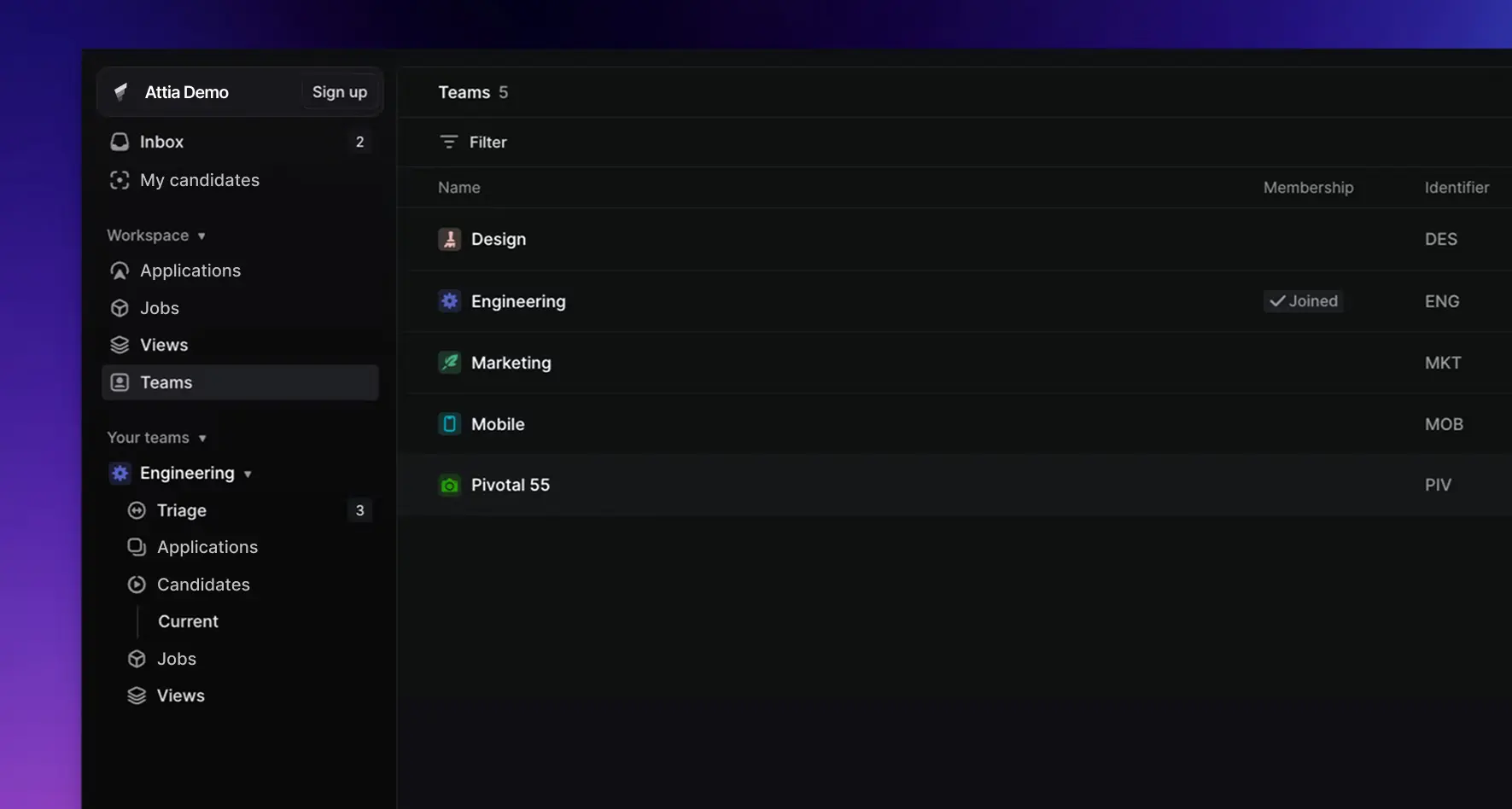
Teams let you organize recruiting work inside a workspace. Use them for recruiting groups, business units, regions, brands, departments, or any group that needs its own hiring workflow.
 Zoom image
A team can own jobs, applications, application statuses, application labels, and team-shared views. Candidates remain workspace-level records, but their applications, labels, files, and activity can be scoped through the team connected to the job.
When a workspace is created, Attia creates an initial team. You can add more teams later as the workspace grows.
Your teams
Every active team you can access appears in the settings sidebar under Your teams, and in the app sidebar as a folder. Open a team to manage its details and the recruiting work connected to it. A retired team leaves both sidebars; find it under Settings > Administration > Teams.
Each team folder in the app sidebar contains:
| Area | What it contains |
|---|---|
| Home | The team overview, with its description, resources such as documents and links, and members |
| Applications | Applications for the team's jobs, including statuses and labels |
| Jobs | Roles owned by the team, including job status and team-specific access |
| Views | Personal, workspace, or team-shared saved views for recruiting data |
Team settings
Open Settings > Administration > Teams to see active, retired, and archived teams. Select a team to manage it.
| Team settings page | Configure |
|---|---|
| General | Team name, identifier, icon, parent team, status inheritance, timezone, and the review scale |
| Access and permissions | Team visibility, how members can join, and who can manage settings, labels, questions, templates, members, agent skills, and loops |
| Members | Team members, team leads, inherited owners, and member removal |
| Application labels | Team-level application labels, label groups, and inherited parent labels |
| Questions | Questions available to the team's jobs |
| Templates | Pre-filled templates for jobs and documents |
| Application statuses | The statuses the team's applications move through |
| Workflows & automations | Auto-close for stale applications and jobs, and auto-archive for closed items |
| Agent skills | Reusable prompts everyone on the team can invoke |
| Team hierarchy | Parent team and sub-teams |
| Danger zone | Leave, retire, restore, or delete a team |
The team page also lists rows for Slack notifications, recurring jobs, triage, and resolved thread summaries. These are marked Coming soon and are not configurable yet.
The team's Access and permissions page decides who can change each part of the team. Attia also keeps frozen teams read-only so retired or deleted teams cannot be changed accidentally.
Team limits
Team and sub-team limits depend on the workspace plan.
| Plan | Teams | Sub-teams |
|---|---|---|
| Free | 1 | None |
| Basic | 5 | None |
| Business | Unlimited | 1 level |
| Enterprise | Unlimited | 5 levels |
Existing teams remain readable if a workspace later moves to a lower plan. New team creation and parent changes are checked against the current plan.
Create a team
Create a team from the Your teams section in the settings sidebar or from Settings > Administration > Teams.
By default only workspace admins can create teams. To let members create teams, an admin sets Settings > Administration > Security > Team creation to All members. Guests still cannot create teams.
When creating a team, set a name and identifier. The identifier is used as the short team key and must be unique inside the workspace.
You can also:
- Choose an icon and color.
- Place the team under a parent team.
- Copy settings from an existing team.
- Make the team private.
If a new team is created under a private parent team, the new team must also be private.
Privacy and access
Public teams and their recruiting records are visible to workspace members who can access the workspace. Private teams are limited to direct team members and workspace owners, on every plan. A workspace admin sees a private team only after being added to it. Guests see only the teams they are members of.
Team-scoped jobs, applications, files, comments, activity, labels, and views follow the same team access model. A saved view can be personal, workspace-wide, or shared with a specific team.
The Team permissions section on a team's Access and permissions page sets who can manage its settings, labels, questions, templates, members, agent skills, and loops. On the Business and Enterprise plans, each permission is set to All team members or Admins & team owners only. On lower plans, every team member can do all of these except manage loops. Workspace owners and team leads always pass. Workspace admins pass on public teams.
Only workspace owners and admins can retire, restore, or delete a team.
Sub-teams
Sub-teams let you model a hierarchy, such as Recruiting > Executive Search or EMEA > Germany.
A team can be nested under another team up to the hierarchy depth limit. A team cannot be moved under itself or under one of its own sub-teams.
Sub-teams keep their own members and settings. A parent team does not automatically add every child-team member. Statuses and labels can be inherited or mapped where the team settings surface supports it.
Private-team rules also apply through the hierarchy. A public team cannot sit under a private parent. When a parent team is made private, Attia asks for confirmation before applying that privacy change to affected sub-teams.
Tips for structuring teams
Start with the fewest teams that match how your hiring work is actually managed. You can add more later.
Common patterns include:
- One team for a small company or early hiring workspace.
- Teams by function, such as Engineering Hiring, Sales Hiring, or Operations Hiring.
- Teams by geography, such as US, EMEA, or Nordics.
- Teams by sensitivity, such as Executive Search or Confidential Hiring.
Use private teams when the hiring work should only be visible to a smaller group. Use team-shared views when several people need the same filtered view of jobs, applications, or candidates.
Manage teams
Make a team private
You can make a team private when you create it. Later, anyone the team's Settings management permission allows can change it on the team's Access and permissions page. Private teams require the Business or Enterprise plan. They limit access to team members and workspace owners. Sub-teams under a private team must also be private.
Add, remove, or leave members
The team's Member management permission decides who can add active workspace members to the team, change a member between Member and Lead, or remove a member. Making someone a team lead requires the Business or Enterprise plan. Attia prevents changes that would leave a team without a lead.
Team members can leave a team with Leave team… in the Danger zone on the team's settings page. After leaving, they are sent to Settings > Preferences.
Retire a team
Retire a team when it should stop receiving new work but its history should stay available.
Retired teams are frozen. Past applications, discussions, and history stay accessible, but new work cannot be created or edited in that team. Retired teams can be restored later.
Delete a team
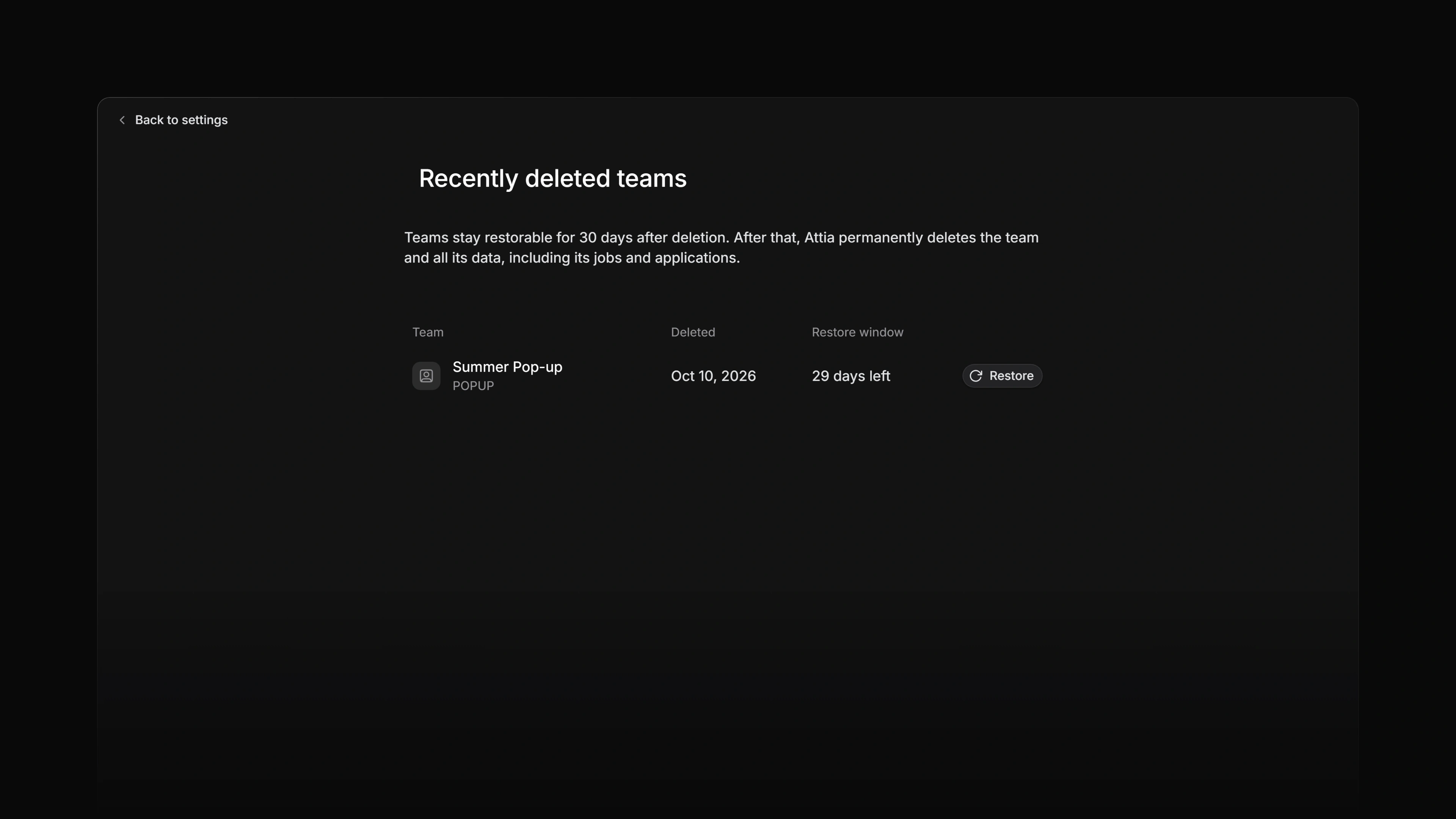
Deleting a team soft-deletes it and starts a 30-day restoration window. During that window, admins can restore the team from the recently deleted teams page, which shows how many days are left on each restore window. There is no link to it in the settings sidebar yet, so open it directly at /{workspace}/settings/teams/recently-deleted.
After the grace window, the team and its team-owned jobs, applications, workflow settings, statuses, labels, files, comments, and timeline records are eligible for permanent deletion. Workspace-level candidate records are not deleted just because one team is deleted.
 Zoom image
Restore a team
Workspace owners and admins can restore a retired team at any time. Deleted teams can be restored during the 30-day restoration window.