
Edit applications
Change an application's status, review, assignee, SLA and labels, and keep private notes on it.
Overview
You change an application on its own page. Every edit saves by itself, so there is no Save button to look for.
The page title is the candidate's name. Under it sit the application's private summary and notes, and beside it the property rail.
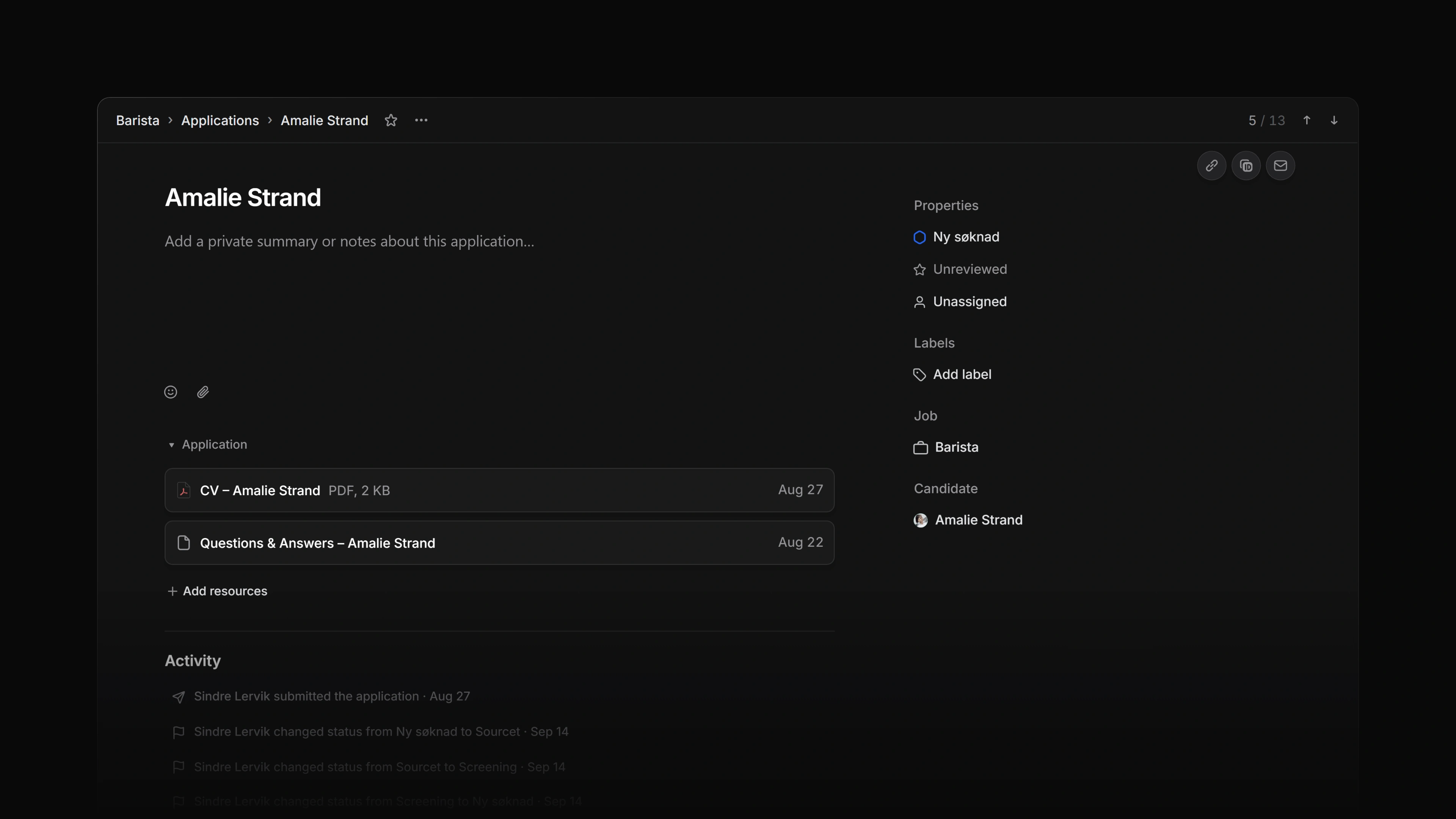 Zoom image
Who can edit an application
These people can edit an application:
- a workspace owner or admin who is not a guest
- an active member of the team that owns the job
A guest can edit only on a team they have been added to. Everyone else sees the same page read-only: the pickers do not open and the notes cannot be typed into.
An archived application is read-only for everyone. Its page opens with This record is archived. Restore it to make changes., and anyone allowed to edit it can select Restore.
Change properties
Select a property in the rail to change it, or press its key while the application is open.
| Property | Key | What it sets |
|---|---|---|
| Status | S | Where the application sits among the team's statuses. |
| Review | R | Your team's score for the application. The row shows only when a review scale is set. |
| Assignee | A | The one member who owns the application, or Unassigned. |
| SLA | D | A deadline of 12 hours to 4 weeks, or Remove SLA. The SLAs article covers the rest. |
| Labels | L | The labels that sort the application. Select Add label to attach one. |
An application carries at most one label from each label group, so picking a second label from a group replaces the first. A label marked Public in the picker is one the candidate sees on their own application page.
The keys work only when you can edit the application. A read-only viewer gets no keys, and the hints do not name one.
The Candidate row is a link to the candidate. The Job row is a link to the job too, unless the job is archived or you are not allowed to open it. Then the row shows the job's title as plain text. Neither row changes anything on the application.
Write the summary and notes
The box under the candidate's name is Private summary and notes. Write what the team should know at a glance: why this person stands out, what to probe in the next interview, what the hiring manager said on the phone.
Attia saves the text about a second after you stop typing, and again when you leave the page. If a save fails, the text stays in the box and Could not save your notes appears with Retry.
When the agent wrote the summary, for example through a Loop, Written by Agent shows beside it. The marker goes away once a person edits the text.
What you change somewhere else
The candidate's name and contact details belong to the candidate, not to the application. Change them on the candidate's page, which the Candidate row opens.
An application stays on the job it was made for. To consider the same person for another job, open that job and add them with Add application. A workspace owner or admin can also use Add to job on the candidate's page.