
Select applications
Highlight one application or select several, then change them together.
Overview
Highlight an application to act on it alone, or select several and change them together.
You can select rows in any application list where you can edit applications, such as a job's Applications tab, in the table, list and board layouts. My Applications is read-only, so its rows have no checkbox.
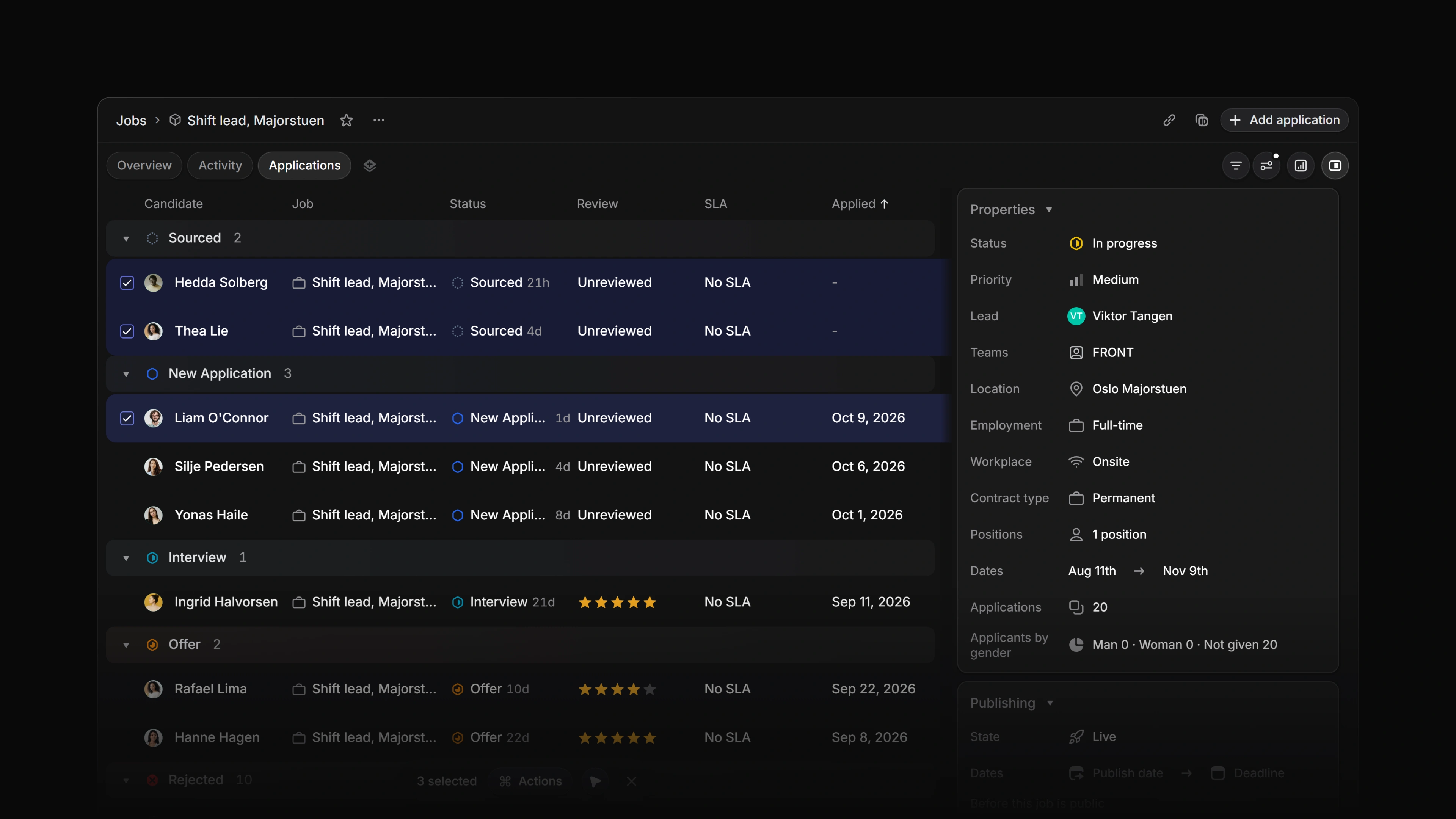 Zoom image
Highlight an application
- Hover over a row. A shortcut you press acts on the row under your pointer.
- Press
↑/↓orJ/Kto move the highlight through the list.
The arrow keys and J / K work in the table and list layouts. On the board, hover over a card instead.
Select applications
- Highlight a row and press
X. PressXagain to take it out of the selection. - Hover near the left edge of a row to show its checkbox, then tick it. Its tooltip reads Select row.
Select several applications
Once one row is selected, highlight another and press X.
To select rows that sit next to each other, hold Shift and press ↑ or ↓. Each press adds the next row.
On the board, open the ⋯ menu in a column header and choose Select all in column.
Clear the selection
Press Esc, or select the × at the end of the selection bar. Its tooltip reads Clear selected.
If the peek is open beside the list, the first Esc closes it and the second clears the selection.
Take action
A bar appears at the bottom of the list as soon as one row is selected. It counts the selection, as in 3 selected, and holds:
- Actions, a menu of the fields you can change on every selected application.
Cmd/CtrlKopens the same menu while rows are selected. - Ask Agent, when Agent is available to you. It types the selected applications into a new Agent message and sends nothing, so you can add your question first. The shortcut is
Cmd/CtrlShiftJ. - The × that clears the selection.
You can also right-click any selected row while two or more are selected. That menu acts on the whole selection. Delete and the copy actions are left out of it, because they work on one application at a time.
Change several applications at once
Select the applications, then change a field the way you would on one:
- Press the field's key, such as
Sfor Status orAfor Assignee, and pick a value. You can change Assignee this way only on a team's application lists. A job's Applications tab does not offer it. - Or open Actions and choose the field there.
The menu ticks a value that every selected application already has, and marks a value that only some of them have as mixed.
On a job's Applications tab, Attia asks before it changes more than one application, for example Update 3 applications? Confirm and the change goes to all of them.
A few ways to do it:
- Keyboard. Highlight the first application, hold
Shiftand press↓down to the last one, then pressSand pick the new status. - Mouse. In a team's application list, tick the checkbox on each application you want, open Actions and choose Assignee.
- Board. Choose Select all in column on the column you want to move, then press
Cmd/CtrlKand pick a status.