
Application statuses
Set up the steps a team's applications move through, choose the default, and decide what candidates see.
Overview
Application statuses are the steps an application moves through, from the first contact with a candidate to a decision. Each team has its own set, so a recruiting team for engineers can run a technical interview step that the sales hiring team does not need.
Every status belongs to a section. The section decides what the status means: whether the application is waiting, being worked on, or finished.
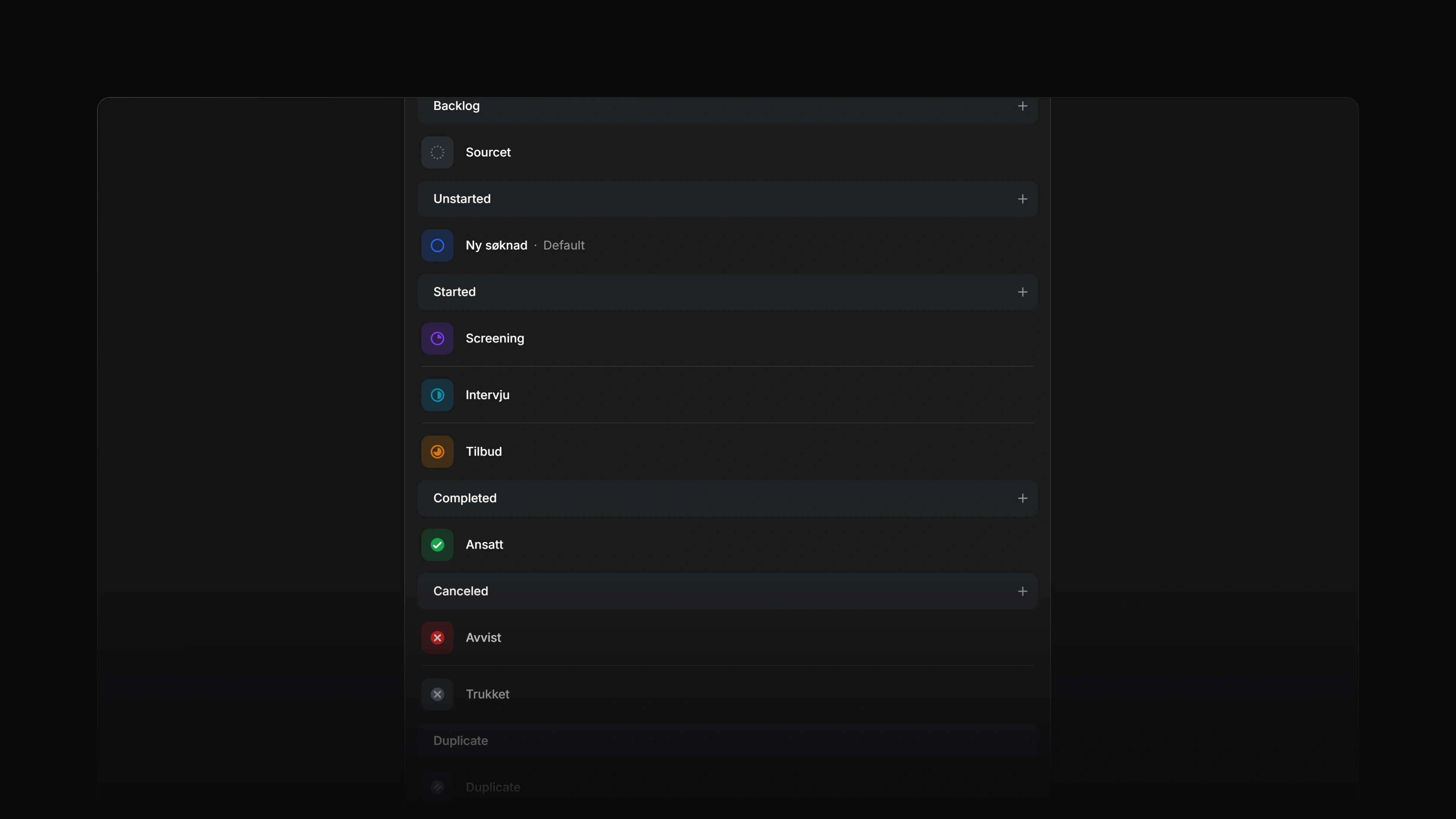 Zoom image
Open a team's statuses
Open Settings > Administration > Teams, select the team, and choose Application statuses under Workflow. The page shows the team's statuses in six sections, always in this order:
| Section | What it holds |
|---|---|
| Backlog | Candidates you have found but who have not applied, such as sourced profiles |
| Unstarted | New applications nobody has looked at yet |
| Started | Applications in progress, such as screening, interviews and offers |
| Completed | Applications that ended in a hire |
| Canceled | Applications that ended without a hire, such as rejected or withdrawn |
| Duplicate | Applications that repeat another one |
An application in a Completed or Canceled status counts as closed. An SLA on it stops counting, and the team's auto-close and auto-archive rules treat it as finished.
The statuses a new team starts with
A new team gets a hiring workflow to start from:
| Section | Statuses |
|---|---|
| Backlog | Sourced |
| Unstarted | New Application |
| Started | Screening, Interview, Offer |
| Completed | Hired |
| Canceled | Rejected, Withdrawn |
| Duplicate | Duplicate |
New Application is the default. The names follow the workspace's language when the team is created, so a Norwegian workspace starts with Sourcet, Ny søknad, Screening, Intervju, Tilbud, Ansatt, Avvist and Trukket. A team created as a copy of another team takes that team's statuses instead.
Who can change statuses
The team's Settings management permission decides who can edit its statuses, on Business and Enterprise. By default that is the workspace owner, the team's leads, and workspace admins on a public team. On other plans, any member of the team who is not a guest can edit them. Guests never can. See Team owners for how to change the permission.
Add a status
Select the + button beside the section's name. A new row opens at the end of the section. Type the name over Name, and press Create to save it or Cancel to drop it.
The Duplicate section takes no new statuses. Status names must be unique within the team, ignoring upper and lower case.
Edit and reorder statuses
Open the row's menu and choose Edit to change the status's name, colour or description. Drag a status up or down to reorder it. A status can only move within its own section, so a Started status cannot be dragged into Completed.
The Duplicate status cannot be renamed.
Set the default status
The default status is where every new application on the team starts, whether a candidate applied through the career site or someone on the team added the application by hand.
To change it, open the menu on a status and choose Make default. Only a status in Backlog or Unstarted can be the default. A team has exactly one.
Archive a status
Open the menu on a status and choose Archive. Attia asks Archive {name}? and shows Archive status to confirm. An archived status keeps its history and moves to the Archived statuses list at the bottom of the page. Select Restore there to put it back.
Attia will not archive a status when:
- it is the default. Set another default status first.
- it is the last status in its section. Add another status to the section first. Canceled is the exception: Attia counts the Duplicate status with it, so the last Canceled status can be archived.
- applications still use it, or the team's auto-close setting moves stale applications to it. Move those applications, or change the setting, first.
- it is the Duplicate status.
There is no way to delete a status. Archiving is how you take one out of the workflow.
Inherit statuses from a parent team
A sub-team can use its parent team's statuses instead of keeping its own. Turn on Inherit statuses from parent team at the top of the statuses page. While it is on, the sub-team's statuses follow the parent's and cannot be edited on the sub-team.
If applications on the sub-team sit in statuses the parent does not have, Attia opens Resolve status mappings. Choose a target status for each one and press Apply mappings. Current applications move to those statuses. Their past status changes stay as they were.
On a parent team, the page tells you how many sub-teams inherit its statuses. Every change you make there applies to them too. See Sub-teams for more.
Choose what candidates see
Statuses are internal. Under Candidate experience, What candidates see controls how much of an application's status a candidate sees in the candidate portal:
| Option | Candidates see |
|---|---|
| Exact statuses | Your status names |
| Status categories | Simplified stages: applied, in review, hired, or not selected |
| Minimal | Only whether the application is submitted or closed |
The setting applies to this team only.