
Priority
Mark which roles to fill first, and keep the untriaged jobs out of the way when you sort.
Overview
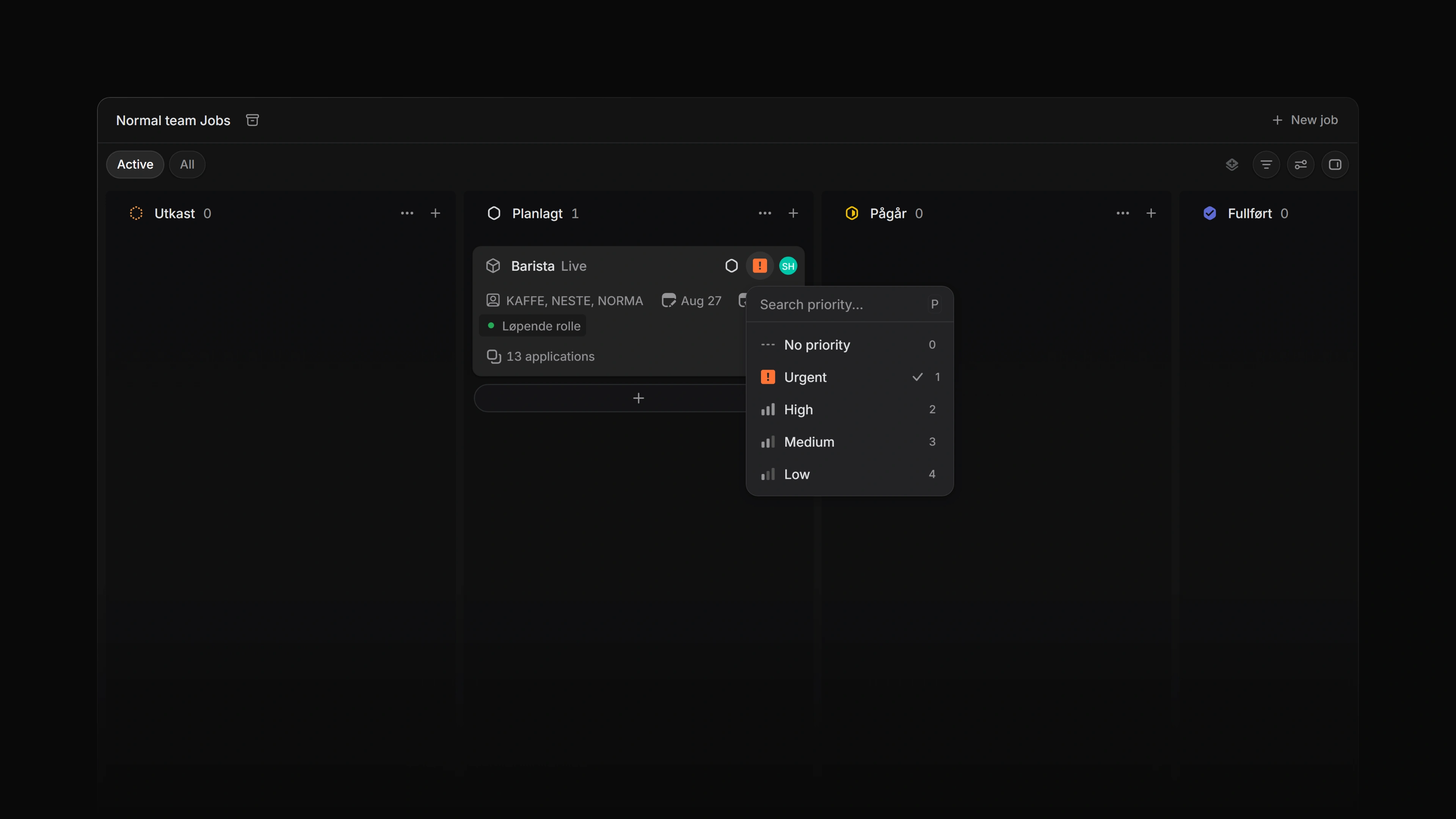
Priority marks which jobs your team should fill first. It is optional. A job has one of five levels: No priority, Urgent, High, Medium, or Low.
A job starts at No priority unless the job template it was created from sets one.
 Zoom image
Set priority
| From | How |
|---|---|
| The jobs list | Focus a row and press P. In the picker, press 0–4 to pick a level without the mouse. |
| The job overview | Select Priority in the properties. |
| A board | Drag the job into another priority column. The job takes that column's priority. |
Select several rows first and the change applies to all of them. Attia asks you to confirm before a change lands on more than one job, so a large re-prioritisation is never silent.
Priority ordering
Jobs with no priority always sort last, whichever direction you sort in. Sorting by priority exists to bring urgent work up, so the untriaged pile stays at the bottom either way.
The picker is the exception: it lists No priority first, so clearing a priority is always the same keystroke.
On a board grouped by something else and then sub-grouped by priority, the sub-group lanes follow the order the rows arrive in, so an unprioritised lane can appear in the middle.
What priority affects
Priority is a sort key. You can sort, group, and filter jobs by it, save that as a view, and show it as a column or on a board card.
It stays inside the workspace. Priority does not reach candidates or career sites, and it does not reorder anything on its own. Two features can read it: a Loop can start on Job priority is set, and an SLA rule can filter on Job priority. Applications have no priority of their own. Use time in status to find candidates who are stalling.
Who can change it
Workspace admins can change priority on any job. Anyone else needs to be an active member of one of the job's teams, and that includes a guest who has been added to one of those teams.
Every change is written to the job's timeline, as "set the priority to Urgent" or "removed the priority", with who did it and when.