
Job labels
Sort open roles by seniority, department, or employment terms, and publish the ones candidates should see.
Overview
Job labels sort your open roles the way your organisation actually thinks about them: seniority, department, budget owner, employment terms. A job can carry as many labels as it needs.
A label group collects labels that are alternatives to one another, such as Seniority holding Junior, Mid and Senior. A group is mutually exclusive: a job takes at most one label from it.
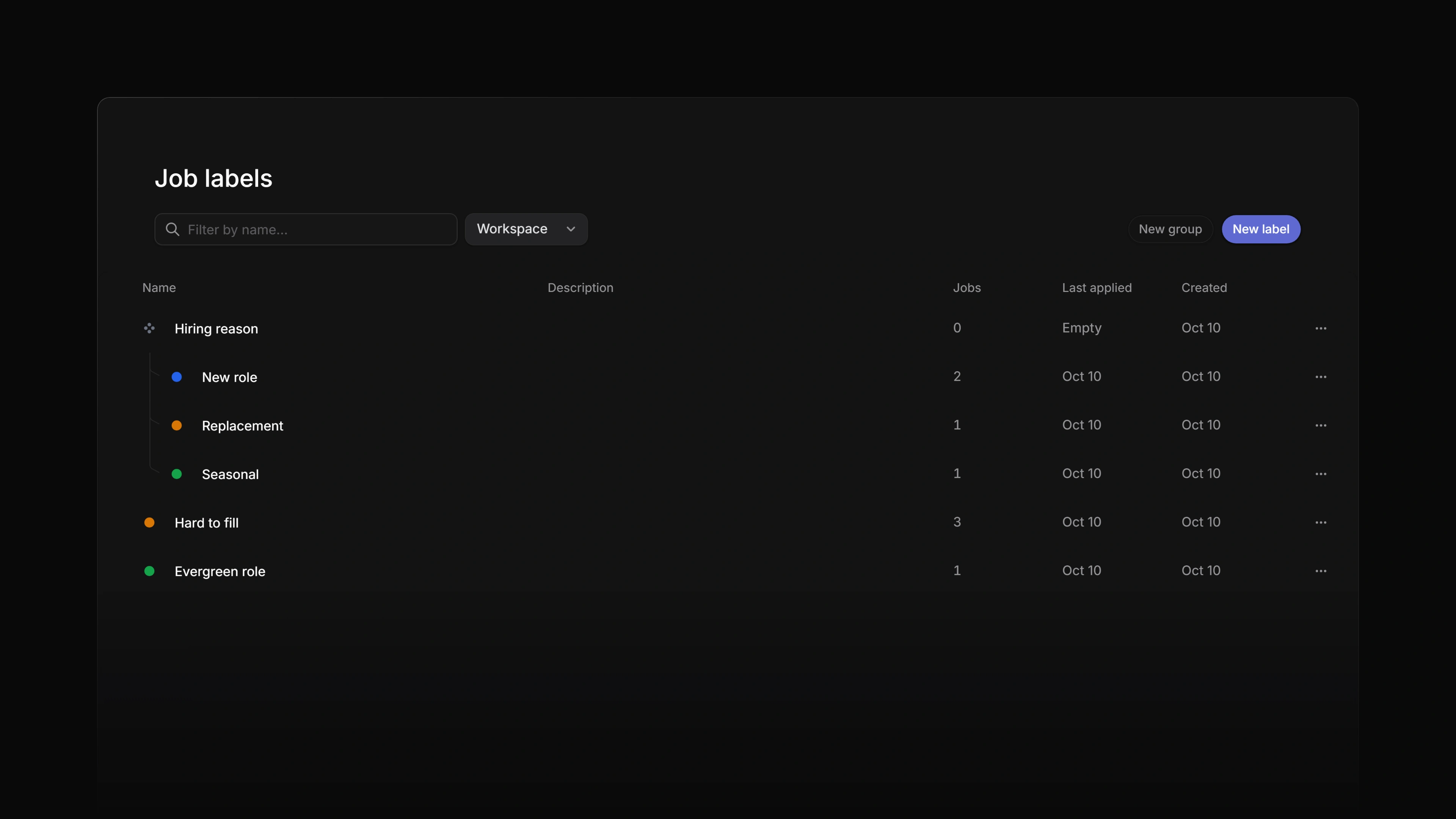 Zoom image
Create labels and groups
Job labels are managed for the whole workspace at Settings → Jobs → Labels. Only a workspace admin can create, rename, recolour, archive, or delete them. An admin can also create a label straight from the label picker on a job; everyone else does not see that option, because the server would refuse it.
Drag labels to set their order, or into a group to file them under it. The label picker follows that order: groups first, each with its labels, then the labels that have no group. The jobs list and board cards show a job's labels in alphabetical order.
Apply labels to a job
Focus a job row and press L, or select Labels on the job overview.
Two rules hold on every path, including bulk edits:
- One label per group. Picking a second label from the same group replaces the first.
- A group cannot be applied. The group row is structure, not a label. Only the labels inside it go on a job.
Anyone who can edit the job can apply labels: workspace admins, and active members of one of the job's teams, including a guest who has been added to one of those teams.
Labels show as a column in the jobs list and on the card in board layout, and you can filter a jobs view by them.
Labels stay inside the workspace
Labels are private. Candidates never see them, no career site lists them, and no label reaches a job board or a search engine. Name them for how your team triages, not for how a job ad should read.
To tell candidates something about a role, use the job's own properties. Employment, Workplace and Location on the job overview are the fields career sites and job boards read.
Employment and workplace are job properties
Employment type and workplace type live on the job overview as properties, not as labels. Set them there, and the career site and job boards pick them up.
A workspace created before this changed may still hold Employment and Workplace label groups from the old setup. They are ordinary labels now, so nothing outside the workspace reads them. Archive them if your team has stopped using them.
Archive and delete
Archive takes a label out of the pickers. Jobs that already carry it keep it. Archiving a group archives every label inside it as well, so the whole set stops being offered at once. Use archiving for a taxonomy you have stopped applying but still want on old jobs.
Delete removes the label for good. It only works on a label no job is using. If jobs still carry it, the delete is refused. Take the label off those jobs first, or archive it instead. A group can only be deleted once no labels are left in it.