
Working with jobs
Create a job, find it again on the jobs lists, share it between teams, and set its dates.
Overview
A job is one role you are hiring for. Every application belongs to one job, and the job belongs to one or more teams. Its title, description and properties are what candidates read on your career site.
This article covers creating jobs, finding them again and sharing them between teams. A single job's own page, with its properties, resources and application figures, is covered in Jobs.
 Zoom image
Create a job
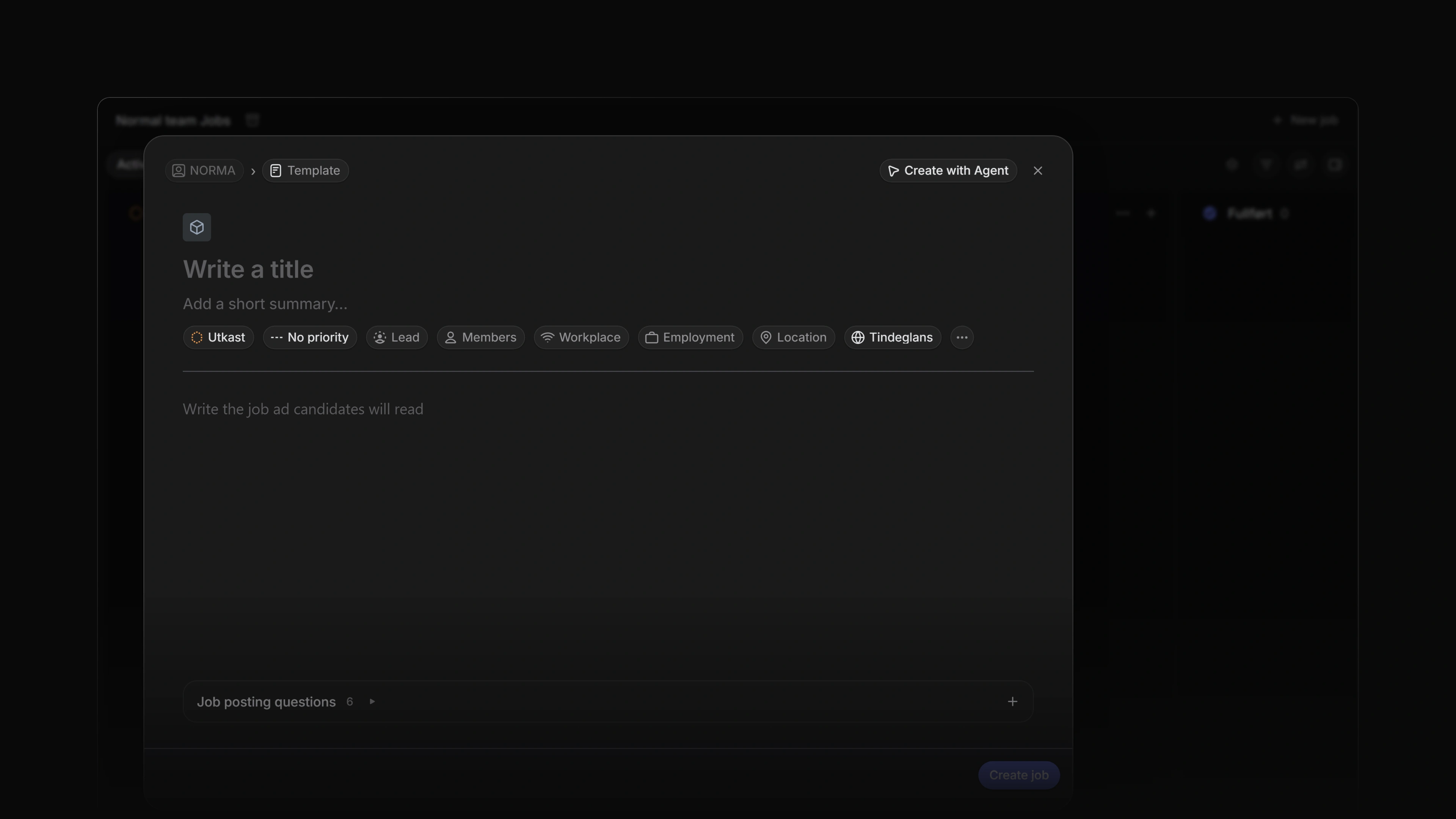
Press C anywhere in the workspace, select Create new at the top of the sidebar, or select New job on a jobs list. All three open the Create job dialog.
Only the title is required. Without one, the dialog says Add a title before creating the job.
The rest is optional and can be changed after the job exists:
- The team at the top of the dialog is the team that will own the job.
- The property row sets the status, priority, lead, members, workplace, employment type and location.
- More properties reveals contract type, positions, start date, target date, labels and career sites.
- Job ad is the description candidates read.
Select Create job to save it. If you close the dialog with unsaved changes, Attia asks Save to drafts? Save keeps the job in your drafts so you can finish it later, and Discard throws it away.
Who can create a job
You can create a job on a team if you are one of these:
- a workspace owner or admin who is not a guest
- an active member of that team, a guest on that team included
Attia refuses the job if you are neither for any of its teams.
View your jobs
Select Jobs in the sidebar to see every job in the workspace. Each team also has its own Jobs page under the team's name in the sidebar.
Both pages have two tabs:
- Active lists jobs whose Publish value is Draft, Live or Paused.
- All adds closed jobs.
Archived jobs are on neither tab. Job status explains when a job is archived and how to restore it.
The list opens as a board with one column per job status. Switch to a table or a list, and change grouping and ordering, from the display options. See Display options.
Select a job to open its page.
Applications in a job
An application is made for one job and stays on it. You cannot move it to another job. To consider the same candidate for a second role, add them to that job too. That makes a second application and leaves the first as it was. Create applications shows how.
Jobs on more than one team
A job can be shared across teams. Open the job and use the Teams property to add another team. Access follows this list: the people on any of the job's teams can see the job.
The first team is the job's owning team. The job's applications belong to it: a new application starts on the owning team's default status, and only the owning team's members and the workspace owners and admins can edit it. Members of the other teams can edit the job itself.
Job statuses and job labels are set for the whole workspace, so every team sees the same ones.
Start and target dates
A hiring plan is rarely certain to the day. When you set a job's start or target date in the Create job dialog, the picker offers five periods: Day, Month, Quarter, Half-year and Year. Pick the one that matches how sure you are, for example a quarter for a role planned for next autumn.
Delete a job
Open the job, select the ⋯ menu, and choose Delete job. The job moves to Settings → Recently deleted, where it can be restored for 30 days.
To delete a job you must be a workspace owner or admin who is not a guest, or an active member of the team that owns it. Attia refuses to delete a job that still has applications. Delete them first. Job status has the details.