
Notifications
Choose which hiring work reaches your Attia inbox.
Overview
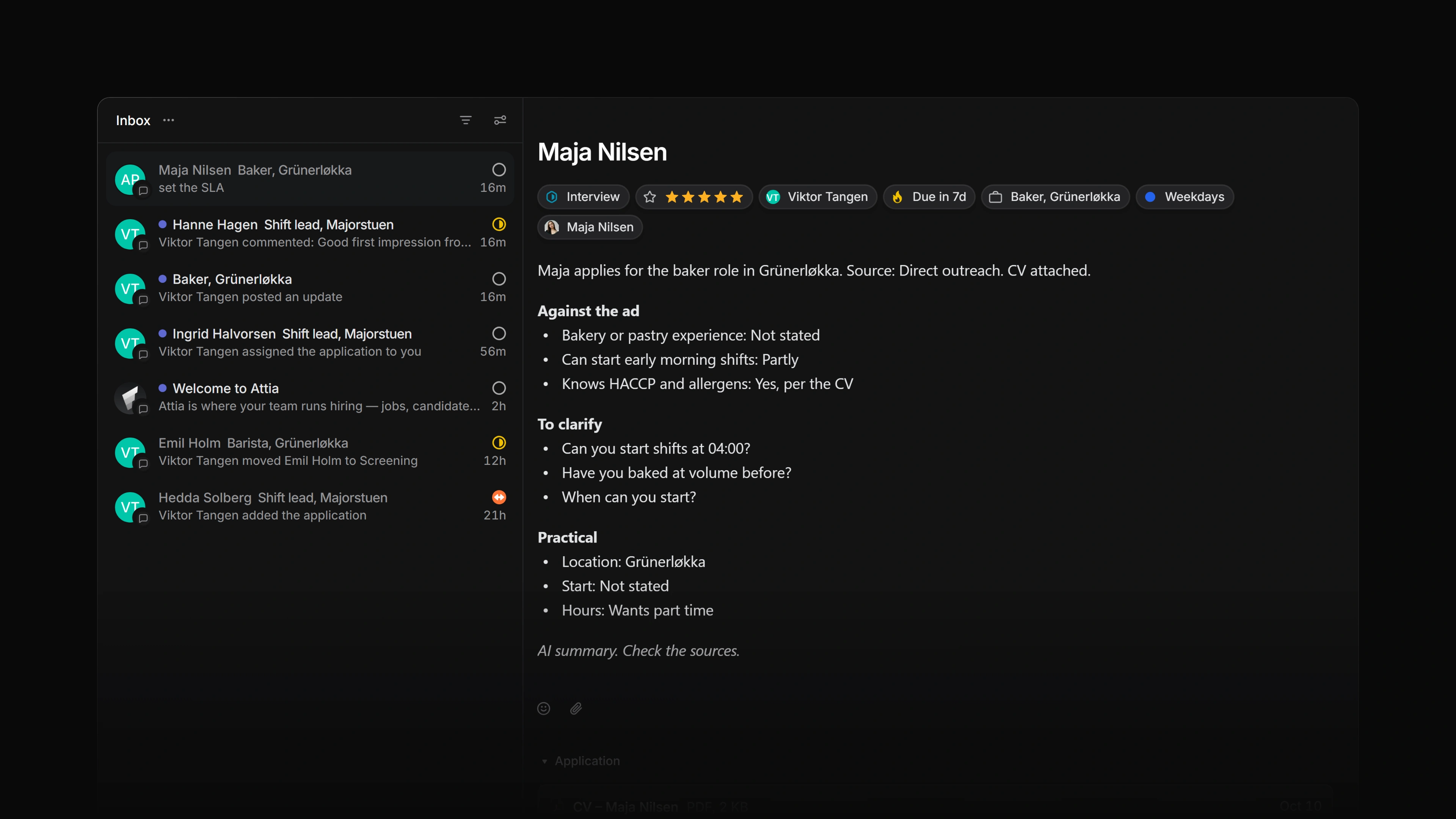
Your inbox is the one place Attia notifications go. You hear about the jobs, candidates, and applications you are subscribed to. Attia stays quiet about your own actions, and activity inside a private team reaches only that team's members.
 Zoom image
Subscribing to work
Attia subscribes you without being asked when you create a job, a candidate, or an application, and when an application is assigned to you. Reassigning an application moves that subscription to the new assignee. A subscription you made yourself, or one you hold as the creator, survives the handover.
Name a colleague with @ in a comment and they start following that thread. So does anyone who replies in it. The rest of the record stays quiet for them, so one question about a candidate's notice period does not sign a hiring manager up for every status change on the application.
To follow a candidate on purpose, open the candidate and use the bell in the header. Candidate notifications has three checkboxes: An application is submitted, An application changes status, and A comment is added.
To follow an application Attia did not sign you up for, open it and use the bell with a plus in the header. Subscribe to updates starts a subscription you hold yourself, and Unsubscribe from updates ends it.
To go quiet on a single application, use the plain bell beside it. Mute notifications silences every subscription you hold for that application, and Unmute notifications turns them back on. A mute wins over a subscription, so a muted application stays quiet even while you follow it.
My Applications > Subscribed lists the applications you follow.