
Notes and reactions
Leave private notes on an application, reply in threads, resolve them and react with emoji.
Overview
Notes and reactions let the hiring team talk about an application on the application itself.
A note is private to your workspace. The candidate never sees it. Anyone in the workspace who can open the application can add a note and reply to one. React with emoji to a note, a reply, or the application itself.
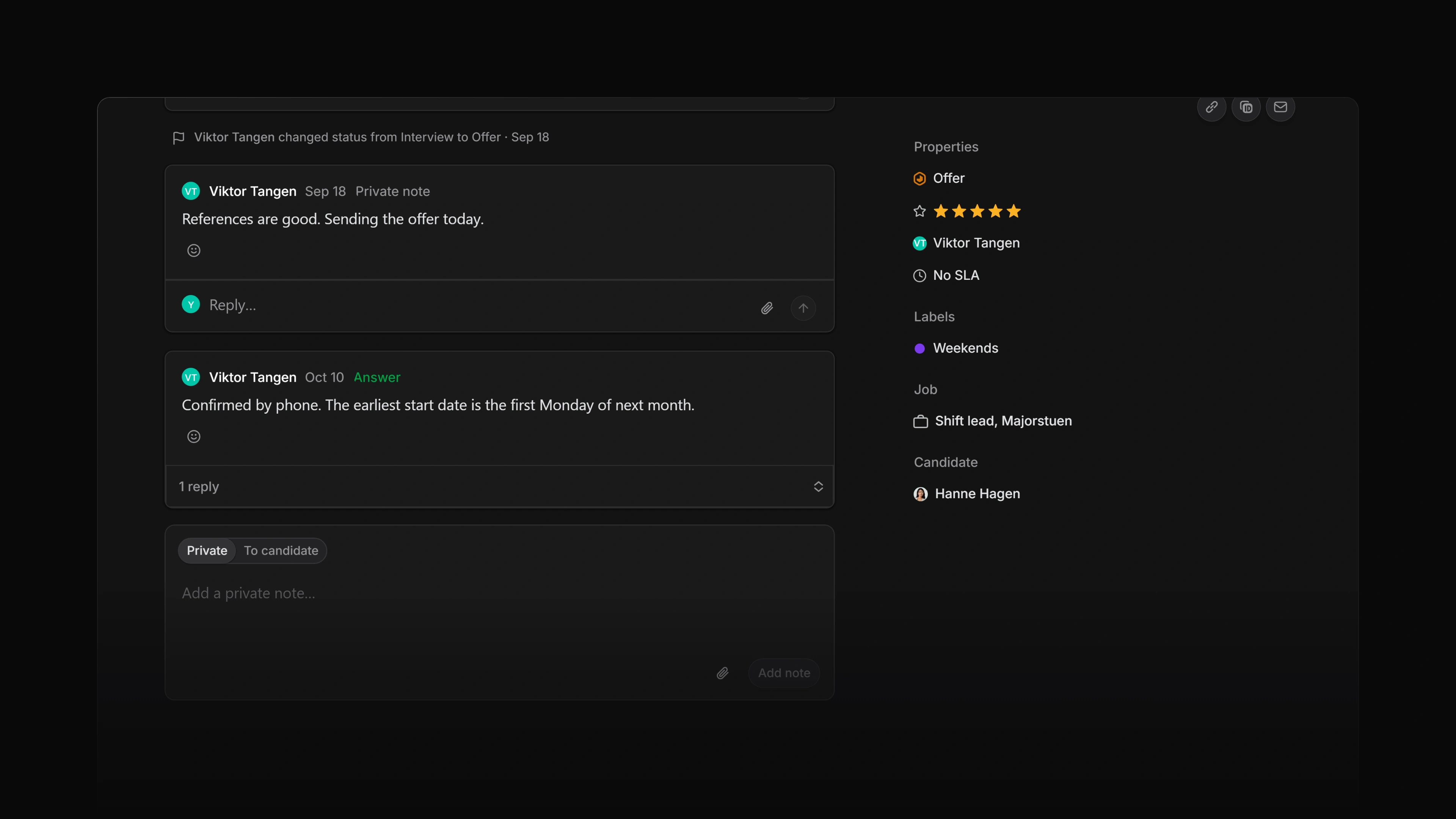 Zoom image
Add a note
Open the application and scroll to Activity. The box at the bottom has two tabs. Private is for notes. To candidate sends a message to the candidate instead, so check the tab before you post.
Write in Add a private note…, then select Add note or press Cmd/Ctrl Enter.
Attia saves what you write as a draft until you post it. An unposted note waits in the box, and Drafts in the sidebar lists it under Comments. Drafts shows in the sidebar while you have at least one.
Attach files with the paperclip button. They go into the note as file blocks.
Mentions
Type @ to mention a teammate, who then gets a notification. You can mention anyone in the workspace, but only people who can open the application are notified, and the menu marks the ones who will not be.
Mention Attia Agent to ask Agent about the application. Agent answers with a reply in the same thread. This needs a plan that includes Agent, with Agent switched on for the workspace.
Mentions belong to notes. If you move text with mentions from Private to To candidate, Attia removes the mentions and tells you.
Edit or delete a note
Open the ⋯ menu on a note you wrote. Edit opens the note in place. Select Save or press Cmd/Ctrl Enter to keep the change, or press Esc to drop it. An edited note is labelled Edited.
Delete asks first. The note is replaced with "[redacted]" for everyone, and you cannot undo it.
Only the author sees Edit and Delete.
Threads
Reply under any note to keep a topic in one place. Each thread ends in an open reply box, Reply…, so there is no button to find first. Write your reply and select Reply or press Cmd/Ctrl Enter.
A thread with more than three replies folds up. The newest reply stays in view, and the bar shows how many there are, as in 4 replies. Select the bar to open the thread and Collapse to fold it again.
Resolve threads
Resolve a thread when the question is answered or the decision is made, so nobody has to read the whole discussion to find the outcome.
- To resolve the whole thread, open the
⋯menu on the first note and choose Mark as resolved. - To point at the reply that settled it, open the
⋯menu on that reply and choose Mark as the answer.
A resolved thread folds, the answer stays in view with an Answer label, and the reply box goes away. To reopen the thread, choose Unresolve on the answer.
Emoji reactions
Select Add reaction on a note or a reply to pick an emoji. To react to the application itself, use the reaction row under the summary at the top of the page.
Select a reaction someone else added to add yours. Select it again to take yours back.