
Search
Find applications, jobs, candidates and documents across your workspace, or find rows in the list you are on.
Overview
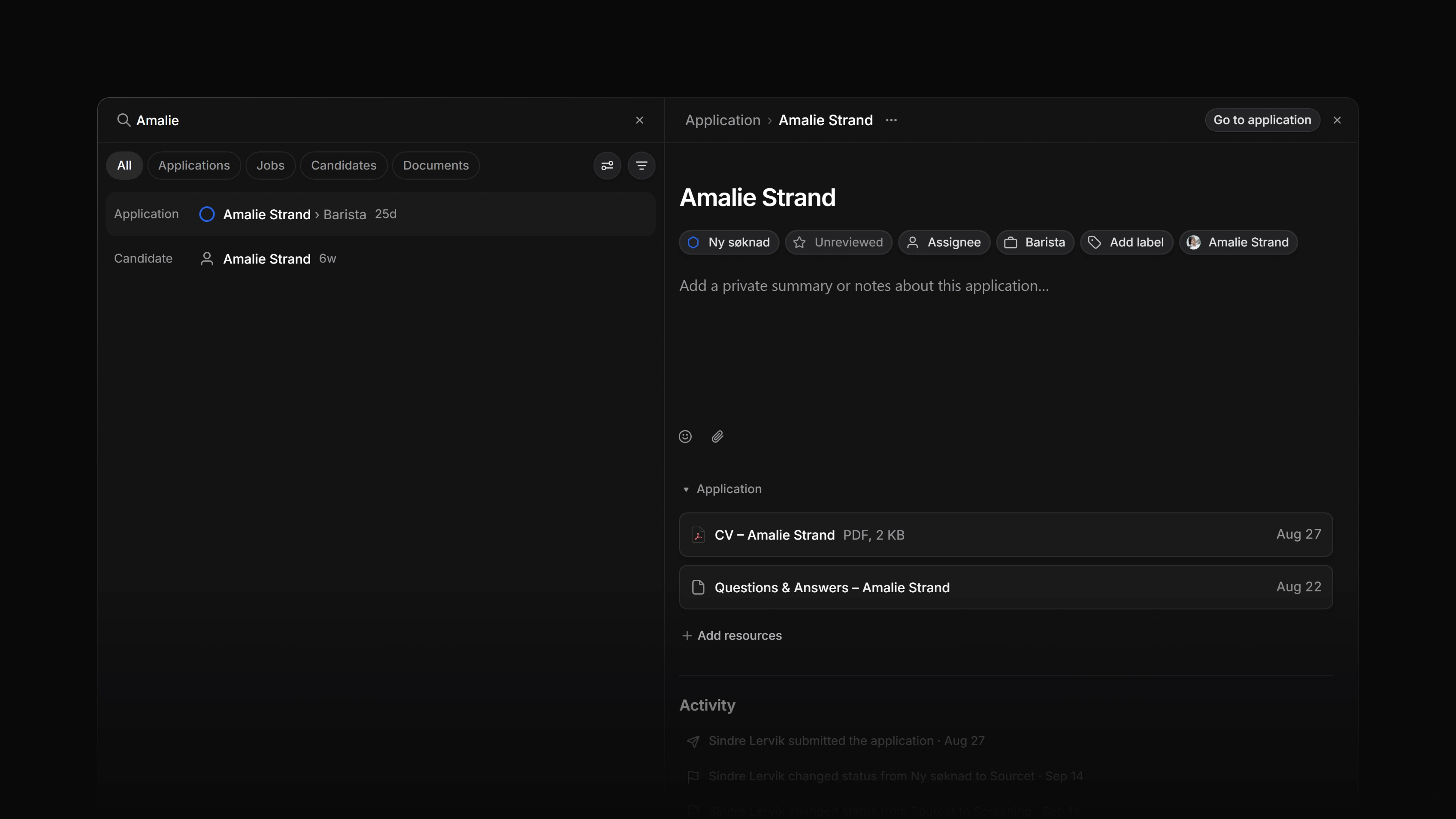
Search finds applications, jobs, candidates and documents across your workspace. It has its own page, and the result you click opens beside the list, so you can read one record after another without losing your search.
 Zoom image
Keyboard
/ opens the search page from anywhere in the workspace.
Cmd/Ctrl F finds rows in the Jobs, Applications or Candidates list you are on. Esc clears the text, and a second Esc closes the field.
Mouse
- Click the magnifying glass at the top of the sidebar to open the search page
- Click a result to open it beside the list
Cmd/Ctrl-click orShift-click a result to open it in a new tab
Basics
Search the workspace
Press / or click the magnifying glass at the top of the sidebar, then type. Results update as you type. The tabs under the search field narrow them to Applications, Jobs, Candidates or Documents, and All shows every kind together.
Each kind of record matches on its own text:
- A job matches on its title, summary, description, location, teams and status.
- An application matches on the candidate's name, the job's title, the candidate's location, the job's teams and the application's status. It shows as the candidate's name, followed by the job.
- A candidate matches on name and location.
- A document matches on its title.
Search ignores case but otherwise looks for your text as you typed it. Two words only match where they sit next to each other, in that order, so search for one word when you are not sure how the rest is written.
Records whose title starts with your text come first, then records whose title contains it, then records that match on their other text. Within each group, the most recently updated record comes first. The list shows the first 50 matches, so add a word or a filter when the record you want is not there.
When the list may be missing records, for example while your workspace is still syncing to this device, the tab row says Some results may still be syncing.
The address bar keeps your search text and tab. Copy the link to come back to the same search later.
Open a result
Click a result to open it in a panel beside the list. Drag the divider to make the panel wider or narrower. The link at the top of the panel, such as Go to application or Go to job, opens the full page. Close the panel with its close button, or press Esc while the cursor is in the search field.
Cmd/Ctrl-click or Shift-click a result to open it in a new tab instead. With the keyboard, Tab to a result and press Enter.
Search filters
The filter button in the search page's toolbar narrows the results the same way filters narrow a list. The search page offers Team, Status type, Assignee / Lead, Creator, Update date and Create date.
Status type groups job and application statuses by kind: Triage, Backlog, Todo, Active, Completed and Closed. Assignee / Lead is the person assigned to an application or the lead of a job. Creator applies to jobs and documents.
A candidate has no team, status or assignee, so a filter on any of those leaves candidates out of the results. See Filters for how to add, change and combine filters.
Display options
The display options button on the search page has two settings:
- Ordering sorts the results by Most relevant, which is the order described above, Last updated or Last created.
- Include archived also searches archived jobs, applications and documents. Archived candidates are not searched. An archived job matches only on its title, team and status, and an archived application only on the candidate's name and the job's title.
Archived results come after the others and carry an Archived badge. Clicking one opens the archive page for that kind of record instead of the side panel.
Both settings start over each time you open the search page.
Recent searches
Before you type, the search page lists your recent searches. A search is added to the list when you press Enter or open one of its results. Attia keeps your last 10 searches for each workspace, in the browser you searched in.
Click a recent search to run it again. Hover over one and click the x to remove it, or click Clear History to remove them all.
Find in a list
Cmd/Ctrl F on the Jobs, Applications or Candidates list opens a Find in view... field in the list's toolbar. As you type, the list keeps only the rows where one of the shown properties contains your text, including values picked from a list, such as a status name. Properties hidden in display options are not searched.
Find in view works like a temporary filter and does not change the view. Press Esc to clear the text, and Esc again to close the field. An empty field also closes when you click somewhere else.