
Job status
Track where a requisition sits in your pipeline, publish it to candidates, and put it away when it is done.
Overview
A job carries two statuses, and they answer different questions.
- Status is the requisition's internal stage: where the role sits in your own hiring process. Your workspace defines these.
- Publish is whether candidates can apply: Draft, Live, Paused, or Closed. This set is fixed.
So a job can be In progress internally and Paused to candidates. Neither status changes the other.
 Zoom image
Change a job's status
Focus a job row and press S, or select Status on the job overview.
Status never changes by itself. Filling one of three openings does not close the requisition; a recruiter decides that. A few things set it without a recruiter picking from the list: the status a new job starts on, and the remap that runs when an admin deletes a status jobs are still using. The Agent can pick the starting status when it fills in a new job for you, but it cannot change the status of an existing job. None of the nightly sweeps described below changes it: the two auto-close sweeps move Publish, and the archive sweep only stamps the job as archived.
The Status column shows how long the job has been in its current status, and every change is written to the job's timeline with who made it.
The status catalog
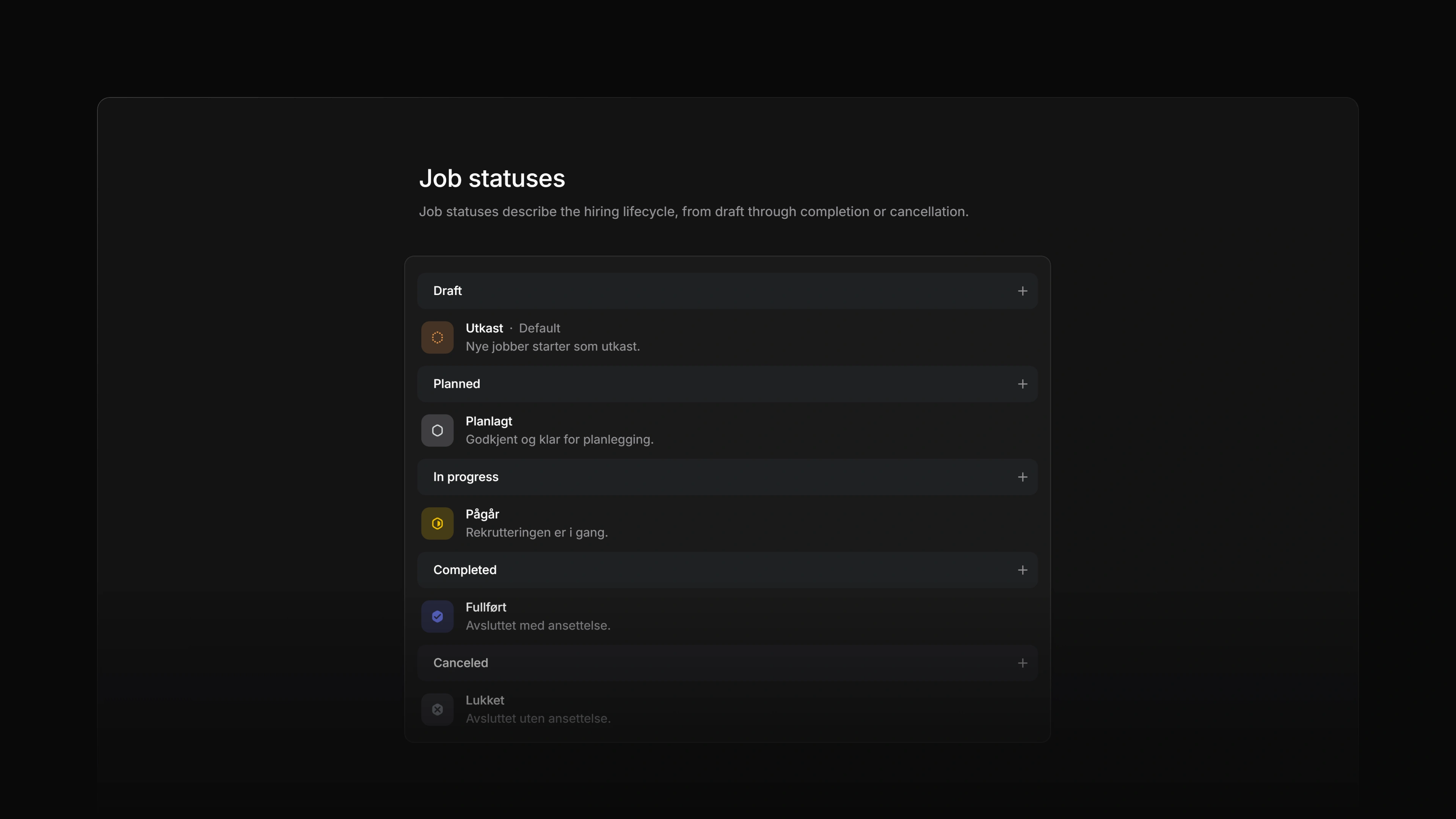
A new workspace starts with five statuses: Draft, Planned, In progress, Completed, and Canceled. New jobs start on the default status, which is Draft until an admin picks another. A job template can start its jobs on a different status.
Every status belongs to one of five categories: Draft, Planned, In progress, Completed, or Canceled. The category drives the status icon and every report that asks whether a requisition is still open.
Edit the catalog
Job statuses are set for the whole workspace at Settings → Jobs → Statuses. Only a workspace admin can change them.
You can change a status's name, description, colour, and position, and choose which one new jobs start on. A few rules hold:
- A status keeps its category for life. Turning In progress into a completed status would rewrite the meaning of past reporting, so it is not allowed.
- The default must be a Draft or Planned status. A job cannot be born finished.
- Names are unique per workspace, ignoring case.
- Deleting a status that jobs still use asks you to nominate a replacement first, then moves those jobs to it.
- You cannot delete the default status, or the last status left in a category.
How much of an application's progress candidates see in the candidate portal is a team setting, not part of this page. Open the team's Statuses settings and use Candidate experience: Exact statuses, Status categories, or Minimal, which shows only whether the application is submitted or closed.
Archiving is automatic
There is no Archive button. A closed job and its applications are archived together once every one of them has been closed and inactive for the period set in the team's Workflow settings, six months by default. That sweep runs once a night, so a change applies within a day.
An archived job leaves every job list and comes off any public career site. Its candidates and applications are kept, and its own URL still opens: the record reads as usual under a banner saying it is archived, and nothing on it can be changed until it is restored.
Restoring is manual. Open the archived job and press Restore in that banner. To find an archived job, press G then X on any of a team's pages. That opens the team's Archive, which holds four tabs: the team's archived jobs, its archived applications, its archived documents, and everything the team deleted in the last 30 days. On a team's jobs list, the Archived jobs button in the header opens the same page. A workspace-wide page at /jobs/archived lists the most recently archived jobs you can restore across the whole workspace. No menu links to it.
Restoring returns a job to the status it had when it was archived. Archiving never touched the status, so nothing has to be guessed on the way back. A job that was Live when it was archived is Live again, which puts it back on any public career site it was on.
Delete a job
Open the job, use the ⋯ menu, and choose Delete job. The job moves to Settings → Recently deleted, where it can be restored for 30 days. After that it is removed for good.
A job that still has applications cannot be deleted, because deleting a job must never delete a real person's application. Attia refuses the delete and asks you to delete or move them first. An application is deleted the same way, from the ⋯ menu on its own page, and it stops counting toward your plan the day you delete it.
Close stale jobs automatically
A team can close its own stale jobs on a schedule. Open the team's Workflow settings and turn on Auto-close stale jobs, then choose how long a job may sit idle (1, 2, 3, 6, 9, or 12 months). The sweep sets a stale job's Publish value to Closed, and that is the only outcome it can write. The job's pipeline Status is left where the recruiter put it.
A job is stale when nothing has happened to it: no edit, no publish, no new application, and no application status change in that period. The sweep runs once a night. It only touches jobs owned by that team, and only jobs that are Draft, Live, or Paused. Anything already closed or archived is left alone.
Nothing is deleted. A closed job is reopened from the Publish picker, with its candidates and applications intact. This sweep never archives. Archiving is the separate nightly pass described above, and it comes for the job only once the job and its applications have been closed and idle for the team's archive period.
Workspace admins and the team's lead can change these settings.
A passed application deadline closes the job
Give a job an Application deadline and the last day is inclusive: candidates can apply until 23:59 in the team's timezone on that date. The moment it passes, the job comes off your career site and a late application is refused with The application deadline for this job has passed. None of that waits for a sweep.
What does wait is the job's own Publish value. A nightly sweep sets it to Closed once the deadline has passed, so your job list stops showing a role that stopped accepting applications. Because that sweep runs at one fixed time, the change can arrive up to a day after the deadline. Only your internal view lags; candidates saw the job close on time.
There is nothing to turn on and nothing to configure. The deadline is the setting: a job without one is never touched, however old, and a Draft or Paused job keeps the value you gave it. Nothing is deleted, and reopening is one change in the Publish picker. Extend or clear the deadline in the same sitting, or the next night's sweep closes the job again.
Who can restore or delete a job
Workspace admins, and active members of the team that owns the job, including a guest who has been added to that team. This is narrower than editing: someone on a team the job was added to later can change the job's fields, but cannot restore or delete it.