
SLAs
Put a deadline on an application, by hand or by rule, and get told before it passes.
Overview
An SLA puts a deadline on an application and shows how much time is left.
Use them where a slow reply costs you the candidate: a referral that should get a first response inside 24 hours, a senior role where the hiring manager promised feedback within a week, an agency pipeline you have committed to.
Attia can apply SLAs automatically through rules, and you can set one by hand on a single application.
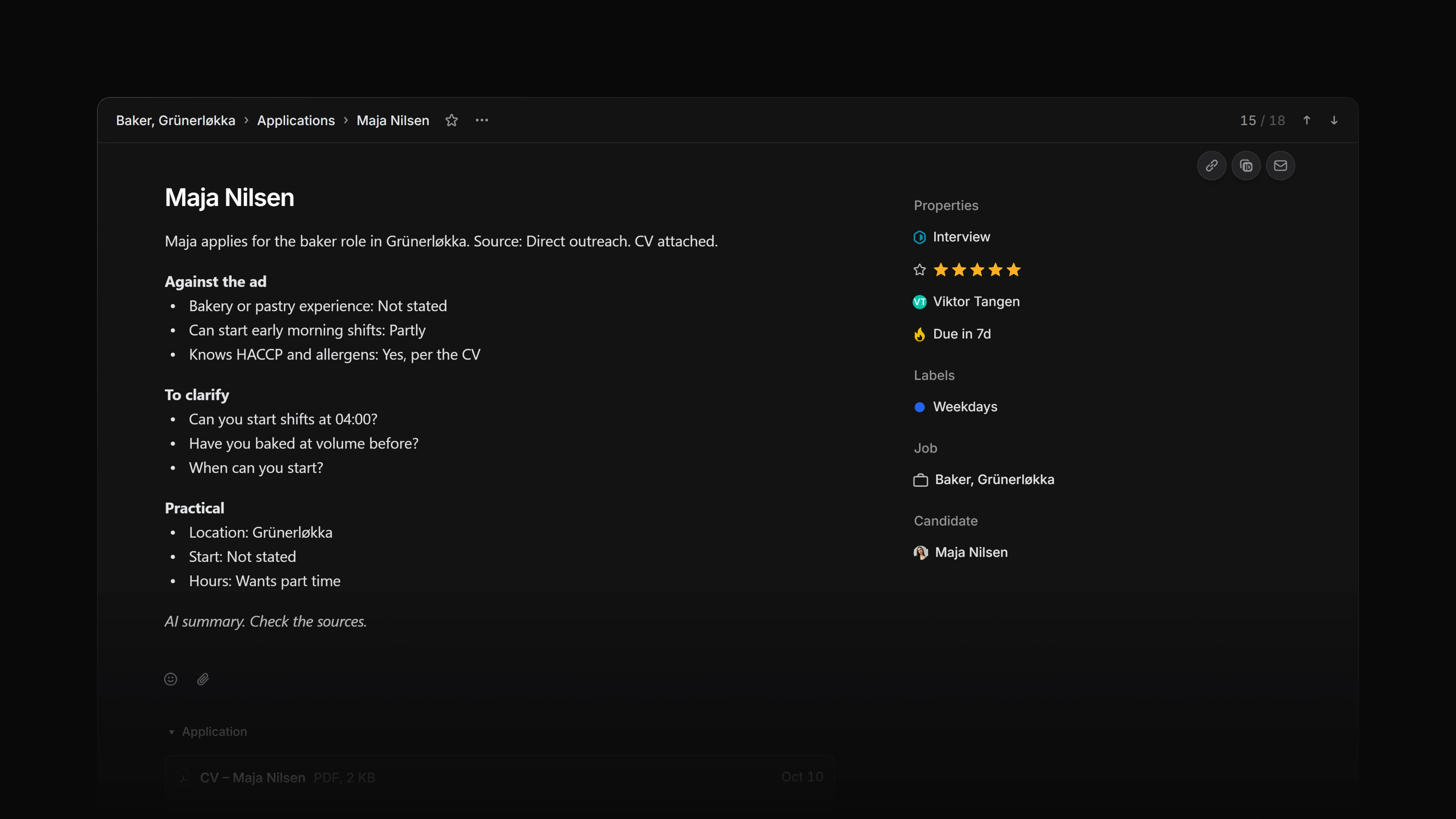 Zoom image
Turn SLAs on
Go to Settings → Applications → SLAs and switch Enable SLAs on. Until you do, the SLA row stays hidden on applications that do not already have one. Only workspace admins can open this page.
SLAs are available on Business and Enterprise. On any other plan the page is locked: the switch becomes an Available on Business link to the plans page, so you cannot turn SLAs on. If SLAs were on before the workspace moved to a lower plan, or an application already has an SLA, you can still set, change or remove a deadline by hand.
Read the SLA on an application
The SLA sits in the property rail as a flame that changes colour as the deadline approaches.
| Status | Meaning |
|---|---|
| Low risk | More than a week left |
| Medium risk | Within a week |
| High risk | Within 24 hours |
| Breached | The deadline has passed |
| Achieved | Decided before the deadline |
| Failed | Decided after the deadline passed |
The clock stops when the application moves to a status in the Completed or Closed category, is withdrawn, or is archived. The SLA stays on the record and shows whether it was achieved or failed, to the minute.
Set an SLA by hand
Open the application and select the SLA row in the property rail. Choose 12 hours, 24 hours, 48 hours, 1 week, 2 weeks or 4 weeks. Remove SLA clears it.
A hand-set SLA is yours. An automation rule that adds SLAs never overwrites it.
A rule that removes SLAs can still clear one you set by hand. Setting an SLA runs the rules straight away, so if a removal rule matches the application, your SLA is gone at once. Check your removal rules before setting an SLA manually.
Automation rules
On Settings → Applications → SLAs, select Add rule. A new rule goes to the top of the list.
A rule has two halves. When is a set of filters, and Then is either Add SLA with a duration or Remove SLA. The duration is one of the presets above, or Custom… for anything from 1 minute to 4 weeks, counted in calendar or business time.
You can filter on Job, Status, Status type, Assignee, Creator, Team, Source and Labels, and, under Job properties, on Job status, Job label, Job lead, Job priority and Job template. Each filter is is or is not. Filters combine, so Status is Screening and Source is Referral matches only applications that are both. A rule with no filters matches every application.
Rules run when an application is created, and when its job, status, assignee, creator, team, source or labels change, or it is withdrawn or archived. When the application's job changes status, lead, priority, template or labels, its applications are checked again on the next sweep, which runs every 15 minutes. Rules do not run while SLAs are switched off, or on an application that is already closed.
Order matters
Only the first matching rule is applied. Drag rules into the order you want them evaluated. Put your most specific rules above your general ones, or the general one will win first.
Rules do not apply retroactively
Creating or changing a rule does not touch applications that already exist. A new rule takes effect the next time a matching application is created or changes.
Editing a rule does not re-date the applications it already clocked. They keep their deadline even when they change later, because they still match the same rule.
An SLA belongs to the rule that set it
If an application keeps matching the same rule, the clock is left alone. Editing a label or reassigning does not quietly restart the deadline.
If it starts matching a different rule, the SLA changes to that rule's duration and the clock restarts from that moment.
An application that stops matching any rule keeps the SLA it has.
Removal rules
A rule can remove an SLA as well as add one. These keep your data honest: when an application moves somewhere the deadline no longer makes sense, the SLA goes with it.
Business days
A rule can count in calendar time or in business days. Business days skip the days outside your work week. Set it under Work week on the same page once SLAs are on: Mon-Fri (the default), Sun-Thu, Mon-Sat or All days.
A 24-hour business-day SLA set on Friday afternoon is due Monday afternoon.
Notifications
Anyone subscribed to an application is notified in their Inbox:
- 24 hours before the deadline, or one business day before for a business-day SLA
- When the deadline passes
Breaches are detected by a sweep every 15 minutes, not when somebody happens to open the application, so an SLA that passes overnight is recorded overnight.
Attia sends these to your Inbox. There is no email or Slack delivery today.
Retiring a rule
Rules are retired, not deleted. A retired rule stops matching immediately, and applications it already clocked keep their deadlines.
Retired rules are listed under Retired rules on the same page. Restore puts one back in the evaluation order.
That is on purpose: the activity feed on each of those applications still marks the SLA with a Rule badge, and keeping the rule keeps that history whole.