
Documents
Write briefs, scorecards, and runbooks alongside the teams, jobs, and applications they belong to.
Overview
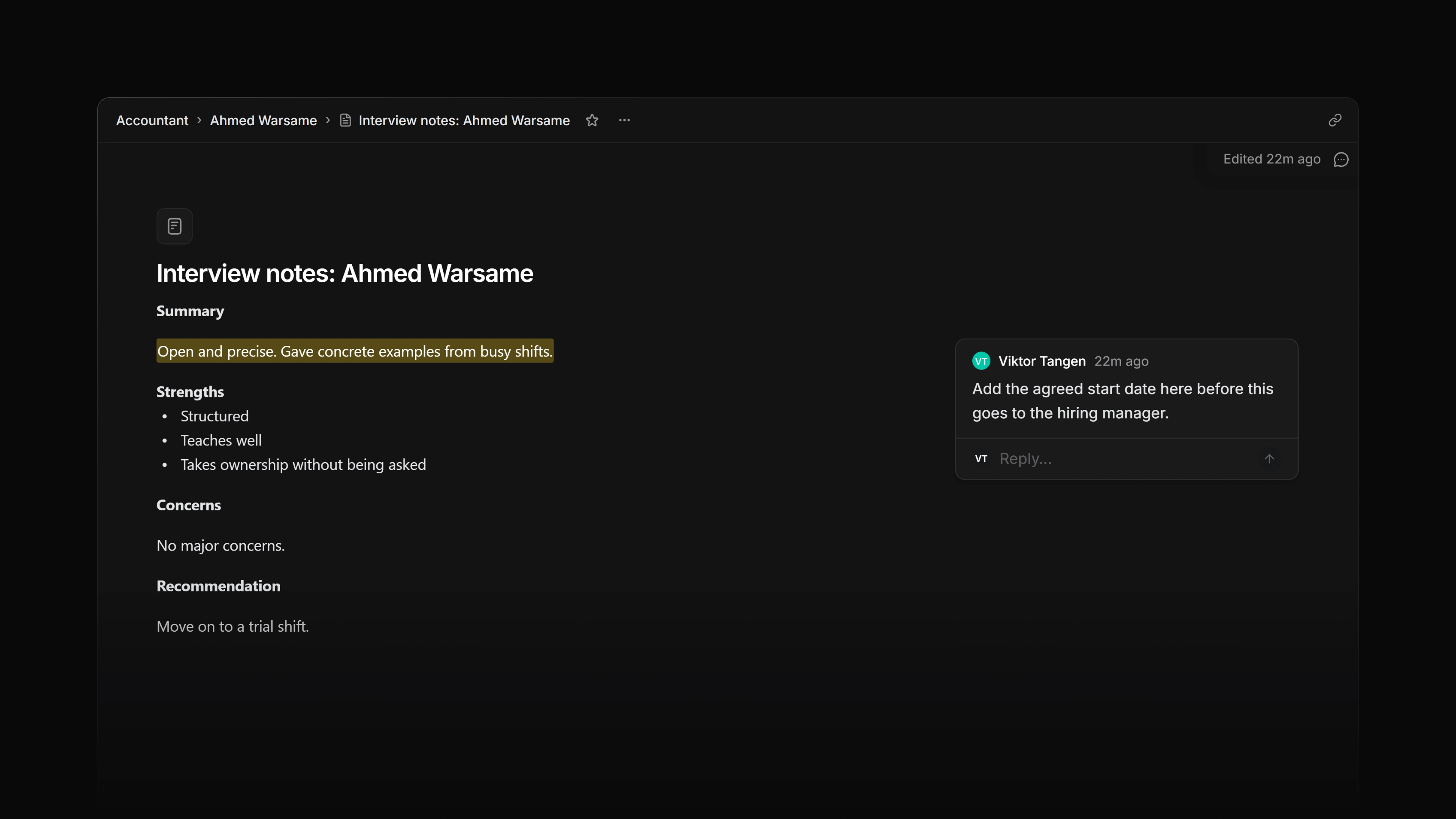
A document is a shared page for the writing that surrounds hiring work: a role brief, an interview guide, a scorecard, a debrief, or a team runbook.
A document can be attached to a team, a job, or an application, or to nothing at all. What it is attached to decides who can read it and who can change it.
 Zoom image
Create a document
| Start from | How |
|---|---|
| A team | Open the team, go to Documents, and select New document. |
| A job | Open the job and add a document from Resources. |
| An application | Open the application and add a document from Resources. |
| Anywhere | Open the command menu and choose Create new document..., or press N then D. The document is attached to nothing. |
A new document opens straight away and saves as you type.
There is no workspace-wide list of documents. To reach a document you did not file yourself, use search, which matches documents on their title and not their contents. You can also favorite a document from its header so it stays in your sidebar.
Who can read a document
A document inherits the access of everything it is attached to, and those rules stack:
- Attached to a job or an application: visible to the people who can see that job or application.
- Attached to a team: visible to the people who can access that team.
- Attached to two things: visible only to people who can see both.
- Attached to nothing: visible to everyone in the workspace, including guests.
So attaching a brief to a confidential team's job is enough to hide it from everyone outside that team, even if the same document is also filed under a public team.
Who can edit a document
Being able to read a document does not let you change it.
| Action | Who can do it |
|---|---|
| Read | Anyone the rules above allow |
| Comment, reply, react, resolve and reopen threads | Anyone who can read the document |
| Edit the body, title, or icon | Workspace admins, and members of every team the document is attached to |
| Attach it somewhere else, or detach it | Same as editing |
| Archive or delete it | Same as editing |
A job or an application counts as the team that owns it, so editing a job's document takes membership of that job's team.
A document attached to nothing belongs to the whole workspace, so any member can edit it. Guests cannot.
Guests can read and comment on documents they have access to. A guest can also edit, archive or delete a document when every team it is attached to is a team the guest belongs to.
Attia does not yet show a read-only view to people without edit rights. If you type in a document you are not allowed to change, nothing is saved: you see Could not save document, and what you typed stays on screen until you leave the page. Then it is gone.
Write
Set the icon and title at the top, then write below. Type / for headings, lists, checklists, quotes, code blocks, tables, and dividers. Changes save on their own. The top right of the document shows when it was last edited, or Draft if nobody has edited it yet.
Hover a heading to copy a link pointing at that heading. The link button in the top right copies the document's own address.
Two people cannot write in the same document at once. If someone else saves while you are typing, a bar appears across the top: Someone else edited this document. Saving stops there. The title and body go read-only, so nothing you write from that point can land on top of theirs. Take Copy my version to put your text on the clipboard, then Reload to pick up theirs and paste what you need back in. Attia will not merge the two for you, and it will not silently pick a winner.
Comment
Select any text and choose the comment button to open a thread. Threads sit in the margin next to the text they belong to, and take replies and emoji reactions.
Resolving a thread hides it. The speech-bubble button in the top right lists resolved threads, and any of them can be reopened.
Anyone who can read a document can comment on it, guests included. An archived document takes no new comments.
Move, archive, and delete
Move. In a job's Resources, use Move to to hand a document to another job or team. It moves in one step, so it is never attached to both at once.
Take it off a job. Remove from job in a job's Resources menu takes the document off that job and nothing more. The document survives, and if that job was the only thing it was attached to, it becomes visible to the whole workspace. To remove the document itself, open it and use Delete document.
Delete it from an application. Delete in an application's Resources menu is different: it deletes the document, not just the link.
Archive. Archive document in the document's own menu takes it out of lists and search. An archived document still opens from its address, read-only, with a banner, and people who can edit it see Restore there. Search finds it when you turn on Include archived. A team's archived documents are also on the team's Archive page: the archive icon in the team's Documents toolbar opens it, and its Documents tab lists them. Restore puts a document back exactly where it was, comments included.
Delete. Delete document removes it, and its comments, for everyone in the workspace. A deleted document is kept until someone restores it: it is listed in Settings → Recently deleted and on the Recently deleted tab of the team's Archive page.
Document templates
A template is a document that starts pre-written. Pick one instead of Blank when you create a document, and its icon, colour, and body are copied in. The new document is titled Untitled document, because the template's name names the template, not the documents made from it. It is a snapshot, so editing the template later does not touch documents already made from it.
Where they live. Workspace templates are in Settings → Features → Documents, and they can be used for any team. Team templates are in that team's own Templates page and are offered only when the document belongs to that team.
Who can make them. Workspace templates follow the Manage workspace templates setting in Settings → Security, and team templates follow that team's Template management setting. Both allow every member by default, and both can be narrowed. Guests cannot manage templates in either scope.
Managing one. The overflow menu on an active template row offers Edit, Duplicate and Archive. On an archived template it offers Restore and Delete permanently. Inside a template's own editor the ··· menu carries Duplicate and Delete permanently, so deleting does not require archiving first. Archiving hides a template from the picker without deleting it. Use the filter above the list to switch between Active and Archived templates. Deleting asks you to retype the template's name because it cannot be undone.
Not available yet
- Version history. Earlier versions of a document cannot be opened or restored.
- Following a document. There is no way to subscribe to one, because there is nothing yet that would notify you. No document activity reaches your Attia inbox, and there is no email or Slack delivery. Check the documents you care about directly.
- Images and file attachments. A document holds text, links, tables, and code, not uploaded files. Attach a file to the application instead.
- Writing together in real time. Only one person's changes can be saved at a time.