
SAML and access control
How an Enterprise workspace gets SAML single sign-on, what the connection rows show, and who can remove one.
Overview
SAML single sign-on lets the people in your workspace sign in to Attia through your company's identity provider. SAML is part of the Enterprise plan.
Attia sets the connection up for you. There is no form where you enter your identity provider's details yourself. You ask, Attia connects your identity provider, and the connection then appears in Settings → Security.
 Zoom image
Who can see and change it
Only workspace admins can open Settings → Security. Any admin can read the SAML rows there. Only the workspace owner can remove a connection.
Get SAML set up
- Open Settings → Security.
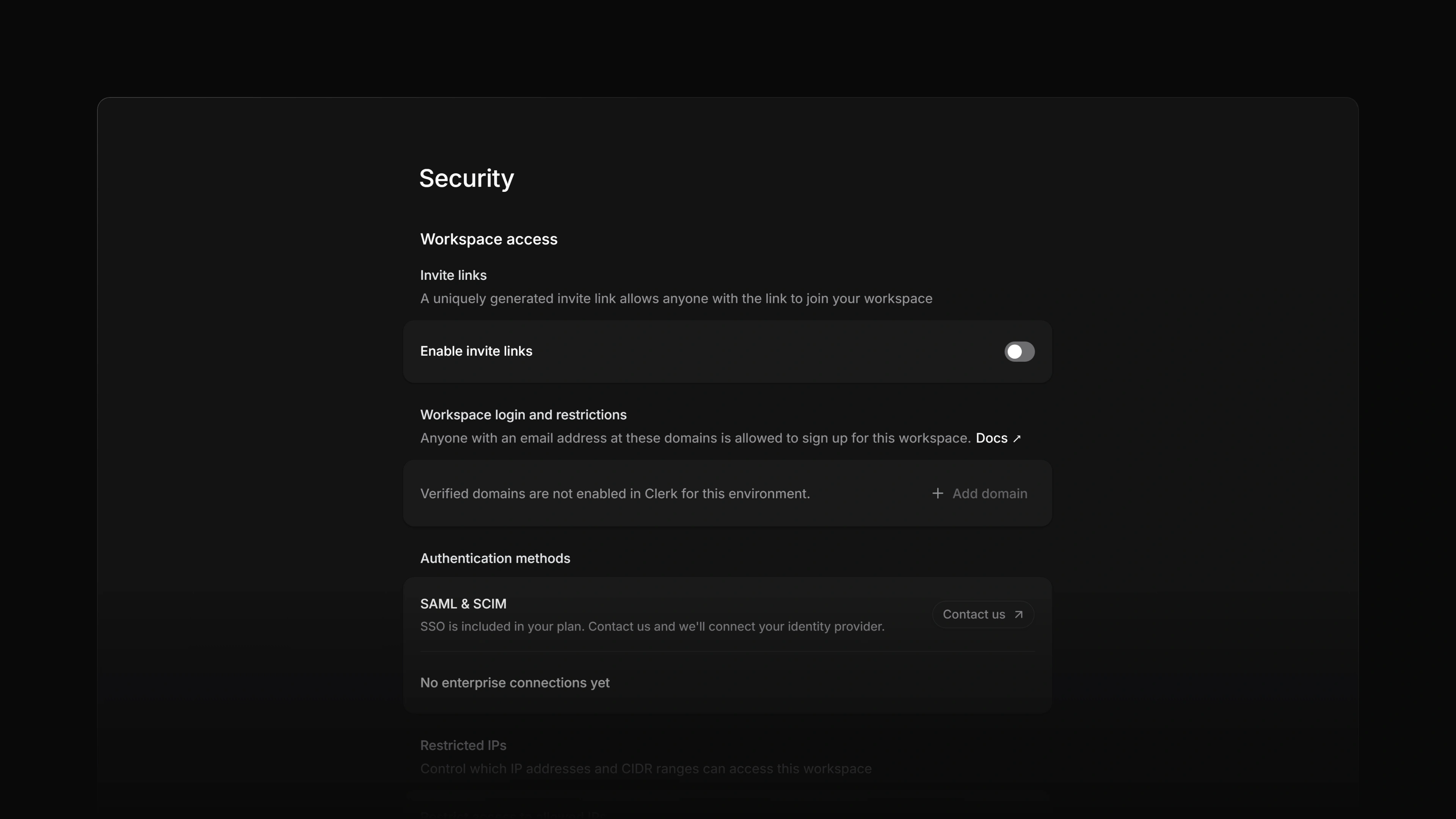
- Under Workspace access, find Authentication methods. The row is called SAML & SCIM.
- On the Enterprise plan the row reads SSO is included in your plan. Contact us and we'll connect your identity provider. Select Contact us. It opens an email to Attia.
On any other plan the row shows Available on Enterprise instead, which opens the plans page.
Your connections
Below the SAML & SCIM row, Attia lists the connections set up for your workspace. The heading counts them, for example 1 enterprise connection, and reads No enterprise connections yet before the first one exists.
Each connection row shows:
- the name of the connection
- the email domains the connection manages, or No managed domains
- the ACS URL of a SAML connection, which is the address your identity provider sends sign-in responses to
- a badge for the protocol: SAML, OIDC or SSO
- a SCIM badge when your plan includes SCIM: SCIM not configured, SCIM active or SCIM disabled
To change a connection, for example to add a domain or replace the identity provider's metadata, contact Attia. Connections cannot be created or edited from the settings page.
Remove a connection
Only the workspace owner can do this.
- Open the ... menu on the connection row and choose Remove connection.
- Attia asks you to confirm in a dialog called Remove Enterprise SSO connection. Removing a connection disables SSO sign-in through that identity provider for its managed domains.
- Confirm with Remove connection.
The row shows Removing while Attia works, and you get the message Enterprise SSO connection removed when it is done.
Removing a connection also ends SCIM team provisioning for it. Attia retires the group to team mappings of its SCIM directory and removes the team memberships that directory provisioned. Team memberships someone added by hand stay.
There is no undo. To get a removed connection back, contact Attia.
Approved email domains
Approved email domains is a separate setting on the same page, under Workspace login and restrictions. Anyone with an email address at one of these domains is allowed to sign up for the workspace.
This list is not the same as a connection's managed domains. The managed domains belong to the connection Attia set up. Approved email domains decide who may sign up.
Approved email domains are an Enterprise feature, and only the workspace owner can change them. To add one:
- Select Add domain.
- Enter the Domain and an Email for verification at that domain, then select Add domain again.
- Enter the verification code sent to that address, then select Verify domain.
Each domain shows as Verified or Unverified. Its menu has Verify domain, for a domain that is still unverified, and Remove domain.
SCIM
SAML covers sign-in. To have your identity provider add and remove workspace members and place them in teams, set up SCIM on the same connection.