
Billing and plans
What each plan includes, who can change the plan, and where the payment method and invoices are.
Overview
Attia has four plans: Free, Basic, Business and Enterprise. A new workspace starts on Free. The plan sets a few limits and decides which features the workspace has.
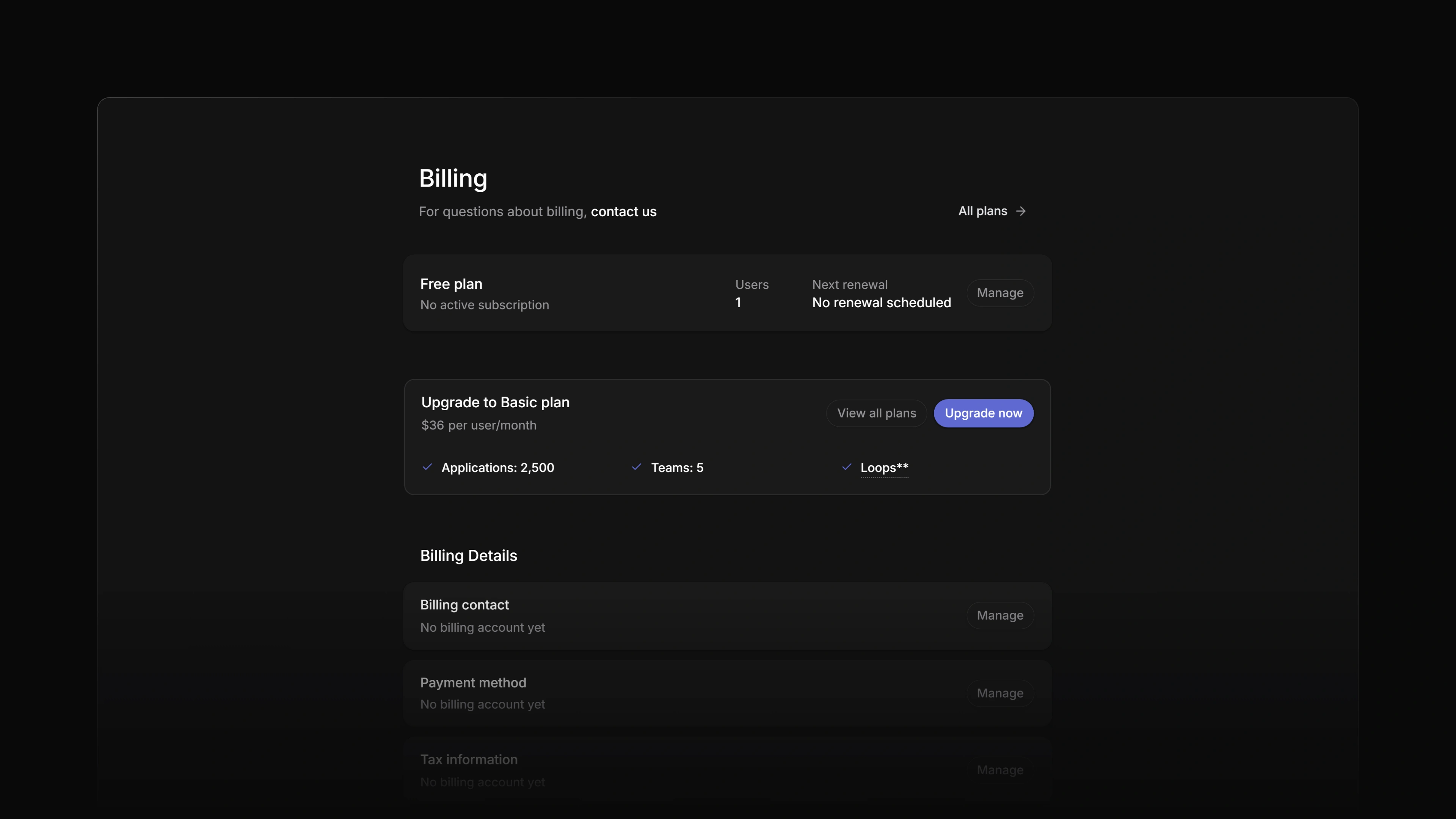
Workspace admins manage the plan and the payment details in Settings → Billing. Payments run through Stripe, so the payment method, the billing contact and the invoices open in the Stripe billing portal.
This article does not list prices. See the pricing page.
 Zoom image
What each plan includes
Limits
| Free | Basic | Business | Enterprise | |
|---|---|---|---|---|
| Member seats | 20 | 20 | 20 | 20 |
| Applications that are not archived | 100 | 2,500 | Unlimited | Unlimited |
| Teams | 1 | 5 | Unlimited | Unlimited |
| Sub-team levels | None | None | 1 | 5 |
| Career sites | 1 | 1 | 1 | Unlimited |
Member seats count pending invitations too. To go above 20, contact us. See Invite members.
Applications always arrive, whatever the plan. When a workspace is over its application limit, its applications become read-only until you delete some or move to a higher plan. Application and team limits explains what counts.
Teams covers the team and sub-team limits.
Features
| Feature | Free | Basic | Business | Enterprise |
|---|---|---|---|---|
| Loops | ❌ | ✅ | ✅ | ✅ |
| Private teams | ❌ | ❌ | ✅ | ✅ |
| Guest accounts | ❌ | ❌ | ✅ | ✅ |
| Team owners | ❌ | ❌ | ✅ | ✅ |
| Insights | ❌ | ❌ | ✅ | ✅ |
| Application SLA rules | ❌ | ❌ | ✅ | ✅ |
| SAML single sign-on and SCIM | ❌ | ❌ | ❌ | ✅ |
| Approved email domains | ❌ | ❌ | ❌ | ✅ |
| Restricted IPs | ❌ | ❌ | ❌ | ✅ |
| File upload restrictions | ❌ | ❌ | ❌ | ✅ |
| Audit log | ❌ | ❌ | ❌ | ✅ |
On the Free plan every member who is not a guest counts as a workspace admin. On the paid plans only the owner and members with the Admin role do. See Members and roles.
Who can manage billing
Any workspace admin. Settings → Billing and the Plans page do not open for other members, and Attia refuses a billing change from anyone who is not a workspace admin. Billing is not limited to the workspace owner.
The billing page
Settings → Billing shows the plan the workspace is on, the number of Users and the Next renewal. Paid plans are billed per user.
Below that are three rows, each with a Manage button that opens the Stripe billing portal:
- Billing contact
- Payment method
- Tax information
Recent invoices lists the latest invoices. Select View on an invoice to open or download it.
For a billing question, use the contact us link at the top of the page. It opens an email to billing@attia.app.
Change the plan
- Open Settings → Billing.
- Select View all plans, or Upgrade now on a plan card. Both open the Plans page.
- Choose a plan.
What happens next depends on the workspace:
- A workspace with no subscription yet pays in a checkout window on the page. Afterwards Attia shows Payment received. Your plan will be active in a moment.
- A workspace that already has a subscription is sent to the Stripe billing portal to change it. The page says so: You are on the Business plan. Changing it opens the Stripe billing portal.
Change the payment method
- Open Settings → Billing.
- Select Manage on the Payment method row.
- Update the payment method in the Stripe billing portal.
The row shows No payment method on file until the workspace has one.