
Members and roles
The four workspace roles, what each one can manage, and how to change a role or remove a member.
Overview
Everyone in an Attia workspace has one workspace role: owner, admin, member or guest. The role decides what the person can manage in the workspace.
Attia stores the roles itself. A role in your identity provider or in your sign-in account grants nothing in Attia.
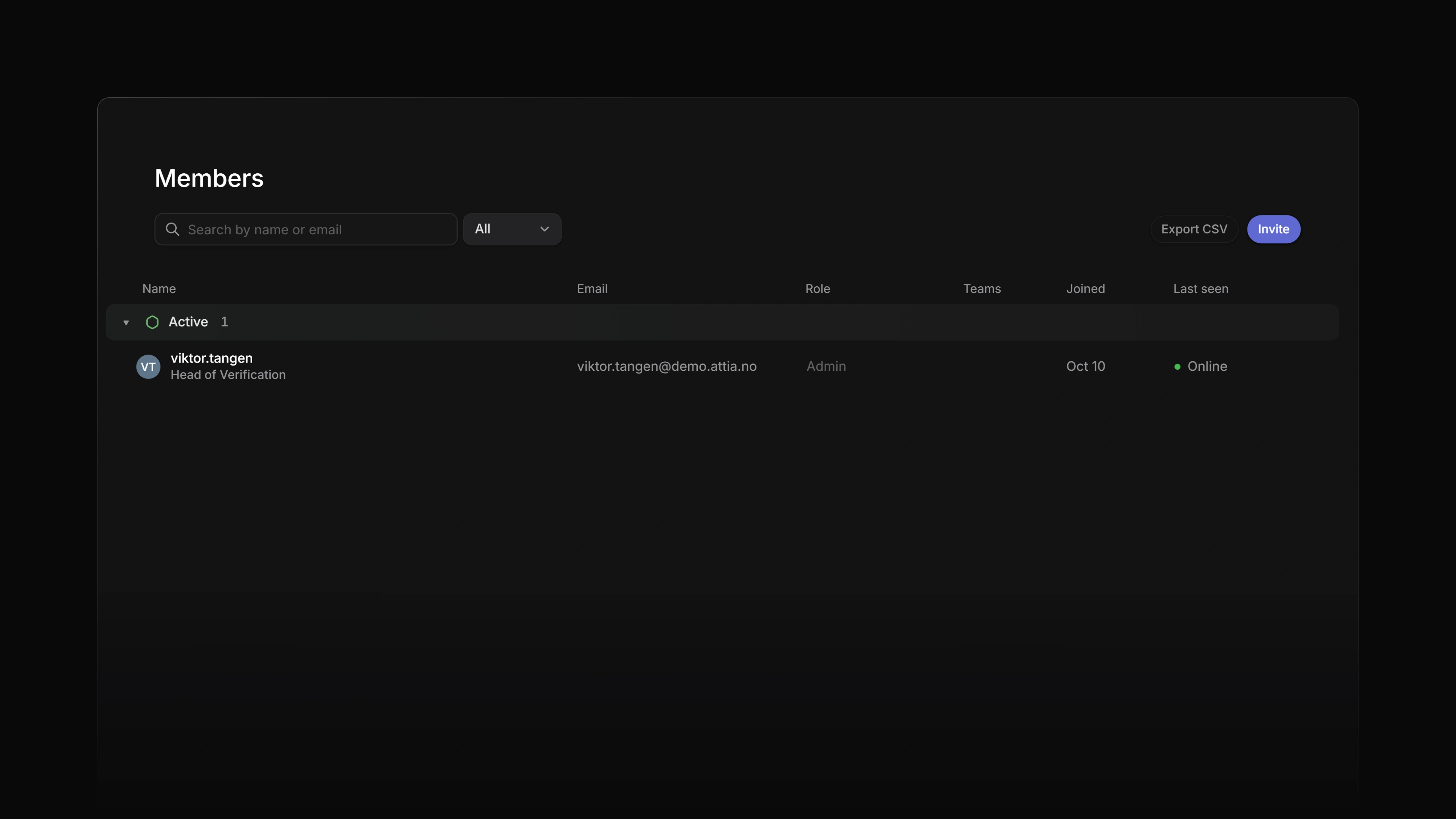
Members are managed in two places:
- Settings → Members lists the members and the pending invitations. Only workspace admins can open it.
- The workspace Members page has a row menu with Change role, Transfer ownership… and Remove from workspace….
 Zoom image
If your workspace uses SCIM, your identity provider adds and removes members. See SCIM.
Role types
Owner
The owner is a workspace admin with a few rules of their own:
- Only the owner can transfer ownership to someone else.
- No admin can change the owner's role or remove the owner from the workspace.
- A guest cannot become the owner.
Workspace owner covers the transfer and the rest of the owner role.
Admin
A member with the Admin role, and the owner, can:
- change another member's role between Admin and Member
- remove a member from the workspace
- invite people, whatever the invitation setting says
- open Settings → Members, Settings → Security and Settings → Billing
There are three things an admin cannot do. You cannot change your own role or remove yourself with these actions. You cannot change or remove the owner. And Attia refuses to demote the last workspace admin, so a workspace always has someone who can administer it.
On the Free plan every member who is not a guest counts as a workspace admin. They can open the admin settings pages and invite people. Changing someone's role and removing a member still take the Owner or Admin role itself.
Member
Member is the standard role. A member cannot change roles or remove people.
What else a member may do is set per workspace. Settings → Security has a Workspace management list where each row is set to Only admins or All members, for example who can invite people and who can create teams. Workspace security lists the rows and their defaults.
Guest
Guest accounts are part of the Business and Enterprise plans. You add a guest by inviting them with the Guest role. See Invite members.
A guest is held to tighter rules than a member:
- A guest never counts as a workspace admin and cannot manage members.
- A guest is refused every permission in Workspace management, also when the row says All members.
- A guest cannot become the owner.
- The role menus do not change a guest. Guest is listed as a role in Settings → Members, but you cannot select it, and Attia refuses to make a guest an admin directly.
Private teams explains how guests are added to teams.
Change a role
The owner and members with the Admin role can do this.
- Open the workspace Members page.
- Open the row menu on the person and choose Change role.
- Choose Admin or Member.
You can make the same change in the Role column in Settings → Members. Attia confirms with a message such as Ada is now an admin.
The menu is not offered on your own row, on the owner's row unless you are the owner, on a guest, or on the last workspace admin.
Remove a member
The owner and members with the Admin role can do this.
- Open the workspace Members page.
- Open the row menu on the person and choose Remove from workspace….
- Confirm.
The person loses access to the workspace immediately. Their past activity stays. You can invite them again later.
Team owners
A team can have its own owners. That is a role inside one team, not a workspace role. See Teams.
Not available yet
- Suspending a member. You can remove a member, but you cannot suspend one and keep the account.
- Turning a member into a guest, or a guest into a member. No control in the app does this today.