
Workspace security
The workspace-wide rules in Settings → Security: who may do what, file uploads and restricted IPs.
Overview
Settings → Security holds the rules that apply to the whole workspace: who may do certain things, which networks can reach the workspace, which files people can upload and how people sign in.
This article covers the workspace page. Your own password, passkeys and sessions are in Security & access and Login methods.
 Zoom image
Who can open and change it
Only workspace admins can open Settings → Security.
On the Enterprise plan the controls on the page are active for the workspace owner. Other admins can read every setting but see the controls disabled. On the Free, Basic and Business plans every workspace admin can also change the Workspace management rows. Invite links are the exception: any workspace admin can manage them.
Attia records a change to these settings in the audit log, which is part of the Enterprise plan.
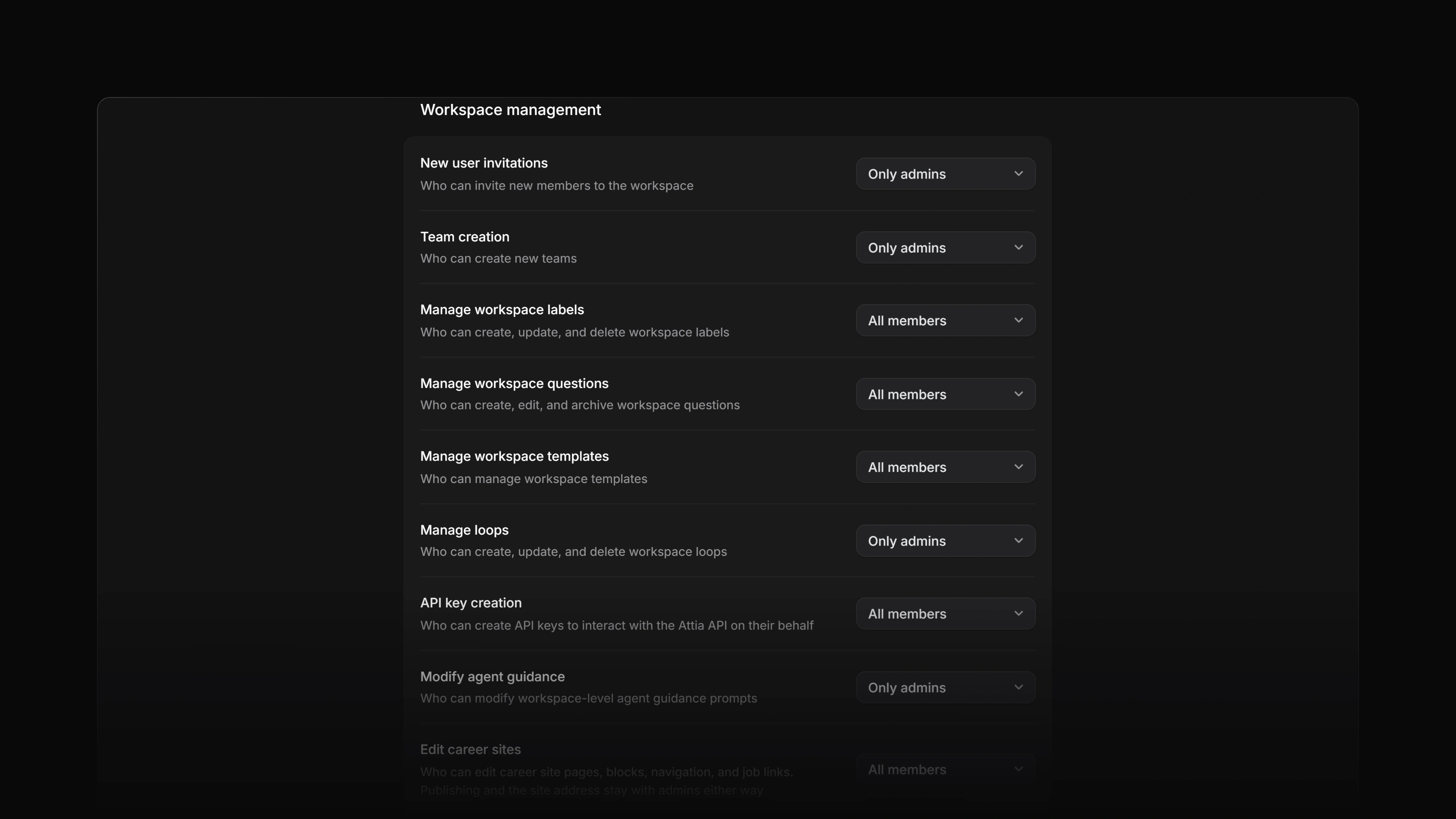
Workspace management
Each row in Workspace management decides who may do one thing. The choices are Only admins and All members.
| Row | What it controls | Starts on |
|---|---|---|
| New user invitations | Who can invite new members to the workspace | Only admins |
| Team creation | Who can create new teams | Only admins |
| Manage workspace labels | Who can create, update and delete workspace labels | All members |
| Manage workspace questions | Who can create, edit and archive workspace questions | All members |
| Manage workspace templates | Who can manage workspace templates | All members |
| Manage loops | Who can create, update and delete workspace loops | Only admins |
| API key creation | Who can create API keys | All members |
| Modify agent guidance | Who can modify the workspace's agent guidance | Only admins |
| Edit career sites | Who can edit career site pages, blocks, navigation and job links | All members |
Three things to know when you read the list:
- All members never includes guests. A guest is refused every one of these permissions.
- On the Free plan every member who is not a guest counts as a workspace admin, so Only admins lets every member through.
- Edit career sites covers editing only. Publishing a career site and changing its address stay with admins either way.
File uploads
This is an Enterprise feature.
Restrict file uploads limits the file types people can upload to the workspace. With it on, Allowed file types lists the extra types you allow. Image and video files are always allowed.
Restricted IPs
This is an Enterprise feature.
Restrict access to allowed IPs limits the workspace to the networks you list. Only the workspace owner can turn it on or change the list.
- Open Settings → Security and find Restricted IPs.
- Select Add IP address.
- Under Network, enter an IPv4 or IPv6 address, with CIDR notation if you want a range. Use current IP fills in the address you are on.
- Under Label, give the network a name, for example Office VPN.
- Turn on Restrict access to allowed IPs and confirm with Enable restrictions.
The workspace owner is always let in, from any network. If your own address is not on the list when you turn the restriction on, Attia warns you before you confirm. Workspace owner explains who gets back in when the list locks people out.
Sign-in and joining
The Workspace access group on the same page holds the settings for how people sign in and join. Other articles cover them:
- Invite links: Invite members
- Workspace login and restrictions, which holds the approved email domains: SAML and access control
- Authentication methods, which holds SAML and SCIM: SAML and access control and SCIM