
Custom views
Save a set of filters and display options as a view, and share it with your workspace or a team.
Overview
A saved view keeps a set of filters and display settings under a name, so you can come back to the same slice of jobs, applications or candidates without building it again. You can keep a view to yourself or share it with the workspace or a team.
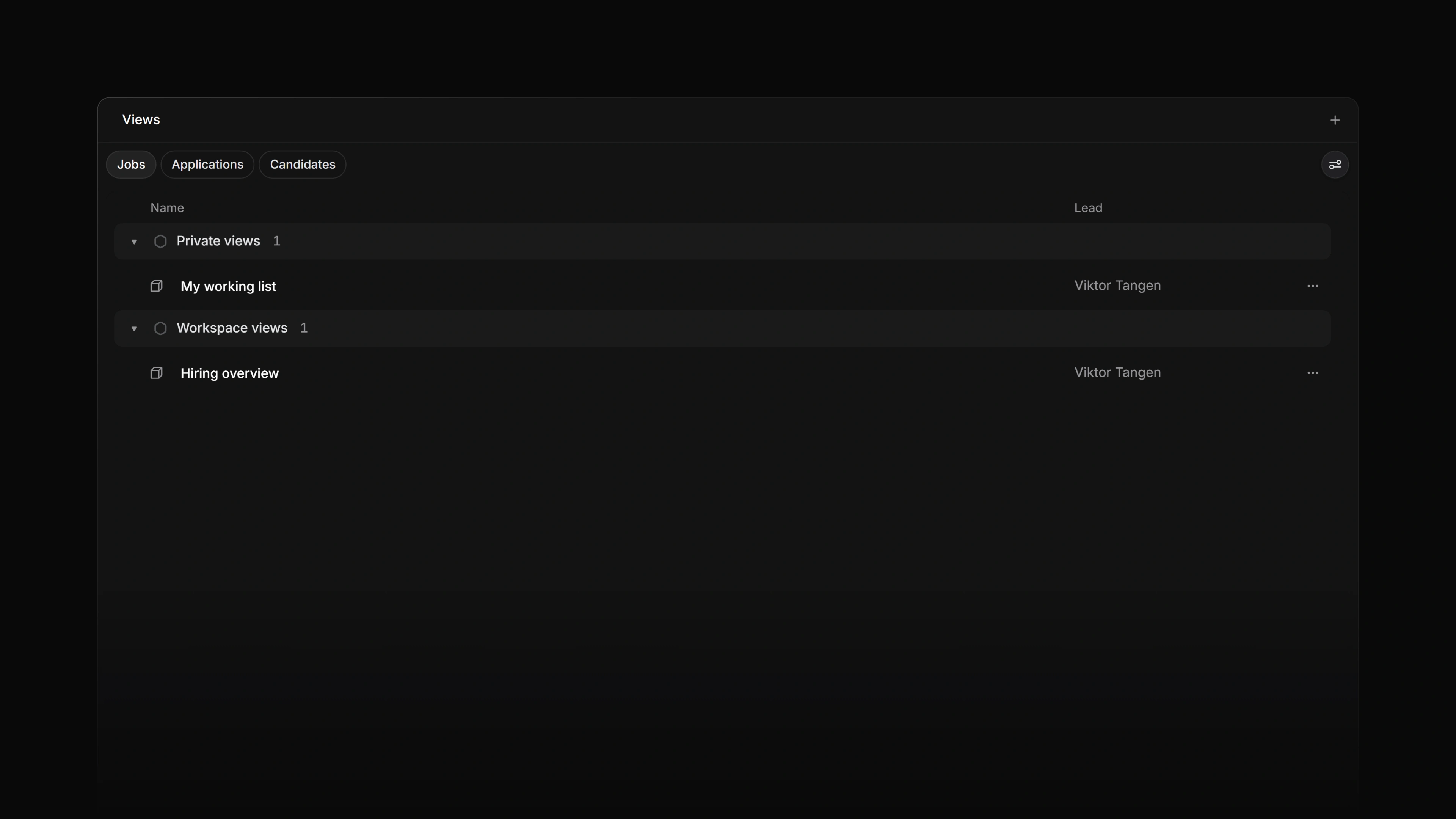 Zoom image
Keyboard
G then V goes to the Views page.
O then V opens the command menu on its views, so you can search for a view and open it.
On the Views page, N then V starts a new view for the tab you are on.
⌥ V starts a new view from the filters you have applied, and ⌥ S saves the view you are editing.
1 to 9 switch between the view tabs above a list.
Mouse
- Click Views in the sidebar to open the Views page
- Click + on the Views page, or at the end of a list's view tabs, to start a new view
- After you change the filters, click Save in the filter bar to keep the change
- Right-click a saved view's tab to copy its link, favorite it, edit, duplicate or delete it
Basics
Open views
The Views page lists every saved view you can see, split into Jobs, Applications and Candidates tabs. On the Jobs and Candidates tabs the views sit in two groups: Private views for the ones only you see, and Workspace views for the ones shared with everyone. The Applications tab has one group per team, named after the team, holding your private applications views for that team and the ones shared with it. A team gets a group once it has a view you can see. Click a view to open it.
Each team has its own Views page too, with Jobs and Applications tabs. The views shared with the team sit under Team views, and on the Applications tab your private views for the team sit under Private views. A jobs view shared with a team shows only on the team's page, never on the workspace Views page. Open it from the team's Views row in the sidebar.
The Views row in the sidebar's workspace group shows up once the workspace has a saved view. You can change that, or hide the row, in the sidebar's customize settings.
On a list, your saved views also appear as tabs beside the built-in ones. The Jobs list, for example, starts with Active and All, and your views follow them.
Create views
There are two ways to start one.
From the Views page, click + or press N then V. The new view is for whichever tab you are on.
From a list, click + at the end of the view tabs, or apply some filters and press ⌥ V. The new view starts with the filters and display options on screen. On the Applications and Candidates lists, the filter bar's Save button also offers Create new view....
The editor asks for a name and lets you add a description and pick an icon. When you start the view from the Views page, it also asks where to keep it under Save to:
- Personal keeps it to yourself. A new jobs or candidates view starts here, unless you start it from a team's Views page, where it starts on that team.
- Workspace shares it with the whole workspace.
- A team shares it with the direct members of that team. The list only offers teams you are a direct member of.
To share a view with the workspace or a team, start it from the Views page, because the editor on a list has no Save to. Jobs views can go to any of the three. Candidates views can be personal or shared with the workspace. Applications views always belong to a team, because applications are worked by the team that owns the job.
A saved view keeps both the filters and the display options you had when you saved it: layout, grouping, ordering and which properties show.
Edit views
Right-click the view's tab and choose Edit... to change its name, description, icon or filters.
To change what the view shows, open it and adjust the filters or the display options, then click Save in the filter bar. On the Jobs list, Save writes straight into the open view. On the Applications and Candidates lists it opens a menu, where Save to this view... does the same. The built-in views cannot be overwritten, so the save is greyed out on them. Start a new view instead.
Duplicate... makes a copy named after the original with "Copy" added, which you can then change without touching the original.
Only the person who created a view can change or delete it. Anyone else who tries gets an error, and the view stays as it was.
A view you save to Workspace shows for every member under Workspace views. A view you save to a team shows for that team's direct members under Team views on the team's own Views page. An applications view saved to a team also shows on the workspace Views page, in the Applications tab's group for that team. A personal view is never shown to anyone else.
Copy view link
Right-click the view's tab and choose Copy link. Attia confirms with "View link copied". A link does not share the view: someone who cannot see it will not see it by following the link.
Favorite views
Right-click a view's tab and choose Favorite to add the view to the Favorites section in your sidebar. The same row reads Unfavorite once the view is starred. See Favorites for how the section works.
Delete views
Right-click the view's tab and choose Delete, or choose Delete view from its row menu on the Views page. Attia asks you to confirm first, because the view goes for everyone it is shared with.
On the Views page, the toast that follows has an Undo. It creates the view again with the same name, filters and sharing, but as a new view, so a link or favorite that pointed at the old one does not follow it.
Arrange the Views page
The display options button on the Views page sorts the list by name, ascending or descending, and picks the Display properties shown beside each view: Lead, the person who created the view, and the Created and Updated dates.