
Board layout
Show jobs or applications as cards in columns, drag a card to change its status, and hide the columns you do not need.
Overview
The board layout shows a list as cards in columns. Each column is one value of a property, such as a status, and dragging a card to another column changes that property. The Jobs list, a team's Applications list and My Applications all have a board.
The Jobs list opens as a board with one column per job status. A team's Applications list opens as a board with one column per application status.
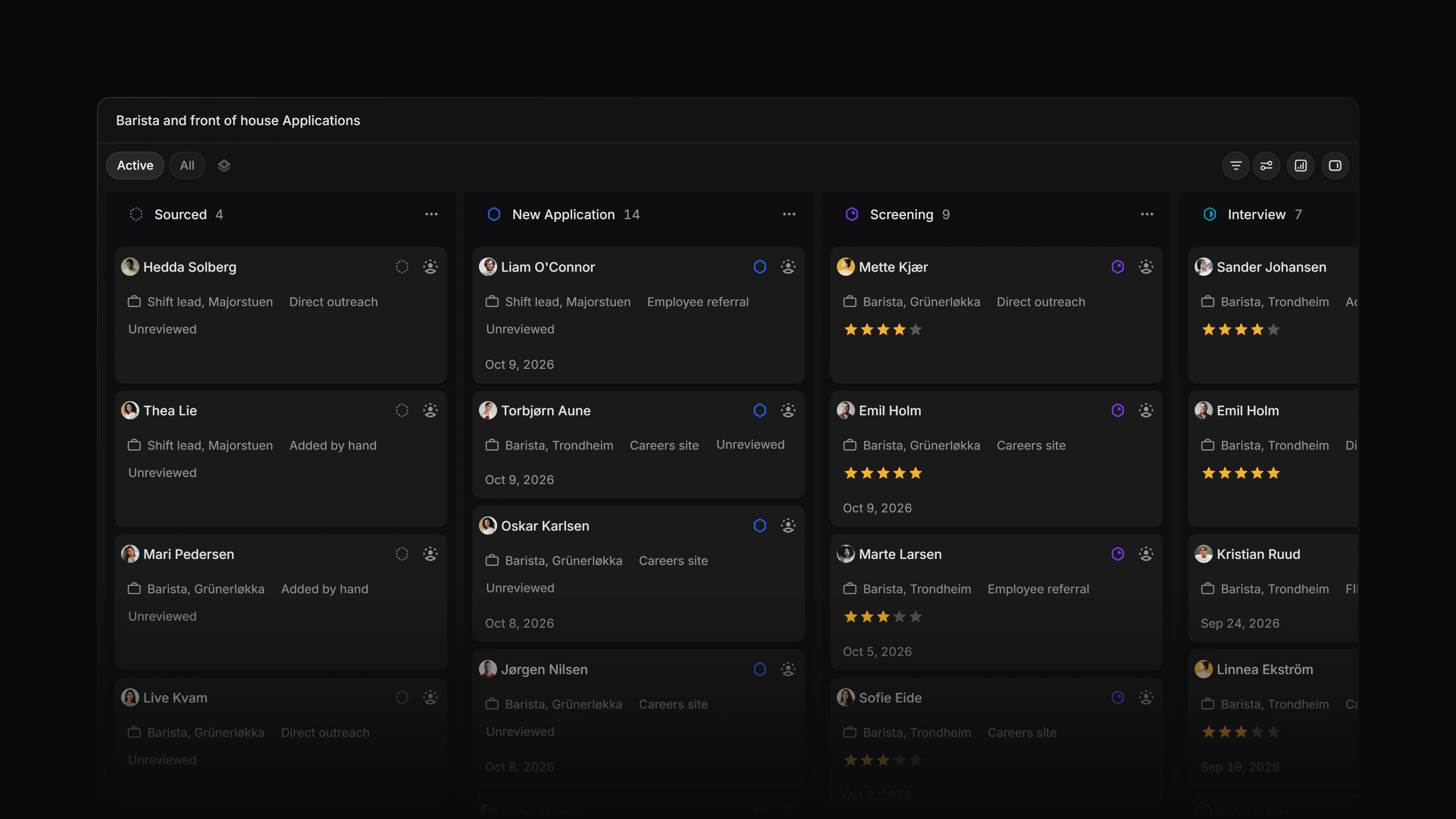 Zoom image
Keyboard
Cmd/Ctrl B switches to the next layout the list offers. Press it again until you reach the board.
Shift V opens display options.
On the Jobs board and a team's Applications board, X selects the card under your cursor.
The arrow keys do not move between cards on a board. Point at a card with the mouse instead.
Mouse
- Click Display options at the top right of the list, then click the Board tab
- Drag a card to another column to change its value
- Open the
⋯menu in a column header to hide that column. On the Jobs board and a team's Applications board, the same menu selects the column - On the Jobs board, click
+in a column header to create a job in that column
Basics
Switch to the board
Open Display options and click Board in the tabs at the top of the panel. Cmd/Ctrl B does the same from the keyboard. It steps through the layouts in the order of the tabs and starts over after the last one.
Your choice is yours. Display options explains how Attia saves it.
Columns and rows
On a board the display options panel has Columns and Rows where the other layouts have Grouping and Sub-grouping.
Columns picks the property that makes the columns. Rows splits the board into horizontal lanes by a second property. Each lane has a header with its name and the number of cards in it.
The board remembers its own columns and rows. Switch to the table and back, and the board still has the columns you chose.
Show empty columns keeps a column on the board when no card is in it. The Jobs and Applications boards start with it on.
My Applications is the exception. Its board has five fixed columns, so the panel does not let you change them.
Move a card
Drag a card to another column and Attia changes the property to that column's value. On the Jobs board that is the job's status. On a team's Applications board it is the application's status.
An application card moves for a workspace owner or admin who is not a guest, and for an active member of the team that owns the job. Edit applications has the full rule.
If the move fails, the card goes back and Attia says Could not move the card. It is back where it was.
The cards on My Applications do not drag. My Applications explains why.
Order the cards in a column
With Ordering set to Manual, you can drag a card up or down inside its column, and it stays where you drop it.
With Ordering set to a property, the board sorts every column by that property. A card you drop in another column changes column and lands in its sorted place.
Hide a column
Open the ⋯ menu in the column header and choose Hide column. The column moves to Hidden columns at the end of the board, where it shows as a small tile. Click the tile to show the column again.
You can still drop a card on a hidden column's tile. The card takes that column's value, the same as a drop on the column itself.
With Show empty columns off, the columns without cards are listed under Hidden columns too. Those tiles do not open. They are there so that you have somewhere to drop a card.
The button beside the Hidden columns header collapses the tiles. Click it again to expand them.
Attia does not save the columns you hide. They come back when you reload the page or pick another property for Columns.
Select cards
You can select cards on the Jobs board and on a team's Applications board. The cards on My Applications cannot be selected.
Hover over a card and press X to select it. Press X on the same card again to clear it.
To select a whole column, open the ⋯ menu in its header and choose Select all in column. The cards are added to whatever you had selected already.
Select applications explains what you can do with a selection.
Create a job from a column
On the Jobs board, each column header has a + button. It opens the Create job dialog with that column's value already filled in, so a job you start from the Planned column starts as Planned.
Working with jobs lists who can create a job. The Applications boards have no +.
Choose what a card shows
Display properties in the display options panel picks which properties show on each card. Click a property to show or hide it.