
Default team pages
The pages every team gets: Home, Applications, Jobs, Views, and the team archive.
Overview
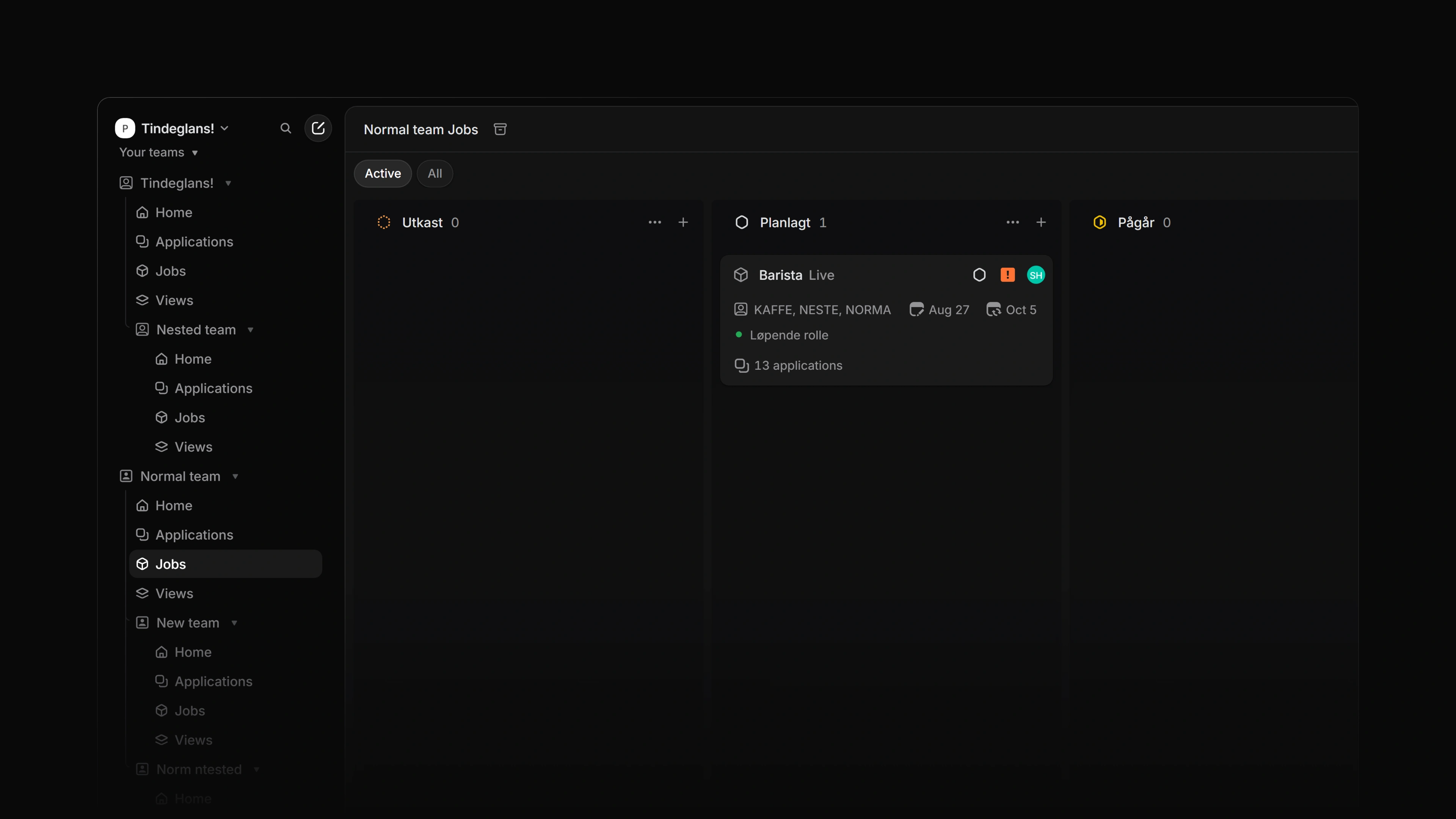
Every team gets the same set of pages. In the app sidebar each team is a folder with four entries: Home, Applications, Jobs, and Views. The team's archive sits one step further away, behind a shortcut and a button on the jobs list.
 Zoom image
Home
Home opens the team overview. Three tabs run along the top: Overview, Documents, and Members. The Team actions menu next to them holds Team settings and Leave team…, and a separate button copies the team's URL.
Overview
The overview shows the team's name, description, and icon. If the team's Settings management permission allows you, you can edit them in place. An empty description reads "Add a description…".
Below that:
- A shortcut to the team's members.
- Go to links to Team settings, Applications, Jobs, and Views.
- Team resources, where you keep what the team refers back to, such as an interview guide or a hiring plan. Press Add resources to choose New document, Pin a document…, or Add a link…. Press Add section to group resources under a heading, for example "Interview kits" and "Onboarding".
Documents
Documents lists the team's documents. Press New document to write one for the team.
Members
Members lists the people on the team. Three toggles control who appears: Show owners and admins, Show members, and Show guests.
Applications
Applications shows the applications for the team's jobs. It has two views:
- Active holds every application that is still in progress. It leaves out applications in a Completed or Canceled status, and applications in a status named Duplicate. Applications in a Triage or Draft status stay in Active.
- All holds every application for the team, finished ones included.
The sidebar entry opens Active, unless you were last on All for this team. Then it opens All.
While you are on one of a team's pages, press G then A to go to that team's applications.
Jobs
Jobs shows the jobs the team owns, in the same two views:
- Active holds jobs in Draft, Live, or Paused.
- All adds the closed jobs.
Like Applications, the sidebar entry opens Active unless you were last on All for this team.
Archive
Each team has an archive for the records it archived or deleted. Press G then X on any of a team's pages to open it. On the team's Jobs page, the Archived jobs button in the header opens the same page.
The archive has four tabs: Jobs, Applications, Documents, and Recently deleted. Deleted records stay in Recently deleted for 30 days before they are removed for good. Documents are the exception: a deleted document has no 30-day deadline.
Select a row and press Restore, or press #, to bring the record back. The archive only lists records you are allowed to restore.
Views
Views lists the saved views that belong to the team: job views shared with the team, and application views that are shared with the team or that you saved for this team's applications.