
Application review
Score applications on a scale your team chooses, and read the scores in lists and Insights.
Overview
A review is your team's score for an application. It tells the next person who opens the list how strong the candidate looks for the job.
Each team decides whether it scores applications, and on which scale. A new team starts with review switched off.
 Zoom image
Configure
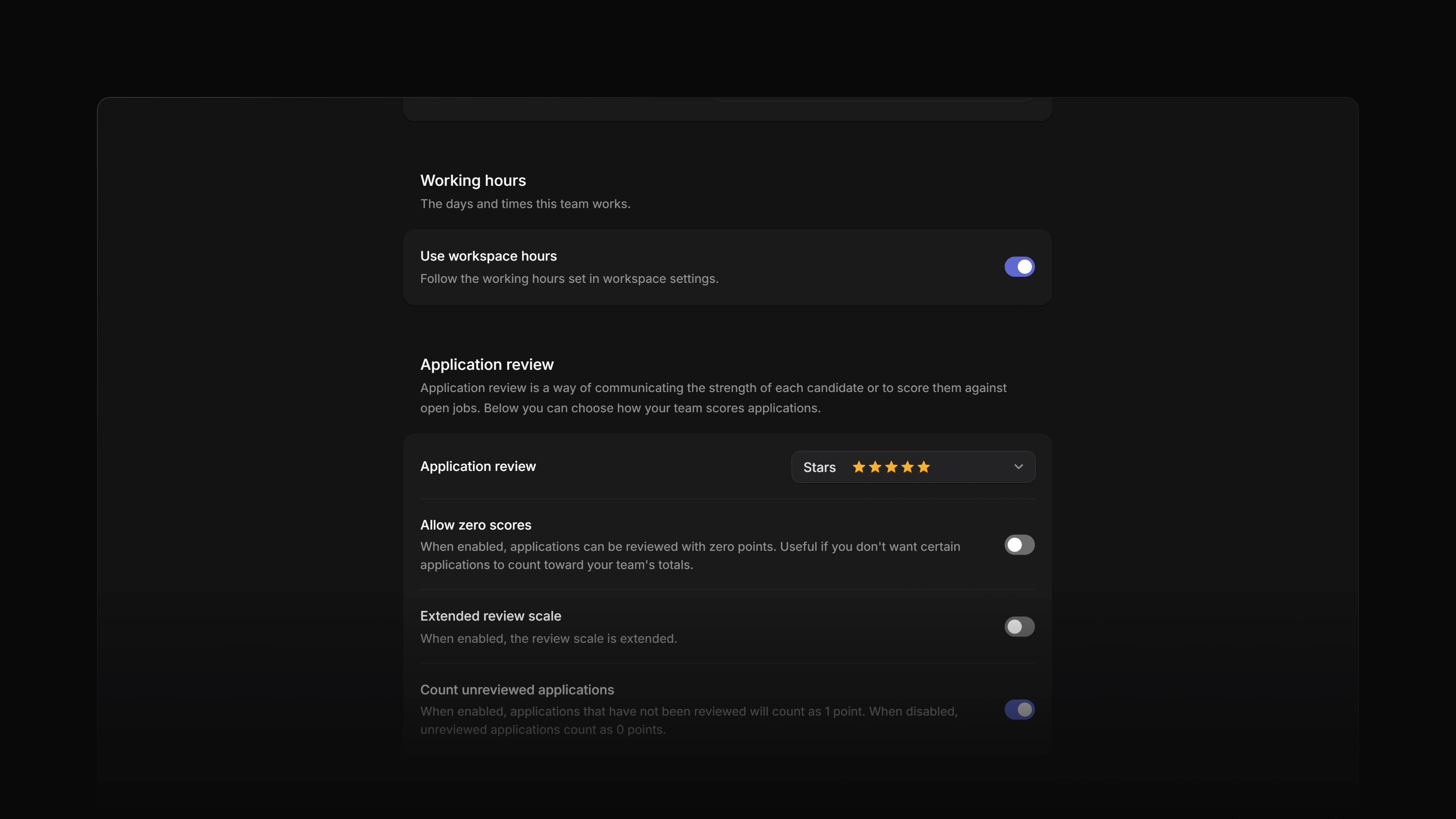
Open Settings, select the team under Your teams, and open General. Under Application review, choose a scale. Not in use turns review off for the team.
Every team has its own scale and switches, so two teams in one workspace can score in different ways.
A workspace owner can change these settings on any team, and a workspace admin on any public team. For private teams, see the permissions section in Teams. Without workspace admin rights you see the page read-only, with the note Contact a workspace admin to manage team settings. On a retired or deleted team the settings are read-only for everyone.
Scales
| Scale | Values |
|---|---|
| Rating | Unfit, Poor, Fair, Good, Great |
| Stars | 1 to 5 stars |
| Single star | One star filled to 33, 66 or 100 percent |
| Attia | 1, 2, 3, 4, 5 points |
| Fibonacci | 1, 2, 3, 5, 8 points |
| Exponential | 1, 2, 4, 8, 16 points |
Once you choose a scale, three switches appear below it.
Extended review scale
Extended review scale gives the scale more values.
| Scale | Extended values |
|---|---|
| Rating | Adds Excellent and Outstanding |
| Stars | Adds half stars, so 0.5 to 5 |
| Single star | One star filled to 30, 40, 60, 70 or 100 percent |
| Attia | Adds 6 and 7 |
| Fibonacci | Adds 13 and 21 |
| Exponential | Adds 32 and 64 |
Zero scores
Allow zero scores adds 0 to the scale. A zero is a score. It is not the same as leaving the application unreviewed.
Unreviewed applications
Count unreviewed applications is on for a new team. While it is on, an application without a review counts as 1 point in the team's totals. Switch it off and an unreviewed application counts as 0 points.
Set, change or clear a review
Open the application and select Review in the property rail, or press R. Pick a value from the team's scale. Choose Unreviewed to clear the review.
The Review row shows only when the team that owns the job uses a scale.
Anyone who can edit the application can set its review. That is a workspace owner or admin who is not a guest, or an active member of the team that owns the job. See Edit applications.
Attia records each change in the application's activity, for example "set the review to Good" or "changed the review from Fair to Good".
See reviews in a list
When a team uses a scale, its Applications list and the Applications tab on each of its jobs have a Review column. On the board, each card carries the review too.
My Applications has no Review column. That list mixes applications from several teams, and each team may score on a different scale.
Filter by review
In a team's Applications list and on a job's Applications tab, Filter offers Review when the team uses a scale. Pick a score to find the applications that have it, or Unreviewed to find the ones nobody has scored yet.
Insights
With a scale in use, Insights on a team's Applications list and on a job's Applications tab offers three more measures.
| Measure | What it counts |
|---|---|
| Review points | The scores added together |
| Reviewed | Applications that have a review |
| Unreviewed | Applications that have none |
An unreviewed application adds 1 to Review points while Count unreviewed applications is on, and 0 when it is off. See Insights.
Change the scale later
A review keeps the scale it was given on. After you change the team's scale, an application with an older review shows it in the picker as Saved: followed by the old value, next to the values of the new scale. Pick one of the new values to move the application over.
Setting the scale to Not in use hides the Review row and column. Attia keeps the reviews, and they show again when you choose a scale.