
Display options
Choose the layout, grouping, ordering and properties a list of jobs, applications or candidates shows.
Overview
Display options decide how a list of jobs, applications or candidates is laid out: table, board or list, how rows are grouped and ordered, and which properties show on each row or card. Filters decide which records are in the list. Display options only change how those records look.
The changes you make are yours. Nobody else's list changes when you regroup yours.
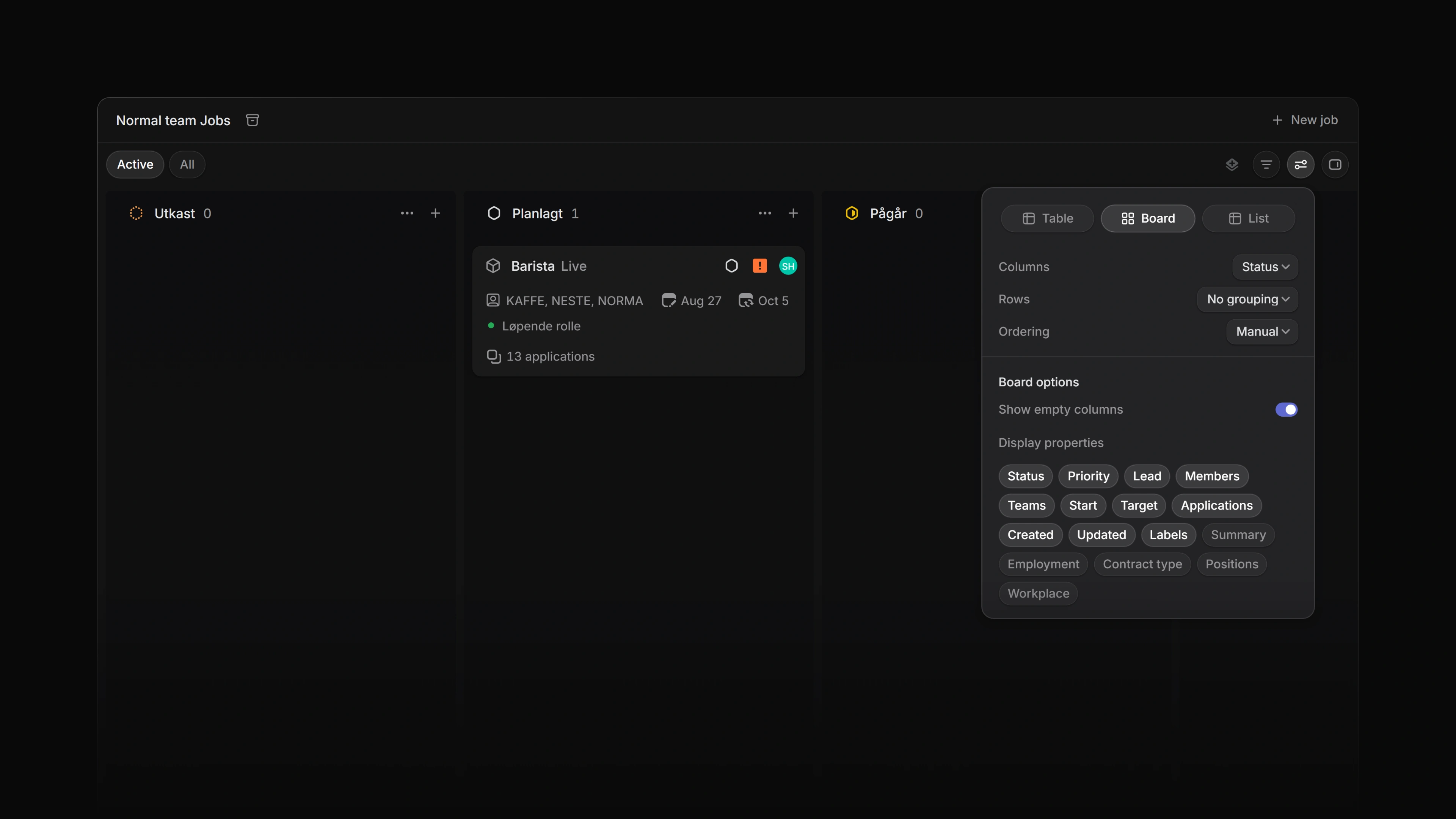 Zoom image
Keyboard
Shift V opens display options.
Cmd/Ctrl B switches to the next layout the list offers.
Mouse
- Click the Display options button at the top right of a list
- Click anywhere outside the panel to close it. Your changes are already applied
- Click Reset at the bottom of the panel to go back to the view's saved display settings
Basics
Saving display options
Every change applies the moment you make it and stays when you leave the page. Attia keeps it on your account for that list, so it is still there the next time you open the list, on any device.
While your settings differ from the view's own, a Reset button shows at the foot of the panel. It drops your changes and puts back what the view was saved with.
On a saved view you created, you can save your changes into the view itself. Custom views explains how.
Where you find them
The Jobs list, a team's Jobs and Applications lists, the Candidates list and My Applications all have display options. Which choices the panel offers depends on the list.
Layout
The tabs at the top of the panel switch the layout. The Jobs list and a team's Applications list offer Table, Board and List. My Applications offers List and Board. The Candidates list has one layout, a table, so its panel shows no layout tabs.
The Jobs list opens as a board with one column per job status. A team's Applications list opens as a board with one column per application status.
Grouping
Grouping sorts the rows into sections by a property, such as status, priority or lead on jobs. No grouping shows one flat list, which is useful with an ordering applied.
Once you group, Sub-grouping splits each group again by a second property.
On a board the same two rows are called Columns and Rows. Columns set the board's columns, and Rows split the board into horizontal lanes. A property that can hold more than one value, such as labels, cannot be a board column.
Ordering
Ordering sets the order inside each group. Pick Manual to keep the order you set by dragging, or pick a property to sort by it. Only the Jobs list and a team's Applications list let you drag rows, so on the other lists a property is the way to set the order. With a property picked, the arrow button beside it flips between ascending and descending.
On the Jobs board, dragging a card into another column changes the job to that column's value. Drag a job from Planned to In progress, and its status changes to match.
Show empty groups
Show empty groups keeps a section on screen even when nothing is in it. On a board the switch is called Show empty columns. The Jobs and Applications boards start with it on, so every status has a column even before anything reaches it.
Display properties
Display properties picks which properties show on each row or card. Click a property to show or hide it. In table and list layouts you can also drag the properties to change the column order.
This is not a filter. Hiding a property leaves every record in the list and only takes that piece of information off the row.
Controls for one list
Some lists add their own controls to the panel. My Applications has Completed applications, for example. See My Applications for what it does there.