
Application labels
Tag applications at the workspace or team level, group labels that exclude each other, and choose which ones candidates see.
Overview
Application labels tag an application with what the hiring team needs to see at a glance: a referral, a strong portfolio, a candidate to follow up with. An application can carry as many labels as it needs.
Labels live at two levels. A workspace label is available on every application in the workspace. A team label is available on applications in that team and in its sub-teams. Put the labels every team uses at the workspace level, and keep the ones that only matter to one team on that team.
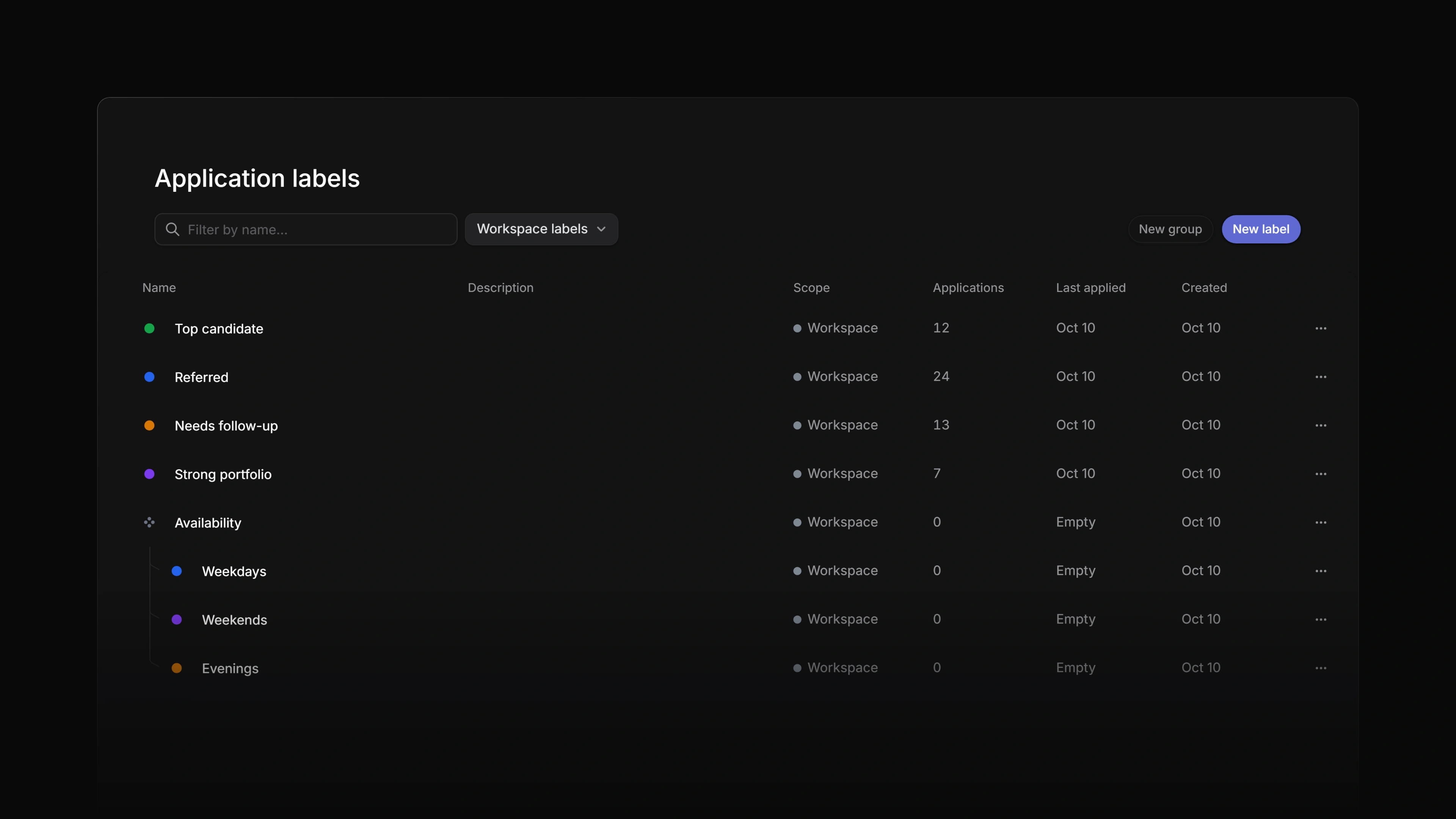 Zoom image
Label groups
A label group collects labels that exclude each other, such as a Source group holding Referral, Agency and Direct. An application carries at most one label from a group. Picking a second label from the same group replaces the first.
You apply the labels inside a group, never the group itself. Groups are one level deep, so a group cannot hold another group.
Create labels
Workspace labels live at Settings → Applications → Labels. Team labels live on the team's own Labels page in its settings.
Select New label or New group. A name is required and can be up to 64 characters. Add a Description of up to 256 characters to tell your team when the label applies.
By default, every member who is not a guest can create, edit and delete workspace labels. An admin can limit that to admins with Manage workspace labels on Settings → Security. A team's labels follow the team's Label management permission, which starts at All team members. Guests cannot manage labels.
Organize labels
Drag a label to change its order, or drag it into a group. The row menu holds the rest:
- Edit label name
- Move to group
- Move to workspace, or Move to a team
- Archive...
- Delete
The menu beside the search switches between Workspace labels, All labels, Team labels and Archived. The Applications and Last applied columns show how much each label is in use, which helps when you clean up.
Moving a workspace label to a team does not take it off applications outside that team. Applications that already carry it keep it, and if the label is shown to candidates, they still see it. Remove it from those applications yourself if it should not stay.
Apply labels
On an application, select Labels in the property rail, or press L. In an applications list, focus a row and press L.
Labels show as a column in the applications lists, and you can filter a list by them. Archived labels are not offered in the pickers.
Show a label to the candidate
Labels are private by default. The candidate never sees them.
A workspace admin can choose Show to candidate on a label. It then appears on the candidate's own page for any application that carries it. The label is marked Public in settings and in the Labels picker on the application page, so whoever applies it there knows it leaves the workspace. The picker you open with L in an applications list does not show the marker. Check the label in settings before you apply it from a list. Hide from candidate makes it private again.
A new label is never shown to candidates until an admin says so.
Archive labels
Archive... in the row menu takes a label out of the pickers. Applications that already carry it keep it, and you can still remove it from them. Use this for a label you no longer apply but still want on older applications.
Archiving a group archives every label inside it. To bring a label back, choose Archived in the menu beside the search and select Unarchive. A label inside an archived group comes back only after its group does.
Delete labels
Delete removes the label for good and takes it off every application that carries it. A group has to be empty before you can delete it.
If the label should stay on older applications, archive it instead.