
Jobs
Everything a job carries in one place: properties, description, resources, members, and application progress.
Overview
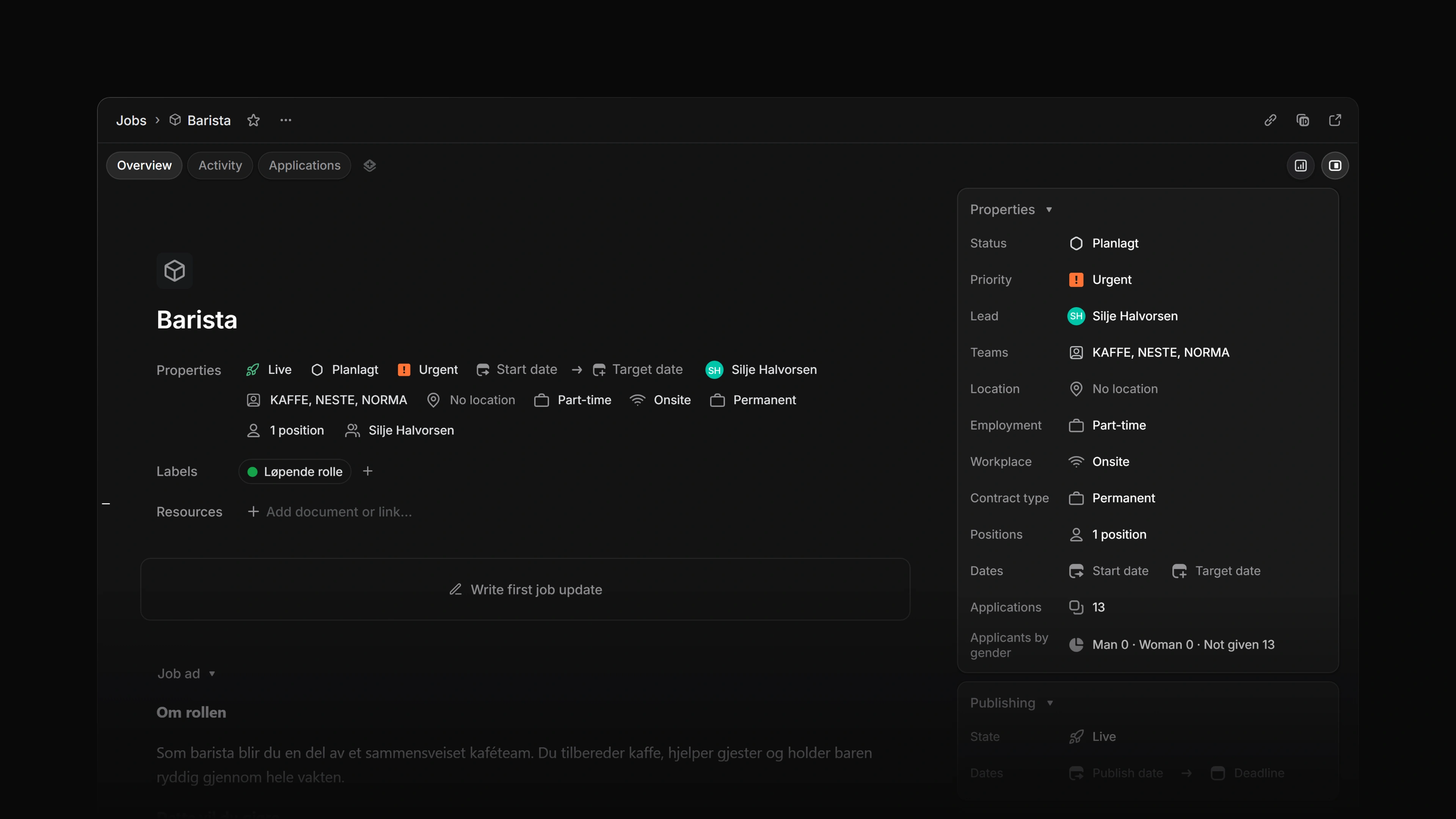
The job overview is the job's own page. It holds the description candidates read, every property the job carries, the people working it, links and documents, and a card showing how its applications are moving.
Open a job and select Overview. The other two tabs are Activity and Applications.
The Overview tab also shows the job's latest update. See Job updates.
 Zoom image
Properties
Properties sit in a row under the title. Select one to change it.
| Property | What it sets |
|---|---|
| Publish | Draft, Live, Paused, or Closed. Only a live job on a career site can take applications. |
| Status | Where the requisition sits in your workspace's pipeline. |
| Priority | Urgent down to Low, or none. |
| Dates | A start date and a target date for the job. |
| Lead | One workspace member, who must be on one of the job's teams. |
| Teams | The owning team, plus any others you add. Access follows this list. |
| Career sites | Which public sites list the job. A workspace with one career site that cannot add another does not show this row. |
| Location, Employment, Workplace | Shown to candidates on the career site. |
| Contract type, Positions | The contract type and how many positions the job is hiring for. |
| Members | The people working the job. |
Labels have their own section. A job takes one label per label group. Labels are internal, so candidates never see them.
Publish and Status are two separate axes. A job can be In progress internally while paused to candidates.
Members
Members lists the people working the job. You can only add someone who is an active workspace member and already on one of the job's teams. Anyone else is refused, because job membership grants sight of candidate data.
Description
Set the title at the top. The description below it is the job advert. It takes paragraphs, bold, italic, links, and bulleted and numbered lists, because that is what the career site and job boards publish. Everything saves as you type.
There are no inline comments on a job description. Discussion belongs in Activity, where job updates and their health also live.
Resources
Resources holds external links and documents together. Use + to add a link or a new document.
A link must start with http:// or https://. Give it a title, or the address's host is shown instead, for example docs.google.com. A document opens in the same editor as any other Attia document.
Application questions
Application questions are part of the job's public application form. Add and edit them from the overview; candidates answer them when they apply.
Publishing
The Publishing card sits in the details panel and answers one question: is this job visible to a candidate right now, and when does that change.
State is derived, not stored. Draft, Paused and Closed come straight from the Publish property. A live job reads Scheduled while its publish date is still in the future, Live once that date has passed, and Deadline passed once its application deadline has.
Dates holds the two dates you can change here.
- Publish at is the day the listing opens on every career site it is connected to. Leave it empty to publish as soon as the job is live.
- Application deadline is the last day the public form accepts an application. The day itself counts; the form closes at the end of it, in the owning team's time zone.
Both dates save as you change them, like every other property. If the server refuses a change, the old date comes back and the reason appears in a message.
Once the job is set to Live, Before this job is public lists what is still in the way. Every item has to be cleared before the job appears on a career site: the job has to be connected to a site, and the site and its home page both have to be published. Items you fix in career-site settings link there. The same list flags a publish date that falls after the deadline, because then nobody can apply.
Application progress
The Applications card carries four figures.
- Applications: every application to this job.
- Started: applications actually received. Sourced candidates who never applied are excluded.
- Processed: applications that reached an end. A rejection counts the same as a hire.
- Hired: hires only.
Processed measures work finished, not distance to a hire, which is why Hired is a figure of its own. On a job past 1,000 applications, Started, Processed and Hired are counted from a capped list and read low; Applications stays exact.
Job graph explains the chart on the card and the prediction it draws.
The details panel
Press Cmd/Ctrl I, or use the Show details button in the toolbar, to open and close the details panel. It holds the Publishing card, the Applications and Activity cards, the properties and the labels. The property row under the title stays either way, so closing the panel hides nothing you can edit there.
Each tab sets the panel to its own default when you switch to it. On a wide screen, Overview and Activity open with the panel shown.
Who can edit a job
Workspace admins can edit any job. Anyone else needs to be an active member of one of the job's teams. That includes a guest who has been added to one of those teams.