
Loops
Have Attia Agent do routine hiring work on a schedule or when an application, job, or candidate changes.
Overview
A loop is a standing instruction for Attia Agent. It runs on a schedule, or when something happens to an application, a job, or a candidate, and the agent does the work you wrote down each time it fires.
Use loops for the routine parts of hiring. A loop can give every new application an owner, sum up the week's hiring every Monday, or check each new job ad for a missing salary, location, or deadline.
Loops start on the Basic plan. On Free, the Loops page shows Loops start on the Basic plan and you cannot create or edit a loop. A loop's agent work draws on the workspace's AI credits.
 Zoom image
Open Loops
Press G then L, or choose Go to loops in the command menu. N then L starts a new loop from anywhere.
The Loops row in the sidebar stays hidden until you turn it on. Right-click the sidebar, choose Customize sidebar, and set Loops to Always show.
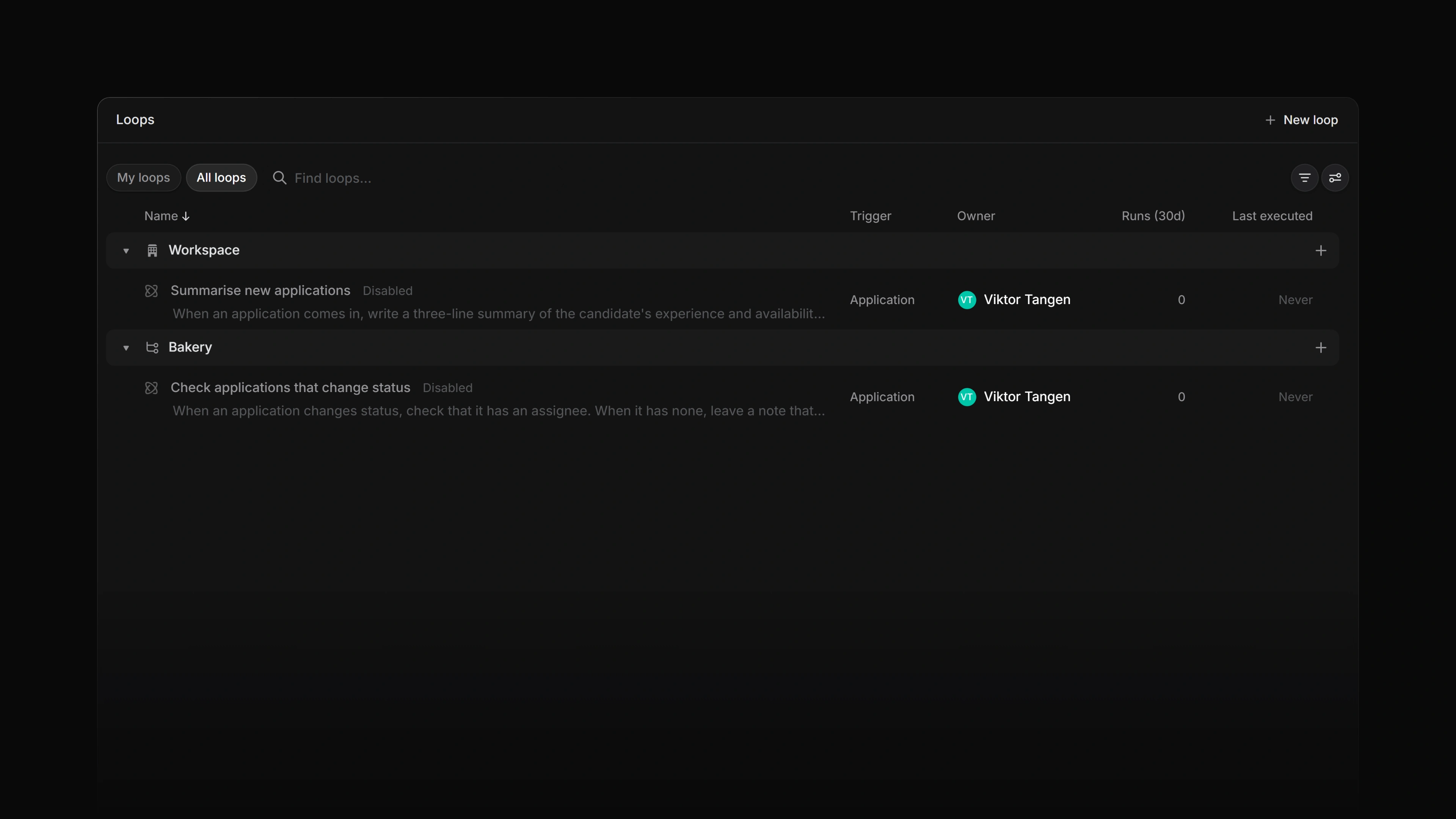
The page has two tabs. All loops lists every loop you can see, grouped by Level: the workspace, or the team the loop lives in. My loops lists the ones you own. Show disabled loops in the display options hides or shows loops that are off.
Start from a template
A workspace with no loops shows Create a new loop in place of the list. Once it has one, New loop in the header opens the same choices.
Under or pick a template, each card is a ready-made loop, such as Route new applications, which assigns each new application to the job's lead, or Weekly hiring report. Pick one and Attia asks where the loop should live, opens it as a draft with the instructions written, and asks any setup questions the template has. A loop from a template is saved switched off, so publish it and then enable it. Nothing runs before that.
Create a loop with Attia Agent
Describe what you want in the box that reads Ask Attia to build the loop for you, then press Create loop from prompt. Attia asks Where should the loop be created?, then drafts the name, trigger, and instructions and opens the draft beside a chat, so you can keep refining it in words.
You can also ask for a loop in an ordinary Attia Agent chat. Either way, a loop the agent writes is saved switched off. Read it, then publish and enable it yourself.
Create a loop by hand
- Choose Start from scratch and pick where the loop lives: Workspace, or one of your teams.
- Give it a name of up to 120 characters.
- Under Trigger, choose what starts it: a Schedule, or an event on an Application, a Job, or a Candidate.
- Write the Instructions, up to 20,000 characters. Compose with Agent helps you write them.
- Review Permissions.
- Choose Create loop.
A loop you create this way is on as soon as you create it.
Schedules
A scheduled loop repeats every few minutes, hours, days, weeks, months, or years, in the time zone you pick. The shortest gap is five minutes. First run date sets the day it starts, and the form shows when the first run will be. For anything the builder cannot say, write a five-field Cron expression: 0 9 * * 1 runs every Monday at 09:00.
Record triggers
A loop can start when an application is created, updated, or withdrawn, changes status, assignee, or labels, or gets a new message or comment. It can also start when a job is created or one of its properties changes, when an update or comment is posted on a job, or when a new candidate arrives. Add filter narrows the trigger, for example to one job or one status.
A record loop runs about a minute after the change, once the record has settled.
Update a loop
Open the loop and choose Edit. Your changes save as a draft as you type, and the header reads Draft saved. The loop keeps running its published version until you choose Publish. Configure with Agent lets you change the draft by asking the agent.
If you cannot manage the loop, the edit page opens read-only.
Review a loop's runs
A loop's page shows Run history with how many times it ran over the last 30 days. Open a run to see the instructions it ran with, the agent's transcript, and its status: Queued, Running, Succeeded, Failed, Waiting for input, Skipped, or Expired. The rail beside it lists the loop's other runs, and Filter runs narrows them.
When a run did not finish, the page says why. Depending on the run, Resume run picks it up again, Start again runs it from the beginning, and Cancel run stops it.
Restore a previous version
Every time someone publishes a loop, Attia keeps that version.
- Open the loop and choose Edit.
- Choose Published versions.
- Pick a version and choose Restore version.
Who can manage loops
Guests cannot create or manage loops.
For a workspace loop, workspace owners and admins can create, edit, publish, enable, disable, run, and delete it. The Manage loops setting in Settings > Security can open that to all members. See Workspace owner.
For a team loop, workspace owners and admins can, and so can the team's leads and anyone the team's Loop management permission allows. That permission defaults to Admins & team owners only. See Team owners.
Every loop has an owner, shown under Owned by, and its runs act with the owner's access. A workspace admin or the loop's current owner can hand it to another member from the Owner column on the Loops page.
Permissions
Give a loop only the access its job needs. The Permissions section of the form holds three settings.
Team access
This decides which teams' data the loop can use. All public teams is the default for a workspace loop or a loop in a public team. A loop in a private team defaults to Only the team it lives in. Selected teams lets you name the teams, and Include sub-teams adds the teams under each one.
Web search
When on, the loop can search the public web and read public pages, for example to check a salary benchmark. It is off by default. Treat what it reads there as untrusted.
Allow changes outside the triggering record
This shows only on a loop that a record starts. When on, the loop can change other records within its team access, not only the one that started the run. It is off by default.
AI credits
Loop runs draw on the workspace's AI credits, not on the owner's chat allowance. Workspace owners and admins see the balance on Create a new loop. When the workspace has no credits left, a new run does not start and shows as Skipped. The loop stays on, and the next run checks the balance again.