Attia Agent in threads

Two private notes on an application that mention Attia Agent. Under the first, one line says Attia finished application summary. Under the second, Attia replies that the application already has a summary, so it kept it

A question about a candidate usually starts in a comment. Until now Attia Agent lived in its own chat, so you copied the question over, read the answer there and pasted it back for your team.

Now you ask Attia in the thread itself. Mention it in a private note on an application, in a comment or an update on a job, or in a reply, and Attia answers under your comment, where everyone on the thread can read it. Attia knows who asked, so "assign this to me" means you.

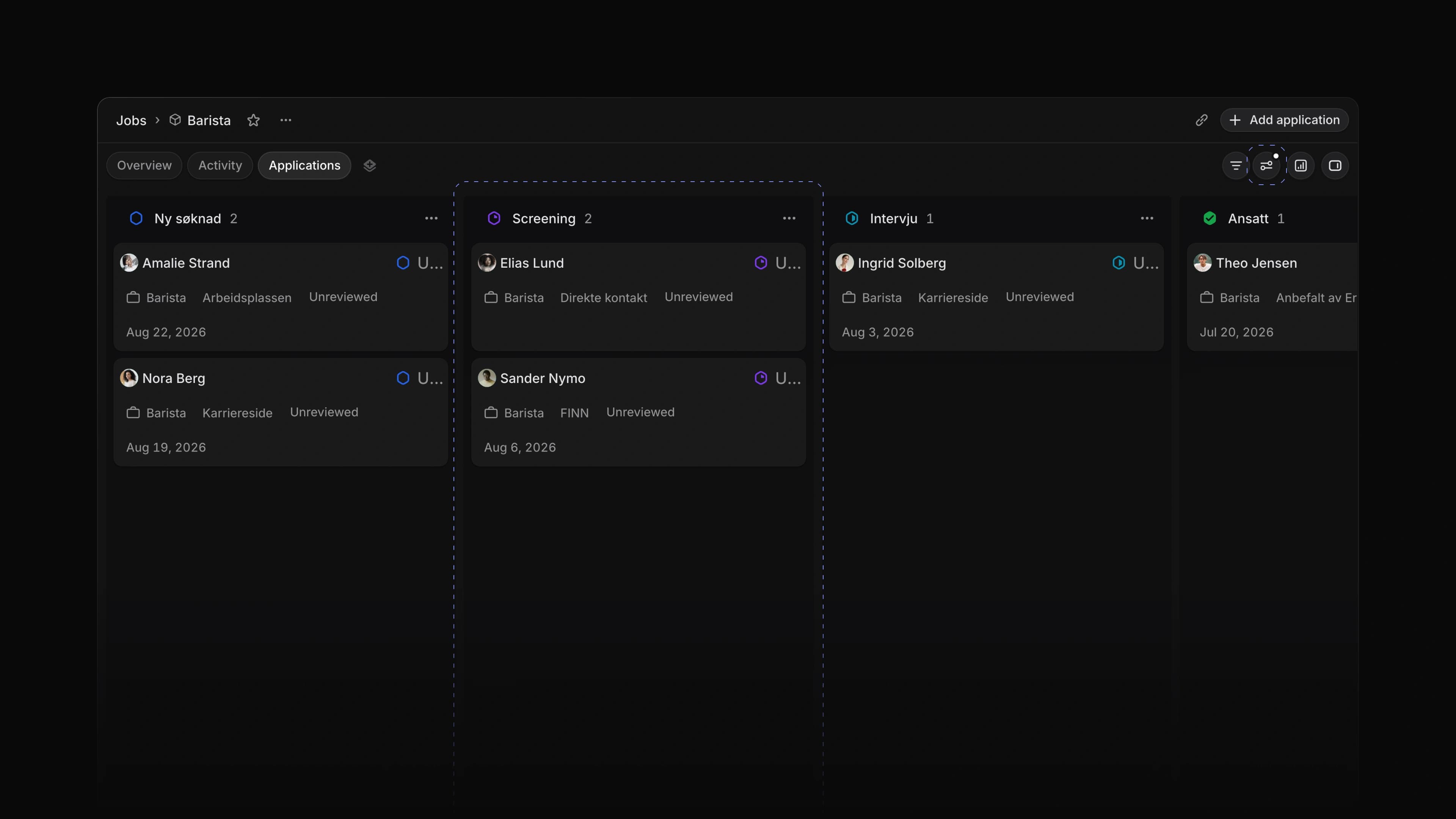
Ask how many years of café experience the candidate has, and Attia reads the application and the CV and replies in the thread. To start, type @ in a comment, choose Attia under Agent and write your question.

Summaries

Ask Attia for a summary and it reads the application, its files, and the comments and messages on it, then writes the application's summary. The summary is for your team and the candidate never sees it. Instead of a long reply, the thread shows one line: Attia finished application summary. If the application already has a summary, Attia keeps it unless you ask for a new one.

While it works

Your comment gets a row with Attia's mark while it works. The row says what Attia is doing, such as Writing application summary, and the reply takes its place when Attia is done. When Attia only made changes, you get one line per change instead of a reply.

Changes that need approval

Some changes wait for your approval in the Attia Agent chat, and a thread has no approve button. Attia does not make such a change from a thread. It replies with what it would change and where you can make the change yourself.

Thumbs up and down

Point at one of Attia's replies and you get thumbs up and thumbs down beside Add reaction. A thumb is a reaction like any other, so your team sees it too.

The Publishing card on a job now has a Visibility row. Public is the default. Link only keeps the job live and open for applications, but takes it off the career site's job lists, so only people with the link find it. A job that is not live yet has a private preview link. Choose Copy preview link in the menu next to the job's name and send it to anyone, with no sign-in needed. The preview takes no applications, and once the job is live the link opens the live job page. Reset link turns the old link off. A live job has Copy link in the same menu.
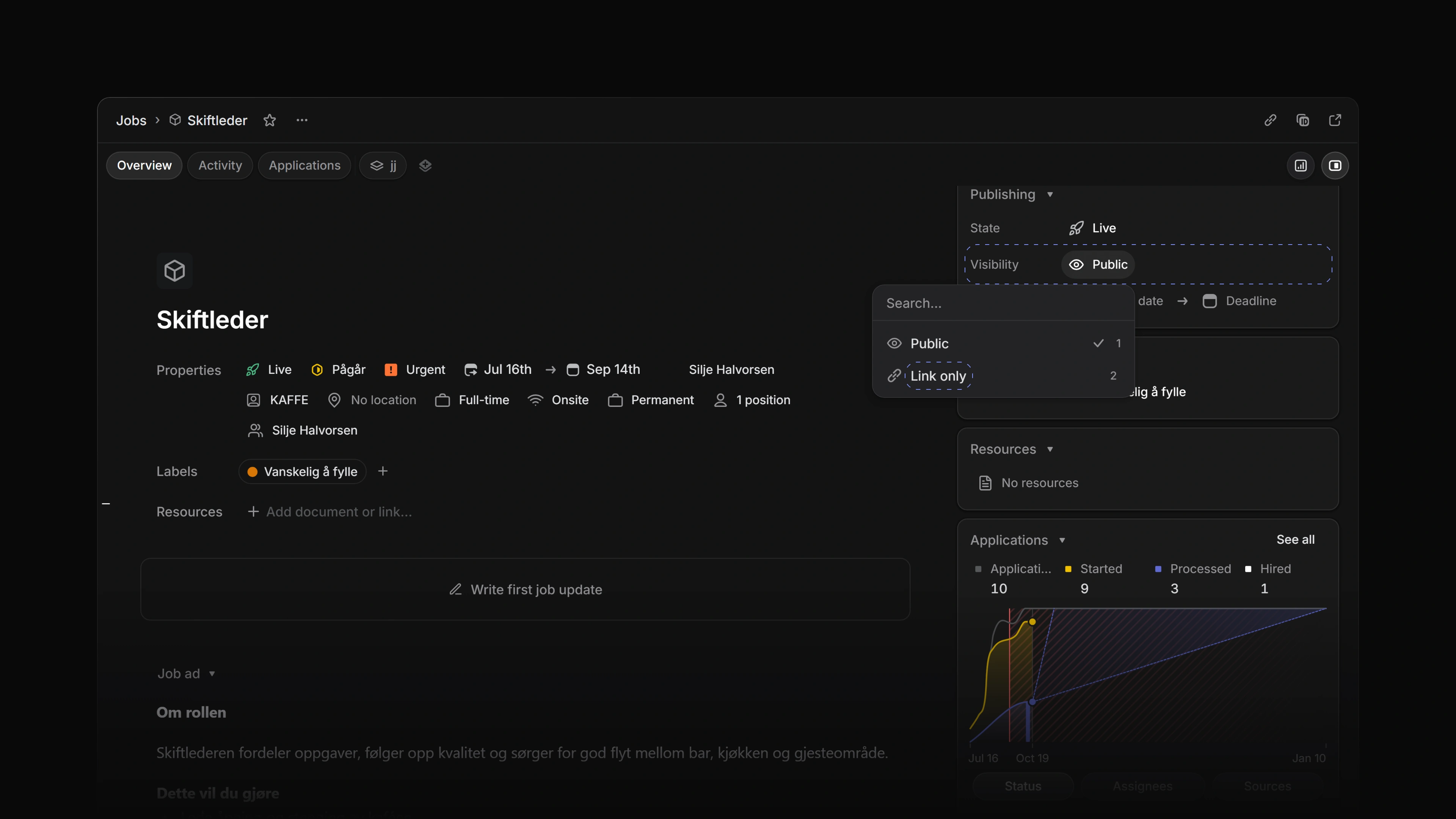
The Publishing card on a live job with the Visibility row open, offering Public and Link only

Private documents for candidates

Candidates could already keep private files on an application in their Attia account. Now they can write private documents there too. The application page has a Documents section with New document, and a document saves as the candidate types. Only the candidate sees these documents and files, never your team. When your workspace is on Business or Enterprise, a candidate's private file can now be up to 25 MB or 100 MB.

  • Applications Changed a thread with more than six comments to fold down to the first comment, one line that says who wrote the hidden ones, and the last four.
  • Applications Changed a mention of a person or of Attia in a comment to plain bold text. Point at a mention to see a small card about who it names.
  • Applications Changed who can delete a comment on a job or an application. Anyone who can see the comment can now delete it, not only the person who wrote it.
  • Applications Added Delete on a message you sent to a candidate. The message disappears for the candidate and for your team.
  • Filters Added filtering on numbers and dates between two values.
  • Imports Added a job feed address to Import from website on a career site. The field names the recruiting system whose job feeds it reads, and you paste the address that system's support gave you.
  • Jobs Changed job questions so you create them right in the list, on the job's Overview and in Create job. Questions start folded, and you edit a question's options where they are.
  • Jobs Changed the job page and the candidate page to remember whether you left the details panel open or closed.
  • Performance Changed a new Loop, a Loop from a template, a new document and a new career site to open the moment you click, while Attia saves in the background.
  • Templates Added a job template written from your company's own job listings to a new workspace, when Attia finds those listings at sign-up.
  • Views Added Delete for a selection of applications, candidates, team documents, saved views, Loops and labels. Apart from labels, one Undo brings the whole selection back. Only admins can delete candidates.
  • Workspace Changed the browser tab title to name the page and the tab you have open.
  • Keyboard shortcuts Changed the go-to keys. G then P now opens Jobs, G then J opens Agent and G then U opens Members.
  • Applications Fixed every assignment in an application's Activity reading removed the assignee. It now names who the application was assigned to.
  • Candidates Fixed a new candidate being lost when you left the page right after creating it.
  • Career sites Fixed Publish in the career sites list being refused.
  • Documents Fixed reloading, closing the tab or leaving the site while a document's last change was still saving. The browser now asks first.
  • Editor Fixed Escape in a comment's edit box cancelling the edit while the @ menu was open. Escape now closes the menu first, and Edit puts the cursor at the end of the comment.
  • Inbox Fixed a candidate's reply from their Attia account not reaching the Inbox. It now reaches whoever wrote the message and everyone who follows the application.
  • Inbox Fixed an application past its response deadline showing as At risk in the Inbox. Notices about response deadlines now reach everyone who follows the application.
  • Settings Fixed your profile page losing a change when you pressed Back before leaving the field.
  • Views Fixed a view saved on a team's Jobs list that could not be deleted and did not show on the Views pages.
Job and candidate mentions

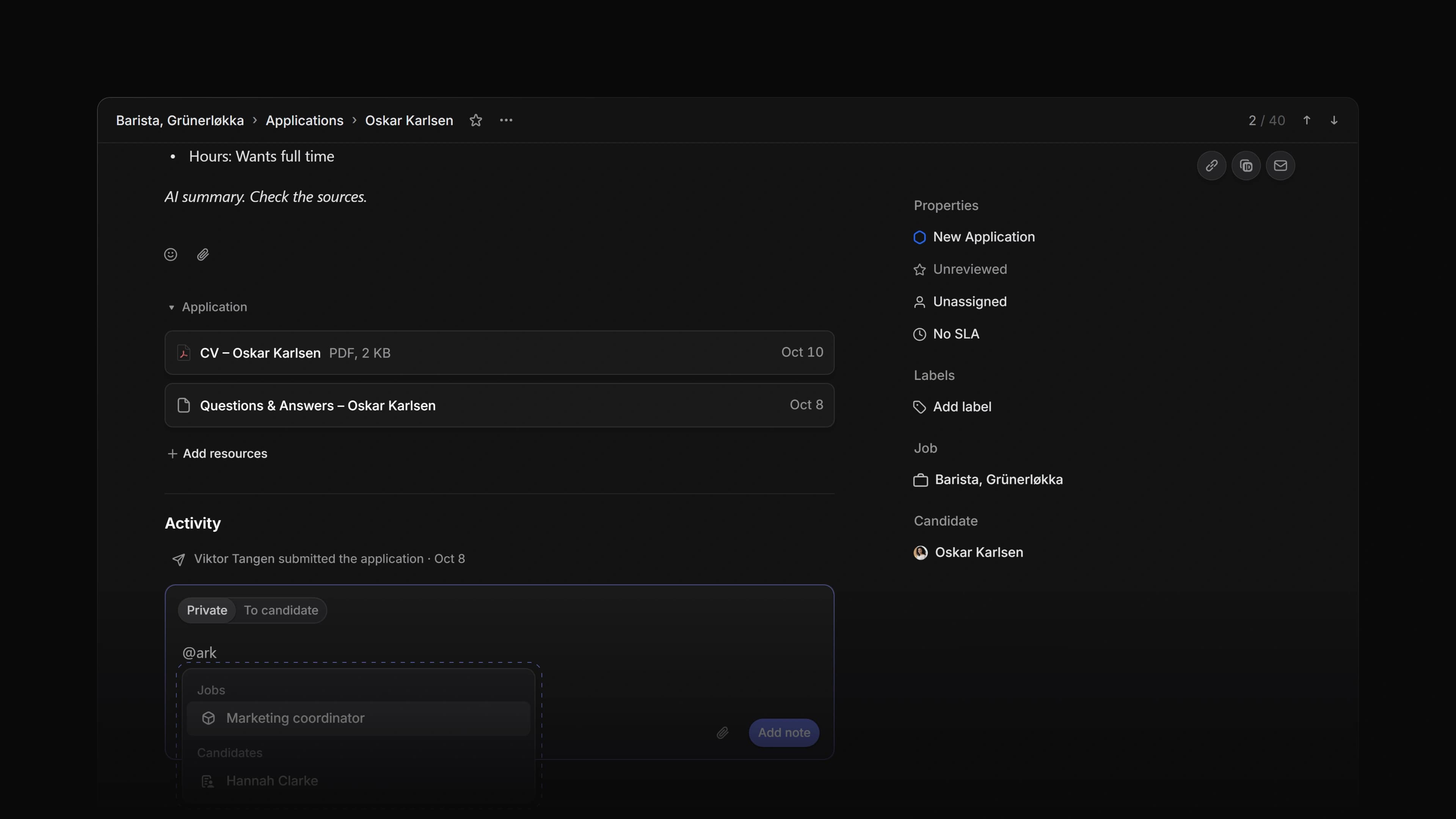
The Private tab of the comment box on an application, with @ark typed and the @ menu showing one job under Jobs and one candidate under Candidates

A private comment on an application often points at another job or another candidate. Until now the @ menu in a comment found only people, so you wrote the job title or the candidate's name as plain text, and whoever read the comment had to go and find it.

Now the @ menu in a private comment finds jobs and candidates too. Pick one and the comment gets a chip with its name, and the chip opens that job or candidate when you click it.

To start, open an application, choose Private in the comment box and type @ followed by a few letters of a job title or a candidate's name.

Search as you type

Type @ on its own and the menu lists People and Agent, as before. Keep typing and Jobs and Candidates show up under their own headings, with up to 20 matches each. The same menu works when you reply in the thread under a private note.

The chip

The chip shows the job title or the candidate's name and opens its page. Inside a comment it keeps its own colour and has no underline, so it does not look like a plain link. The @ menu itself has a new look as well.

Who is told

Mentioning a job or a candidate notifies no one. The people you mention get a notification, as before. If you switch to To candidate, Attia removes the mentions, because that message goes to the candidate.

Labeled candidates and jobs

In Settings, the row menu of a candidate label now has View labeled candidates, and the row menu of a job label has View labeled jobs. Each one opens the Candidates or Jobs list filtered by that label. On a label group, the filter covers every label in the group. The filter lasts for this visit only, so your saved filters stay as they were, and Back from a record brings the filtered list back.

Delete several jobs

Select jobs in the Jobs list and press Cmd Backspace, or Ctrl Backspace on Windows. Attia asks once, for example Delete 4 jobs?, and then deletes them. They move to Recently deleted for 30 days and come off every career site. A job that still has applications is kept, and one message tells you how many jobs were deleted and how many were kept.

  • Editor Changed the look of the @ menu in comments and in the Attia Agent message box.
  • Settings Changed the row menu of an application label in Settings to one Move to teams… item, which opens a dialog where you pick the workspace or a team. A team's label has Move to workspace… instead.
  • Views Changed Move in the row menu, and the Option arrow keys, to work in a list sorted by a field too. On Windows, use Alt. The row moves in Manual order, so the sorted list on screen stays the same.
  • Views Changed Delete on a view you have not saved yet to close it at once, without asking first.
  • Career sites Changed the Unpublished changes badge on a career site to say where the change is, such as Unpublished changes on About us or Unpublished changes in site settings.
  • Editor Fixed a job or candidate chip in the Attia Agent message box showing in the link colour with an underline.
  • Agent Fixed approval cards in an Attia Agent chat staying greyed out after you declined an earlier card.
  • Jobs Fixed a job whose lead had left the workspace refusing every change, pausing included. Such a job now has no lead.
  • Jobs Fixed a new job in a Jobs list in Manual order not going to the top.
  • Teams Fixed making a team public also making its private sub-teams public. A sub-team now keeps its own setting.
  • Settings Fixed a new company logo taking up to an hour to show after you saved it.

Company claims

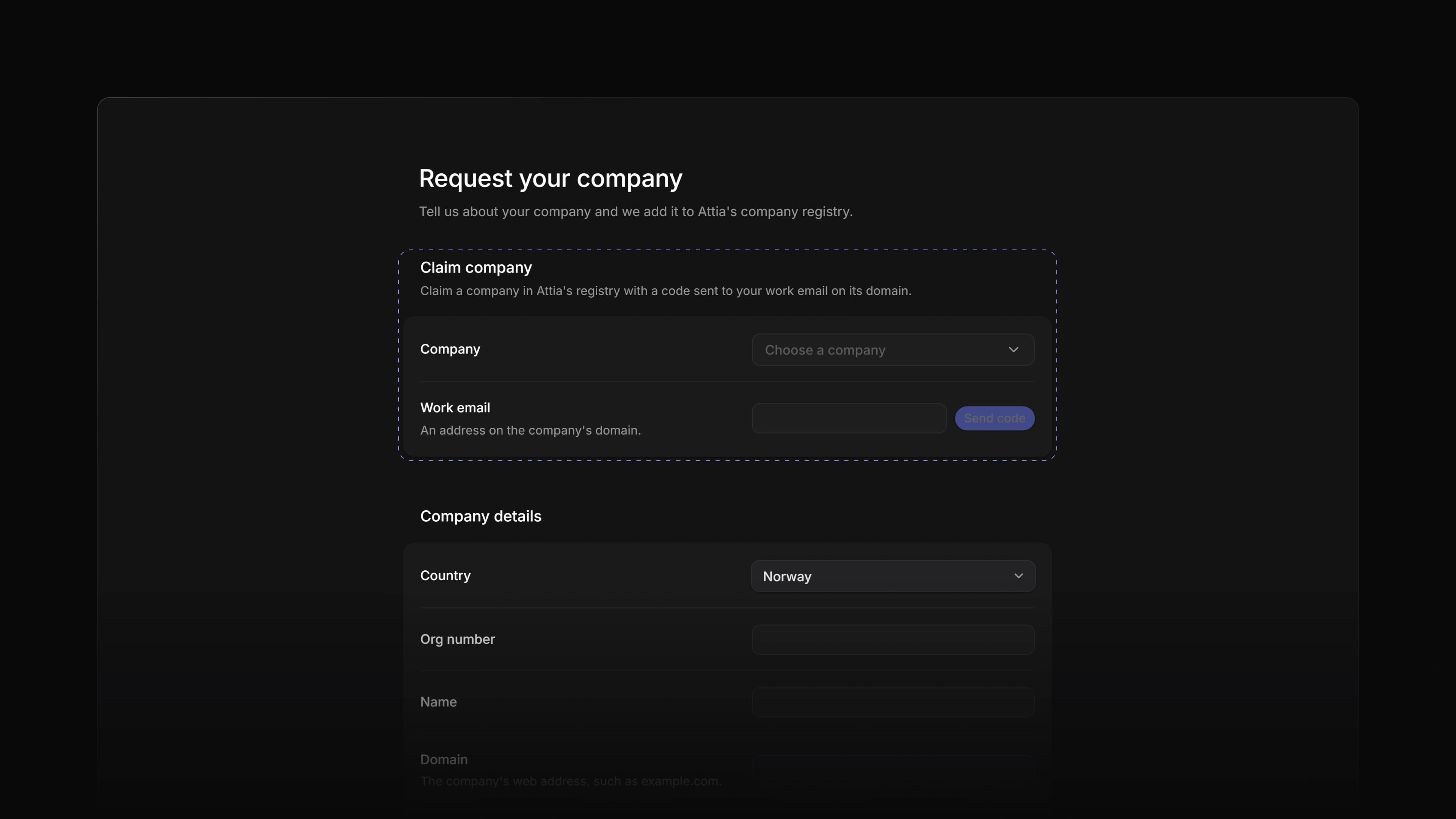
The Request your company page in Settings with the Claim company section marked: a Company picker set to Choose a company, and a Work email field with a Send code button

Attia keeps a registry of companies, and candidates pick from it when they add work experience to their Attia profile. If your company was already in the registry, you had no way to say it was yours, and a wrong name or an old logo stayed until you asked us to fix it.

Now an owner or admin can claim the company. Attia sends a code to a work email on the company's domain, and once you enter the code and we have reviewed the claim, you edit the company's name, summary and logo yourself.

To start, open Settings, choose Request your company and use Claim company at the top of the page. If your company is not in the registry yet, the request form below it still asks us to add it.

Claim with a work email

Pick the company under Company, type an address on its domain under Work email and choose Send code. Enter the six-digit code and choose Confirm. The code works for 15 minutes. A company whose domain is a free email service cannot be claimed; ask us to set its real domain first.

Review and editing

A new claim shows Pending review until Attia has looked at it. After that the company gets a Name, Summary and Logo you can change and save. The logo shows next to the company in a candidate's work experience.

Several companies

A workspace can hold more than one company. Claimed companies lists them all, with one marked Primary. Make primary moves that mark, and Revoke gives a company up after you confirm. You can claim it again later with a new code.

  • Jobs Added an Insights button at the top of the Jobs list, next to the details button. It opens the same panel as Cmd Shift I, or Ctrl Shift I on Windows.
  • Candidates Changed a candidate's Activity to show a message a Loop sent them when they have no application.
  • Views Fixed sorting by a text column putting lower-case names after Z, and Å before Ø in Norwegian. Text now sorts by the alphabet of the language you use Attia in.
  • Views Fixed a new candidate or application in a list in Manual order sharing the top place with the others. Each new one now goes to the top.
  • Views Fixed letter shortcuts such as S and P doing nothing on the row under the pointer when a button in the row had focus.
  • Views Fixed a card you moved to a new column and back in quick succession on a board jumping to the column it left.
  • Views Fixed a saved view with no icon showing an empty tab icon.
  • Views Fixed a column header's name running under the next header when the column is narrow.
  • Candidates Fixed the banner on a candidate page offering to link an Attia profile an admin had unlinked. Link Attia profile in the page header still works.
  • Applications Fixed Try again after a lost connection saving a private note or a thread reply twice.
  • Career sites Fixed Publish changes on a career site page being refused after you changed the site's settings.
  • Career sites Fixed Reset to published bringing back a navigation link to a job you had archived or deleted.
  • Settings Fixed a candidate or application label you had just dragged losing its new name when you renamed it.

Career site design

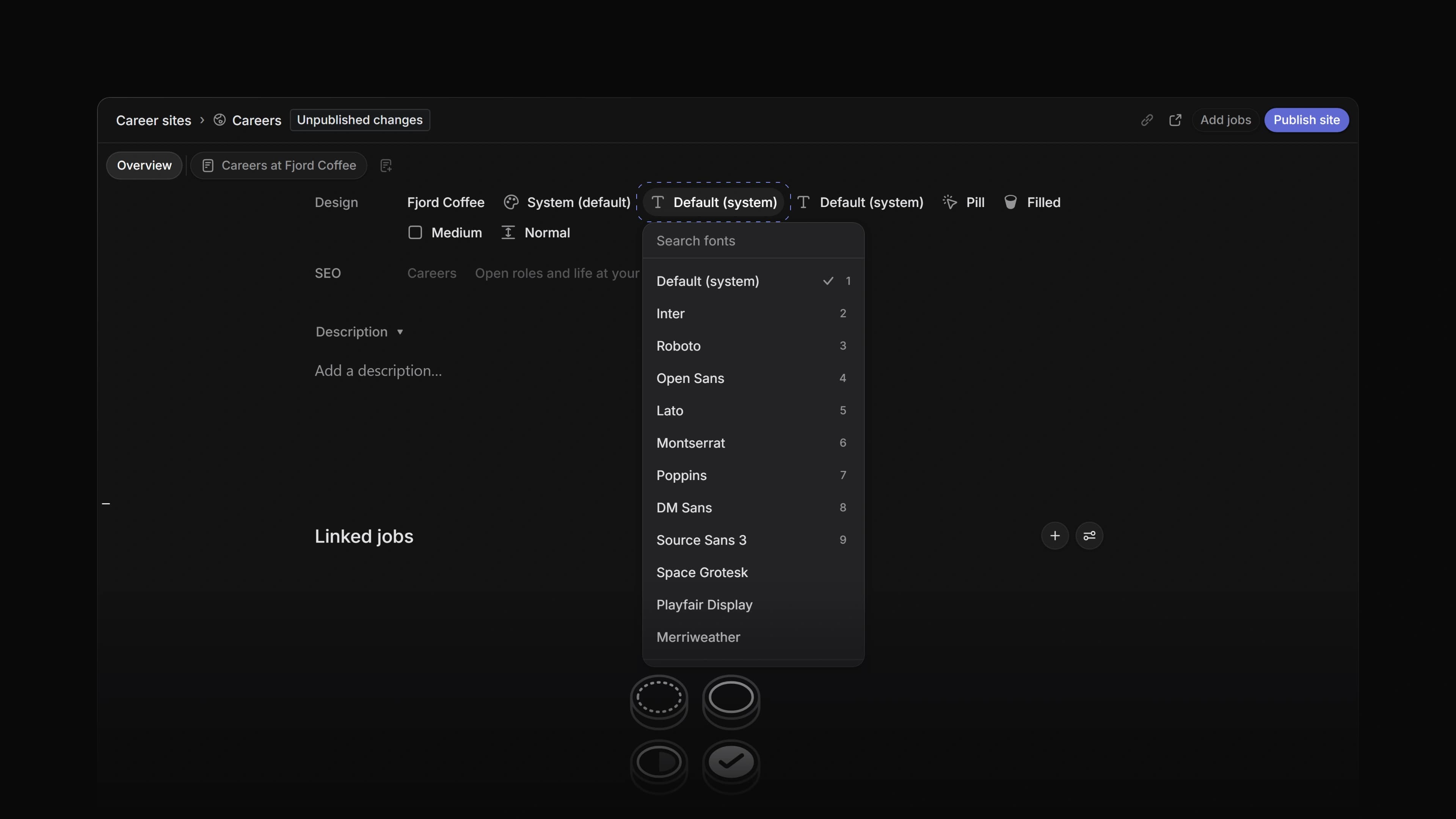
A career site's Overview with the Heading font picker open under the Design row: a Search fonts field above Default (system), Inter, Roboto, Open Sans, Lato, Montserrat and more fonts

Your career site had one font, a background colour and an accent colour. If your company uses one typeface for headings and another for text, or a brand colour for cards, the site could only come close.

Now you choose a heading font and a body font from the whole Google Fonts library, set the secondary, text and surface colours yourself, and decide how buttons and sections look. Four new blocks add questions and answers, your hiring process, your locations and a sign-up form.

To start, choose Career sites in the sidebar, open a site and use the Design row on its Overview. Visitors see the changes once you publish them.

Fonts

Heading font and Body font are now two settings. Below the fonts we picked for you, Search fonts finds any family under All Google Fonts. Attia keeps its own copy of the font you choose, and your published site loads it from Attia instead of from Google.

Colours and buttons

With the theme set to Custom, you now set Secondary, Text and Surface next to Background and Accent. Attia warns you when a colour has low contrast with the background or the surface. Button fill makes the site's buttons Filled or Outline.

Section spacing

Section spacing sets the room between the sections on every page of the site: Compact, Normal or Roomy.

New blocks

Add block has four new blocks. FAQ holds questions and answers, Hiring process lists the steps a candidate goes through, and Locations shows where you work. Connect is a sign-up form for people who want to hear about new roles. The visitor enters their email, types the code Attia sends them, and is connected to your company without applying for a job.

Reset to published

Reset to published sits next to Publish changes on a page. It throws away the unpublished changes to that page and to the site's theme, fonts, logo, name and navigation, after you confirm. The live site stays as it is.

Remind me

Right-click a job, a candidate or an application, or press Shift H on the selected row, and choose Remind me. Pick An hour from now, Tomorrow, Next week or another preset, or type a time such as "4 pm" or "in 5 weeks". Custom… opens a calendar. When the time comes, the reminder shows up in your Inbox.

Move and manual order

Choose Display options, then Ordering, then Manual, and you can put jobs, candidates and applications in your own order. The row menu has Move with Move to top, Move up, Move down and Move to bottom. The same Move submenu works on the label lists and the team list in Settings.

Companies in the candidate account

A candidate's account now has a Companies page with one row for each company they have applied to or connected with. A company's page shows the applications the candidate sent there and the messages they got, and lets them disconnect. The candidate can also keep private notes about a company and private notes and files on an application. Only the candidate sees them.

  • Jobs Added Convert to, then Template…, to a job's row menu. It opens a new job template filled in from the job.
  • Jobs Added Open in new tab to the row menu of a published job, which opens the job ad on your career site.
  • Jobs Added a card to Insights that counts applicants by gender, for one job or for all of a team's jobs.
  • Candidates Added Unlink Attia profile to the menu on a candidate page, for owners and admins. The candidate keeps their applications and contact details.
  • Teams Added Settings, Leave team… and, on a sub-team, Delete… to a team's row menu in Settings.
  • Teams Changed a team's Visibility so a team owner can set it, not only an admin. This is on the Business plan.
  • Settings Added Add label to group to the row menu of a label group in Settings.
  • Inbox Changed an Inbox notification about a job's status to say which status the job moved from.
  • Loops Changed the picker under Run now to find records that were not loaded yet, and to show the candidate's name on an application you found by job title.
  • Views Added Shift H to open Remind me on the selected row.
  • Views Added Option ↑ and Option ↓ to move a row in manual order, and Option Shift ↑ and Option Shift ↓ to move it to the top or bottom. On Windows, use Alt.
  • Jobs Fixed a job that could not be moved showing the wrong message. It now says Job could not be moved.
  • Jobs Fixed a change to a job made just before you reloaded the page waiting about a minute to save.
  • Settings Fixed a new status, label or question disappearing for a few minutes when you left the page and came back.
  • Settings Fixed right-clicking a label in the job labels in Settings opening the browser's menu instead of the row menu.
  • Workspace Fixed date fields not understanding Norwegian words such as "i morgen" when you use Attia in Norwegian.

Invitations on the Members page

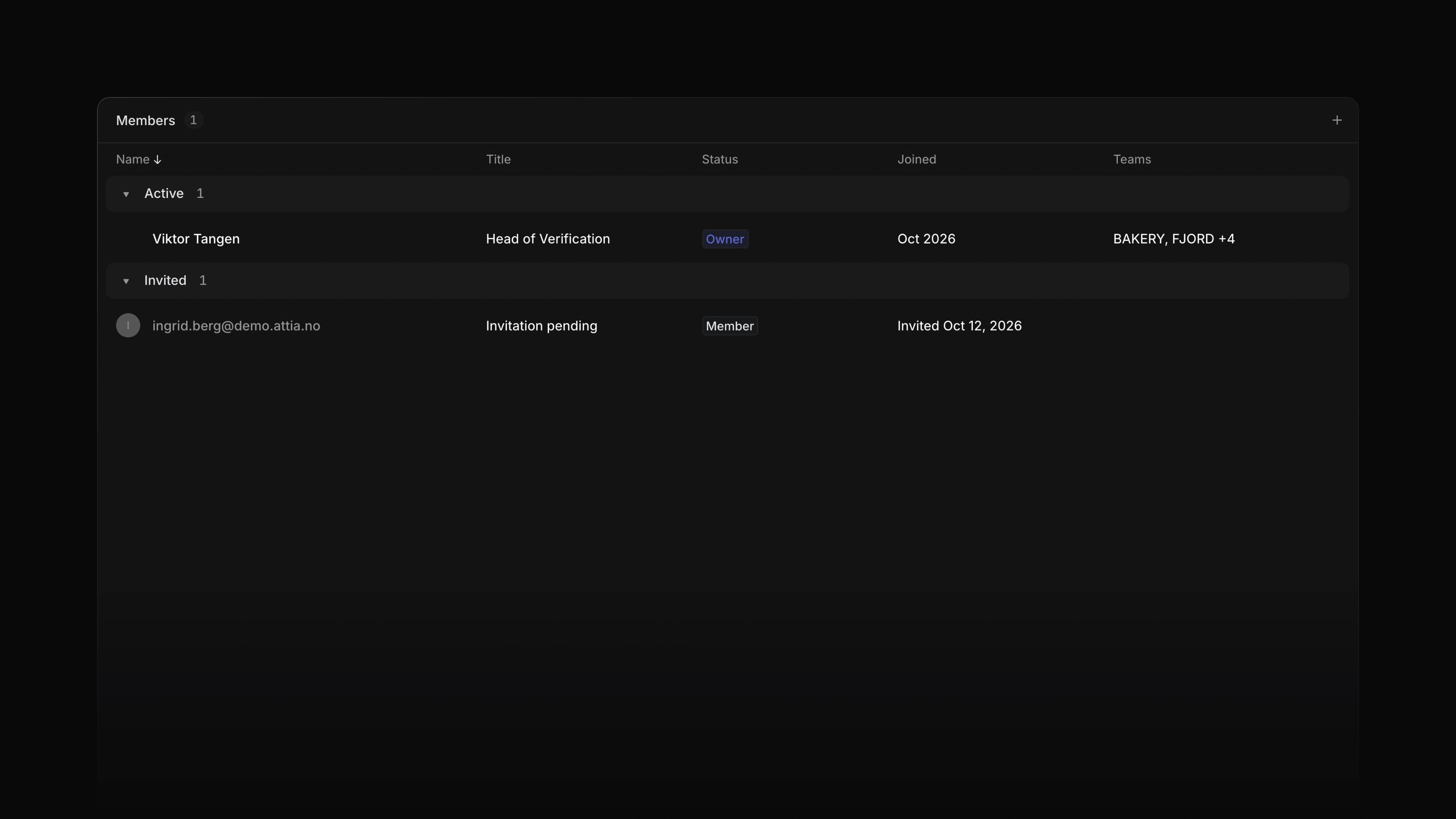
The Members page grouped by State, with active members first and a muted Invited group below showing each invited email, its role and the date it was sent

The Members page in the sidebar showed only the people who had joined. To see who you had invited and not heard back from, you had to go to Settings.

Now the Members page lists them too. The table groups by State, with Active members first and Invited below, so you can see who joined and who still has an invitation waiting.

Invited rows

Each invitation is a muted row with the email address, the role you invited them to and the date you sent it.

Resend or cancel

Right-click an invited row to choose Resend invite or Cancel invite. Both do the same as on the Members page in Settings, and only admins see them.

Your views

The page groups by State unless you choose otherwise. A saved view of the Members page keeps the grouping it was saved with.

  • Views Added the column menu to the Applications table on a job page and to the tables in Settings; right-click a column header to filter, sort, group or hide.
  • Filters Changed Filter in the column menu to open straight on that column's values.
  • Jobs Changed the question rows on a job's Overview to open only when there is something inside, and moved the options of a select question and the file categories of a file question into the open row.
  • Members Fixed a profile picture showing a coloured ring around it.
  • Documents Fixed the floating table of contents staying open when you clicked in it and then moved the pointer away.

Shorter apply form

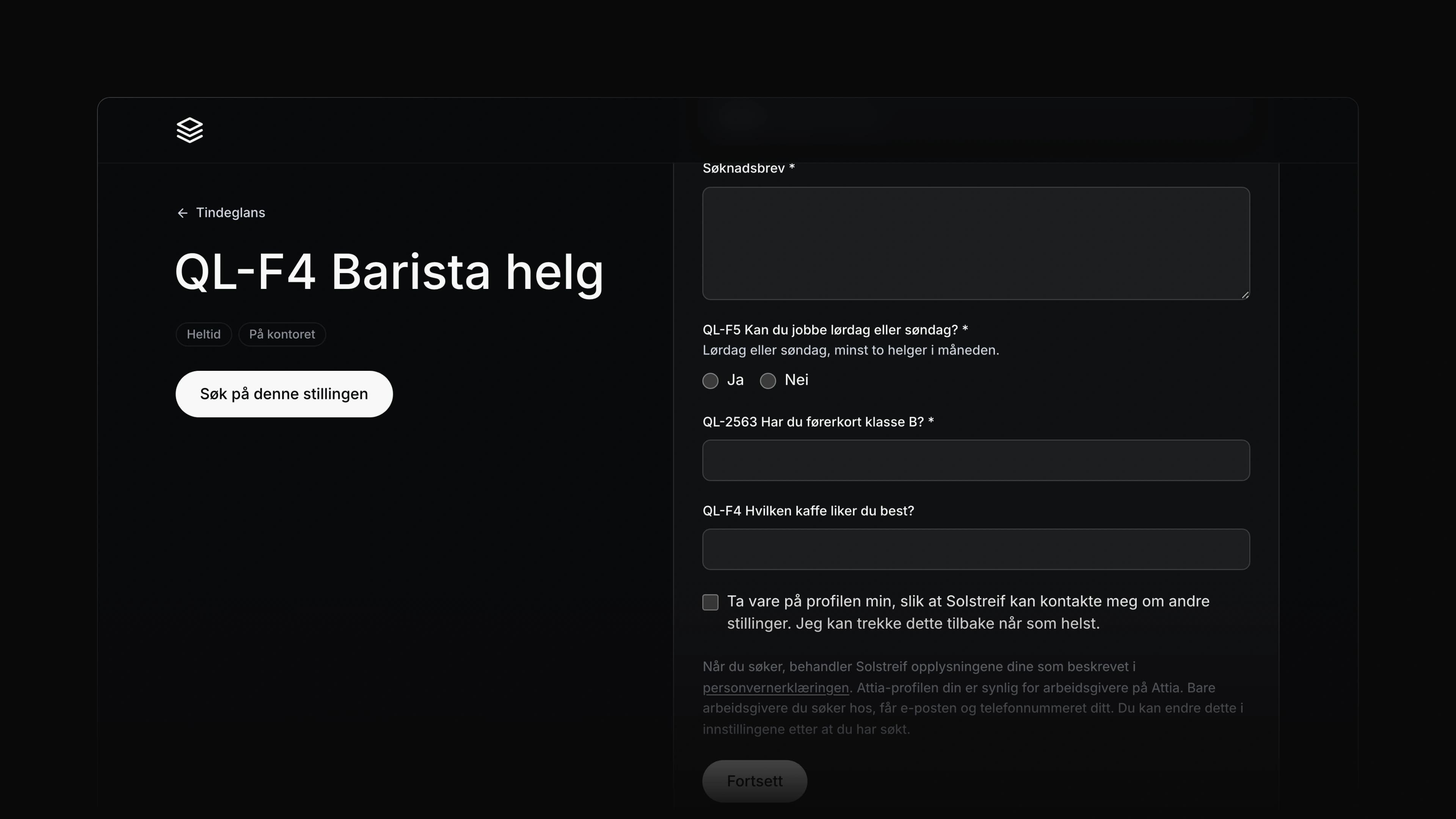
An apply form on a career site with a checkbox to keep the profile for other jobs and, above the Continue button, a line that links to the privacy notice

A candidate who applied on your career site had to tick a consent box and read two statements before they could send. The form also followed the visitor's browser, so a Norwegian site could greet an English browser with English labels next to your Norwegian job ad.

Now the form ends with one checkbox the candidate can leave alone, and the site's language decides what the visitor reads.

One optional checkbox

The required consent box and its two statements are gone. In their place is one checkbox the candidate can tick if they want to: Keep my profile so your company can contact me about other jobs. I can withdraw this at any time. A candidate who ticks it joins your talent pool, by default for 90 days. Below it, one line says that your company handles the candidate's details as described in the privacy notice, and the link opens the notice in a dialog without leaving the form.

The site's language

A career site in Norwegian only now shows everything in Norwegian, whatever language the visitor's browser uses. That covers the buttons, the field labels, the error messages and the file upload.

Career site status

Open a career site's Overview, and the Status chip now publishes or unpublishes the site. Draft is now called Unpublished. Only admins and the workspace owner can change it, and Attia asks before it takes a live site down. On a job page, the View on career site button opens the job ad in a new tab, and it shows only when both the job and its site are published.

Column menu

Right-click a column header in a table to filter, sort, group by or hide that column.

Help pages

The help pages have 45 new articles in English and Norwegian, with screenshots from Attia. A link from one article to another keeps the language you were reading in.

  • Agent Added the search title and description of a career site page to what Attia Agent can write; the change stays a draft until you publish.
  • Agent Changed Attia Agent to answer in a sentence or two after it edits a career site, to point out starter text that is still on the site, and to say why when you can't edit a site.
  • Jobs Added Custom…, Tomorrow, End of this week and In one week to the date items in a job's row menu.
  • Applications Marked labels that candidates can see as Public in the label picker.
  • Members Changed New user invitations set to All members so members can invite members, and can invite a guest only into a team they lead.
  • Settings Added career site changes to the audit log, made the export follow the filters you set, and gave every event a readable name. The audit log is on Enterprise.
  • Teams Turned off the controls in a team's access settings that you don't have the rights to save.
  • Jobs Fixed the Applications card saying 1 applications.
  • Teams Fixed the count column in the Teams table in Settings having the wrong name, and the Created column cutting the date short.
  • Teams Fixed a team's access settings saying Saved before the change was saved.
  • Career sites Fixed the toolbar on the Header block in the career site designer looking faded.
  • Agent Fixed the Thinking… row in an Attia Agent chat showing an arrow that opened nothing.
  • Agent Fixed a chat that you picked up again the next day being unable to edit the career site.
  • Workspace Fixed the sidebar closing when you collapsed the sidebar in another window.
  • Jobs Fixed the Insights panel on the Jobs list showing English in Norwegian.
  • Applications Fixed an application you add by hand not always being assigned to you.
  • Applications Fixed being able to move an application on a board without the rights to edit its job.

Properties in the row menu

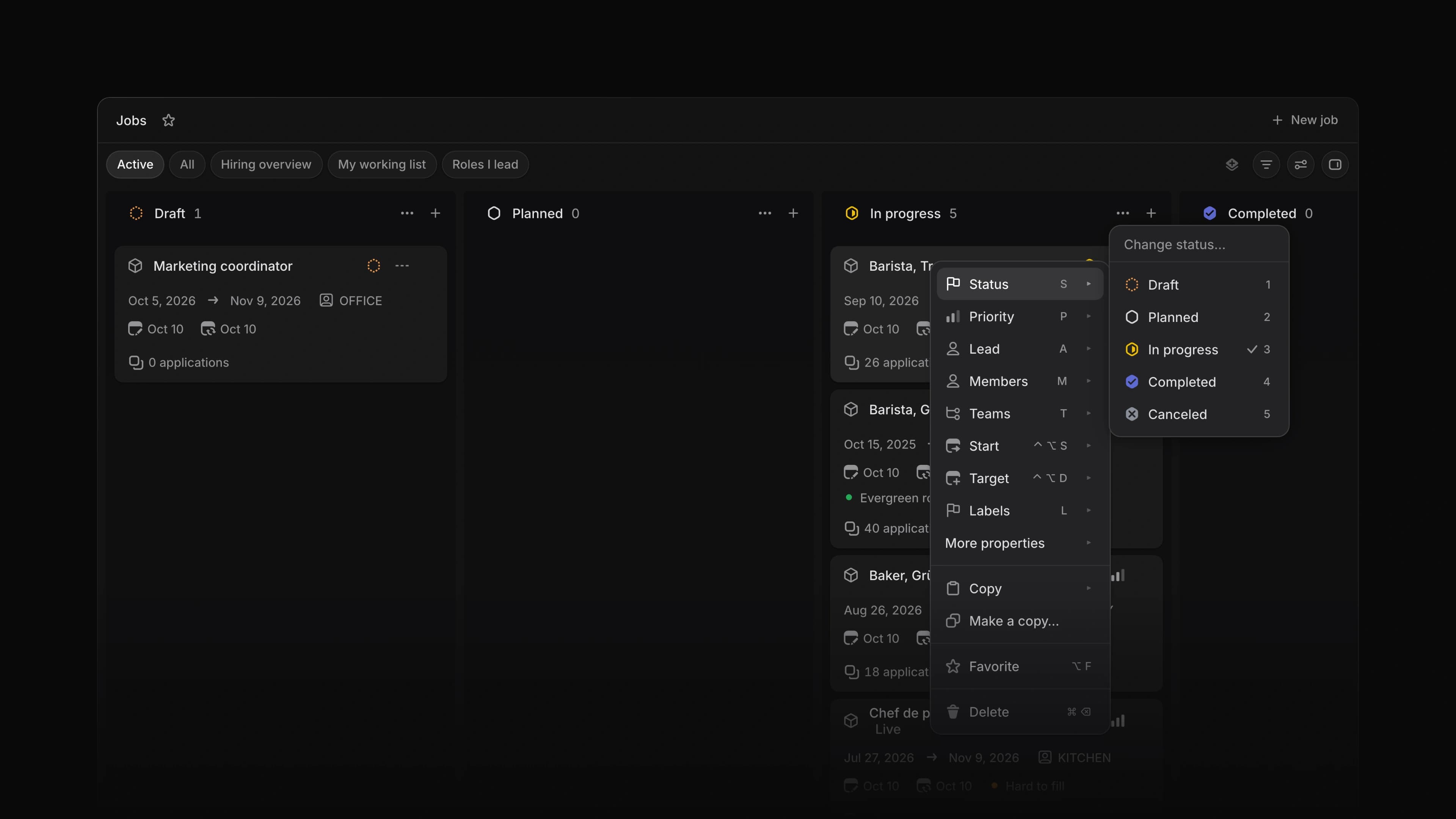
The Jobs board with a job's row menu open and its Status submenu showing every status, with a check next to the current one

To change a job's status or an application's assignee from a list, you had to open the record or find the right cell in the table. A board card gave you no way to do it at all.

Now the menu you get when you right-click a row holds the properties too. Point at Status, pick a new one, and the row changes. Each submenu has the same letter as the shortcut on the record page, so you can open the menu and press S to go straight to Status.

Say five applications in the Screening column are ready for an interview. Select them, right-click one, choose Status and pick Interview. Attia asks you to confirm, then moves all five.

On jobs

The menu on a job has Status, Priority, Lead, Members, Teams and Labels, with the keys S, P, A, M, T and L, and the start and target dates. Career sites sits under More properties.

On applications

The menu on an application has Status, Assignee, Review and Labels, with the keys S, A, R and L. Labels groups team labels and workspace labels apart.

Pick fast

Every submenu has a filter at the top and a check next to the value the row has now. Type to narrow the list, or press 1 to 9 to pick one of the first nine. In Members, Teams and Labels each value has a checkbox, so you can tick several before you close the submenu. Escape clears the filter first and closes the submenu the second time. The same menu opens when you right-click a card on a board or an item on a timeline.

Copy as Markdown

The Copy submenu on a job, an application and a candidate now has Copy as Markdown, which copies the record's title and properties as text you can paste into a document or a message. Dates come out the way the table shows them. A job also has Copy everything as Markdown, which adds the description. Neither one copies a candidate's email or phone number.

Sidebar peek

With the sidebar hidden, move the pointer to the left edge of the window, and the sidebar slides in over the page, starting below the header. Move away and it slides back out. Shift S now hides and shows the sidebar, and [ still works too.

My loops and All loops

The Loops page has two tabs. My loops shows the Loops you own, and All loops shows every Loop in the workspace. Use Find loops… to search by name. An Owner column shows who owns each Loop, and an admin or the owner can hand a Loop to someone else from that cell.

  • Favorites Changed Favorite in the row menu to add the record to the sidebar the moment you choose it.
  • Agent Added a Loops are now available card with Create loop to an empty Attia Agent chat.
  • Inbox Changed Inbox notifications about a job to name the person who made the change, in English or Norwegian.
  • Settings Filled in Last applied for job labels in Settings, which stayed empty before.
  • Candidate account Added the workspaces that have linked a candidate's profile to Profile in the candidate account.
  • Loops Changed a Loop's Reminder step to send its email within about a minute of the time it is due.
  • Applications Changed S on an application page to open Status at every window width.
  • Settings Added Escape to cancel a row you are editing in the status settings.
  • Candidates Changed Cmd Z, or Ctrl Z on Windows, to bring back a candidate picture you just removed or replaced.
  • Settings Fixed a new label row showing an old date under Created.
  • Settings Fixed the dialog for archiving a job label talking about projects.
  • Applications Fixed the side panel on an application page staying in place when it was taller than the window, which hid its lower rows.
  • Candidates Fixed emptying the bin deleting the applications of a duplicate candidate that Link and archive had moved to the kept candidate.
  • Billing Fixed the automatic reload dialog leaving out the smallest amount you can top up with.
  • Workspace Fixed a collapsed sidebar opening again on its own.
  • Career sites Fixed headings in the career site designer being hard to read on a light site, and the Light and Dark previews showing the wrong colours.
  • Candidate account Fixed the application page in the candidate account showing a different gender from the one the candidate sent.

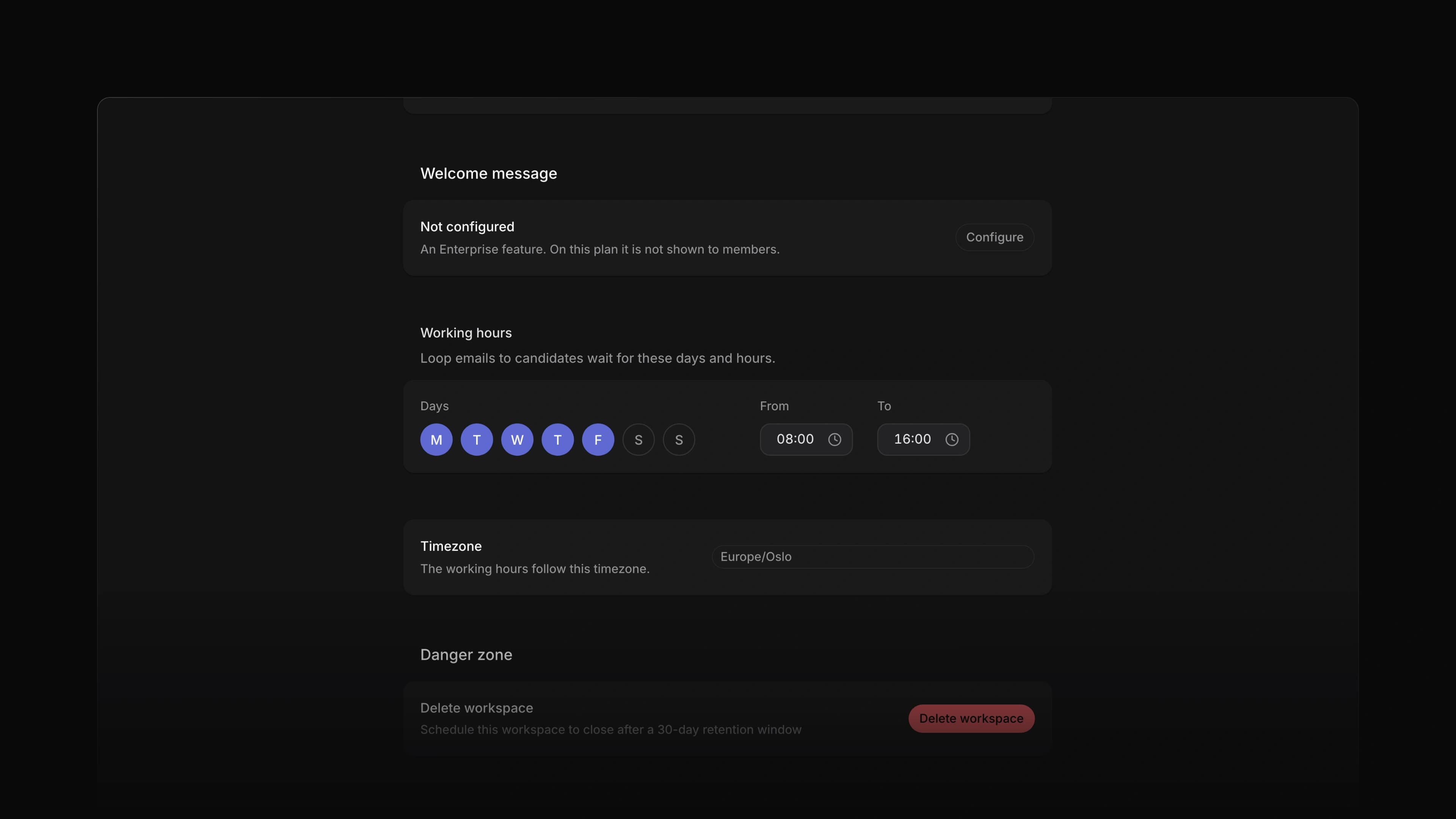
Working hours

The Working hours section in workspace settings, with Monday to Friday chosen, 08:00 to 16:00 and a timezone

A Loop that emails candidates sent each email the moment its step ran. A candidate who applied close to midnight got your reply before they had closed the tab, and a Saturday application got its answer on Saturday.

Now a Send message step can wait for working hours. Set the days and times your workspace works, and a Loop email that comes due outside them waits until the hours start again.

Say a candidate applies on Saturday evening and your Loop thanks them for applying. With During working hours, the email goes out on Monday at 08:00, and the Loop run shows when it will go. To start, open Settings, choose Workspace and set Working hours.

Workspace and team hours

An admin sets the workspace hours under Settings, Workspace: the days, a From and a To time, and a timezone. Until you change them, the hours are Monday to Friday, 08:00 to 16:00. A team that works other hours turns off Use workspace hours on its General page and sets its own. A Loop in a team with its own hours follows them, and every other Loop follows the workspace.

When to send

Each Send message step has a When to send row with three choices: During working hours, Right away, and On chosen days, where you pick the days and times. A new step starts on During working hours. A step saved before this change keeps sending right away until you change it. Attia Agent can set When to send when it builds a Loop for you.

See when an email goes

While an email waits, the Loop run shows the day and time it will go out.

Desktop app

In Chrome and Edge you can now install Attia as an app on your computer. Open the workspace menu at the top of the sidebar and choose Download desktop app. The app opens in its own window without the browser's address bar. Its title bar takes the colour of your theme and holds the sidebar button, Back and Forward.

Row menu actions

Right-click a job, an application or a candidate, and the menu now has a Copy submenu with Copy ID, Copy URL, Copy title and Copy title as link. On a job, Make a copy… opens a new job filled in from the one you picked, without its career sites and dates. Favorite now works on applications and candidates too, from the menu or with Option F, or Alt F on Windows. Select several rows and right-click one of them, and Favorite acts on every selected row.

  • Settings Added Team creation to Security in Settings, where an admin chooses whether only admins or all members can create teams.
  • Settings Changed Referrals in Settings to work like Members: Invite opens a dialog for work emails, and a failed send offers Retry.
  • Settings Added Country and Org number to Request your company in Settings.
  • Agent Added a Written by Agent note under an application summary that Attia Agent wrote.
  • Agent Changed the approval card to list each change Attia Agent wants to make to a candidate, one per line, before you choose Approve.
  • Agent Lowered the AI credits that Attia Agent and Loops use for most work.
  • Command menu Added O then T to open a team and O then V to open a saved view from the command menu.
  • Applications Fixed empty review stars disappearing when you hovered them or saw them in a menu.
  • Applications Fixed an application summary that failed to save losing your text; it now keeps the text and offers Retry.
  • Jobs Fixed application questions on a job that failed to save looking saved; they now stay unsaved and offer Retry.
  • Templates Fixed saving a job template overwriting changes someone else had made to fields you left alone.
  • Filters Fixed a Status is not filter disappearing when you added another filter.
  • Teams Fixed a sub-team that uses its parent's statuses showing the wrong columns on its board.
  • Teams Fixed Rename team in the team row menu in Settings doing nothing, and removed Delete team from that menu, which did nothing either.
  • Loops Fixed a Loop email to a candidate naming the sender as Hiring team; it now says Attia.
  • Accessibility Fixed the keyboard focus outline being cut off on sidebar rows and other controls.

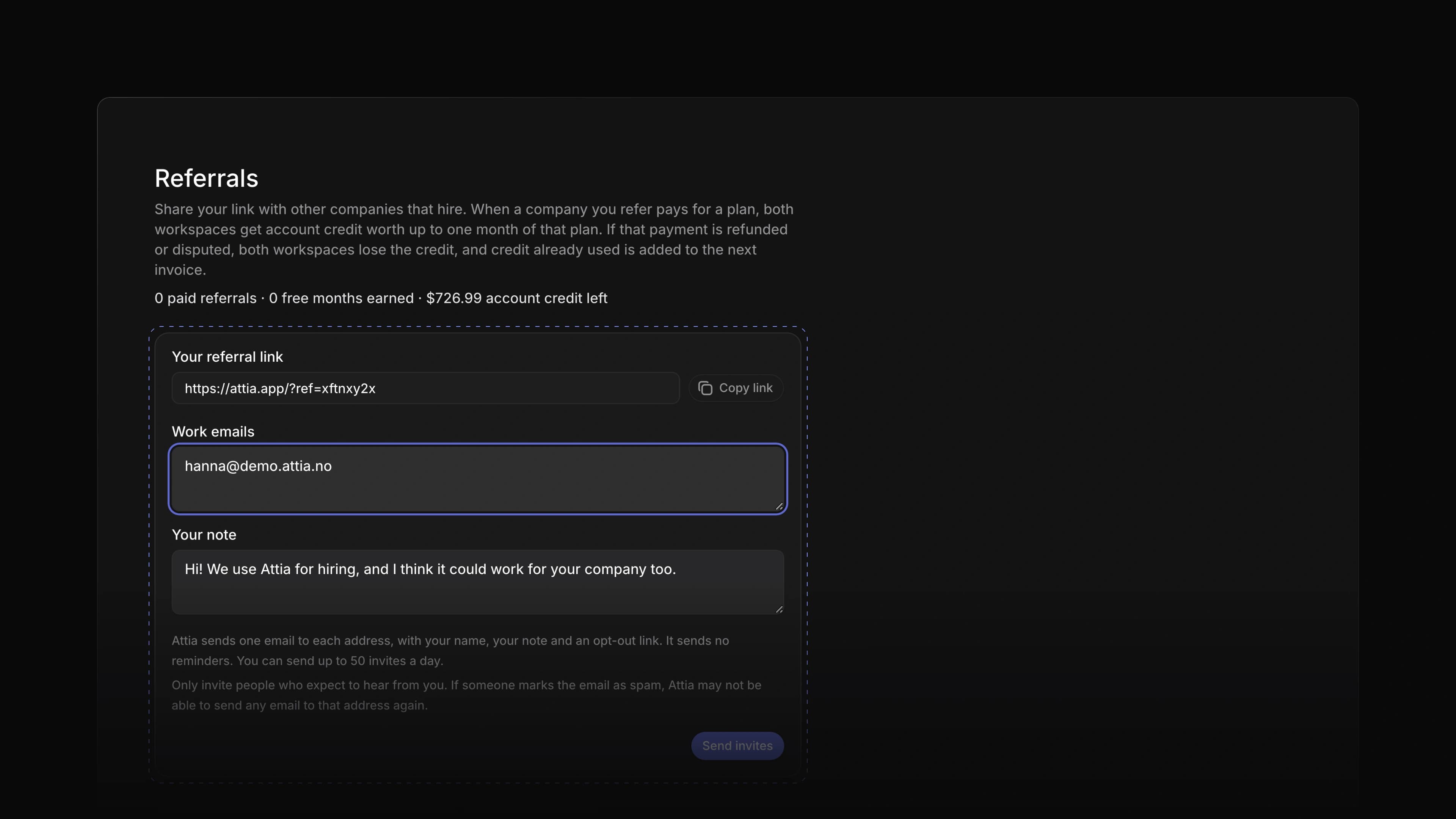
Free months for referrals

The Referrals page in Settings, with your referral link, a Copy link button, a work email typed in and your note below it

People who hire know other people who hire. Until now, when you told one of them about Attia, they got a better way to hire, and you got nothing back.

Now every workspace has its own referral link. When a company signs up through it and pays its first invoice, both workspaces get a free month as credit on their Attia bill. You can earn a free month for up to 12 companies a year.

The credit is one month of the plan the new company pays for, for each seat they pay for. So if you refer a company that is bigger than yours, one referral can pay for more than a month of your own plan. Credit you do not use goes to your next invoices, and it does not expire.

Say a friend runs hiring at a hotel group. Send them your link. When they pay their first invoice, both workspaces get a free month, and the owners and admins in your workspace get an email with the amount. To start, open Settings and choose Referrals.

Copy your link and share it where people who hire meet, such as a LinkedIn post or an HR group chat. Every member of the workspace can share it. A new workspace also sees its own link right after it chooses a paid plan, under "Who else do you know who hires?"

Invites in your name

Type their work emails and add a note. Attia sends each person one email in your name, with your note and a Try Attia button, and a reply goes to you. Attia sends no reminders, so nobody gets chased. A workspace can send up to 50 invites a day.

Credit for both

Both workspaces get the credit, and it comes off their next invoices. You do not have to ask us for it. A yearly plan gives one twelfth of the year. The new company has 90 days from sign-up to pay, and a discount on that first invoice makes the credit smaller for both. If your workspace is on the Free plan, your credit waits until you start a paid plan. If the payment is refunded or disputed, both workspaces lose the credit, and any credit already used is added to the next invoice.

Every referral in one place

The table lists each invite and link sign-up with its status, such as Sent, Clicked, Signed up or Paid, and the credit it earned. The top of the page counts your paid referrals and free months. Owners and admins also see how much account credit is left.

Pages that open at once

A job, a candidate or an application now opens the moment you click it. The title, properties and status show at once, and the rest, such as files and the timeline, fills in just after. After Create job, you can open the new job right away, before Attia has finished saving it. Create candidate closes at once, and the new candidate is already in the list. The Inbox and Candidates lists show their rows at once on every visit. When another member changes something, or you change it in another tab, the pages you have open show it without a reload.

Offline edits on jobs

When your connection drops, your changes to jobs now wait instead of failing. That covers edits and drags on the Jobs list and board, a job's title and summary on its Overview, and the properties you pick on a job. They stay through a reload, and they save when you are back online. If Attia cannot save a change, you see Change not saved with the reason, or Try again when the connection failed.

  • Applications Changed replies and private notes on an application to show the moment you send them, without locking the note box.
  • Applications Added Try again to the message when a change to an application's status fails.
  • Candidates Changed Create candidate to open again with what you typed when Attia refuses the new candidate, and to offer Try again when the connection failed.
  • Views Added Ask Agent to the bar that shows when you select rows. It starts a message to Attia Agent with the selected rows in it.
  • Performance Changed Attia Agent to start its reply sooner.
  • Performance Changed the Jobs list and board and the Candidates list to draw faster.
  • Performance Changed Open full page on a document to show its text at once instead of a grey bar.
  • Performance Changed the Plans and AI & Agents pages in Settings to open sooner.
  • Performance Changed Open app on the Attia website to open your workspace in one page load instead of two.
  • Performance Changed the sidebar to show your teams and Candidates as soon as a page loads, so the rows below no longer jump down.
  • Performance Changed the workspace logos under Switch workspace to show with their rows instead of a moment later.
  • Keyboard shortcuts Changed the key for Lead to A on the job you point at in the Jobs list and in Create job, and to J then A on a job's page. M, and J then M on a job's page, now edit Members.
  • Agent Fixed Attia Agent getting stuck when it asked you to approve two changes at once, so that neither change saved.
  • Agent Fixed the Attia Agent chat freezing when you chose Approve before you answered a question in the same message.
  • Agent Fixed a failed send in the Attia Agent chat emptying the message box; it now keeps your text and offers Try again.
  • Agent Fixed typing @ in the Attia Agent chat opening no mention menu.
  • Agent Fixed Attia Agent not finding your team's job templates when you asked it to change one, and naming a template's blanks in its own words.
  • Agent Fixed Attia Agent guessing what starts a Loop instead of naming its trigger, and giving the wrong reason when it could not change a Loop's schedule.
  • Agent Fixed Attia Agent asking to publish a Loop without naming changes someone else had saved to its draft.
  • Loops Fixed Run now on a Loop sometimes starting the run minutes after you pressed it.
  • Loops Fixed Run now on a scheduled Loop over jobs or applications showing an error; the button is now turned off and says why.
  • Loops Fixed a Loop run that waits on a question from Attia Agent showing a code on its page, and only New activity in Inbox.
  • Loops Fixed the Source condition in a Loop's Filter step showing a code instead of Career site.
  • Jobs Fixed dragging a job to another Contract type column on the Jobs board leaving its contract type unchanged.
  • Jobs Fixed dragging a job into another column and group on a board with sub-groups saving only the new column.
  • Jobs Fixed Contract type and Positions on a job's page snapping back with an error instead of saving.
  • Jobs Fixed a property on a job's page showing the wrong value when you changed it twice quickly and the first change failed.
  • Jobs Fixed a failed save of a job's title, summary or ad throwing away the text you had typed.
  • Jobs Fixed a new job that could not be created opening a page that said it was not found, instead of going back to the Jobs list.
  • Jobs Fixed a Creating a job draft with the new job's title showing up in Drafts after Create job.
  • Jobs Fixed a job you had just deleted showing for a moment when you reloaded the Jobs list in another tab.
  • Jobs Fixed going from a job's Applications tab to Overview and back resetting the layout and grouping of the applications table.
  • Applications Fixed a failed card move on the Jobs and Applications boards showing two error messages.
  • Applications Fixed Try again after a failed move on the Applications board leaving the card in its old column.
  • Applications Fixed the reply button on an application's note thread staying locked with no message when the connection dropped.
  • Applications Fixed a teammate's note disappearing from an application while your own note was sending.
  • Candidates Fixed changes failing on a candidate who had linked their own Attia profile. Their name, photo and location now come from that profile, and the Candidates table marks those candidates.
  • Views Fixed adding a label with several rows selected changing only one row.
  • Filters Fixed the filter for a date, such as Created, offering is and is not instead of before, on and after.
  • Editor Fixed a job's ad, a document or a team's description showing old text when you went back to a tab after saving in another tab.
  • Teams Fixed the Teams page showing 0 teams and no teams available for a moment on a first visit.
  • Teams Fixed the back link covering the page title on some of a team's settings pages on a phone.
  • Teams Fixed the help under Extended review scale in a team's settings telling you to split an application, which you cannot do.
  • Settings Fixed help in a team's settings, New team and Manage workspace templates mentioning estimates, projects, cycles and recurring issues, which Attia does not have.
  • Settings Fixed the workspace name field in Settings locking until each save finished.
  • Members Fixed an invite link showing an error page when you opened it signed in to an account with no invite waiting.
  • Workspace Fixed a new workspace showing an error page on every visit when setup stopped right after Create workspace.
  • Workspace Fixed Pick a workspace saying you had no workspaces when you came back to the tab while your new workspace was still being created.
  • Workspace Fixed a warning that the data may be out of date showing on a quiet workspace when nothing had changed.
  • Workspace Fixed a role change on the Members page or a deleted view on Views being lost without a warning when you closed the page before it saved.
  • Career sites Fixed a hidden field on the apply page taking a Tab stop.
  • Accessibility Fixed the arrow keys doing nothing in the account menu, and Tab then Enter on the workspace name in the sidebar opening no menu on a freshly loaded page.
  • Accessibility Fixed the hovered or selected row in menus, such as the account menu, showing no highlight in the light theme.
  • Accessibility Fixed the Workspace heading in the sidebar showing no focus ring when you reached it with the keyboard.
  • Accessibility Fixed Left and Right sometimes leaving a card in its own column when you move it on a board with the keyboard.
  • Keyboard shortcuts Fixed pressing Cmd Z, or Ctrl Z on Windows, twice quickly undoing only one change.

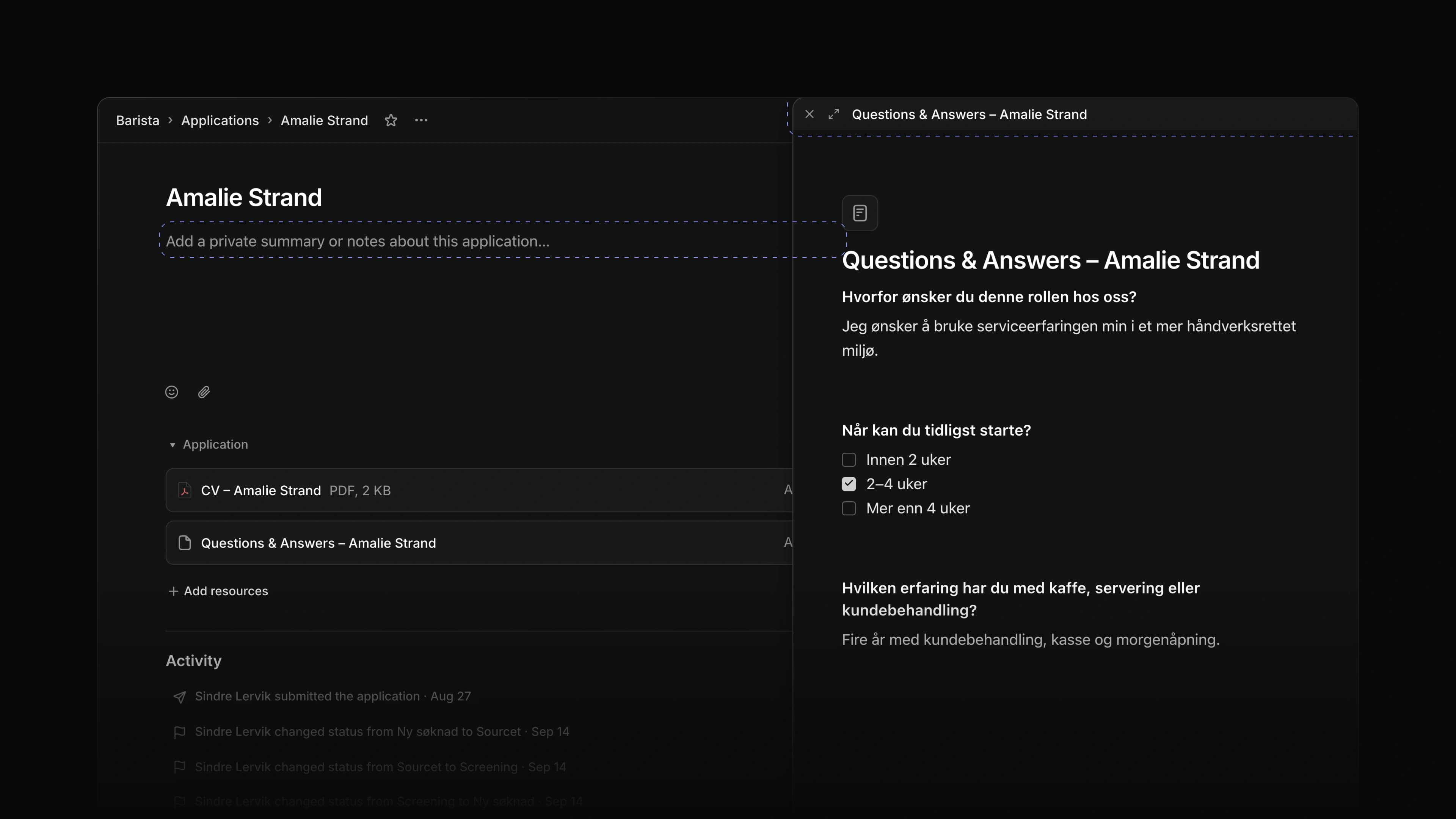
File preview beside your notes

An application page with Questions & Answers open in a window docked on the right, and the empty notes field on the left

Reading an application means moving between what the candidate sent and what you think of it. Until now the answers and the application letter opened in a dialog that covered the application, so you closed them before you could write a word about them.

Now the CV, the answers and the application letter open in the same window, docked to the right of the application. The page behind it stays open, so you read on the right and write your private notes or a comment on the left.

Say you are hiring a barista. Open an application, choose Questions & Answers under Application, and type what stands out in the notes field while the answers stay in view. Then choose the CV, and it takes the answers' place in the same window. To start, open any application and choose a file under Application.

Answers and letter in the same window

Questions & Answers and the application letter open in the window the CV uses. Choose Open full page in the window's header to read either one on its own page. A CV or another uploaded file has Open in that place, which shows the file in a new tab.

Docked to the side

The window opens against the right edge of the page, so the application text and your notes stay clear. Until you resize it, a PDF window takes the size that shows its whole first page. Drag the header or any blank part of the window to move it. A file starts loading as soon as you point at it, so it opens with less wait.

Pages in one stack

A PDF's pages sit in one column, edge to edge with a thin line between them, like a stack of paper. Pages shows a thumbnail of each page, and a one-page CV opens without it so the page gets the room. Select text on a page to copy it. An image or a video also shows in the window, and a Word file or any other file shows Open and Download.

Zoom

Pinch on a trackpad to zoom, or click in the window and press Cmd = to zoom in and Cmd - to zoom out, or Ctrl = and Ctrl - on Windows. Zoom runs from 50 to 400 percent. Cmd 0, or Ctrl 0 on Windows, goes back to 100 percent, and a pinch that ends close to 100 percent lands on it. On a computer without a touch screen, the text stays sharp at 400 percent.

Close with a key

Press Space or Escape anywhere on the page to close the window. While you type in your notes, both keys work as usual in the field.

The candidate beside the application

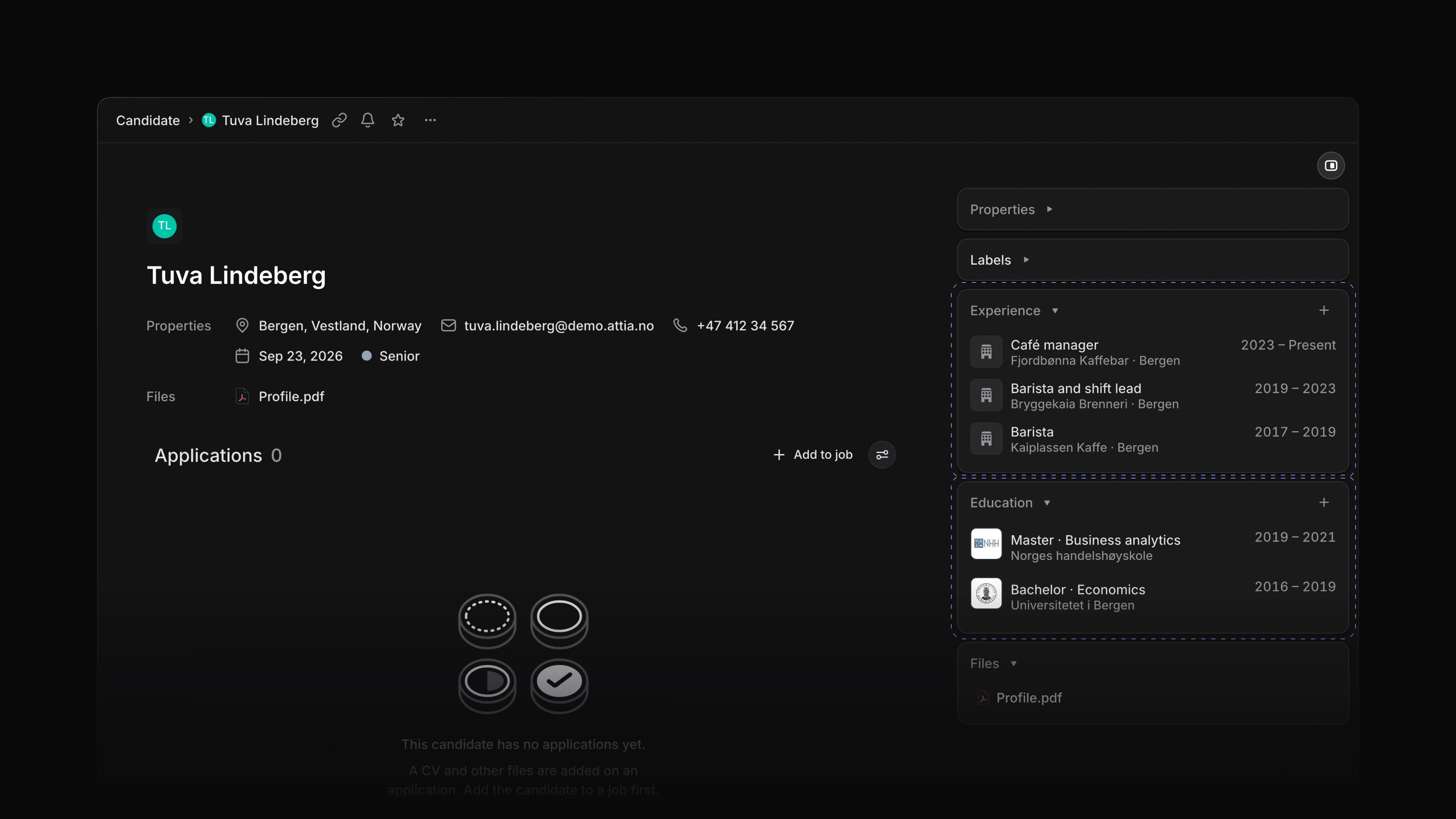
The side panel on an application page now shows the candidate's Experience and Education under Candidate, read from their current profile, so a change to the profile shows here too. Copy application URL, Copy application ID and Copy candidate email sit at the top of the panel, and the panel stays in place as you scroll. The job and candidate names in the panel are links, so you can open either one in a new tab.

Pending invitations

On the Members page in Settings, a pending invitation now has Resend invite and Cancel invite in its row menu, and in Actions when you select the row. Resend invite sends a new email, and the link in the earlier one stops working. Cancel invite stops the link from working, and you can invite the person again later. Both ask you to confirm first.

Pickers in the middle of the screen

A field key on a row now opens its picker in the middle of the screen, the way the command menu opens, on every list, table and board. On the Jobs list, Ctrl Option S and Ctrl Option D, or Ctrl Alt S and Ctrl Alt D on Windows, open a calendar to set the start date and the target date. When A opens the Lead picker on the Jobs list, press → to see the highlighted member's card with their email, and ← to close it.

  • Candidates Changed Location in Create candidate and Edit candidate to open the city search.
  • Members Changed the Role column on the Members page in Settings to let an admin switch another member between Admin and Member.
  • Jobs Added a tooltip with the keys to Copy job URL and Copy job ID in a job's header, and a message when the copy is done.
  • Performance Changed a job's ad and its applications table to show in full the moment the job opens, and the Jobs list to fill sooner on a first visit.
  • Keyboard shortcuts Added L to edit the labels on the row you point at in the applications list, table and board.
  • Keyboard shortcuts Changed the key for Location on the candidates list to Shift L, since L edits labels on the other lists.
  • Applications Fixed a resized file preview window ending up partly off the screen, out of reach.
  • Jobs Fixed picking a label on a job removing an archived label the job already had.
  • Jobs Fixed a change to a job's ad or questions being lost without a warning when you reloaded or closed the page before it saved.
  • Jobs Fixed the Review column on a job's applications table moving away from Status after a reload.
  • Views Fixed Enter on a focused board card picking it up instead of opening it; Space picks it up.
  • Documents Fixed words whose comment was deleted or resolved not taking a new comment.
  • Workspace Fixed a page going blank when a save failed while you were offline; the page now stays and says the save failed.
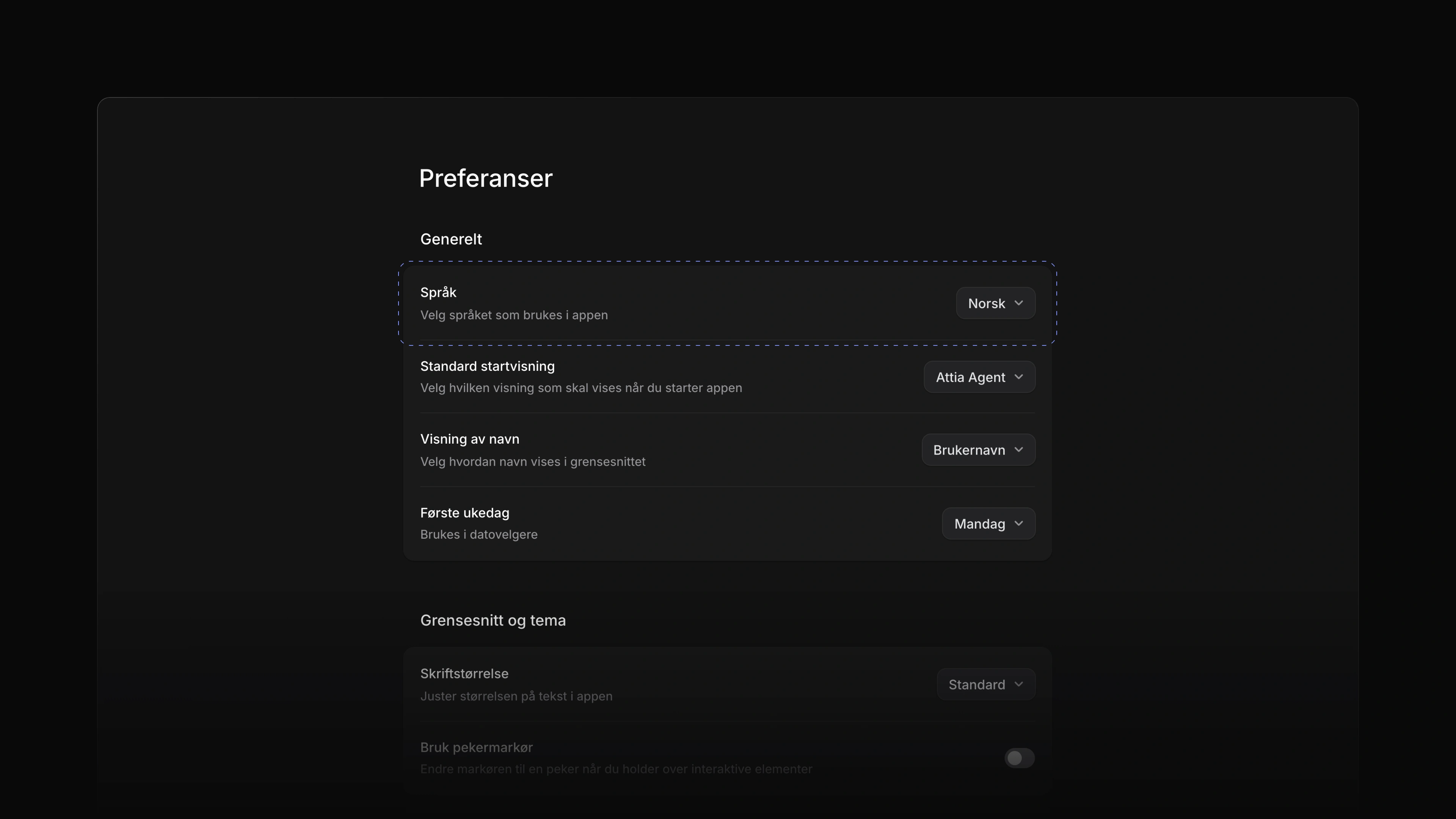
  • Workspace Fixed labels, tooltips and messages showing in English on Norwegian pages.
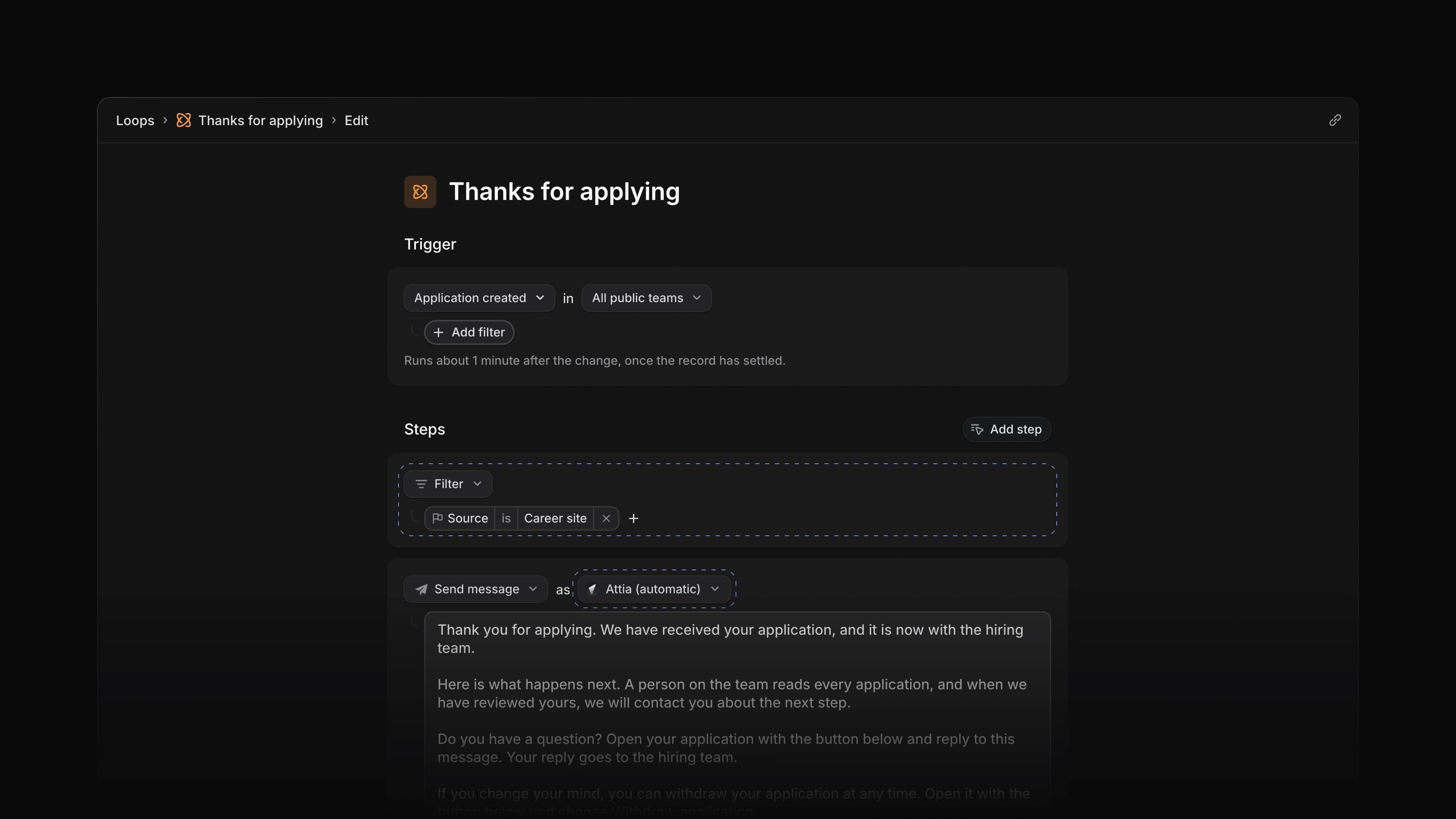
Loops for new applications

The Thanks for applying Loop in the editor, with a Filter step that lets through applications from the career site and a Send message step sent as Attia (automatic)

Every new application starts the same way. The candidate wants to know it arrived, and someone on the team reads it to see what it says and what to ask. Until now a person did both by hand for every application, and a Loop that could help started from an empty form.

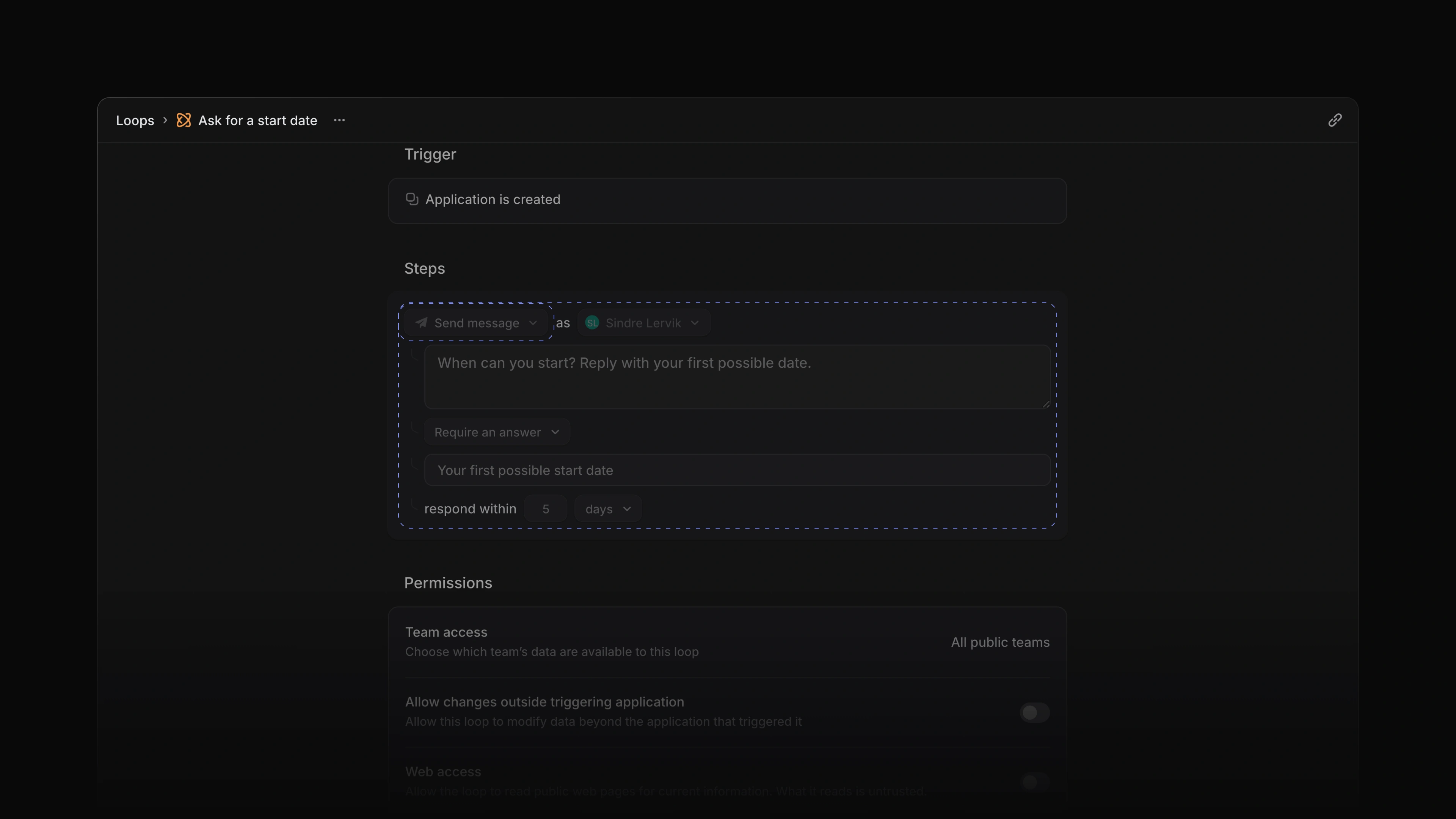
Two new Loop templates now take that first step. Thanks for applying emails every applicant from your career site right after they apply, and Brief new applications writes a short brief into each new application's private summary. On the Loops page, Create a new loop now has every way to start one: pick a template, describe the Loop in a sentence or start from scratch.

Say you hire baristas for a coffee roaster and post the job on your career site. A candidate applies on Sunday evening. She gets a thank-you email from Attia a minute later, and on Monday morning her application already has a brief of what she wrote about each requirement in the ad. To start, choose Loops in the sidebar and pick Thanks for applying under Create a new loop. If you already have Loops, choose New loop first.

Thanks for applying

The Thanks for applying template emails the candidate that the application arrived, what happens next, how to ask a question and how to withdraw. Attia (automatic) sends it, so nobody on the team has to write or send anything. It goes only to people who applied through your career site, not to candidates you added yourself. The candidate can reply from their application page, and the reply goes to the hiring team. The template runs no Agent, so it uses no AI credits. Any Send message step can now send as Attia (automatic) too.

Like every template, it is saved switched off. Read the message, change it if you like, then choose Publish and switch the Loop on.

Application briefs

Brief new applications reads each new application and writes a brief into Private summary and notes. It writes only while that field is empty, so it never replaces notes your team wrote. The brief has four parts: a one-line headline, a line for each of up to six requirements in the job ad, with a quote and whether it came from the CV, the cover letter or an answer, at most three questions to clarify, and practical facts such as start date, location and salary. A requirement the application does not mention reads Not stated. Every brief ends with "AI summary. Check the sources."

The brief quotes the application and never ranks or scores the candidate. The judgement stays with you.

Templates and prompts

With no Loops yet, the Loops page shows Create a new loop. Once you have one, choose New loop or press N then L to open it in a dialog. Before Attia creates anything, it asks where the Loop goes: the workspace or one of your teams.

Pick one of the seven templates, and Attia saves it as a draft that is switched off and opens it in the editor, with Attia Agent beside it to go through the draft with you. When a template depends on how your workspace is set up, the Agent asks first. Route new applications, for example, asks who gets an application when the job has no lead. Thanks for applying opens without the Agent, since its message is already written.

Or describe the Loop in the box that reads Ask Attia to build the loop for you. Attia Agent turns it into a draft with the trigger and instructions filled in, and the editor opens with that chat in its own tab, so you can keep asking for changes. Nothing runs until you publish.

Loop changes with Attia Agent

In a Loop's editor, Configure with Agent now changes the steps too, so you can ask it to improve a Loop. It changes the draft, and nothing runs until you publish. From any other chat, ask Attia Agent to rename a Loop or to change when a scheduled Loop runs. It saves the change as a draft, sums it up and asks to publish, and nothing goes live until you choose Approve.

Job update drafts

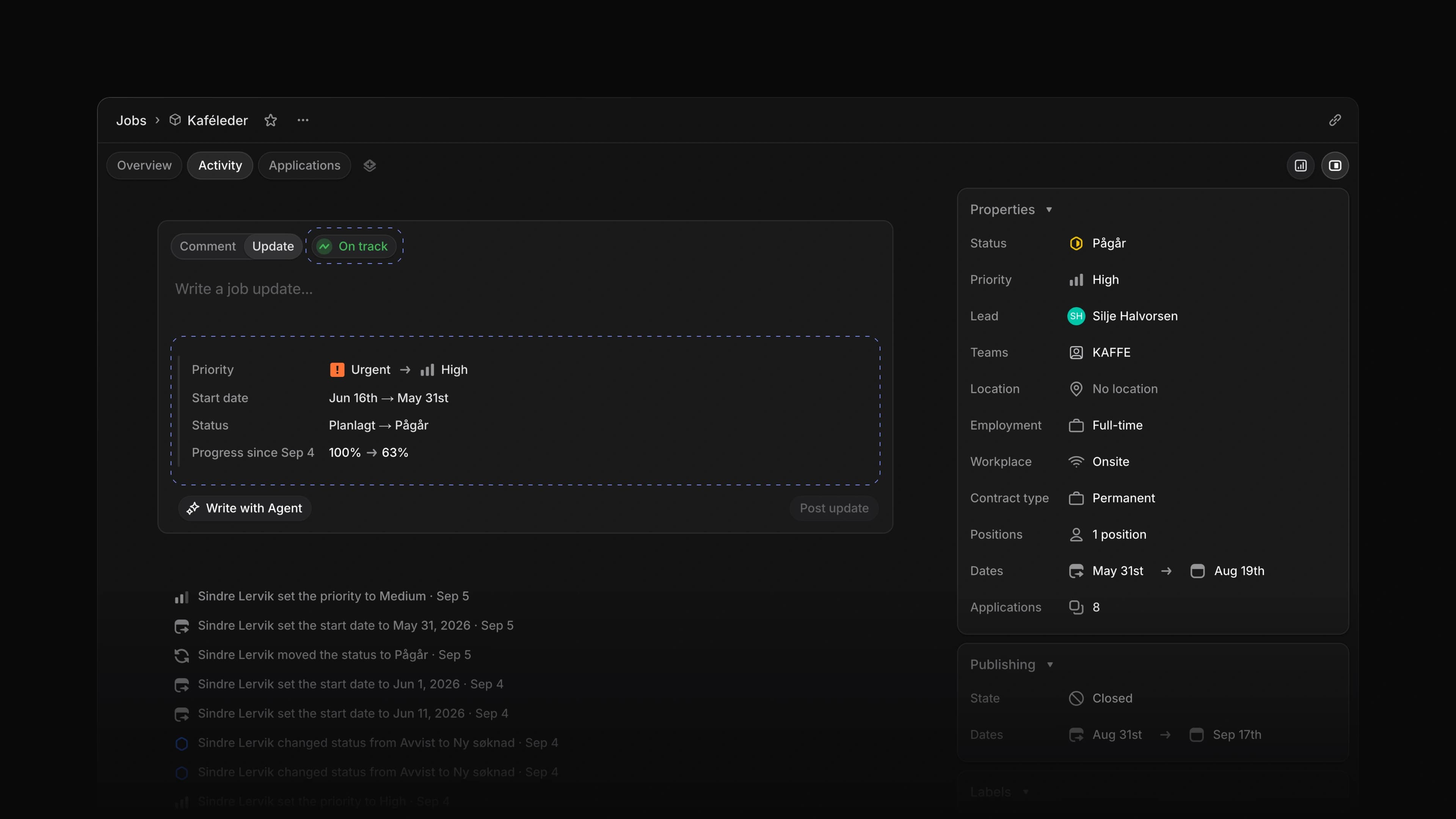
Choose Write with Agent in the update box on a job's Activity. Attia Agent reads the job's recent activity, fills the box with a complete update and picks a health, On track, At risk or Off track, with a sentence on why in the chat. Check the update and choose Post update. The Agent never posts it for you.

Edits in place

Ask Attia Agent to change something that already exists, and it edits that instead of making a new one. It rewrites a job update you posted, including one from before the chat, and changes a question in your library, which then shows on every job that asks it. Asked to fill in a job template, it edits the template you named instead of offering a second one. It follows the same rules as the app: you edit only your own updates, and only the questions and templates you may manage.

AI credits

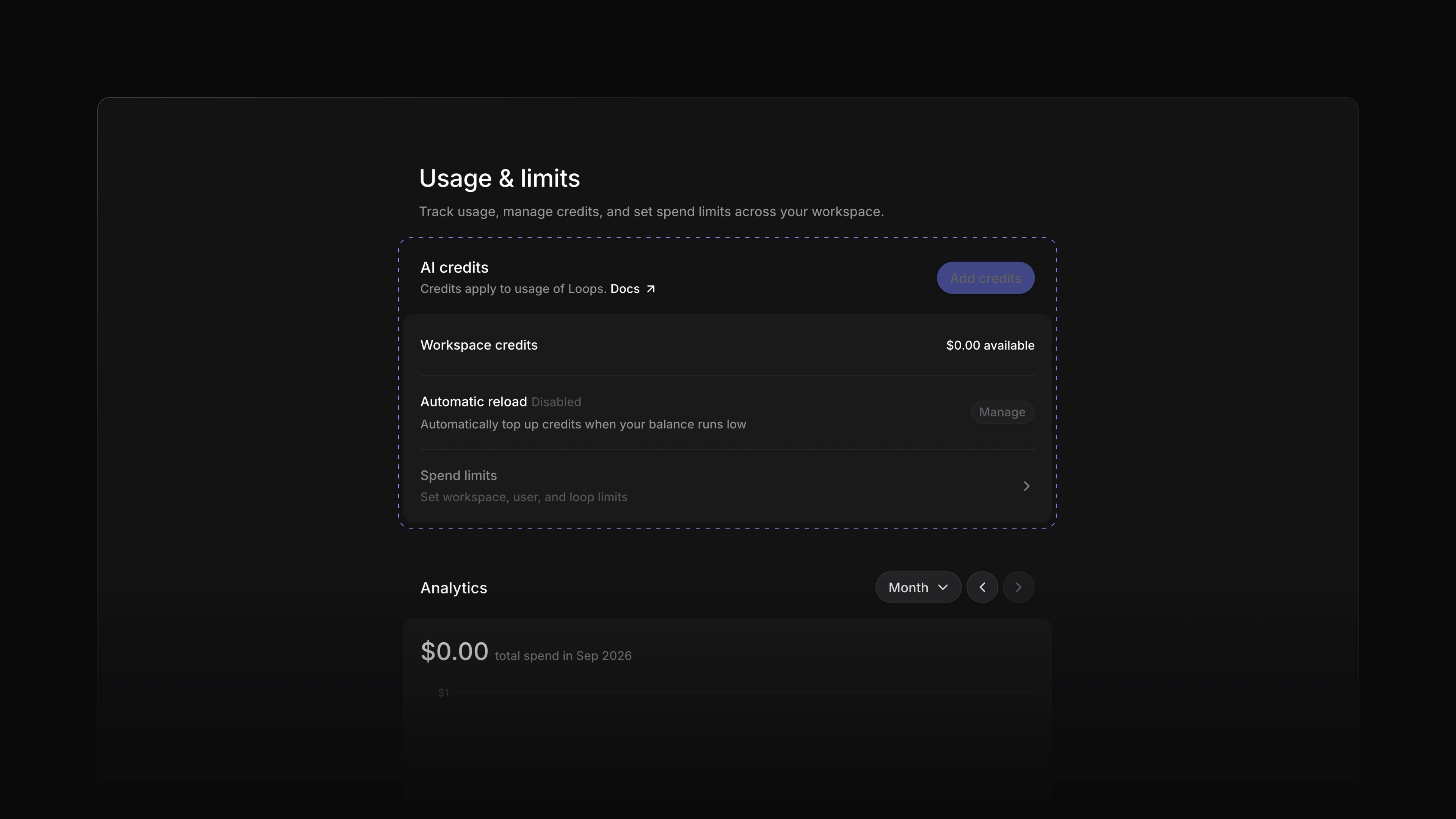
Admins can now buy AI credits. Open Settings, choose Usage and choose Add credits, pick an amount and pay, and the credits arrive within a minute. Under Automatic reload, set When credits are below and Top up by, and pick a saved card. Attia then charges that card each time the credits drop below your amount. Loop runs now draw from the workspace's AI credits instead of the Loop owner's own Agent allowance. When the credits run out, a Loop does not start its Agent, and the run says so.

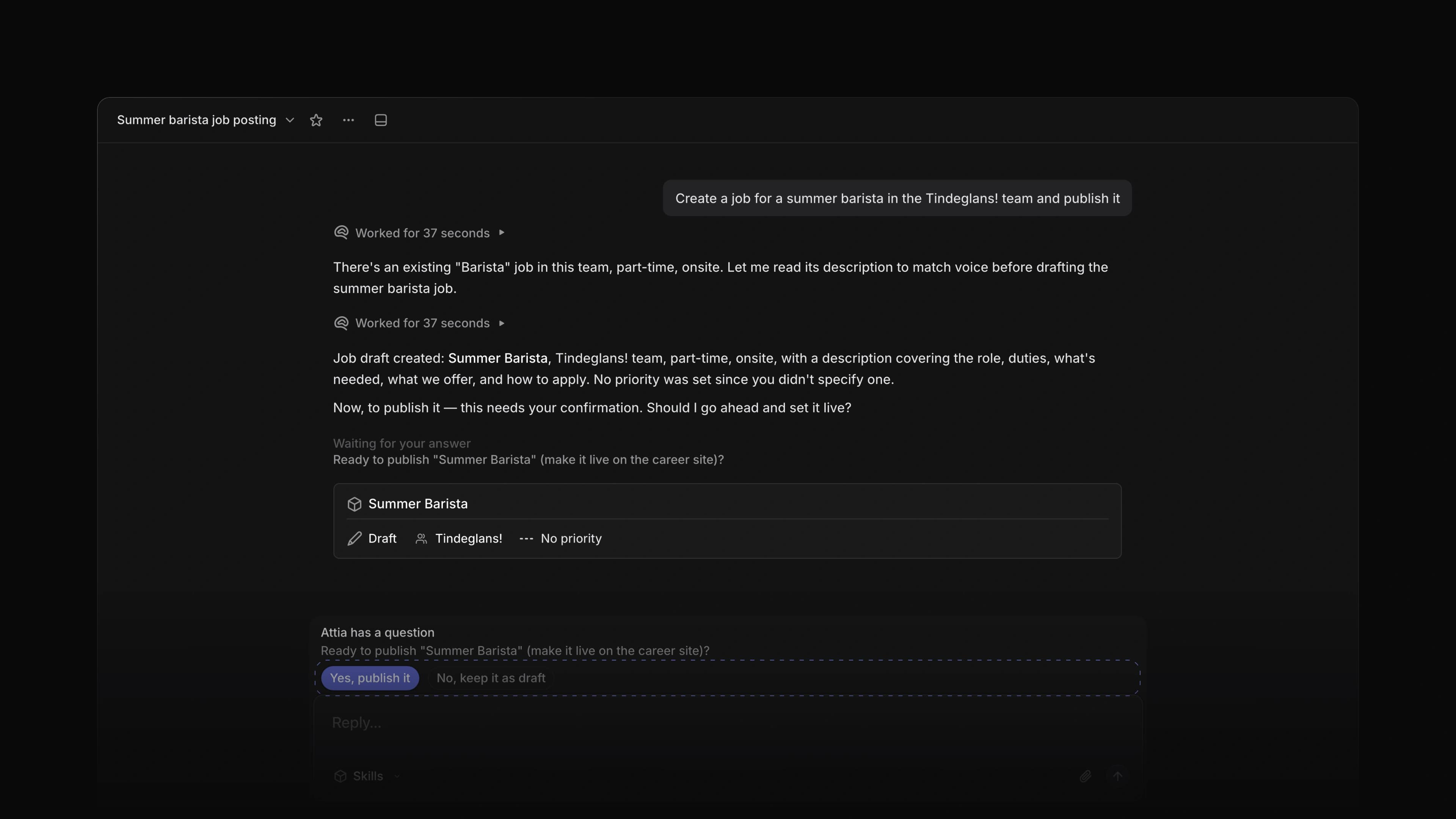
  • Agent Changed the questions Attia Agent asks to show as buttons under its message; choose one, or type your own answer.
  • Loops Changed the Loops list to a shorter row per Loop, with the description on one line.
  • Loops Added Edit loop to a run that is waiting for input.
  • Agent Fixed a change made by Attia Agent starting the Loops that watch for it up to five minutes late.
  • Agent Fixed Attia Agent giving a vague reason when it could not edit a candidate or move an application; it now says who may.
  • Loops Fixed Assign to selected members having no way to choose the members.
  • Loops Fixed a Filter step offering starts with and ends with, which the Loop could not save.
  • Loops Fixed Run now on a job Loop not giving Attia Agent the job you chose.
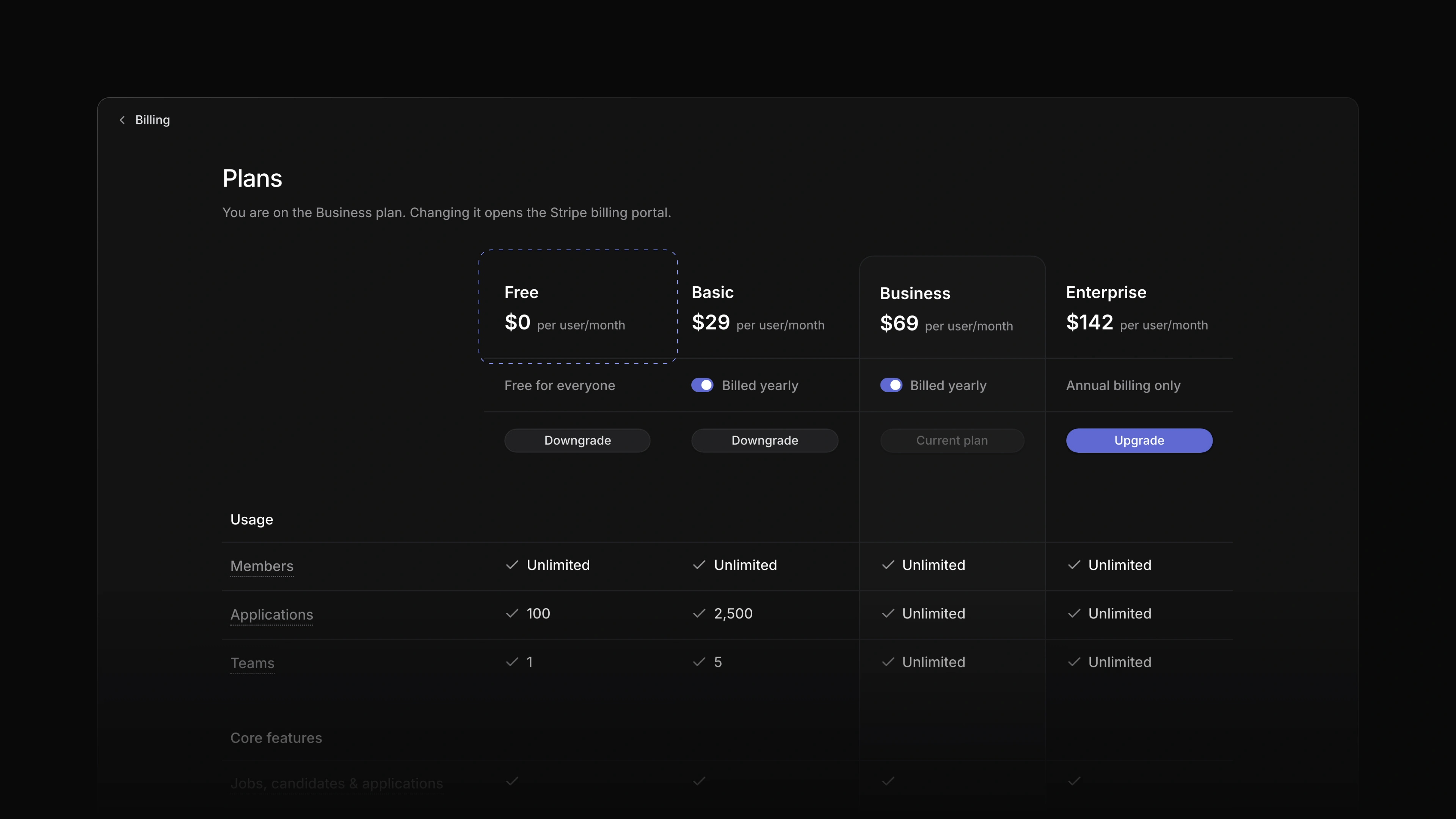
  • Billing Fixed the plan cards on a phone repeating words such as SSO and showing a line in English on the Norwegian page.

Edit candidates with Attia Agent

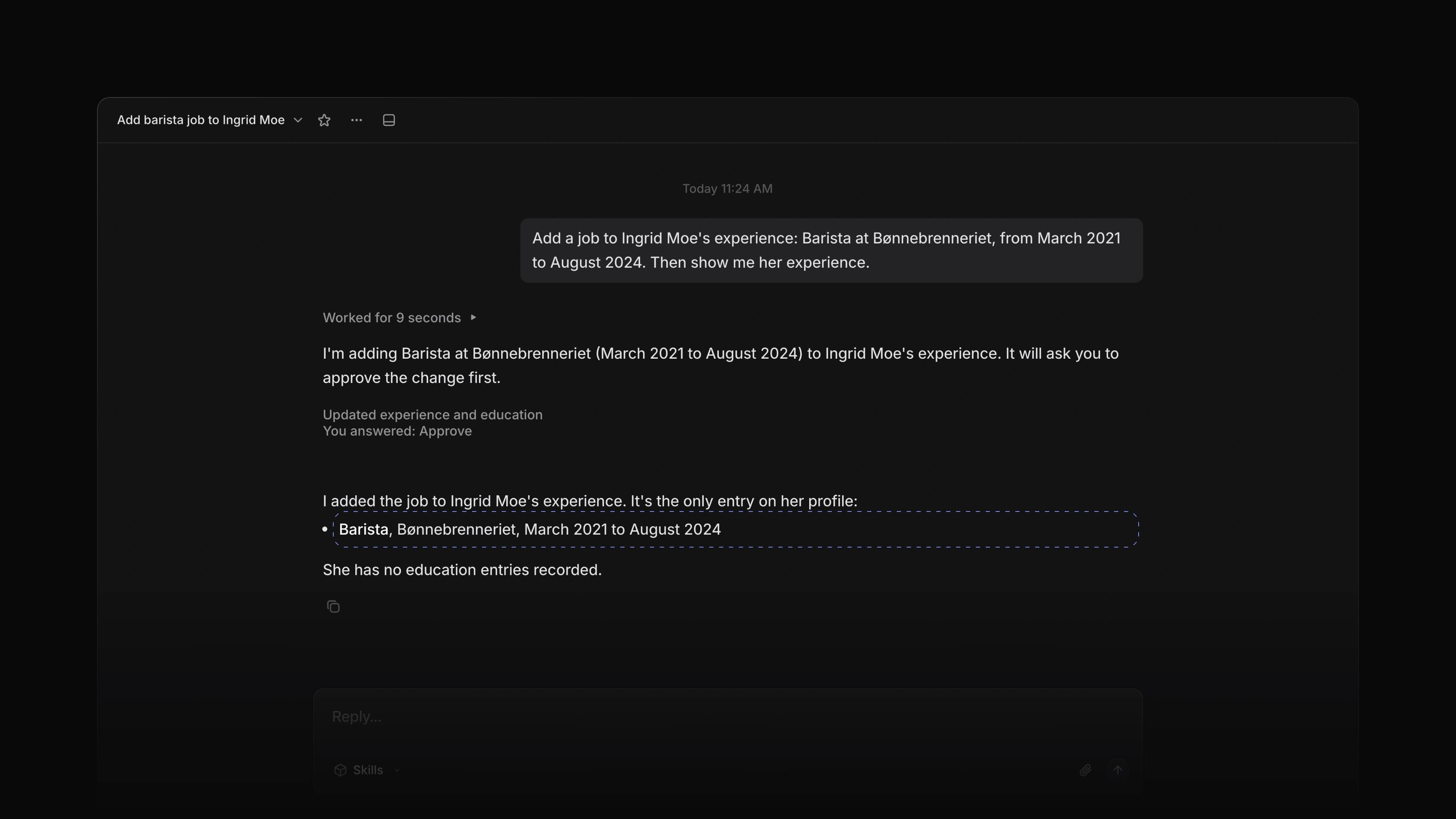
An Attia Agent chat where the Agent has added a barista job to a candidate's experience after the member approved it, and the reply lists her experience

Attia Agent could read a candidate, but it did little work on one. To add a job from a CV or move an application on, you left the chat and did it yourself.

Now the Agent reads the files on a candidate or an application, edits the candidate, and moves an application to the status you name. Every change waits until you choose Approve.

It reads the files

Ask about a candidate or an application, and the Agent reads the CV and the other files on it along with the rest of the record. It reads the text of a PDF or a text file. For an image or another kind of file, it sees that the file is there but not what is in it. It opens only the files you can open yourself.

It edits the candidate

Ask the Agent to change a candidate's name, phone or location, or to add, change or remove a job or a school under Experience and Education. It can take the rows from a CV it has read. A candidate who linked their own Attia profile keeps their own details, and the Agent does not change them.

It moves an application

Name the status, and the Agent moves the application there. It never picks a status on its own. It follows the same rule as the status menu, so it moves only an application you could move yourself.

It knows who is on Attia

When you ask the Agent to create a candidate whose email belongs to a person on Attia, it says so and tells you to open the candidate and link the profile from the top of the page. It does not link anyone on its own.

To start, choose Agent in the bottom right corner and ask about a candidate.

File preview

Choose a file on an application, and it opens in a window over the page. Drag the window by its top bar to move it, and drag an edge or a corner to resize it. A PDF fits the width of the window, and the pages bar shows each page so you can jump to it. The window remembers its place and size on your device, and Escape closes it. The application peek now has a Files row with the CV, the files from the answers and the documents, and each one opens in the same window.

Birth date, Location and Gender questions

Three new question types save the answer to the candidate's profile. Birth date shows the team only the candidate's age, which appears as Age in the candidate's Properties and as Applicant age in Insights. Location lets the candidate pick a place from a city search, and Attia keeps the place they picked. Gender is private by default, and the candidate chooses whether the employer sees it.

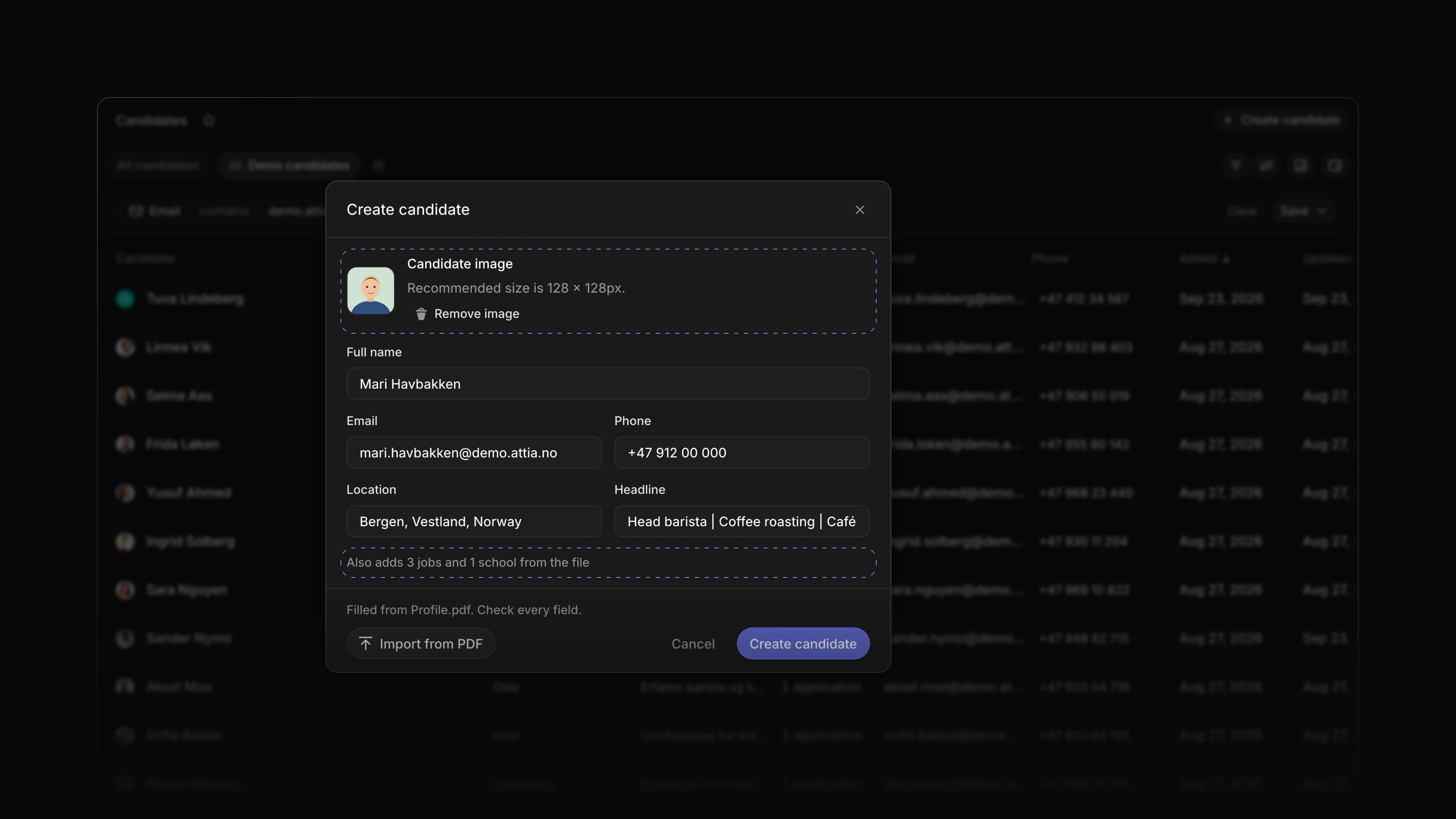
When the email in Create candidate belongs to a person on Attia, the dialog now says This person is on Attia. Choose Create and link to create the candidate and link their profile in one step.

  • Applications Added a peek to the applications table; press Space on a row to open it on the right, and it follows the row as you move.
  • Views Added Average as an Aggregation option on age charts in Insights.
  • Jobs Added Live after the title of a job that is on the career site, in the Jobs list and board.
  • Imports Changed PDF import to link more jobs and schools to the right company or school.
  • Candidates Removed the Headline field from the candidates table, the candidate dialogs, search and hover cards.
  • Candidates Fixed a downloaded file losing the name it was uploaded with.
  • Candidates Fixed Location in the candidates table and on the candidate page opening a text box; it now opens the city search.
  • Candidates Fixed the Labels picker on a candidate not letting you create a label, and spaces not working in a label's name in Settings.
  • Loops Fixed a Loop condition on a job showing a long code when the status it named does not apply to jobs; it now says no job has that value.
  • Loops Fixed Load more in a filtered run history not reaching older matches.
  • Agent Fixed a sent message to Attia Agent showing its documents and time only after a moment.
  • Billing Fixed a workspace admin not being able to start checkout.
  • Accessibility Fixed the logo, avatar and candidate picture upload tiles not showing a focus ring when you reach them with the keyboard.
  • Applications Fixed a reminder that was not sent because the request was already answered saying nothing; the message now says why.

Question library

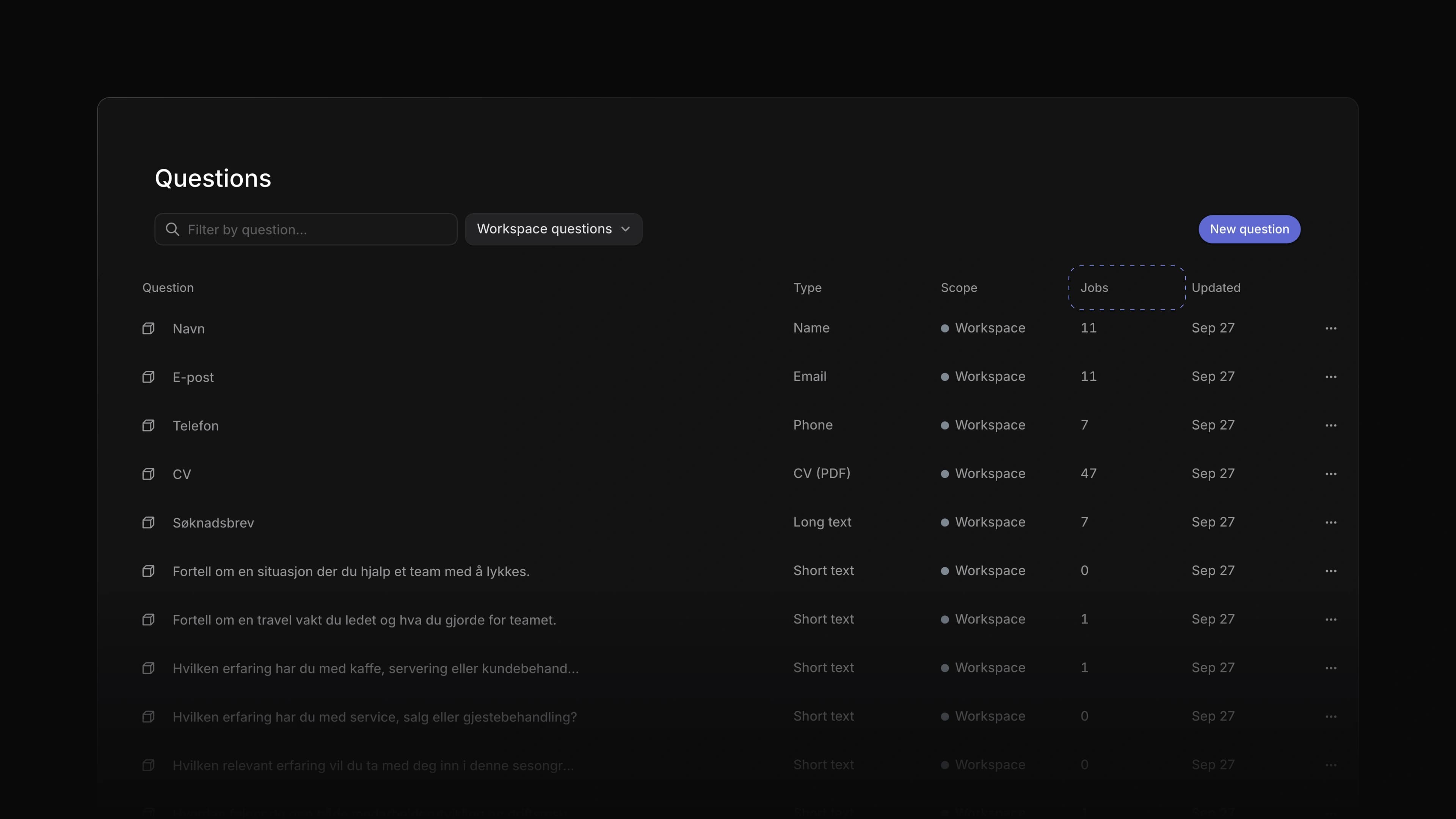
The Questions page under Settings, Jobs, listing the workspace questions such as CV and Søknadsbrev, with the Jobs column that counts the jobs using each one

Each job kept its own copy of its application questions. To ask every barista applicant the same thing, you typed the question into every job, and a fix to the wording reached one job at a time.

Questions now live in a library. Your workspace and each team keep a list of questions, a job adds its questions from that list, and an edit to a question shows on every job that asks it. A team's applications list filters by the answer to a library question.

Say you hire baristas for a coffee roaster and ask each one how long they have worked behind an espresso bar. Add that question to the library once, switch on Add to new jobs, and every new job starts with it. To start, go to Settings, then Jobs, then Questions, and choose New question.

One library for the workspace and each team

The Questions page under Settings, then Jobs, lists the workspace's questions with their type, scope, how many jobs use each one and when it last changed. Each team has a Questions page too, with its own questions and the ones it gets from the workspace and its parent teams. Add to new jobs means that new jobs start with the question. Choose who may change the library under Settings, then Security, in Manage workspace questions, and on a team's Access and permissions page, in Question management.

One edit for every job

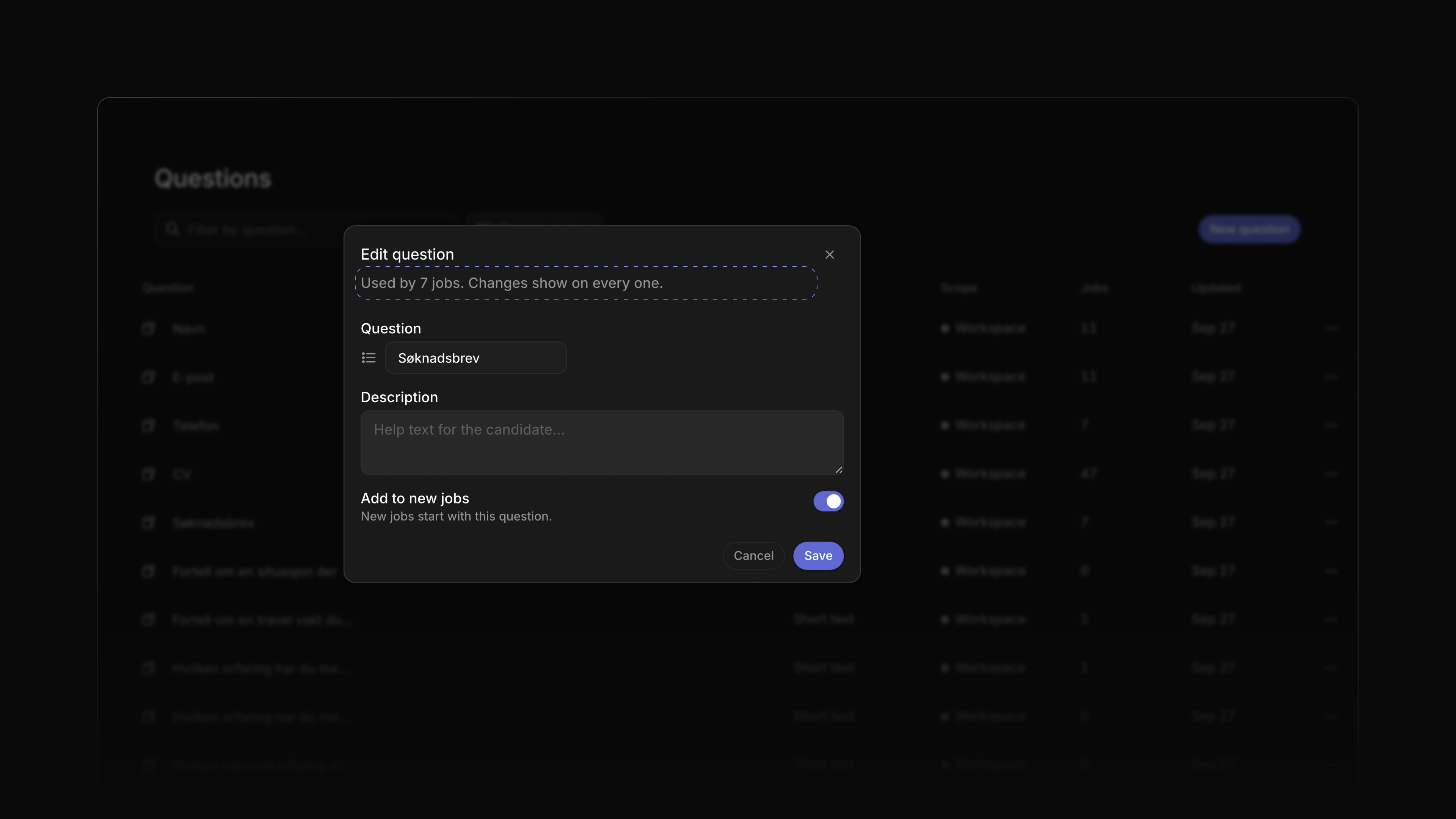
Open a question to edit it. When jobs ask it, the dialog says so, such as Used by 7 jobs. Changes show on every one. Required and the order stay set per job, and an answer a candidate already gave keeps the words they saw.

The Edit question dialog for Søknadsbrev, saying it is used by 7 jobs and that changes show on every one, above the Add to new jobs switch

Add questions to a job

Add question in the Create job dialog, on the job page and in the job template editor lists the library, grouped into workspace and team questions, and ends with Create question for one that is not there yet. A library question shows its text read-only on the job, and keeps Required, its place in the order and Remove. New jobs and templates, including those Attia Agent creates, start with the questions marked Add to new jobs.

Filter applications by an answer

A team's applications list filters by the answer to a library question. An answer given before an edit to the question still matches.

Contact us inside Attia

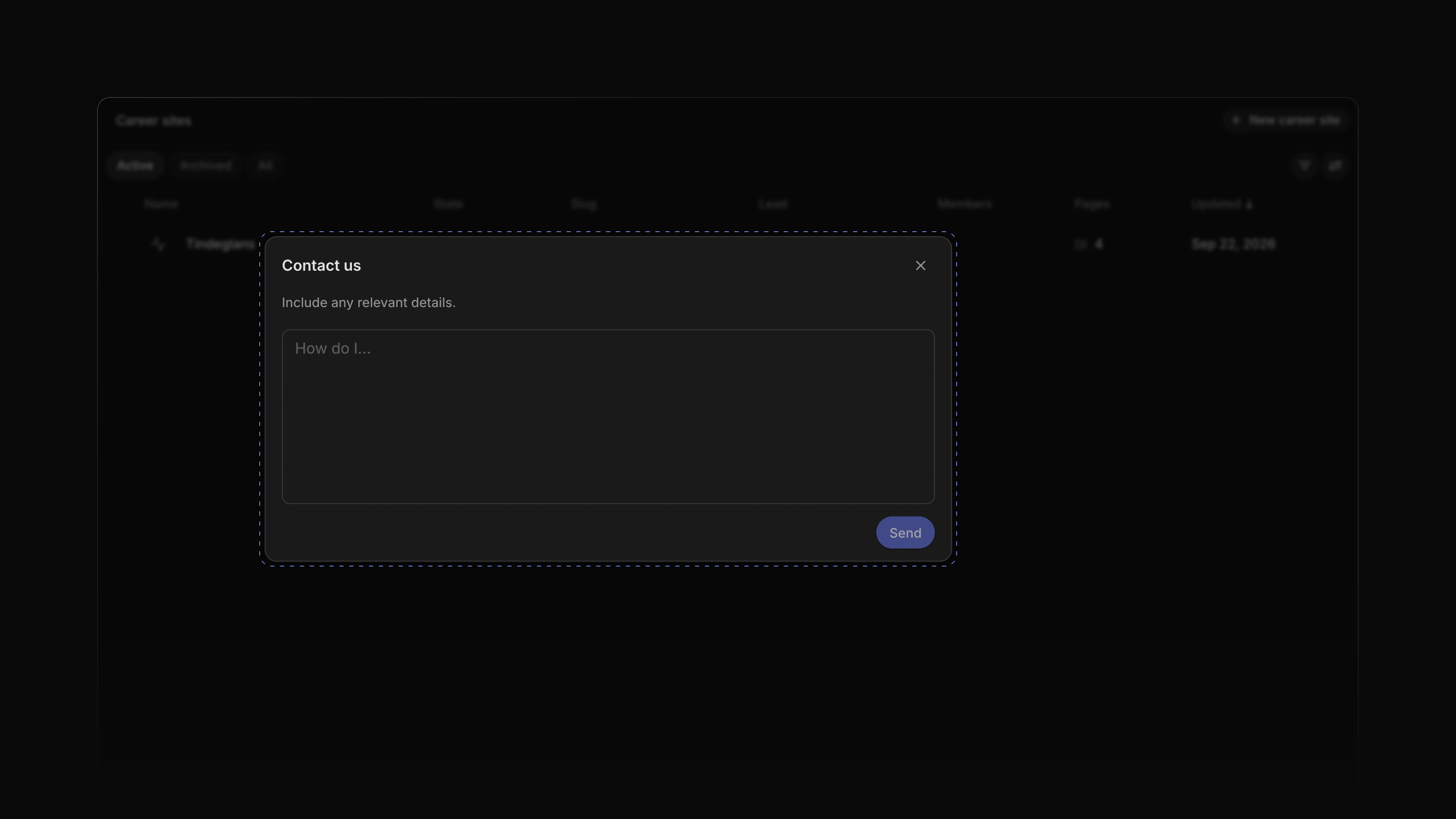
Contact us in the help menu used to open a web page in a new tab. It now opens a dialog inside Attia. Write your message and choose Send, and it reaches the Attia team together with the page you were on. When sending fails, the dialog opens again with your message, so you can send it again.

The Contact us dialog open over the Career sites page, with an empty message field and a Send button

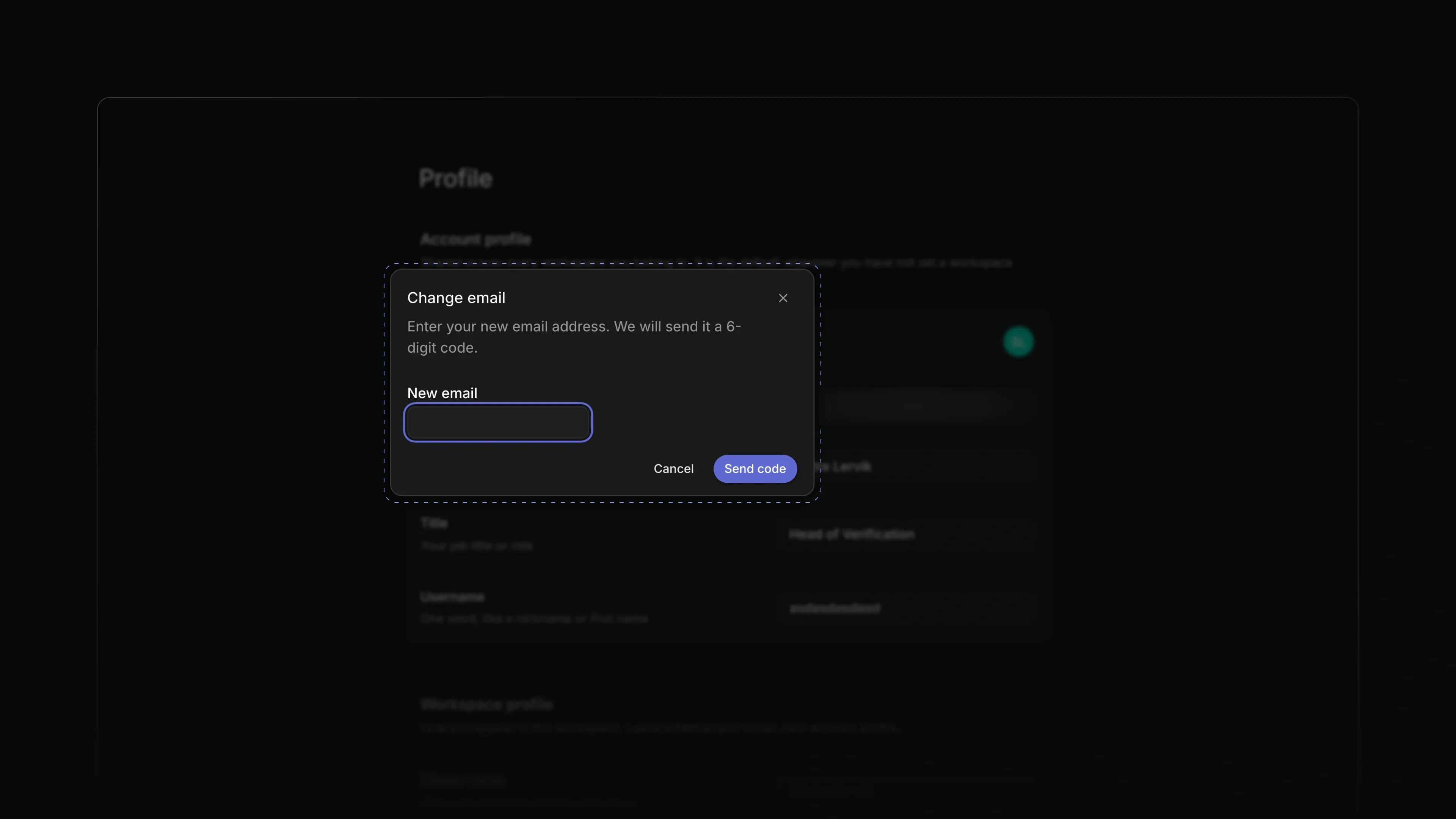
Change your email

The Email row on your profile used to say that email changes were coming soon. Now the pencil next to it opens Change email. Enter the new address and the 6-digit code sent to it, and the new address replaces the old one on your account. Find it under Settings, then Profile.

The Change email dialog on the Profile page, asking for the new email address before it sends a 6-digit code

Edit fields in place

Location and Phone on a candidate page turned into a wide box with a border while you edited them. Now you edit the text inside its own chip under the name, or its own row in the Properties panel. Press Enter or click outside to save, and Escape to cancel.

The week starts on Monday

Date pickers in Attia started the week on Sunday. They now start on Monday. To start on another day, go to Settings, then Preferences, and change First day of the week.

  • Loops Added library questions to the Send message step in a Loop: a step that waits for an answer can ask one, the candidate answers in a matching field, and the answer filter finds it.
  • Career sites Fixed the apply form asking the candidate to reload when the job's questions changed while they filled it in; it now shows the new questions in place and keeps the answers that still apply.

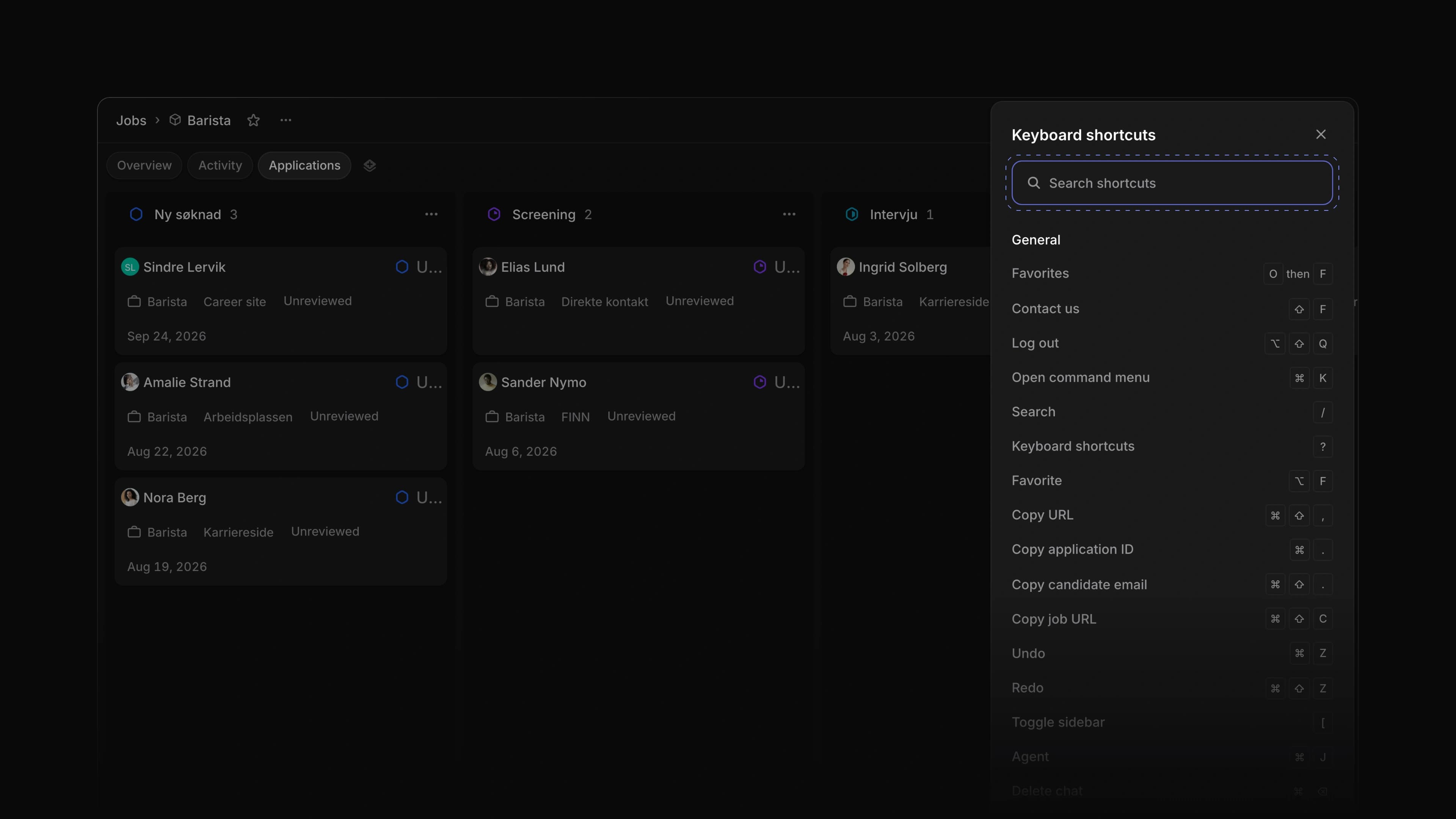
Keyboard shortcuts

The Keyboard shortcuts panel open on the right of the Barista job's applications board, with a search field and the General keys such as Favorites, Contact us and Log out

Attia had keys for many things, but no single place to look them up and no keys to move between pages or create something. The hints in menus were typed out by hand, and the keys that set a field followed the row under your pointer even when you had selected other rows.

A new Keyboard shortcuts panel shows every key in one place. G then a letter takes you to a page, N then a letter creates something, and J then a letter sets a field on the job you have open. The keys that set a field now work on every row you selected, and the menus show the same keys the panel does.

Say you are sorting new jobs for a coffee roaster. Press G then J to open Jobs, select five jobs with X, press S and pick a status, and all five move. Press ? to look up any other key.

One panel for every key

The panel slides in from the right and lists the keys in groups, starting with General. Type in Search shortcuts to find a key by name. ? opens it outside a text field, and Cmd /, or Ctrl / on Windows, opens it from anywhere, even while you type. Keyboard shortcuts in the help menu at the bottom of the sidebar opens it too.

Go, create and set with a letter

G then a letter goes to a page in the sidebar: I for Inbox, M for My Applications, J for Jobs, C for Candidates, V for Views, L for Loops, W for Career sites and T for Teams. Inside a team, G then A opens the team's applications.

N then a letter creates something: C for a candidate, V for a view, L for a Loop and D for a document. Option C creates a job from a template.

On a job page, J then a letter sets the job itself: S for status, P for priority, M for lead, T for teams and L for labels. S alone still sets the status of the application you point at.

Keys for your selection

Select rows with X, then press a field key such as S for status or L for labels. The list opens on one of the selected rows, and what you pick applies to every selected row, wherever your pointer is. This works in lists and on boards. On the Jobs list, Option F adds every selected job to your favorites, or removes them all when each one is already a favorite.

Key hints in menus

The keys shown in the command menu, the help and account menus in the sidebar, the Inbox menus and the Attia Agent menu now come from the same list as the panel. In these menus, when a hint names a key, that key does what the hint says.

  • Career sites Added a Career site made with Attia line to the footer of a published career site on the Free plan.
  • Keyboard shortcuts Added each page's keys to its sidebar tooltip, so pointing at Jobs shows G then J.
  • Keyboard shortcuts Added Option V to save the filters you set as a new view.
  • Keyboard shortcuts Added Cmd/Ctrl Z to the candidate page, so it takes back a label, location or phone change, or a save from the edit dialog.
  • Keyboard shortcuts Added Shift F to open Contact us from any page.
  • Keyboard shortcuts Moved Keyboard shortcuts above Settings in the help menu, with its keys beside it.
  • Keyboard shortcuts Changed J then L in Create job to open Labels while Labels sits under the … menu.
  • Keyboard shortcuts Changed Settings pages to answer G then S to open Settings, C to create a job, O then F to open favorites, and Option Shift Q to log out.
  • Keyboard shortcuts Changed Option Shift Q to log you out on a Mac too.
  • Keyboard shortcuts Changed G then S to work while a popover such as Display options is open.
  • Keyboard shortcuts Changed the keys for a row you point at, such as X to select and O to open, to work after you clicked a button or link outside the list.
  • Jobs Fixed J, K and other list keys moving or changing the list behind an open dialog, such as Create job.
  • Jobs Fixed field keys opening a picker in a minimized Create job dialog.
  • Views Fixed keys 1 to 9 not picking a view on the Jobs list, as they already did on Candidates.
  • Applications Fixed Cmd/Ctrl Shift , on an application page copying twice and showing two messages.
  • Career sites Fixed Cmd/Ctrl Z in the page designer also undoing your last change elsewhere in Attia.
  • Teams Fixed a team member with no name showing as a dash on the team's Members page in Settings; it now says Unknown member.
  • Members Fixed a member with no name showing as Workspace member in English on Norwegian pages.
  • Workspace Fixed menus, tooltips and hover cards opening behind a dialog.

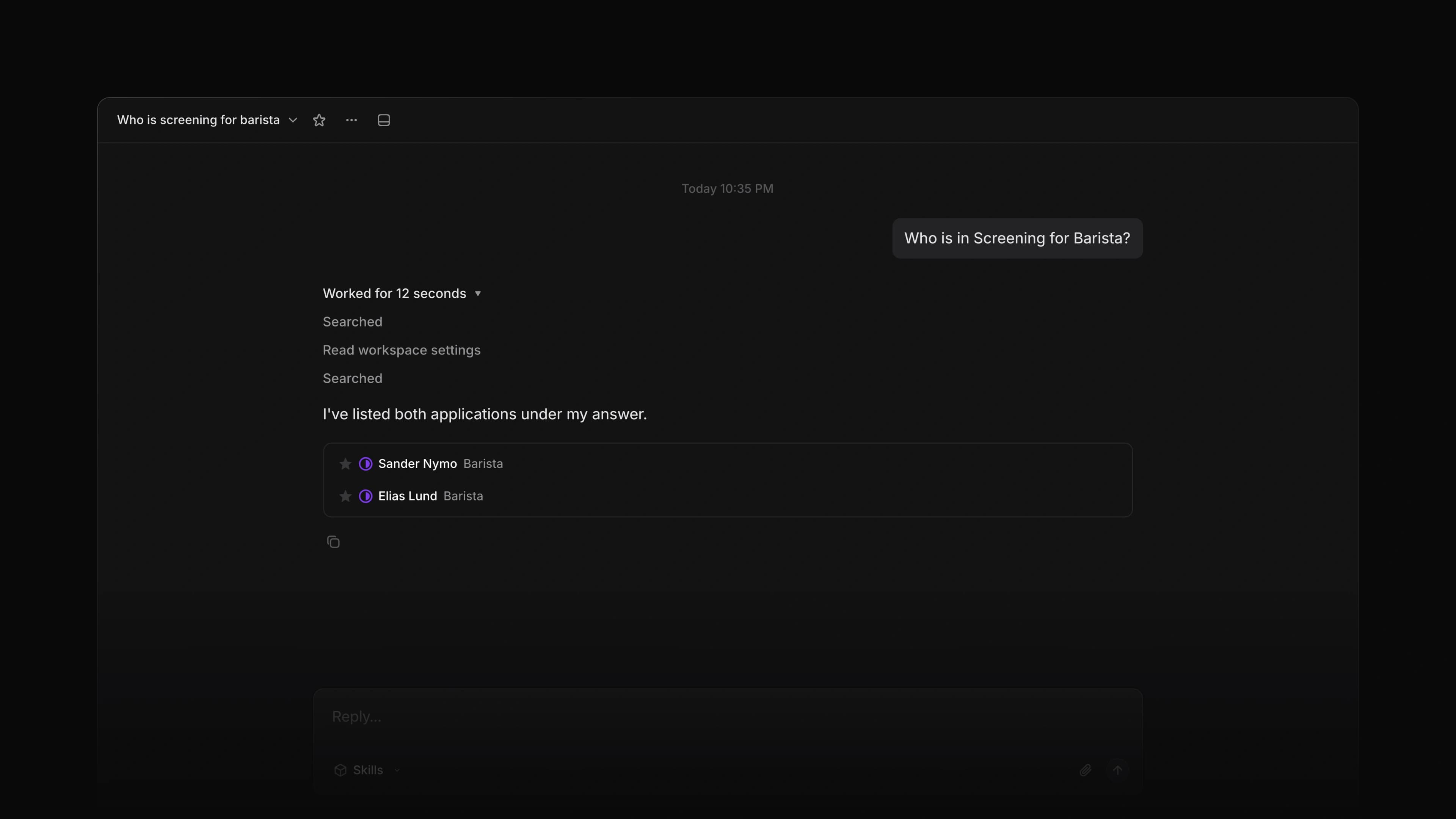
Attia Agent shows its work

An Attia Agent chat answering who is in Screening for the Barista job, with its three steps open above the two applications it found, each a row you can open

Attia Agent answered in plain text. When it found nine applications you read nine names in a paragraph, when it created a candidate you went looking for the record, and when it handed work to a helper the chat showed one line until the helper was done.

Replies now show the records themselves. Two or more records draw as rows you can open, a record Attia Agent creates gets a card, and a helper's steps show in the chat as they happen and stay there. Attia Agent also drafts jobs from your job templates, reads the questions on a job and the job's column on the board, and runs on a newer AI model.

Say you hire for a coffee roaster. Ask Attia Agent which candidates applied to the Barista job, and it answers with one row per application, each with its status. Point at a row to see more, or choose it to open the application. To start, choose Agent in the sidebar.

Record cards and record lists

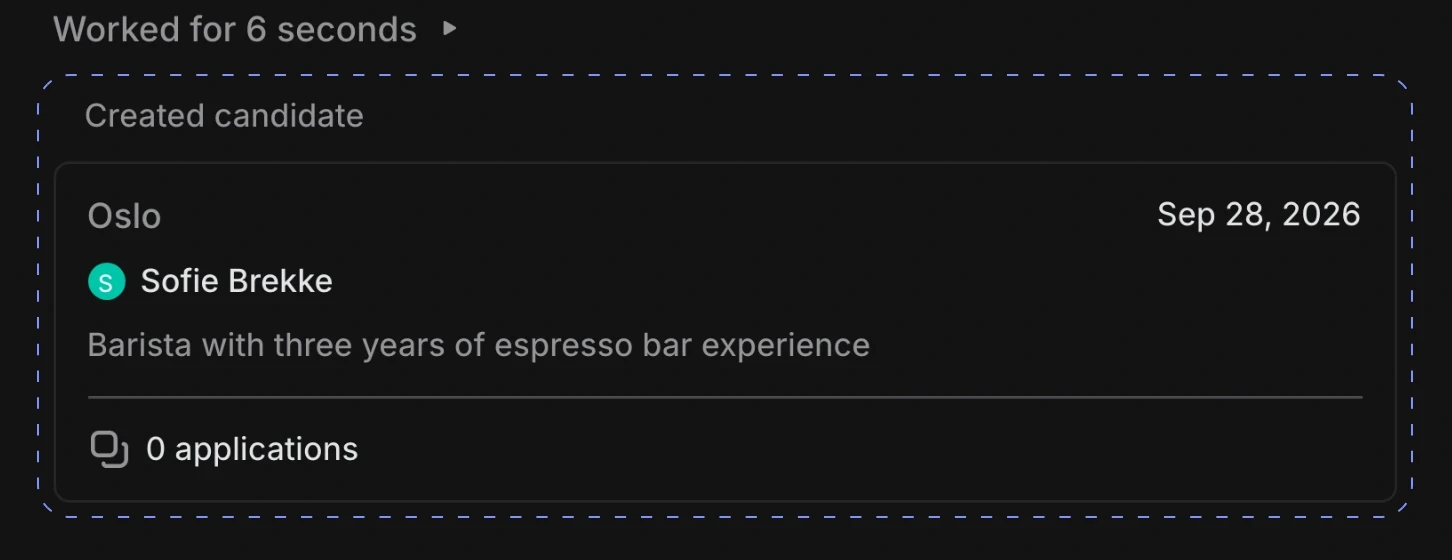
When a reply names two or more records, Attia Agent lists them as rows, each with a hover card. When it creates a job, a candidate, a Loop or an application, the reply shows a card for it, such as Created candidate over the person's name, headline and applications. Choose a row or a card to open the record.

The Created candidate card Attia Agent shows for a barista named Sofie Brekke

Helper steps, live and saved

When you ask Attia Agent to change a career site page, it hands the work to a helper that edits the site. Until now the chat showed one line while the helper worked, and its steps were gone after a reload. The chat now shows the helper's steps as they happen, one level in under Editing the career site, and keeps them when you come back to the chat. While Attia Agent works, open the working line to read its steps so far.

Drafts from your job templates

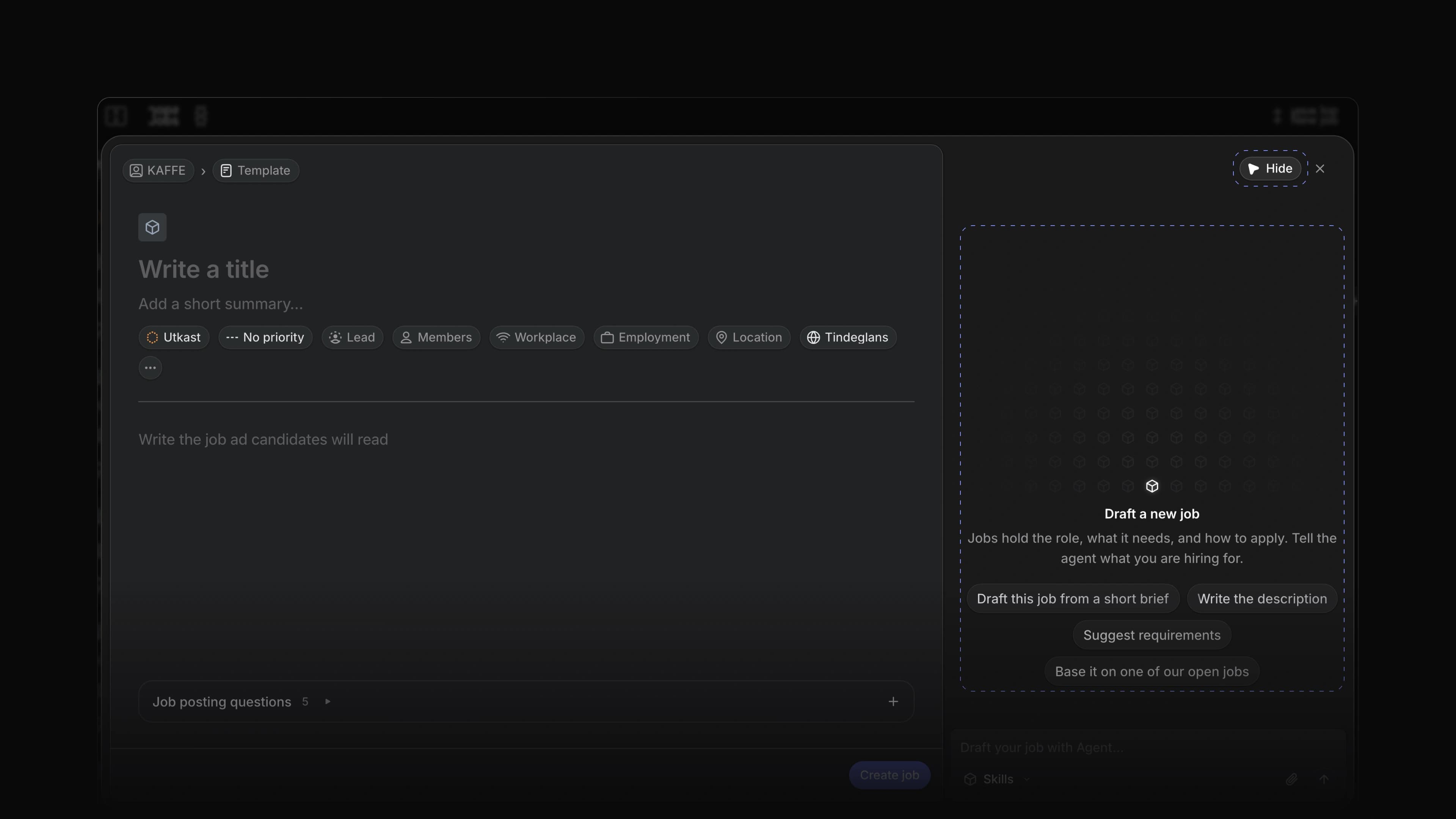
Ask Attia Agent to draft a job, and it starts from the job template that fits, team templates included, and keeps the template's formatting. This works in the Create job dialog and on a job's own page.

Job questions and board status

Attia Agent reads the questions on a job or a job template, and adds, removes, reorders or marks one Required when you ask. It asks before it adds a new question to your library. It also reads the column each job sits in on the board, so you can ask which jobs are in a column. A job's status still means whether it is live on the career site.

A newer AI model

Attia Agent now runs on a newer AI model, priced at the same rates as the one before.

  • Agent Added the date and time above an Attia Agent chat, and again when the chat carries on into a new day.
  • Agent Changed an Attia Agent chat to open straight away, with no Loading line.
  • Views Added a line under the board that counts the jobs your filters hide, with Clear Filters.
  • Agent Fixed a job drafted by Attia Agent not joining the career site when the workspace has only one, and starting with no application questions.
  • Agent Fixed a job status set by Attia Agent reaching the career site late; the site now updates at once.
  • Agent Fixed the approval card for publishing or closing a job leaving out what it would do; it now names the action and the job.
  • Agent Fixed Attia Agent replying twice after you approved an action.
  • Agent Fixed a sent message and the Thinking line appearing only after a pause.
  • Agent Fixed an answer getting lost when you left the chat before it finished; Attia Agent now finishes and saves it.
  • Agent Fixed a move to another page closing the Attia Agent chat you had open.
  • Agent Fixed the message you see after your last Attia Agent chat for the period leaving out when you can write again.
  • Agent Fixed Attia Agent making up an email address for a new candidate; it now asks for an email or phone number when you gave neither.
  • Candidates Fixed a label change on the candidate page showing in a saved candidate view only after a reload.
  • Candidates Fixed the candidates list counting rows when filters hid everything; it now says how many candidates the filters hide.
  • Jobs Fixed choosing Active on the Jobs list landing on All, and Jobs in the sidebar forgetting the tab you chose last.
  • Views Fixed the board, list and timeline stopping at 50 rows.
  • Views Fixed a card dropped into another swimlane moving that swimlane.
  • Authentication Fixed signing in with a Google account that has no Attia account sending you back to sign-up to start over; it now carries on to setting up your workspace.
  • Workspace Fixed a page that failed to load showing Not found; Attia now tries once more on its own, then offers Try again.
  • Workspace Fixed a click inside a dialog folding the sidebar when it landed near the sidebar's edge.
  • Accessibility Fixed screen readers reading out the icon on the details panel button in English.

Candidate labels

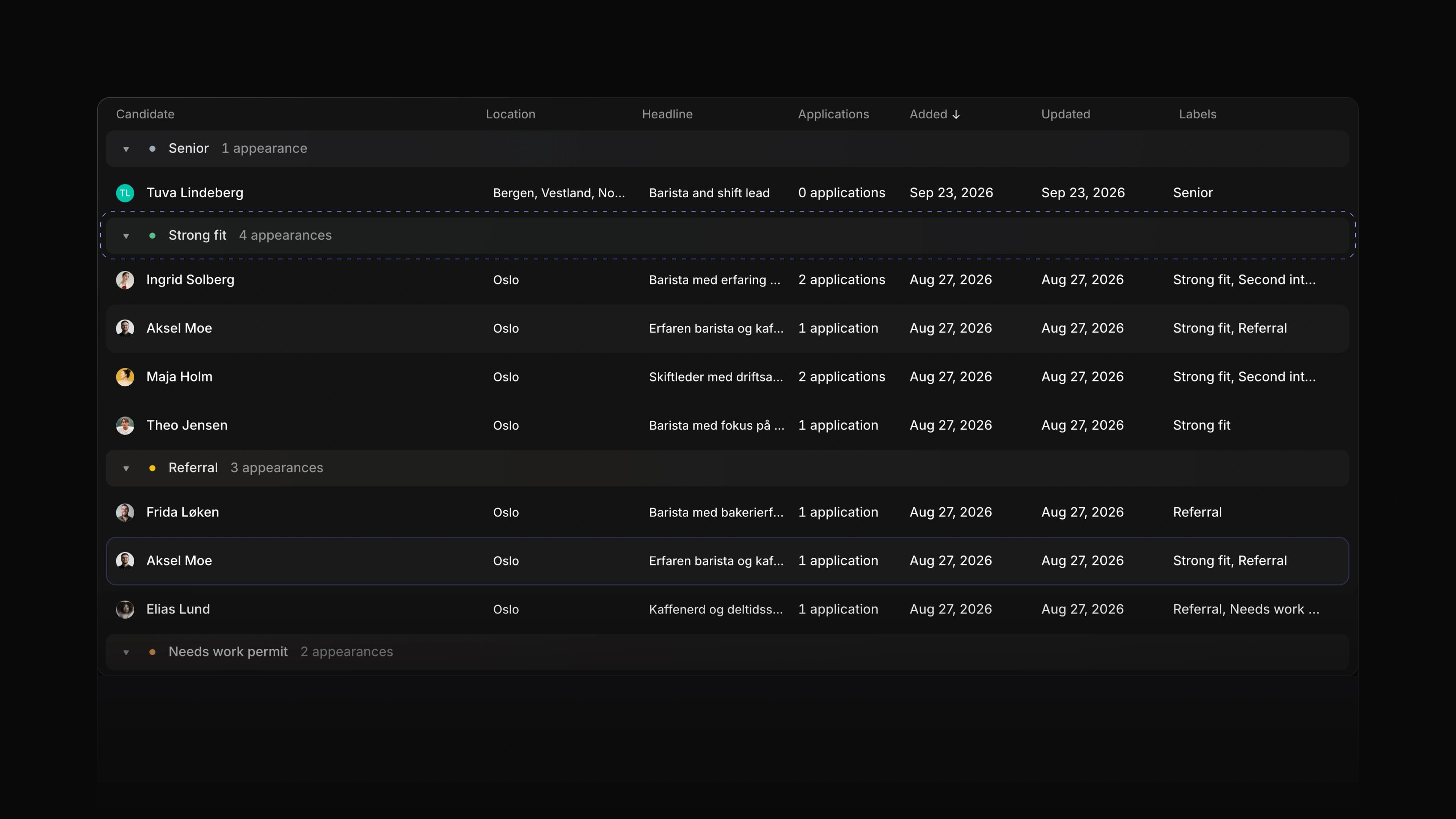
The candidates list grouped by label, with Strong fit, Referral and Needs work permit each heading its own group of baristas

Labels lived on applications, so a note like "referred by a regular" or "needs a work permit" stayed with one application. When the same person applied again, or sat in your talent pool with no application at all, you had to remember it yourself.

Candidates now have labels of their own. Your workspace keeps one list of candidate labels, you set them on the candidate page, and the candidates list shows, filters and groups by them. Attia Agent reads and sets them too.

Say you are hiring baristas and a roastery lead for a coffee roaster. Label the people you meet Strong fit, Referral or Needs work permit, then group the candidates list by label to see who to call first. To start, go to Settings, then Candidates, then Labels, and choose New label.

One list for the workspace

The Candidate labels page in Settings holds every candidate label. Give a label a name, a colour and a description, and put related labels in a group. Archive a label you no longer use, and restore it from Archived later.

Labels on the candidate page

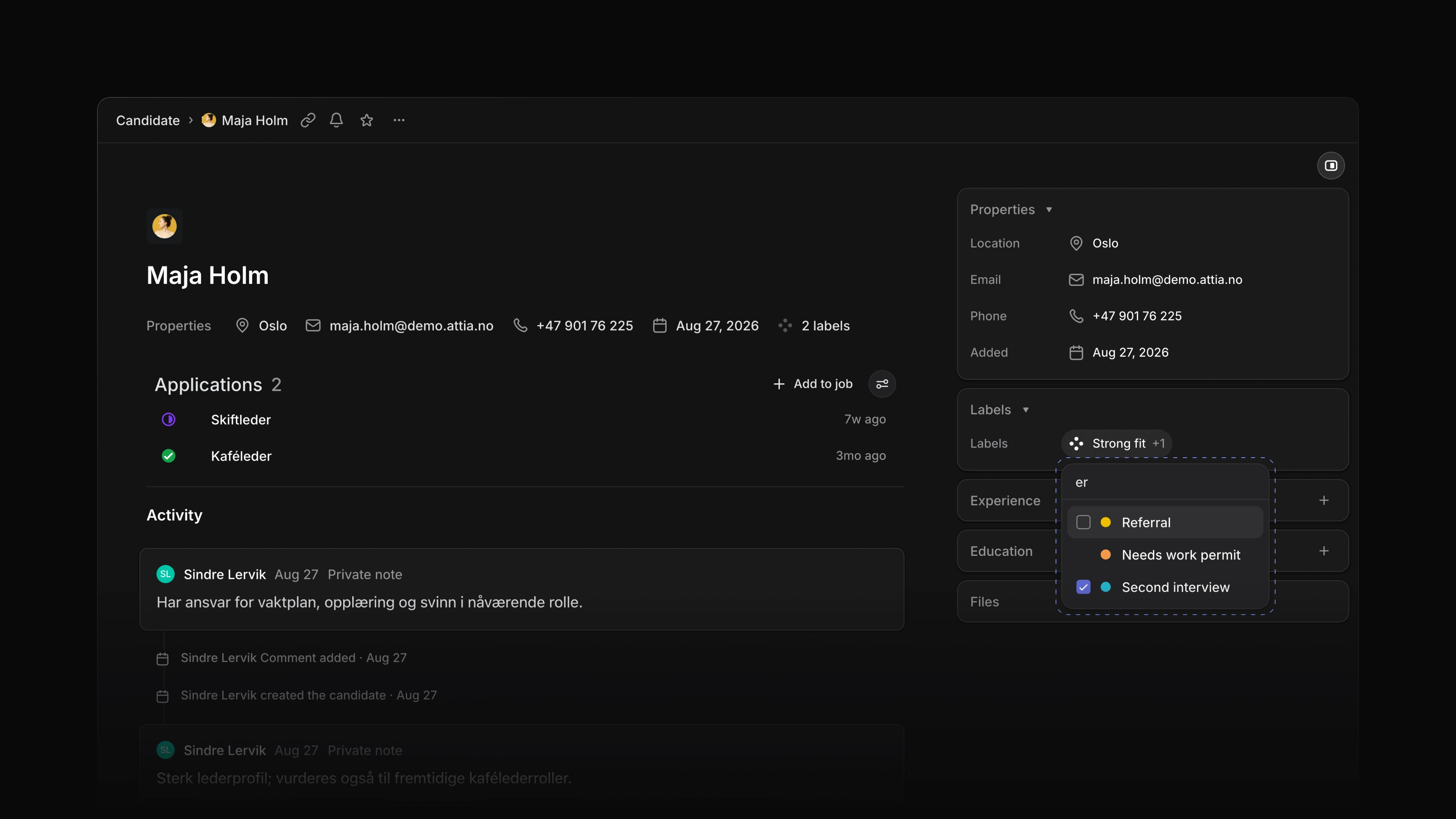
A candidate page now has a Labels field. Pick labels from the list, or remove one. A group allows one label at a time, so a candidate is never both Strong fit and Needs work permit when those sit in the same group. The activity on the page names each label that was added or removed.

Maja Holm's candidate page with the Labels list open, Second interview ticked, and Referral and Needs work permit ready to pick

Filter and group the candidates list

The candidates list shows each candidate's labels. Filter the list by label, or open Display options and set Grouping to Labels to get one group per label.

Attia Agent knows your labels

Ask Attia Agent to label a candidate Second interview, or to find every candidate labelled Referral. It uses the same list and the same rules as the candidate page.

Company and school logos

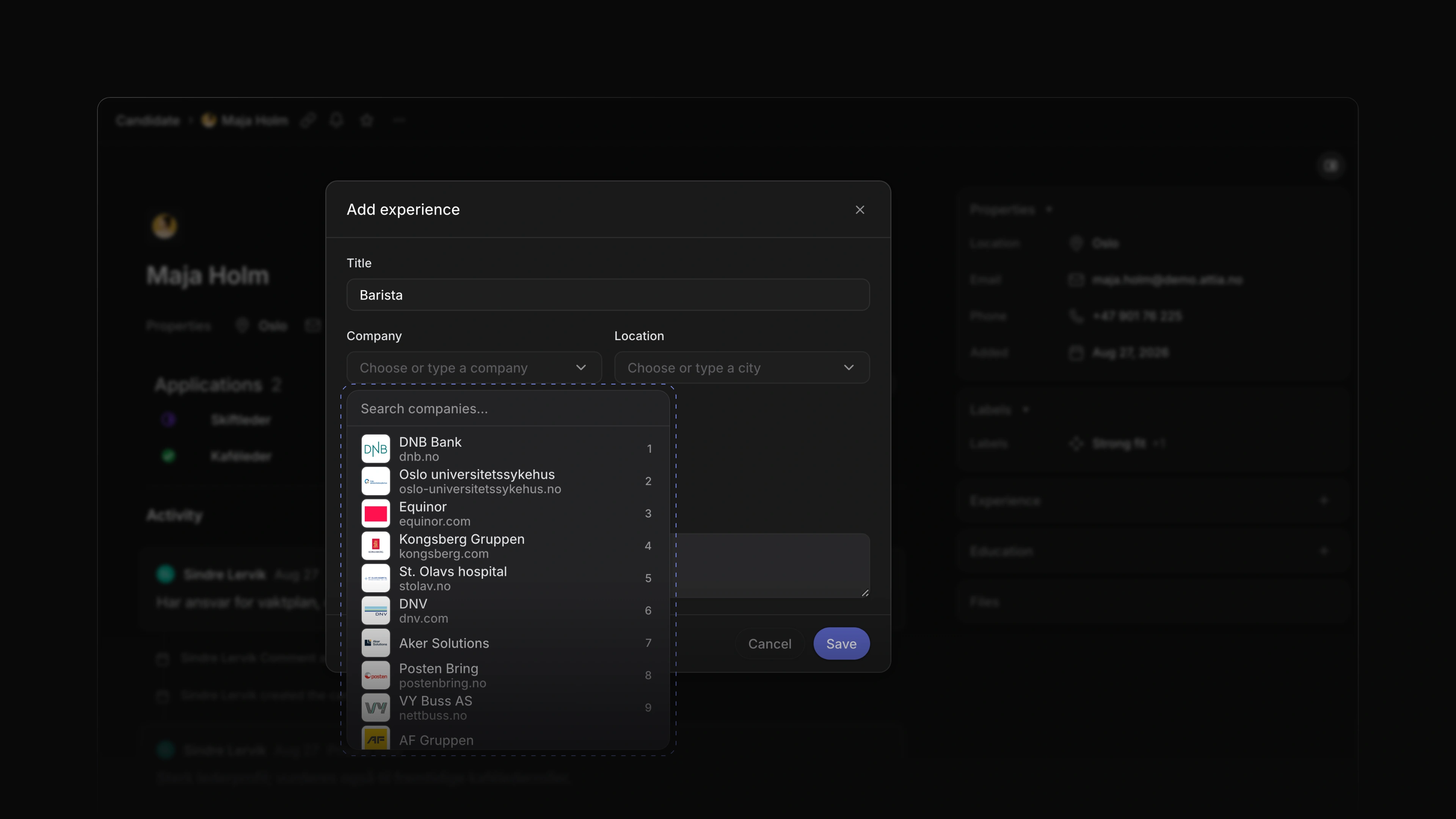
When you add a job or a school to a candidate, the list shows each company's logo, name and web address, with Norwegian companies first. It lists popular companies as soon as it opens, answers from the first letter you type, and keeps loading as you scroll. Every Norwegian university and university college has its logo. A saved row and its hover card show the logo too, and a company without one gets a grey tile with an icon.

The Add experience dialog for a barista, with the company list open on DNB Bank, Equinor, DNV and other Norwegian companies, each with its logo and web address

Linked candidate profiles

A candidate you added yourself may also have an Attia profile. When they do, the candidate page offers Link Attia profile in the header and a Link button on the Experience card. Linking shows the jobs and schools the person keeps on their own profile next to the rows your team added. If the person already has another candidate in your workspace, Link and archive moves this candidate's labels, files, comments and entries onto that one and archives this one, which you can restore for 30 days.

Experience and Education changes

Start and End on an Experience or Education row now pick a month in a date picker, and Company and Location share one row. Location on an Experience row picks a city from a search list. Point at a saved row to see the whole entry in a hover card.

  • Applications Added the jobs and schools a candidate sent with an application to the application page.
  • Career sites Added the jobs and schools from a signed-in candidate's Attia profile to the apply form, each with Leave out if they want to skip it.
  • Jobs Changed the job hover card to show the health of the latest update.
  • Workspace Added a What's new card to the sidebar that shows the latest changelog entry until you open or close it.
  • Performance Made the candidates list, the Jobs pages and the Inbox detail open faster.
  • Candidates Fixed Experience and Education rows showing in the order they were added; the most recent now comes first.
  • Candidates Fixed Create candidate refusing an email with no reason when a deleted candidate still holds it; it now says so.
  • Candidates Fixed a reload dropping an Experience or Education change that was still saving; Attia now warns you first.
  • Applications Fixed the Labels field on an application offering archived labels.
  • Applications Fixed the status menu on an application showing stray English headings, such as backlog and active, between the statuses.
  • Applications Fixed the Source of a career site application showing Candidate apply; it now shows Career site.
  • Career sites Fixed the apply form clearing what the candidate entered when sending failed.
  • Career sites Fixed filling the apply form from a CV emptying answers the candidate had already typed.
  • Career sites Fixed a phone number typed on the apply form not reaching the candidate's empty Phone field.
  • Career sites Fixed the apply form naming the career site where it should name the company.
  • Candidate account Fixed a failed withdrawal replacing the page with an error; it now says so under the button.
  • Candidate account Fixed a deleted candidate account briefly showing that the deletion failed.
  • Views Fixed a date cell showing Empty for some dates.
  • Jobs Fixed Create job picking a team you cannot create jobs in, so the first try failed.
  • Jobs Fixed a team member who may edit a job being refused when setting its locations.
  • Jobs Fixed a label created from a job's overview not showing until the next change, which then dropped it.
  • Inbox Fixed an open Inbox showing new notifications only after a reload.
  • Teams Fixed the Teams page offering to join an invite-only team that would refuse you.
  • Favorites Fixed removing a favorite from the sidebar leaving its star filled on the record page.
  • Workspace Fixed the first click in the sidebar after the page loaded doing nothing.
  • Workspace Fixed the Update available message appearing over an open dialog; it now waits until you close it.

Import candidates from any PDF

The Create candidate dialog filled in from a PDF, with the person's photo and a line saying it also adds 3 jobs and 1 school

You find a good person, and what you have is a PDF: their CV, a LinkedIn export or a LinkedIn page you printed. Until now you copied their details into Attia one field at a time, and their work history not at all.

Import from PDF in Create candidate now reads any of these files. Attia fills in the name, headline, location, email and phone, puts the person's photo on the candidate, and adds the jobs and schools it finds to Experience and Education.

To start, open Create candidate and choose Import from PDF. For a LinkedIn profile, open the profile, choose More, then Save to PDF, and import that file.

A check before you save

The dialog tells you which file it read and how many jobs and schools it will add, and asks you to check every field. Attia saves nothing until you choose Create candidate.

The photo

When the file has a photo of the person, Attia shows it as the candidate's picture in the dialog. Choose Remove image if you do not want it. A picture you already chose stays, and Attia never uses a company logo as the photo.

The PDF on the candidate

Attia keeps the file you imported under Files on the candidate, so the profile you based the record on is one click away later.

Telling the candidate

A candidate you import did not apply to you. Attia does not email the person when you import them, so tell them yourself that you added them and why.

Attia Agent creates candidates from a PDF

Drop a CV or a profile PDF into the Attia Agent chat. The agent reads the name, headline, location, email and phone, and the jobs and schools in the file. It shows you what it read, and when you say yes it creates the candidate with those jobs and schools under Experience and Education.

One PDF for the whole application

On a career site, an applicant can choose Autofill from resume and upload one PDF. Attia fills in the application from it and attaches the same file as their CV, so they upload it once. An applicant who is signed in and has applied before can send the CV they used last time.

  • Agent Changed Attia Agent to explain how to save a profile as a PDF when you paste a link to a LinkedIn profile.
  • Candidates Changed Create candidate to stop asking why you store the person's details; Attia records that you added them to the talent pool for future roles.
  • Candidates Added Fill from my CV to an empty Profile page in the candidate account; it fills in the jobs and schools from the CV the candidate sent, or from a PDF they upload, for them to check.
  • Career sites Fixed the career site page editor not showing a change Attia Agent made until you reloaded the page.
  • Applications Fixed an applications list leaving out a label you set on an application; each row now shows the labels set on that application.
  • Candidates Fixed the button that shows and hides the details panel on a candidate page; it now sits below the header, as on other pages.
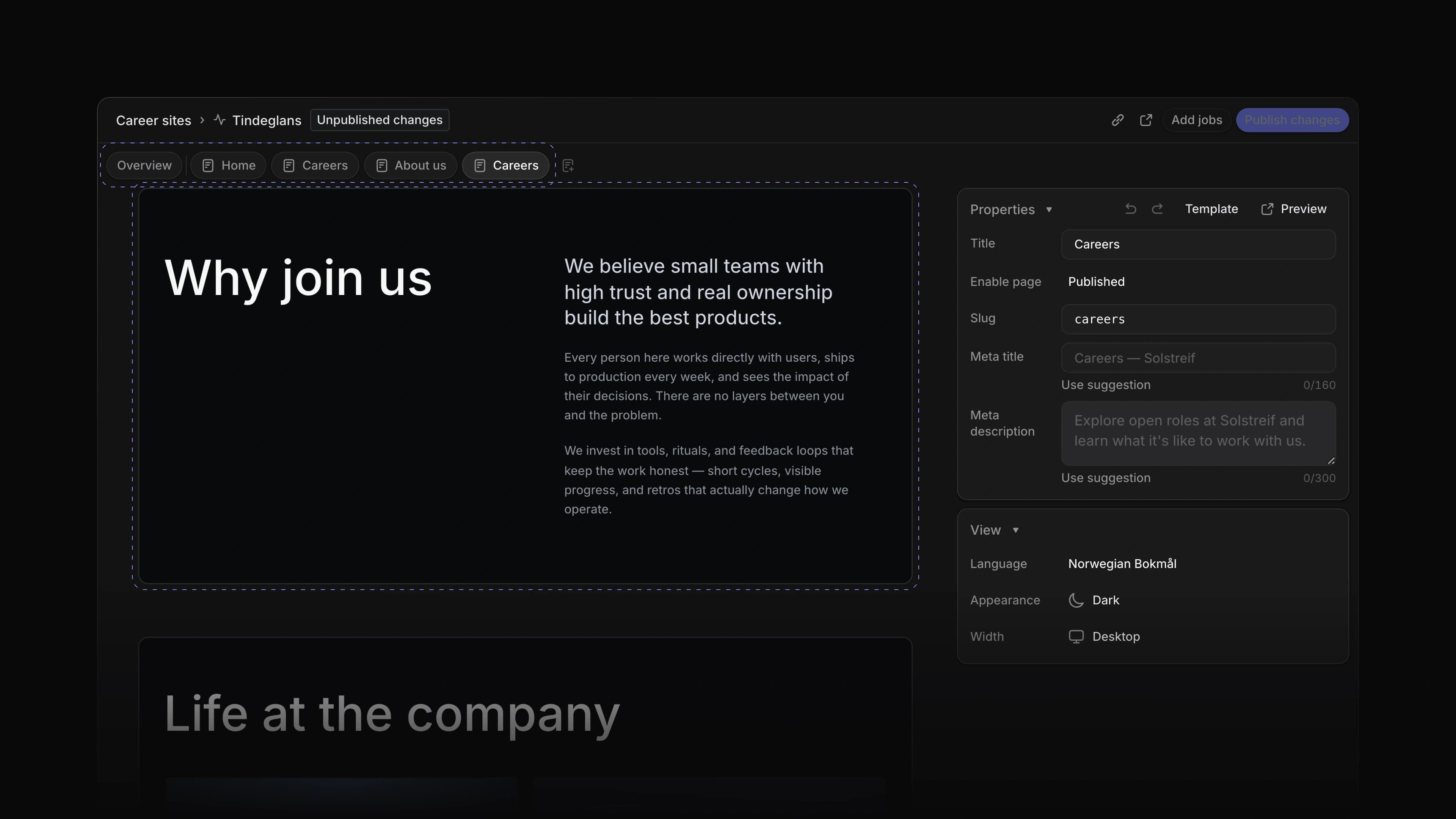
Experience and education

A candidate page with the Experience and Education cards in the side panel, three jobs and two schools filled in

A candidate page held contact details, labels and files, but not where the person had worked or studied. To see that, you opened their CV again.

Candidate pages now have an Experience card and an Education card in the side panel, between Properties and Files. A job shows the title, company, place and years. A school shows the name, degree, field of study and years.

To start, open a candidate and choose the + on the Experience or Education card.

One dialog for both

Adding a job and adding a school use the same dialog. Pick a company or school from the list or type a new name, then add the years. Leave the month blank if you are unsure, and tick I work here now for a current job.

Edit or delete a row

Choose a row to open it again. Change what you need and save, or choose Delete.

Attia Agent reads experience and education

When you ask Attia Agent about a candidate, it now reads their jobs and schools along with the rest of the record, so you can ask about a person's work history and studies.

Candidate profiles

A candidate who applies through Attia now has a Profile page in their candidate account, with the same Experience and Education cards. Employers see the profile with the candidate's applications, and a change shows right away. Under Settings, the candidate chooses whether every employer on Attia can see the profile or only the employers they apply to. Their email and phone only go to employers they apply to, and Attia tells them so when they apply and when they sign in.

Career site overview

Each career site now opens on an Overview tab. The site's status, lead and members sit at the top, design and SEO sit in their own rows under the site name, and the linked jobs sit further down the same page as a compact list with no sideways scrolling. To start, choose Career sites in the sidebar and pick a site.

  • Applications Added a Labels filter to applications lists; pick two labels to see the applications that carry either one.
  • Loops Added a delay of its own to the Send reminder step, so it reminds the candidate while their answer is still due.
  • Loops Changed a Loop run to show every step, including the ones it skipped, and the path it took.
  • Applications Fixed every Review option in the filter menu showing the same full star; each star now fills to its rating.
  • Applications Fixed Candidate having no icon in the filter menu of an applications list.
  • Agent Fixed Attia Agent offering Try this again when it could not run at all; it now says Attia is temporarily unavailable.
  • Career sites Fixed a link to a section of the page stopping at # while you typed it in the career site page designer.
  • Career sites Fixed an empty text field on a career site block publishing sample text.
  • Career sites Fixed the career site preview switching back to light when you opened another page.
  • Loops Fixed Run loop starting a Loop that has no steps; it now says why it cannot run.
  • Settings Fixed the Attia Agent row under AI & Agents in Settings showing Enabled for every workspace; it now opens a page where an admin turns the agent on or off.
  • Applications Fixed Review values on an applications board showing in English when Attia was set to Norwegian.

Create jobs with Attia Agent

The Create job dialog with the Create with Agent panel open beside the form and its suggestions

A new job needs a lot of details: the title, the ad, who leads it, where the work is and what kind of contract it is. The ad itself takes the longest, and it has to sound like the jobs you already posted.

Create with Agent now writes the first version for you. Open it beside the Create job form, describe the role in a sentence or two, and Attia Agent fills in the form in the same voice as your workspace's other jobs. You check the fields and create the job yourself.

To start, choose Create new at the top of the sidebar, or press C, then choose Create with Agent in the header of the dialog.

A draft from a short brief

Pick Draft this job from a short brief, Write the description, Suggest requirements or Base it on one of our open jobs, or write your own request. Attia reads your workspace's jobs and job template, and can start from a template you name. It fills in the title, the description and the properties it has facts for. It never makes up a salary, a location or a number of positions.

A check before you create

Attia fills in the form and stops. A field you change while it works keeps your change. Each reply says what it filled in and what it assumed, and names anything it could not match, such as a team or a label. Nothing is saved until you choose Create job.

One chat per draft

The chat belongs to the draft and takes the job's title as its name, so it sits in Chat history as that job. Open a saved draft again in the same browser and the chat is where you left it.

Every detail in one place

Status, priority, lead, members, workplace, employment and location sit under the title. More properties adds the contract type, the number of positions, the start and target dates, labels and career sites. Pick one of the workspace's saved locations, and an admin can choose Add new location… to add another. A job template fills in the contract type and the number of positions for you.

Saved drafts

Choose Save as draft in the header once you have started. Each time you open Create job you start a new draft, so a job you are halfway through never blocks the next one.

Loop questions with a deadline

A Send message step in a Loop can now require an answer. Choose Require an answer and set how long the candidate has. The Loop waits at that step. The message tells the candidate to respond by the deadline, they answer once from their application page, and the request closes. The application's Activity shows Waiting for an answer with the due date, and then the answer. If the deadline passes with no answer, the Loop goes on to its next step.

A Loop with a Send message step that requires an answer
  • Jobs Changed location search results to read on one line, such as Grünerløkka, Oslo.
  • Loops Added Cancel run, Resume run and Start again to the menu on a Loop run, shown when the run can take them.
  • Loops Changed a Labels trigger to ask whether a label was added or removed, so a Loop can start when a label is taken off.
  • Loops Changed a Loop's schedule so it can run every few minutes, down to every five.
  • Inbox Added an Inbox notification for a Loop's owner when a Wait step runs out of time.
  • Jobs Fixed contract type and positions being lost when a job was saved as a draft.
  • Jobs Fixed a discarded job draft coming back after the dialog closed.
  • Jobs Fixed the create buttons starting a new job instead of bringing back the one you had minimized.
  • Jobs Fixed the Create job controls not fitting on a phone.
  • Jobs Fixed the publish date showing a different day in another time zone.
  • Jobs Fixed the Job created message showing in English, and its View job button now opens the job at once.
  • Jobs Fixed a job made in Create job going missing when you left the page right after.
  • Views Fixed a new saved view showing an empty editor after a reload instead of the view.
  • Views Fixed a pinned view opening with the filters you had set on another view.
  • Agent Fixed Stop not stopping work Attia Agent had handed off to run in the background.

Lists, boards and tables

Applications on a board, one column per status

Different work needs a different view. Moving candidates from one stage to the next fits a board. Checking twenty jobs for a missing lead fits a table. A quick look at what came in today fits a list.

Jobs and a team's Applications now open as a Table, a Board or a List, with the same controls in each. Choose Display options to group by a property, add a sub-group, set the order and pick which properties show. On a board you choose the Columns and Rows instead.

To start, open Jobs, choose Display options and pick Table, Board or List. Press Cmd B, or Ctrl B on Windows, to switch between them.

Bulk edits

Select rows with their checkboxes, or press X on a row. Hold Shift and press ↑ or ↓ to add the next row. Change a property such as status on one of the selected rows, and the change goes to all of them. Attia tells you how many rows it changed, and Cmd Z, or Ctrl Z on Windows, undoes the whole edit in one step.

Column controls

Drag the edge of a table column to make it wider or narrower. On a board, hide the columns you do not need. They wait under Hidden columns until you want them back.

Quick actions on a job

Hover a job in the list or table and open its menu, or right-click it, to Open it, Copy link or Delete job.

Saved views

Keep a setup you use every day as a view. Choose Add new view, the plus at the end of the view tabs, set your filters and layout, name the view and save it. A view keeps its filters, layout, grouping, ordering and the properties it shows. Save it for yourself, for the whole workspace or for one team. Each view tab has a menu with Copy link, Favorite, Edit, Duplicate and Delete, and a favorite view sits in the sidebar under Favorites. Views work on Jobs, Candidates and a team's Applications, and the Views page lists them all.

Media library

Every image and video you upload for a career site now goes into the workspace's Media library, ready for any block on any page of any career site. Write alt text, move the focal point and zoom to crop; the same focal point holds at every screen size. Image treatment shows the image as Default, Rounded or Full bleed. The Video block plays an MP4 or WebM up to 100 MB, or a video from a link, with a poster image to show before it plays. The library shows how many career sites use each file. Attia does not delete a file a page still uses: remove it from the draft and published pages first. To start, open a career site page, click an image, choose Edit image and then Media library.

A career site image with Edit image open, showing Media library, alt text, focal point and crop zoom

Candidate messages by email

A message you send a candidate from an application now reaches them by email, with an Open in Attia button that takes them to it. They sign in with a code sent to their email, answer on their application page, and the reply shows in the application's Activity. Each message shows its email state: Email queued, since the email goes out about a minute after you send, then Emailed, or why it could not go out, such as Email off, No email address or Email bounced. Every email has an Unsubscribe link. A candidate who turns email off still sees your messages on their application page and can turn email back on under Hiring-team messages in their settings, and the message box tells you when email is off for them. To start, open an application, go to Activity, choose To candidate and choose Send to candidate.

  • Views Added an exact date to date filters.
  • Views Made long lists and boards scroll smoothly, even with many rows.
  • Settings Added First day of the week under Preferences, so every date picker starts the week on the day you choose.
  • Settings Added Leave workspace and Delete account under Profile in Settings.
  • Career sites Added an error page and a not found page in your career site's own colours, with a link back to the site.
  • Jobs Changed a job's activity to show a burst of edits to one property as one row with the final value.
  • Candidates Added a line on a candidate with no application that says where a CV goes, with a shortcut to add them to a job.
  • Views Added J and K, or the arrow keys, to move between rows, and Enter or O to open one.
  • Views Added X to select a row, and Shift with an arrow key to select the next one too.
  • Views Added Shift V to open Display options and F to open the filters.
  • Applications Fixed applications with no one assigned disappearing from the board when empty groups were shown.
  • Views Fixed cards jumping back when you dragged two in quick succession on a board.
  • Views Fixed date filters such as 1 day ago not moving along as time passed.
  • Career sites Fixed the live career site showing the old version for a while after you published.
  • Career sites Fixed Publish changes leaving out the edits you had just made in the builder.
  • Career sites Fixed a new workspace logo taking a while to reach the live career site.
  • Career sites Fixed the starter pages of a new workspace putting the footer above the page content.
  • Career sites Fixed a refused change to a career site showing an unclear message, or one in the wrong language.
  • Career sites Fixed a job linked from a career site not opening.
  • Career sites Fixed the site's more actions menu showing when it had nothing in it.
  • Candidates Fixed candidates losing their place after they asked for a new sign-in code.
  • Candidates Fixed a candidate who asked for too many sign-in codes seeing the same error again and again.
  • Candidates Fixed a newly signed-in candidate seeing an error before their first application.
  • Career sites Fixed a candidate's answers being lost when an uploaded file was refused.
  • Candidates Fixed application dates on a candidate's page disagreeing with the activity.
  • Inbox Fixed the app navigation missing from Inbox on a phone.

Introducing Loops

The New loop form with its trigger and instructions

Some recruiting work comes back every week: going through new applications, checking on a job, following up when an application reaches a status. Until now someone had to remember to do it.

A Loop now does it for you. You choose what starts it and what it should do, and it runs on its own from then on.

For example, a Loop can run every Monday morning and have Attia Agent go through last week's applications with the instructions you wrote. To start, choose Loops in the sidebar and choose New loop. Loops are part of the Basic plan and up.

Triggers

Under Trigger, choose Schedule to run on a set day and time, or Application or Job to run when one changes. An application trigger can narrow to one job and one status, and runs about a minute after the change.
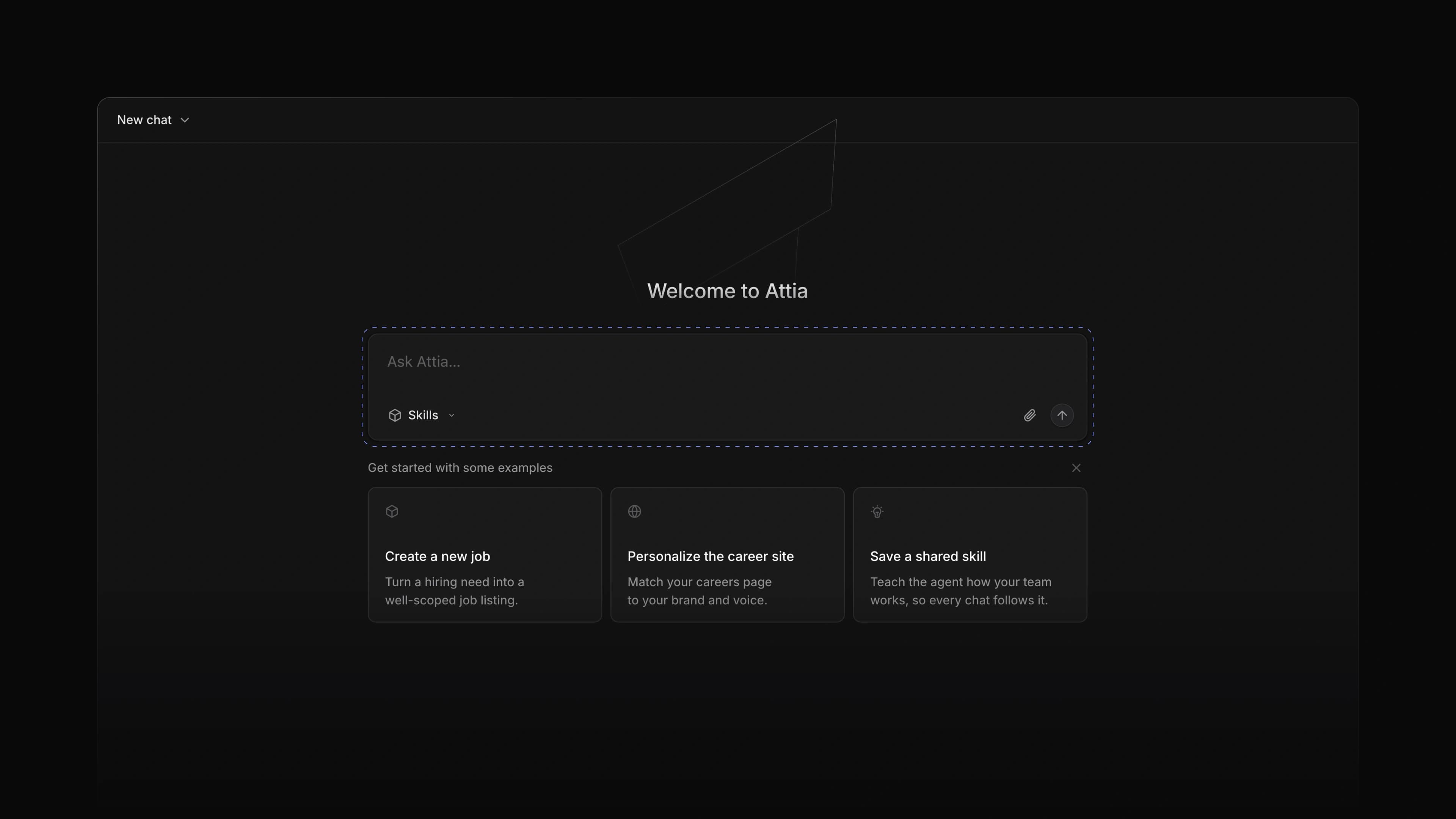
Instructions

Write what the Loop should do under Instructions. Compose with Agent helps you write them.

Versions and run history

Your edits are saved as a draft, and a Loop runs the version you publish. Published versions keeps the earlier ones. Run history shows each run and what it did.
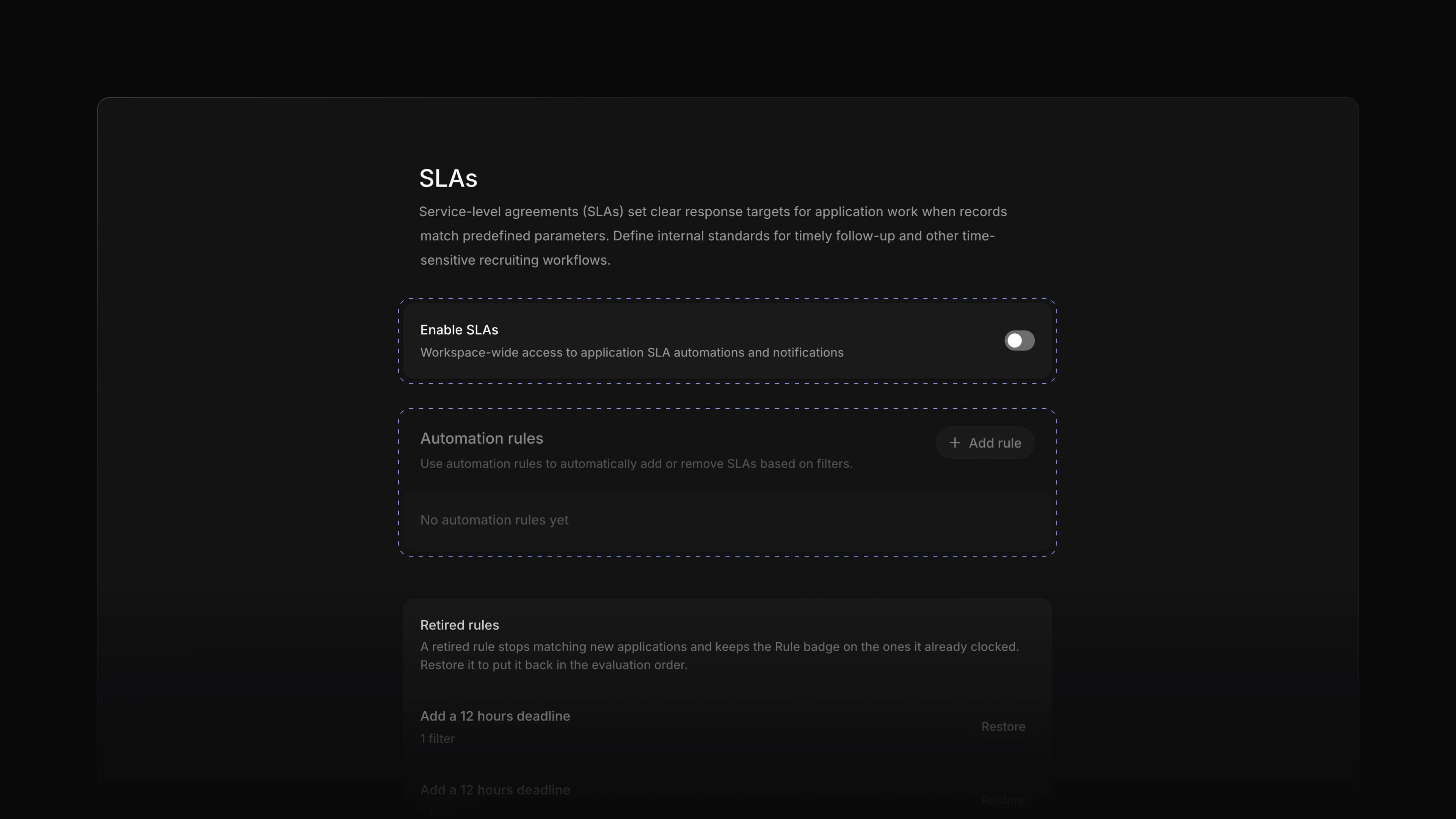
Agent page

Attia Agent has its own page. Start a chat from Ask Attia…, open an older one from Chat history, which you can now search, and star the chats you come back to. From a chat's menu you can copy it as markdown or delete it. In an application's comments, type @ and choose Agent, and Attia replies in the same thread for everyone on the application to see. To start, choose Agent in the sidebar, or set Default home view to Attia Agent under Settings, Preferences to land there every time you open Attia.

The Agent page with Welcome to Attia, the Ask Attia chat box and the example cards

Interface themes

Pick a theme under Settings, Preferences, Interface theme: Light, Pure light, Dark, Classic dark or Magick blue, or System preference to follow your computer's light or dark setting. Custom gives you an accent colour, a background colour and a contrast slider, starting from the theme you had, and Custom sidebar theme gives the sidebar its own accent and background. Attia keeps the theme in the browser you picked it in.

The Interface and theme section in Preferences

AI credits and usage

Admins now have a Usage page in Settings. It shows the workspace's AI credits, what used them each month, and every usage session. From there you can turn on automatic reload. To see it, open Settings and choose Usage.
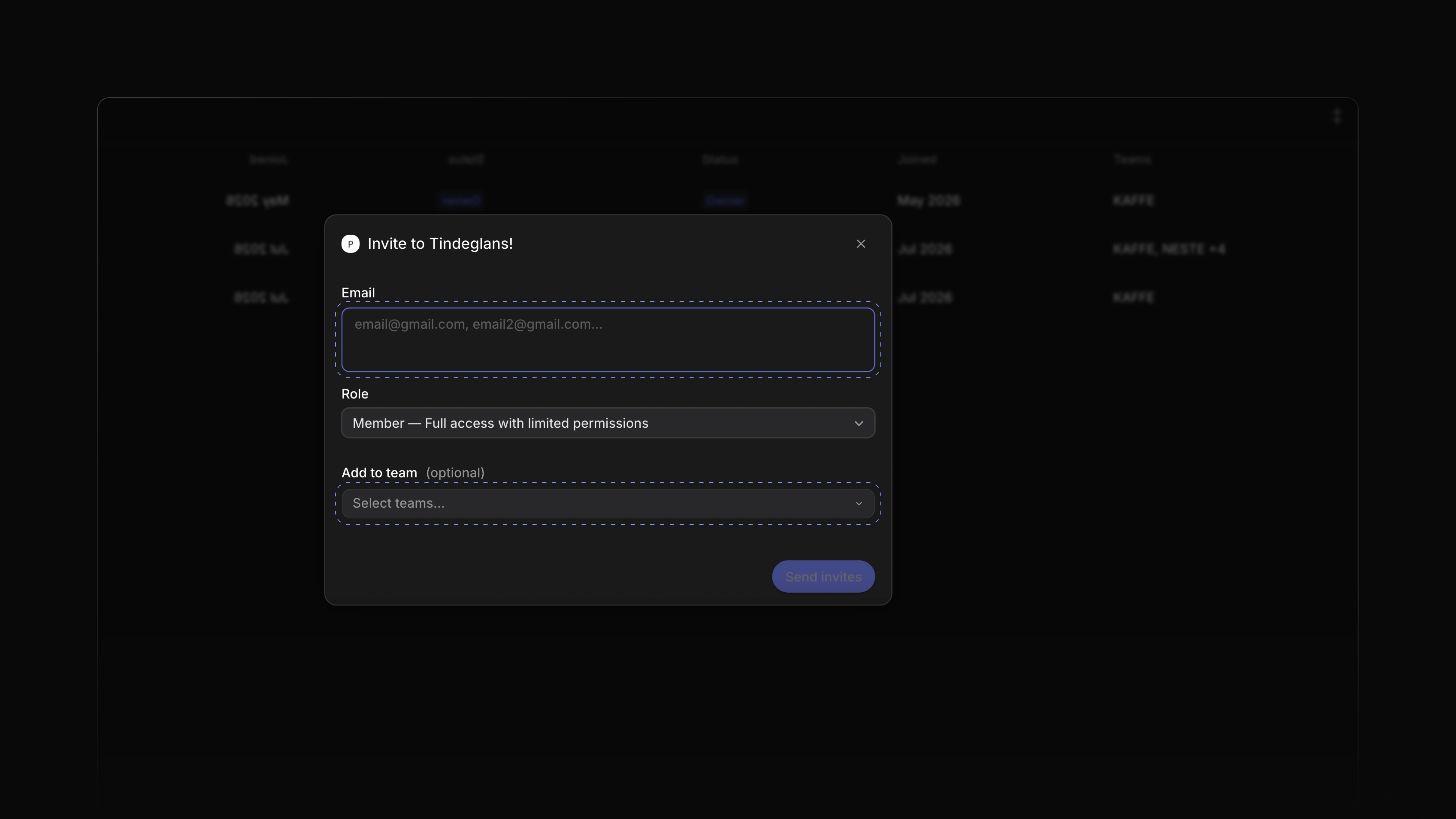
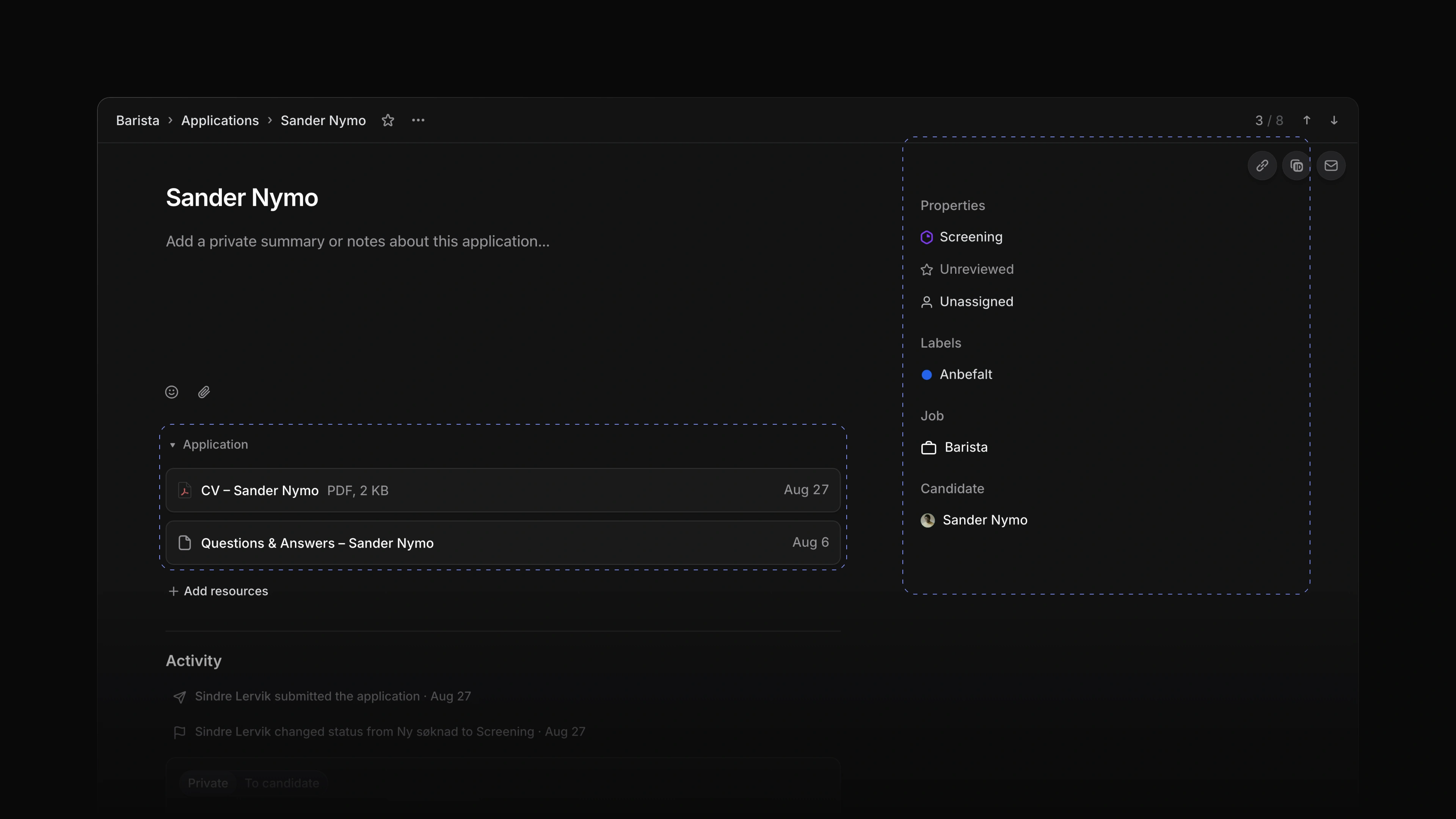
The Usage & limits page with AI credits
  • Settings Changed the invite dialog so you can add a new member to teams as you invite them.
  • Views Changed list views so the columns line up from row to row.
  • Jobs Added place search to the Locations picker on a job.
  • Jobs Added a Publishing card to the job overview that shows the dates the job is published.
  • Jobs Changed a job to close overnight once its application deadline has passed.
  • Jobs Added Undo to the toast after you delete a job, application or candidate.
  • Career sites Added Undo and Redo to the career site page designer.
  • Career sites Changed the header and footer of a career site page into blocks you edit like the rest.
  • Career sites Added career site edits to Attia Agent: it rewrites a block's text, switches its layout, adds, moves or removes blocks and changes the logo, colours and typeface, all in the draft you publish, and it asks you before it removes a block.
  • Documents Added New document on a team's Documents page, which opens the document in a dialog over the page you are on and throws it away if you close it empty.
  • Settings Rebuilt the search in the Settings sidebar.
  • Settings Fixed the invite dialog showing an empty tile instead of your workspace logo.
  • Applications Fixed message attachments downloading when you opened them; they now show a preview.
  • Settings Fixed checkout and the billing portal opening in a different language than the page.
  • Settings Fixed scrollbars and selected text ignoring the colours of the chosen theme.
  • Settings Fixed dialogs using a different card colour from the rest of the theme.

Attia Agent actions

A chat where Attia Agent creates a job and waits for approval to publish it

Attia Agent could already answer questions about your jobs and applications. The changes themselves were still yours to make, one screen at a time.

Attia Agent now does the work. Ask it to create a job, update one, add labels, assign an application, post an update on a job, edit a document or leave a comment, and it makes the change. Before the steps that matter, it asks you first and waits for your answer.

For example, ask Attia to create a job for a summer barista and publish it. Attia creates it as a draft, then asks before it publishes. To start, choose Agent in the sidebar and tell Attia what to do.

Approval before the big steps

Attia asks before it publishes or closes a job, and before it adds a label the candidate can see. Nothing happens until you answer in the chat.

Guidance

Tell Attia once how you work: your tone, the requirements you always include, the words you avoid. Write it under Guidance in Settings, Agent personalization, and Attia follows it in every chat. View version history shows what you wrote before.

Skills

A skill is a prompt you save and reuse. Create one under Skills with New skill. Attia picks the right skill on its own, or you choose one from Skills in the chat box.

The Free plan

Every new workspace now starts on the Free plan, with no card and no checkout. Free has unlimited members, one team, one career site, Attia Agent and up to 100 applications, and jobs and candidates are unlimited on every plan. Applications always arrive: when a Free workspace goes over 100, its applications become read-only until you archive some or upgrade. Plans, under Settings and then Billing, shows Free, Basic, Business and Enterprise side by side. Basic adds Loops, five teams and 2,500 applications, and if you move from a paid plan back to Free, you keep your data.

The Plans page comparing Free, Basic, Business and Enterprise

Attia in Norwegian

Open Settings, choose Preferences and set Language to Norsk, and all of Attia is in Norwegian: menus, settings, dates and calendars, the activity on jobs and candidates, and the inbox. Attia Agent answers in Norwegian too. A career site can offer several languages, and each candidate picks theirs for the application form.

The Preferences page in Norwegian with Language set to Norsk

Recently deleted

A deleted job, application or candidate is not gone at once. It stays in Settings, Recently deleted for 30 days, and you can restore it from there.

  • Agent Added a queue for follow-ups: a message you send while Attia works waits and sends when it finishes.
  • Views Changed saved views, teams and drafts to open at once, without waiting for the server.
  • Settings Changed the plan cards to say what each plan includes.
  • Applications Changed links to an archived job, application or document to open the record, with a note to restore it before you edit.
  • Applications Added Subscribe to updates on an application, so its changes reach your inbox.
  • Agent Added job templates to Attia Agent: it can save a job as a template and start a new job from one.
  • Agent Changed a new workspace to open on the Agent page.
  • Settings Added Add account... and Switch account under your workspace name in the sidebar, so several logins work in one browser, and an invitation page now says which of your accounts to use.
  • Agent Added Cmd/Ctrl Enter to send a message while Attia is still working, so it changes course at once.
  • Agent Fixed Cmd J, or Ctrl J on Windows, not closing the agent chat it had just opened.
  • Agent Fixed a message failing to send in a chat that had been left idle for a while.
  • Career sites Fixed a wide logo shrinking to a thin sliver in the career site page designer.
  • Applications Fixed My Applications naming a column Backlog; it now reads Sourced.
  • Settings Fixed the label on the Norwegian trial button.
  • Jobs Fixed the default application questions on a new job appearing in a different language than yours.

Career site builder

A career site page open in the page designer

A candidate often meets your company on its career site first. That site needs more than a list of jobs: a front page, a page about the team, your own look, and a way to publish changes only when they are ready.

The career site builder puts the whole site in Attia. Each site has an Overview tab and one tab per page. Add a page with New page, and build it from blocks with Add block. When you are happy, choose Publish site and candidates see it. Later edits wait under Unpublished changes until you choose Publish changes. Only workspace admins can publish.

For example, you can add an About us page with a hero and a section about the team, check it, and publish it together with the front page. To start, choose Career sites in the sidebar, open a site and choose New page.

In-place editing

The page designer shows each block the way it looks on the public site. Click any text or image to edit it. Undo and Redo take back a change.

Block controls

Hide, duplicate, drag or delete a block. The header and footer are blocks too, so you edit them the same way.

One theme for every page

The theme, font, button style and corner radius you choose apply to every page of the site.

Search engine text

Each page has its own meta title and meta description. When one is empty, choose Use suggestion to fill it in.

  • Settings Changed a new workspace to start with one team, named after the workspace.
  • Settings Fixed creating a sub-team when you were not a member of the parent team.
  • Career sites Fixed a candidate who had already applied seeing an empty form instead of their application.
  • Agent Fixed Write with Agent opening in a different language than the one you use.
  • Views Fixed a property dropdown in a list opening the row instead of changing the value.

Introducing Attia Agent

A new chat with Attia Agent, ready for a question

Some questions about your hiring take longer to find than to ask. Until now you answered them by opening one job after another.

Attia Agent is a chat you open from any page in Attia. It reads the jobs you have access to and drafts new ones in the teams you can edit. Ask which of your jobs are still open, and Attia answers in the chat while the page you were on stays open behind it.

To start, press Cmd J, or Ctrl J on Windows, or choose Agent in the bottom right corner.

A chat on every page

The chat opens as a panel over the page you are on. You can minimize it, close it and open it again, and the conversation is still there. Choose Open full page when you want more room.

Chat history

Every chat gets a name and is saved. Choose the clock beside Agent to open Chat history, and pick up any earlier chat where you left it.

The Stop button

When Attia is answering and you want to ask something else, choose Stop. The reply ends at once.

  • Settings Added Enable Attia Agent under AI & Agents in Settings, so an admin can turn the agent off for the workspace.
  • Agent Added Cmd/Ctrl J to open and close the agent chat.
  • Agent Fixed the first message in a new chat failing to send.
  • Agent Fixed a short greeting getting a list of every job in reply.
  • Agent Fixed the resize handles on the chat panel not showing.

SLAs for applications

The SLAs page in Settings with its automation rules

A good candidate who waits a week for an answer often takes another offer. Until now nothing in Attia told you which applications had waited too long, or which ones were yours to answer.

SLAs now give applications a response deadline. You write a rule once, such as "every new application to a store job gets 48 hours", and Attia adds the deadline to each application that matches. The application shows how long is left, or how long ago the deadline passed.

To start, go to Settings, choose SLAs under Applications, turn on Enable SLAs and choose Add rule. SLAs come with the Business and Enterprise plans.

SLA rules

A rule has a When and a Then. The When filters on up to thirteen properties, such as the job, the status, the team, the source, the labels or the job's lead. The Then sets the deadline: 12 hours, 24 hours, 48 hours, one, two or four weeks, or a time you choose. A retired rule stops matching new applications and can be restored later.

Deadlines on the application

An application with an SLA shows it as a property that reads "Due in" with the time left, or "Breached by" with the time since the deadline. When the deadline passes, the application's activity notes it.

My Applications

Choose My Applications in the sidebar to see your own queue. Assigned lists the applications assigned to you, Subscribed the ones you follow, and Activity the ones where something new happened. Under Display options, choose how long completed applications stay in the list.

Job and document templates

When you post the same kind of job again and again, start from a template. Open a job or a document, open its menu and choose Make template. In Create job, pick the template under Job template. When you create a document, choose Blank or one of your templates. Your job templates are listed under Settings, then Templates under Jobs.

Private drafts

Attia now keeps what you write in Create job and other composers as a private draft. When you close Create job, choose Save and the job waits for you, on this computer or another one. Only you see your drafts. Choose Drafts in the sidebar to pick one up again, or discard it.

  • Candidates Showed the candidate every application of theirs in the candidate portal.
  • Applications Showed the options a choice question offered when the candidate left it unanswered.
  • Settings Made changes to job statuses and job labels in Settings show at once.
  • Inbox Made marking a notification as read show at once.
  • Candidates Fixed changes a candidate made to their own profile, photo included, not reaching your workspace.
  • Settings Fixed section headings in Settings that cut off their button.

Teams and invites

The Invite members dialog with Email, Role and Add to team

A hiring team changes all the time. Someone joins for one role, a manager needs to look at a shortlist, a colleague moves on. Until now you had no single place to see who was in the workspace and which teams they belonged to.

Members now lists everyone in the workspace with their title, status, the date they joined and their teams. Teams lists every team with its members and its jobs. When a store manager needs to follow the applications for a new barista role, you invite them as a member and add them to the store's team in the same step.

To start, choose Members in the sidebar and press the + button.

Several invites at once

The Invite members dialog takes several email addresses, separated by commas. You choose one role for all of them: Guest, Member or Admin. You can add them to one or more teams straight away. Choose Send invites and each person gets an invite.

Member actions

Right-click a member to change their role, transfer ownership of the workspace or remove them from it.

The Teams page

Choose Teams in the sidebar to see every team, how many members and jobs it has, and whether you are in it. Press + to create a new team.

Comment threads and mentions

A private note on an application is now a thread. Colleagues reply under it, react to it and mark it resolved when the question is settled, and marking a reply as the answer resolves the thread too. Type @ and a colleague's name to send them a notification in their Inbox; the list tells you when someone is not on the application's team and will not be notified. You can edit or delete a note you wrote. An edited note says so. A resolved thread can be opened again. To start, open an application and write a note in the box at the bottom of the page.

Application page

An application opens as a full page. The status, review, assignee, job, labels and candidate sit in a panel beside the page, or in a row under the name when the window is narrow. Below them come your private summary, the CV and the candidate's answers, then the activity and a box for notes.

An application page with the CV and answers under Application and the properties panel beside it

Custom sidebar

Right-click any item in the sidebar and choose Customize sidebar. For each item you choose Always show, Show when badged, Show when in use or Don't show, and hidden items wait under More. Drag items into the order you work in, and pick whether unread items show a count or a dot.

  • Inbox Added an Inbox notification when an application is assigned to you.
  • Applications Added a Review property to applications, for rating the candidate with stars or points.
  • Settings Added payment inside Attia: under Settings, then Billing, choose All plans and pay for a plan in a dialog on the same page.
  • Applications Added Show to candidate to application labels, so the candidate sees a label such as one that says an interview is booked.
  • Keyboard shortcuts Added Cmd/Ctrl Enter to submit the main action of a dialog.
  • Settings Fixed invites that dropped the Guest role and the teams you picked.
  • Settings Fixed creating a new workspace so it no longer renames the one you are in.
  • Jobs Fixed Create job so a failed save shows an error that stays until you close it.
  • Inbox Fixed snooze times that were out of date when you opened the menu.
  • Settings Fixed the plan upgrade card cutting off the names of its features.
  • Settings Fixed payment in a different currency from the one the plans page showed.
  • Applications Fixed application pages that ignored light mode.
  • Jobs Fixed job pages that ignored light mode.
  • Inbox Fixed the preview in Inbox so a failed load no longer breaks it until you reload.

Workspace search

The search page with results for barista on the left and an application open in the preview on the right

A candidate calls about a job, and you remember their name but not which job they applied to. Until now you opened one job or list after another to find them.

Search now finds applications, jobs, candidates and documents by name, all from one page. The results show up as you type, and each one says what kind of record it is.

Type "barista" and you get the Barista job and the applications to it in one list. To start, press / anywhere in Attia, or choose the search button at the top of the sidebar.

One tab per type

Choose All, Applications, Jobs, Candidates or Documents above the results to see one kind of record at a time.

A preview beside the results

Choose a result and it opens beside the list, so you can read an application or a job and keep your search. Drag the edge to make the preview wider. Go to application, or Go to job, opens the full page.

Filters and ordering

The filter menu narrows the results by team, status type, assignee or lead, creator, and the date a record was created or last updated. Under Display options, order them by Most relevant, Last updated or Last created.

Recent searches

Press Enter or open a result and Attia keeps the search. When the box is empty, Recent searches lists them again, and Clear History removes them.

Team home

Each team now has a home page. The Overview tab shows the team's name, icon and description, which you edit in place, with its members and Go to links to the team's applications, jobs, views and Team settings. The Documents tab lists the team's documents, grouped by the job they belong to. To open it, choose Home under the team in the sidebar.

File upload questions

A job's application questions can now ask for a file. On the job, choose Add question, set the type to File upload and pick the allowed file types, such as PDF, Image or Document. On the career site, the candidate attaches the file to that question when they apply.

  • Career sites Changed applying on a career site so the candidate fills in the whole form first and confirms their email with a one-time code when they send it.
  • Keyboard shortcuts Added / to open search from anywhere in Attia.
  • Keyboard shortcuts Added Cmd/Ctrl Shift , to copy the link to the page you are on.
  • Jobs Fixed a job's Activity staying at No activity yet after you changed the job.
  • Jobs Fixed application questions being saved as required after you marked them optional.
  • Jobs Fixed job icons that showed blank, or went back to the default icon after a reload.
  • Jobs Fixed the details panel on a job going back to its default width after a reload.

Job updates

A job's Activity tab with Update chosen, On track set as the health and the changes since the last update listed

When a hiring manager asks how a role is going, the answer is spread out: the status, the dates, a chat message, someone's memory. Until now a job had only a plain list of changes, and no place to say where things stood.

A job's Activity tab now takes updates. Choose Update in the box at the top, write a few lines and set the job's health: On track, At risk or Off track. Attia adds what changed since the last update, so nobody has to list it by hand. Below the box, updates, comments and the job's history sit in one feed.

Say the start date moves and two candidates drop out. Post an update marked At risk, and the new date is already in it. To start, open a job, choose Activity and choose Update.

Changes since the last update

Before you post, the box lists what moved since the last update, such as the status, priority, dates, lead or progress. The posted update keeps that list, so a reader sees the new date beside your words.

Comments and threads

Choose Comment to ask the team something about the job. Colleagues reply under a comment or an update and add reactions. Choose Mark as Solution on the reply that settles the question.

Edit or delete

Open the menu on an update or a comment you wrote to edit it or delete it.

Next and previous records

Open a job or a candidate from a list, and the top of the page shows where it sits in that list, such as 3 / 33, with arrows for the one above and the one below. Press Shift J for the next record and Shift K for the previous one. However many records you step through, Back takes you to the list you came from, with its filters as you left them.

A job opened from the list of all jobs, with its place in the list and the up and down arrows at the top right
  • Inbox Changed Inbox to show the whole job or candidate a notification is about, scrolled to the comment or update that sent it.
  • Settings Added a starting setup to every new workspace: a first team, a career site and four application labels.
  • Jobs Made jobs, teams and settings open faster, with fewer trips to the server behind each page.
  • Career sites Fixed a candidate being turned away when applying to a published job in a private team.
  • Career sites Fixed a candidate's list of their own applications failing to open once they had applied.
  • Views Fixed a list that kept your filters from last time hiding the filter bar, so rows were missing with no filter in sight.

Job publishing

A job page with the publish menu open, showing Draft, Live, Paused and Closed

A job had a status for your own hiring stages, but nothing on its page that put it in front of candidates. A new job stayed a draft, and no candidate could find it.

The job page now starts its row of properties with the job's publish state: Draft, Live, Paused or Closed. Only a Live job shows on your career sites and takes applications. Choose Paused or Closed and it comes down again.

Say the first round of barista interviews is full. Set the job to Paused while you meet the people you have, and back to Live if you need more. To start, open a job and choose Draft at the start of its properties.

Four states

Draft is where every job starts. Live publishes it. Paused takes it down for a while, and Closed marks it as done. Each change applies as soon as you choose it.

Application questions

The questions a candidate answers when they apply now sit on the job page. Add a question, change its type, mark it required or change the order, and the next applicant sees the change. Until now you could not change them once the job existed.

The application questions on a job page, with name, email and four questions for the applicant

Candidate portal

A candidate who applied could not see where their application stood without writing to you. Now they have a candidate account. They sign in with a one-time code sent to their email, with no password, see their applications and the status of each, read the answers they gave, and can withdraw an application. A withdrawn application shows as Withdrawn on the candidate's page in your workspace. The What candidates see setting in Settings decides how much of the status they see: the exact status, a simple stage such as In review or Hired, or only whether the application is submitted or closed.

The What candidates see setting on a statuses page in Settings, set to Status categories
  • Jobs Added a Phone question type to application questions.
  • Jobs Fixed the error message closing on its own before you could read it when a job could not be created.
  • Jobs Fixed a new job failing to save when you kept the default icon colour.
  • Jobs Fixed a short link to Jobs or Candidates opening an error page instead of the list.

Job pages

The Barista job page on the Overview tab, with the Overview, Activity and Applications tabs marked and the Properties panel on the right

A job was a row in the Jobs list. There was no page to hold the job ad, the people working on it and the applications it brought in.

A job now opens as its own page. The Overview tab holds the job ad and its properties, and the Applications tab holds the applications. Each tab has its own link, so you can send a colleague straight to a job's applications.

To start, choose Jobs in the sidebar and open a job.

Overview

Write the title and the job ad right on the page, and Attia saves as you type. Status, priority, lead and teams sit under the title and again in the Properties panel on the right, which you can hide when you want more room.

Under Resources, add a new document or a link to keep the interview guide or the salary sheet with the job. An Applications card counts the applications that came in and splits them by status, assignee and source.

Applications

The Applications tab shows the job's applications as a board or a list, one column for each status.

The Applications tab of the Kaféleder job as a board, with columns for each status

Candidates

Candidates has its own place in the sidebar. It lists every candidate in the workspace with their location, headline, number of applications, email, phone and dates, as a list or a board.

Comments on documents

Select text in a document and choose Comment to start a thread on that text. Colleagues reply, react and resolve the thread when the question is settled. To write a document, open a job and add a new document under Resources.

Favorites

Choose the star next to a page title to add the page to Favorites in the sidebar. Drag favorites into the order you want, group them in folders, and rename or remove a folder from its menu. Changed your mind? Press Cmd Z, or Ctrl Z on Windows, to undo the last change to your favorites.

  • Jobs Improved search in the icon picker, so it also finds an icon by a related word.
  • Settings Added Export CSV to the Members page in Settings, so admins can download the members the list shows.
  • Settings Added a save status to a team's General settings, which reads Saving…, Saved, Unsaved changes or Some changes failed to save.
  • Settings Added a warning when you leave a team's General settings with changes that are not saved.
  • Jobs Changed the job shortcuts to single keys: S for status, P for priority, M for lead, T for teams and L for labels.
  • Applications Added S to change an application's status.
  • Views Fixed scrolling a board or list on a touch screen picking up a card; you now press and hold to drag.
  • Settings Fixed a team's General settings looking editable to members who are not workspace admins; the page is now read-only and says Contact a workspace admin to manage team settings.
  • Settings Fixed screen readers not naming the icon, name and identifier fields in a team's General settings.

Command menu

The command menu open over Settings, listing Preferences, Profile, Security & access, Agent personalization and Create new job...

Getting to a settings page meant finding it in the sidebar, and getting to one team's settings meant opening the team list first. Creating a job meant going back to Jobs.

Attia now has a command menu. It opens over the page you are on, lists what you can do from there, and narrows the list as you type. Choose an item, or press Enter, and Attia takes you there.

For example, in Settings, type "lab" to find Labels, or type a team's name to find its settings. To start, press Cmd K, or Ctrl K on Windows.

Settings pages and teams

In Settings, the menu lists every settings page and your teams. Choose a team to see its General, Members, Labels and Workflow pages, then pick one. New team is in the list too.

Commands for the page you are on

The menu changes with the page. On Jobs it offers Create new job..., Open jobs and Open job settings. Elsewhere it offers Open jobs, Open settings and Create new job...

  • Jobs Added team, status, priority, lead, labels and dates to Create job, so you set them before the job is saved.
  • Keyboard shortcuts Added Cmd/Ctrl K to open the command menu.
  • Settings Fixed leaving a team keeping you in its sub-teams; the dialog now lists the sub-teams, and you leave them too.

Invite links

The Invite links card on the Security page in Settings, with Enable invite links turned on

Bringing colleagues into Attia meant typing in each person's email address and sending each one an invite.

An admin can now turn on an invite link for the workspace and share it with the team. A colleague who opens the link signs in or creates an account and joins the workspace as a member.

Say a new café opens and six shift leads need access on the same day. Post the link in the team chat and they let themselves in. To start, open Settings, choose Security and turn on Enable invite links.

Turn on Enable invite links, then choose Copy. If the link reaches someone it should not, press the round arrow beside it to reset it. The old link stops working and a new one takes its place. Turn the switch off, and nobody can join through a link. Only admins can open Security.

Settings, then Workspace, now holds the workspace's logo, name and URL. Upload a square logo, 256 by 256 pixels works best, and change the name or the address your team uses to reach Attia. The page also shows the region the workspace is kept in, which is set when the workspace is created.

The Workspace page in Settings with the logo, name and URL at the top and the region below

Security and access

Security & access in Settings with the Passkeys and Two-step verification sections marked

Your Attia account opens CVs and applications, yet Security & access showed only the browser you were using. You could not see where else your account was signed in, or sign out a computer you had left behind.

Security & access now lists every device signed in to your account and lets you sign any of them out. On the same page you can add a passkey, create backup codes and set a password.

Say you read applications on the shared computer in the café and forgot to sign out. Open the page on your own laptop, find that computer in the list and choose Revoke. To start, open Settings and choose Security & access.

Signed-in devices

Each device shows its browser and when it was last active. The one you are using comes first, marked Current session. Choose Revoke to sign out another device, or Log out to sign out of the one in front of you.

Passkeys

A passkey lets you sign in with your fingerprint, your face or your device's PIN instead of a password. Choose New passkey and follow your browser's steps. Attia may ask you to confirm it is you first.

Backup codes and password

Under Two-step verification, choose Generate to create backup codes. Store them somewhere safe, because each code works only once. Under Password, choose Set password, or Change password when you already have one.

Teams

Each team has its own settings page. Under Team hierarchy you put a team under a Parent team and see its Sub-teams. Under Members you choose Add a member, Make team lead or Remove from team. In the Danger zone you can choose Leave team, Retire team and later Restore team, or Delete team.

  • Settings Changed Profile and Security & access to open inside Settings, next to your workspace settings.
  • Settings Added a Change parent team page that shows what moving a sub-team changes before you confirm it.
  • Settings Added Labels and Statuses under Jobs in Settings, where you set the labels and statuses your jobs use.
  • Settings Added G then S to open Settings.
  • Settings Fixed Back to app in Settings, which led to the wrong page.
  • Settings Fixed Switch workspace listing only the workspace you were in; it now lists every workspace you belong to.