File preview beside your notes
 Zoom image
Reading an application means moving between what the candidate sent and what you think of it. Until now the answers and the application letter opened in a dialog that covered the application, so you closed them before you could write a word about them.
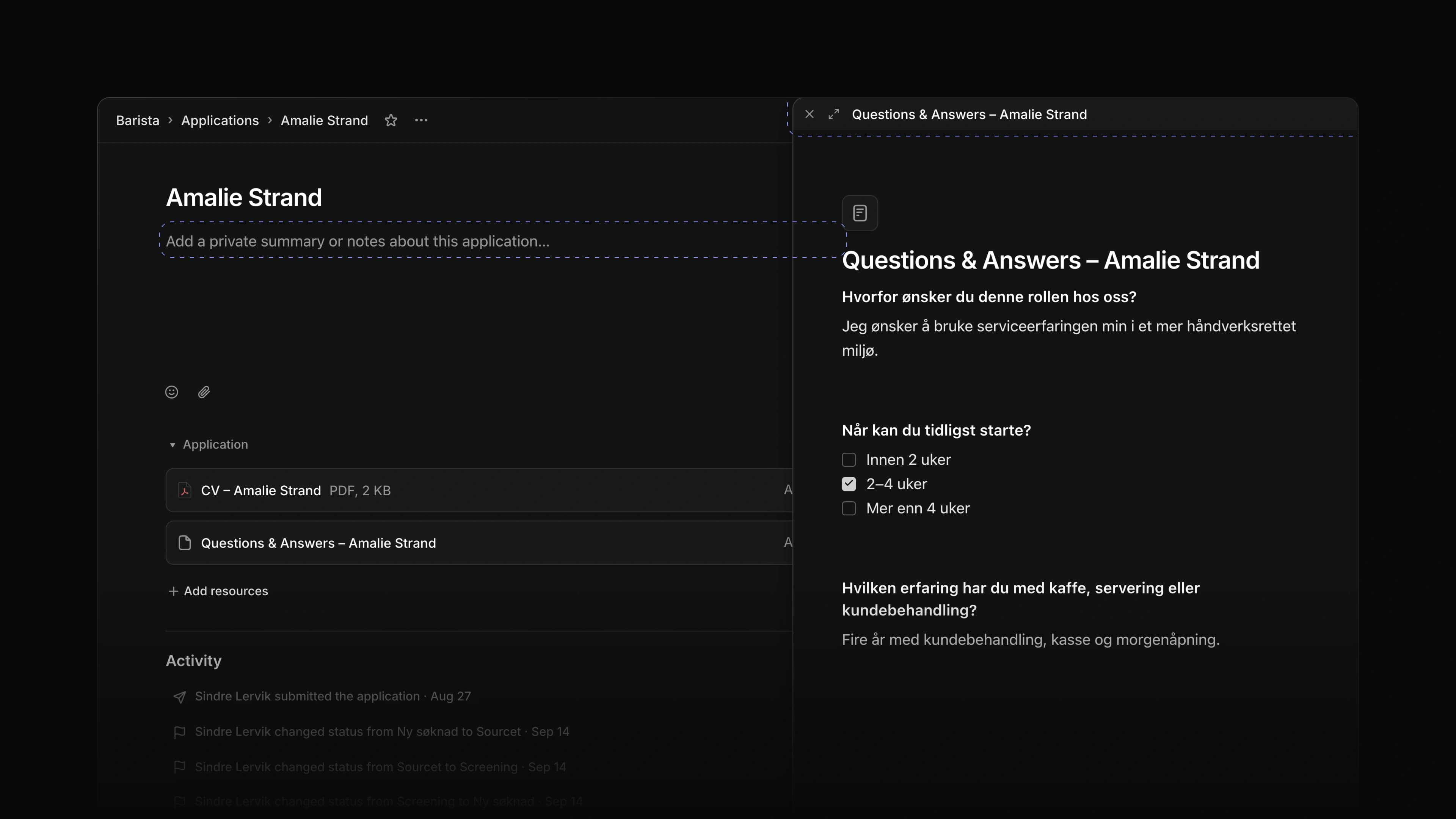
Now the CV, the answers and the application letter open in the same window, docked to the right of the application. The page behind it stays open, so you read on the right and write your private notes or a comment on the left.
Say you are hiring a barista. Open an application, choose Questions & Answers under Application, and type what stands out in the notes field while the answers stay in view. Then choose the CV, and it takes the answers' place in the same window. To start, open any application and choose a file under Application.
Answers and letter in the same window
Questions & Answers and the application letter open in the window the CV uses. Choose Open full page in the window's header to read either one on its own page. A CV or another uploaded file has Open in that place, which shows the file in a new tab.
Docked to the side
The window opens against the right edge of the page, so the application text and your notes stay clear. Until you resize it, a PDF window takes the size that shows its whole first page. Drag the header or any blank part of the window to move it. A file starts loading as soon as you point at it, so it opens with less wait.
Pages in one stack
A PDF's pages sit in one column, edge to edge with a thin line between them, like a stack of paper. Pages shows a thumbnail of each page, and a one-page CV opens without it so the page gets the room. Select text on a page to copy it. An image or a video also shows in the window, and a Word file or any other file shows Open and Download.
Zoom
Pinch on a trackpad to zoom, or click in the window and press Cmd = to zoom in and Cmd - to zoom out, or Ctrl = and Ctrl - on Windows. Zoom runs from 50 to 400 percent. Cmd 0, or Ctrl 0 on Windows, goes back to 100 percent, and a pinch that ends close to 100 percent lands on it. On a computer without a touch screen, the text stays sharp at 400 percent.
Close with a key
Press Space or Escape anywhere on the page to close the window. While you type in your notes, both keys work as usual in the field.
The candidate beside the application
The side panel on an application page now shows the candidate's Experience and Education under Candidate, read from their current profile, so a change to the profile shows here too. Copy application URL, Copy application ID and Copy candidate email sit at the top of the panel, and the panel stays in place as you scroll. The job and candidate names in the panel are links, so you can open either one in a new tab.
Pending invitations
On the Members page in Settings, a pending invitation now has Resend invite and Cancel invite in its row menu, and in Actions when you select the row. Resend invite sends a new email, and the link in the earlier one stops working. Cancel invite stops the link from working, and you can invite the person again later. Both ask you to confirm first.
Pickers in the middle of the screen
A field key on a row now opens its picker in the middle of the screen, the way the command menu opens, on every list, table and board. On the Jobs list, Ctrl Option S and Ctrl Option D, or Ctrl Alt S and Ctrl Alt D on Windows, open a calendar to set the start date and the target date. When A opens the Lead picker on the Jobs list, press → to see the highlighted member's card with their email, and ← to close it.
- Candidates Changed Location in Create candidate and Edit candidate to open the city search.
- Members Changed the Role column on the Members page in Settings to let an admin switch another member between Admin and Member.
- Jobs Added a tooltip with the keys to Copy job URL and Copy job ID in a job's header, and a message when the copy is done.
- Performance Changed a job's ad and its applications table to show in full the moment the job opens, and the Jobs list to fill sooner on a first visit.
- Keyboard shortcuts Added
Lto edit the labels on the row you point at in the applications list, table and board. - Keyboard shortcuts Changed the key for Location on the candidates list to
ShiftL, sinceLedits labels on the other lists.
- Applications Fixed a resized file preview window ending up partly off the screen, out of reach.
- Jobs Fixed picking a label on a job removing an archived label the job already had.
- Jobs Fixed a change to a job's ad or questions being lost without a warning when you reloaded or closed the page before it saved.
- Jobs Fixed the Review column on a job's applications table moving away from Status after a reload.
- Views Fixed
Enteron a focused board card picking it up instead of opening it;Spacepicks it up. - Documents Fixed words whose comment was deleted or resolved not taking a new comment.
- Workspace Fixed a page going blank when a save failed while you were offline; the page now stays and says the save failed.
- Workspace Fixed labels, tooltips and messages showing in English on Norwegian pages.