SLAs for applications
 Zoom image
A good candidate who waits a week for an answer often takes another offer. Until now nothing in Attia told you which applications had waited too long, or which ones were yours to answer.
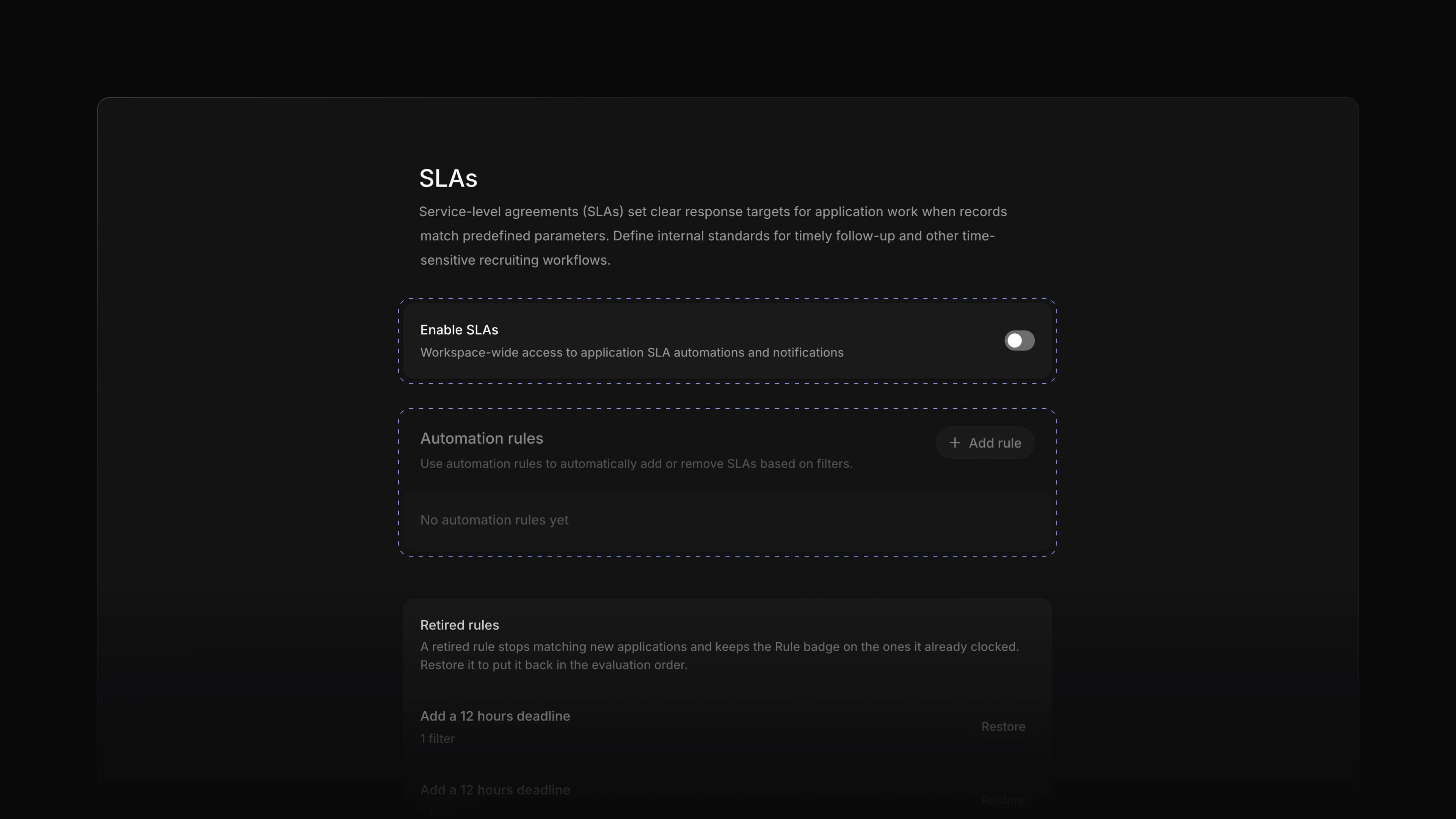
SLAs now give applications a response deadline. You write a rule once, such as "every new application to a store job gets 48 hours", and Attia adds the deadline to each application that matches. The application shows how long is left, or how long ago the deadline passed.
To start, go to Settings, choose SLAs under Applications, turn on Enable SLAs and choose Add rule. SLAs come with the Business and Enterprise plans.
SLA rules
A rule has a When and a Then. The When filters on up to thirteen properties, such as the job, the status, the team, the source, the labels or the job's lead. The Then sets the deadline: 12 hours, 24 hours, 48 hours, one, two or four weeks, or a time you choose. A retired rule stops matching new applications and can be restored later.
Deadlines on the application
An application with an SLA shows it as a property that reads "Due in" with the time left, or "Breached by" with the time since the deadline. When the deadline passes, the application's activity notes it.
My Applications
Choose My Applications in the sidebar to see your own queue. Assigned lists the applications assigned to you, Subscribed the ones you follow, and Activity the ones where something new happened. Under Display options, choose how long completed applications stay in the list.
Job and document templates
When you post the same kind of job again and again, start from a template. Open a job or a document, open its menu and choose Make template. In Create job, pick the template under Job template. When you create a document, choose Blank or one of your templates. Your job templates are listed under Settings, then Templates under Jobs.
Private drafts
Attia now keeps what you write in Create job and other composers as a private draft. When you close Create job, choose Save and the job waits for you, on this computer or another one. Only you see your drafts. Choose Drafts in the sidebar to pick one up again, or discard it.
- Candidates Showed the candidate every application of theirs in the candidate portal.
- Applications Showed the options a choice question offered when the candidate left it unanswered.
- Settings Made changes to job statuses and job labels in Settings show at once.
- Inbox Made marking a notification as read show at once.
- Candidates Fixed changes a candidate made to their own profile, photo included, not reaching your workspace.
- Settings Fixed section headings in Settings that cut off their button.