Teams and invites
 Zoom image
A hiring team changes all the time. Someone joins for one role, a manager needs to look at a shortlist, a colleague moves on. Until now you had no single place to see who was in the workspace and which teams they belonged to.
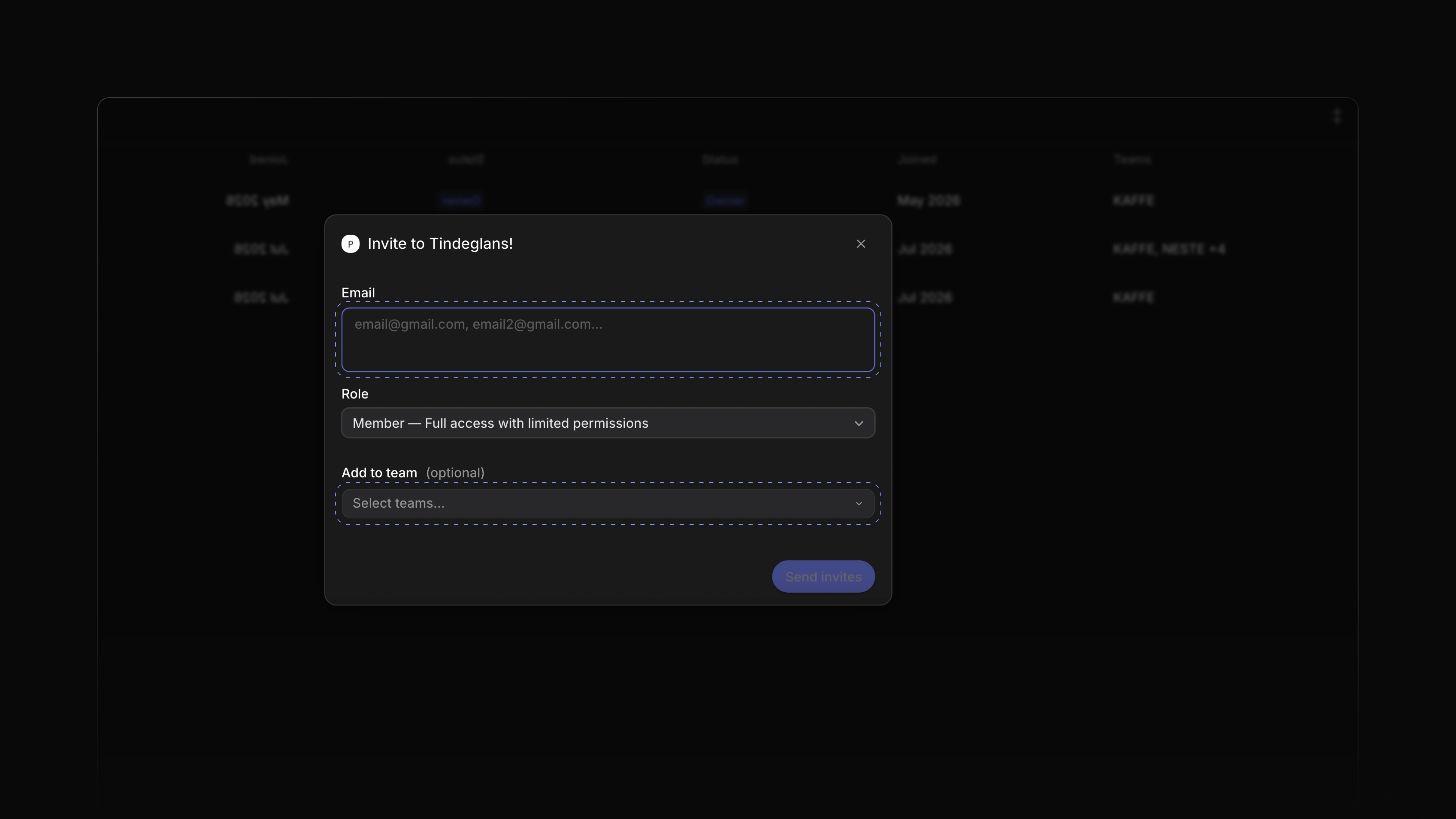
Members now lists everyone in the workspace with their title, status, the date they joined and their teams. Teams lists every team with its members and its jobs. When a store manager needs to follow the applications for a new barista role, you invite them as a member and add them to the store's team in the same step.
To start, choose Members in the sidebar and press the + button.
Several invites at once
The Invite members dialog takes several email addresses, separated by commas. You choose one role for all of them: Guest, Member or Admin. You can add them to one or more teams straight away. Choose Send invites and each person gets an invite.
Member actions
Right-click a member to change their role, transfer ownership of the workspace or remove them from it.
The Teams page
Choose Teams in the sidebar to see every team, how many members and jobs it has, and whether you are in it. Press + to create a new team.
Comment threads and mentions
A private note on an application is now a thread. Colleagues reply under it, react to it and mark it resolved when the question is settled, and marking a reply as the answer resolves the thread too. Type @ and a colleague's name to send them a notification in their Inbox; the list tells you when someone is not on the application's team and will not be notified. You can edit or delete a note you wrote. An edited note says so. A resolved thread can be opened again. To start, open an application and write a note in the box at the bottom of the page.
Application page
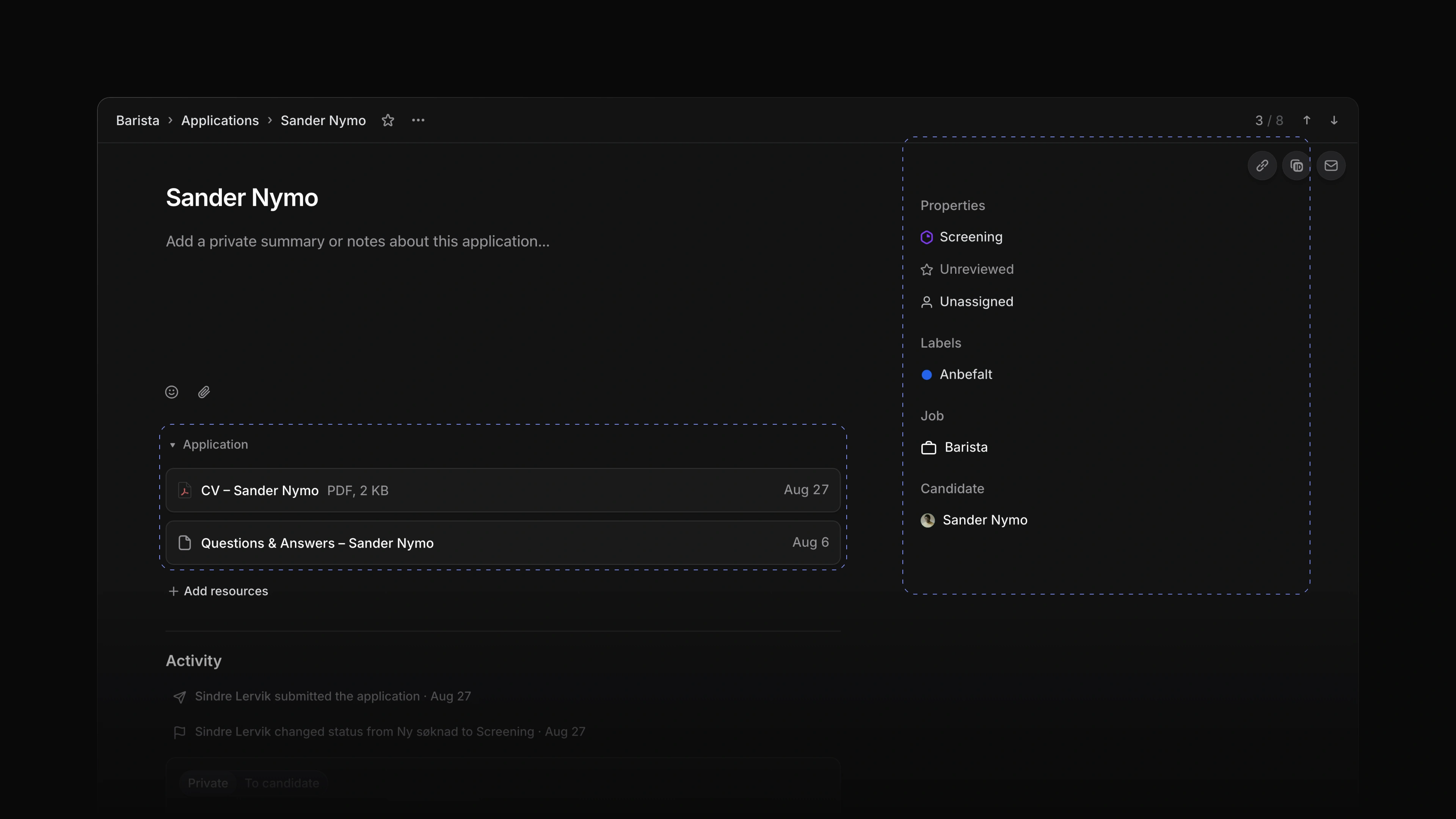
An application opens as a full page. The status, review, assignee, job, labels and candidate sit in a panel beside the page, or in a row under the name when the window is narrow. Below them come your private summary, the CV and the candidate's answers, then the activity and a box for notes.
 Zoom image
Custom sidebar
Right-click any item in the sidebar and choose Customize sidebar. For each item you choose Always show, Show when badged, Show when in use or Don't show, and hidden items wait under More. Drag items into the order you work in, and pick whether unread items show a count or a dot.
- Inbox Added an Inbox notification when an application is assigned to you.
- Applications Added a Review property to applications, for rating the candidate with stars or points.
- Settings Added payment inside Attia: under Settings, then Billing, choose All plans and pay for a plan in a dialog on the same page.
- Applications Added Show to candidate to application labels, so the candidate sees a label such as one that says an interview is booked.
- Keyboard shortcuts Added
Cmd/CtrlEnterto submit the main action of a dialog.
- Settings Fixed invites that dropped the Guest role and the teams you picked.
- Settings Fixed creating a new workspace so it no longer renames the one you are in.
- Jobs Fixed Create job so a failed save shows an error that stays until you close it.
- Inbox Fixed snooze times that were out of date when you opened the menu.
- Settings Fixed the plan upgrade card cutting off the names of its features.
- Settings Fixed payment in a different currency from the one the plans page showed.
- Applications Fixed application pages that ignored light mode.
- Jobs Fixed job pages that ignored light mode.
- Inbox Fixed the preview in Inbox so a failed load no longer breaks it until you reload.