Job publishing
 Zoom image
A job had a status for your own hiring stages, but nothing on its page that put it in front of candidates. A new job stayed a draft, and no candidate could find it.
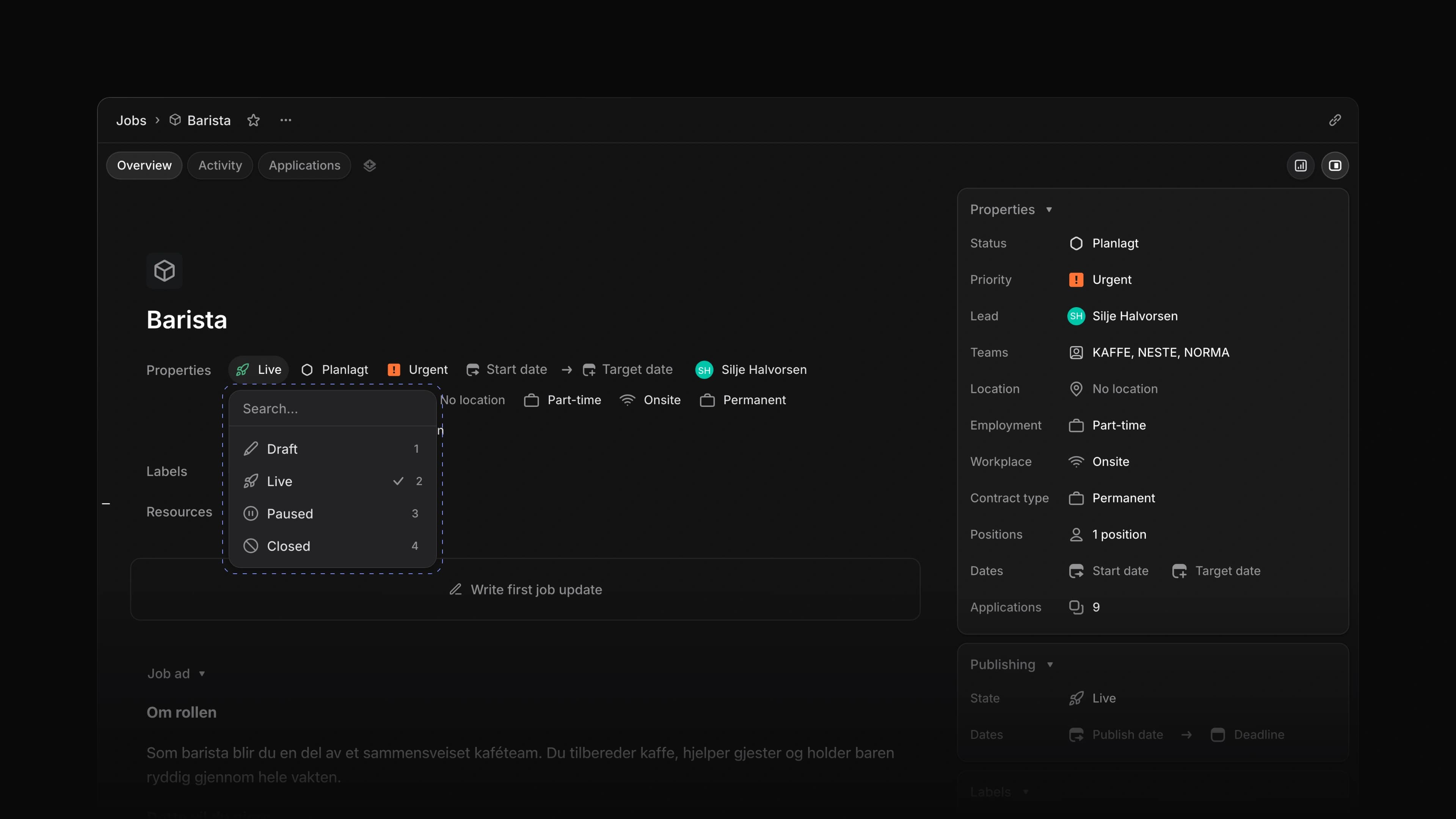
The job page now starts its row of properties with the job's publish state: Draft, Live, Paused or Closed. Only a Live job shows on your career sites and takes applications. Choose Paused or Closed and it comes down again.
Say the first round of barista interviews is full. Set the job to Paused while you meet the people you have, and back to Live if you need more. To start, open a job and choose Draft at the start of its properties.
Four states
Draft is where every job starts. Live publishes it. Paused takes it down for a while, and Closed marks it as done. Each change applies as soon as you choose it.
Application questions
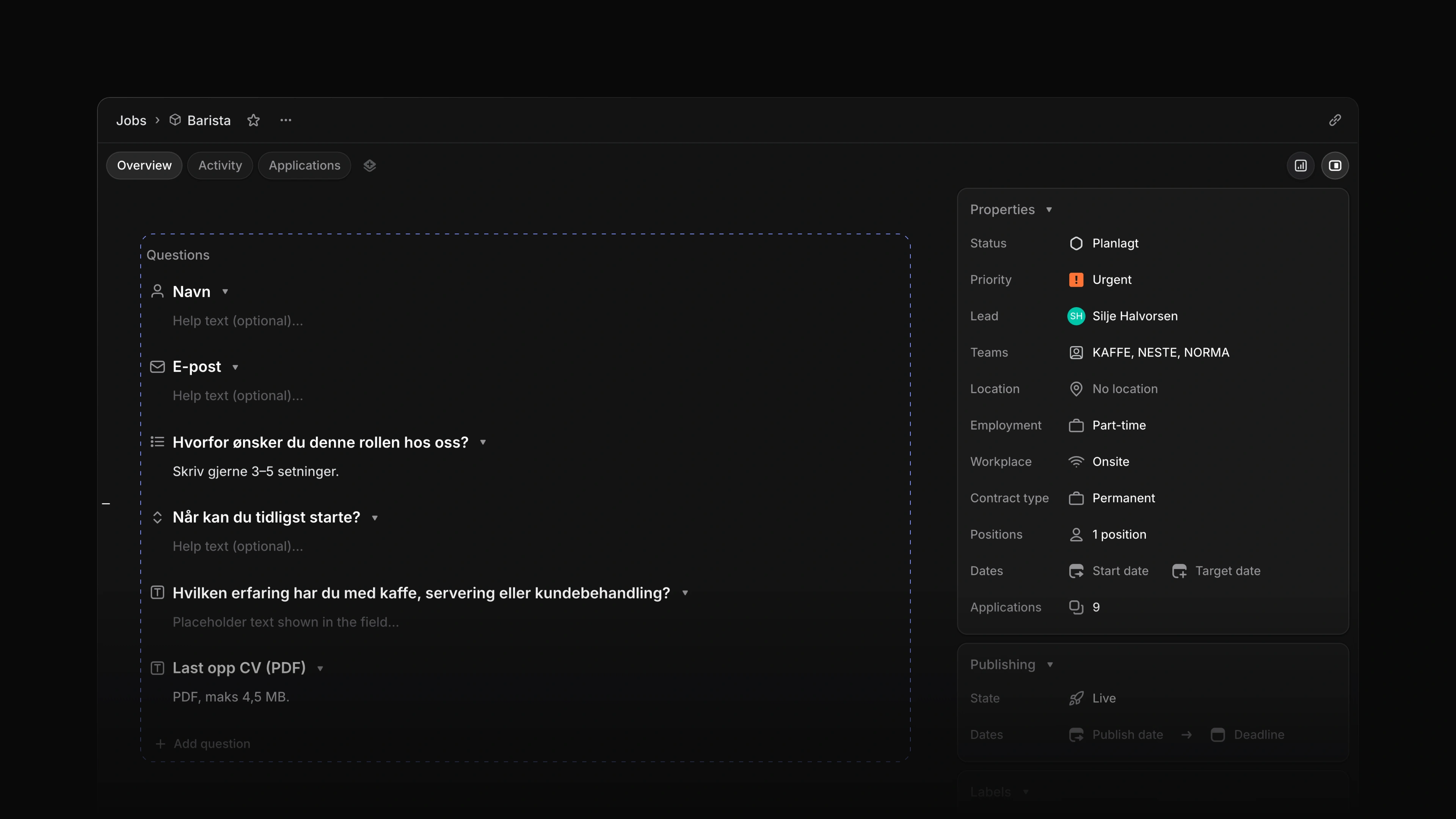
The questions a candidate answers when they apply now sit on the job page. Add a question, change its type, mark it required or change the order, and the next applicant sees the change. Until now you could not change them once the job existed.
 Zoom image
Candidate portal
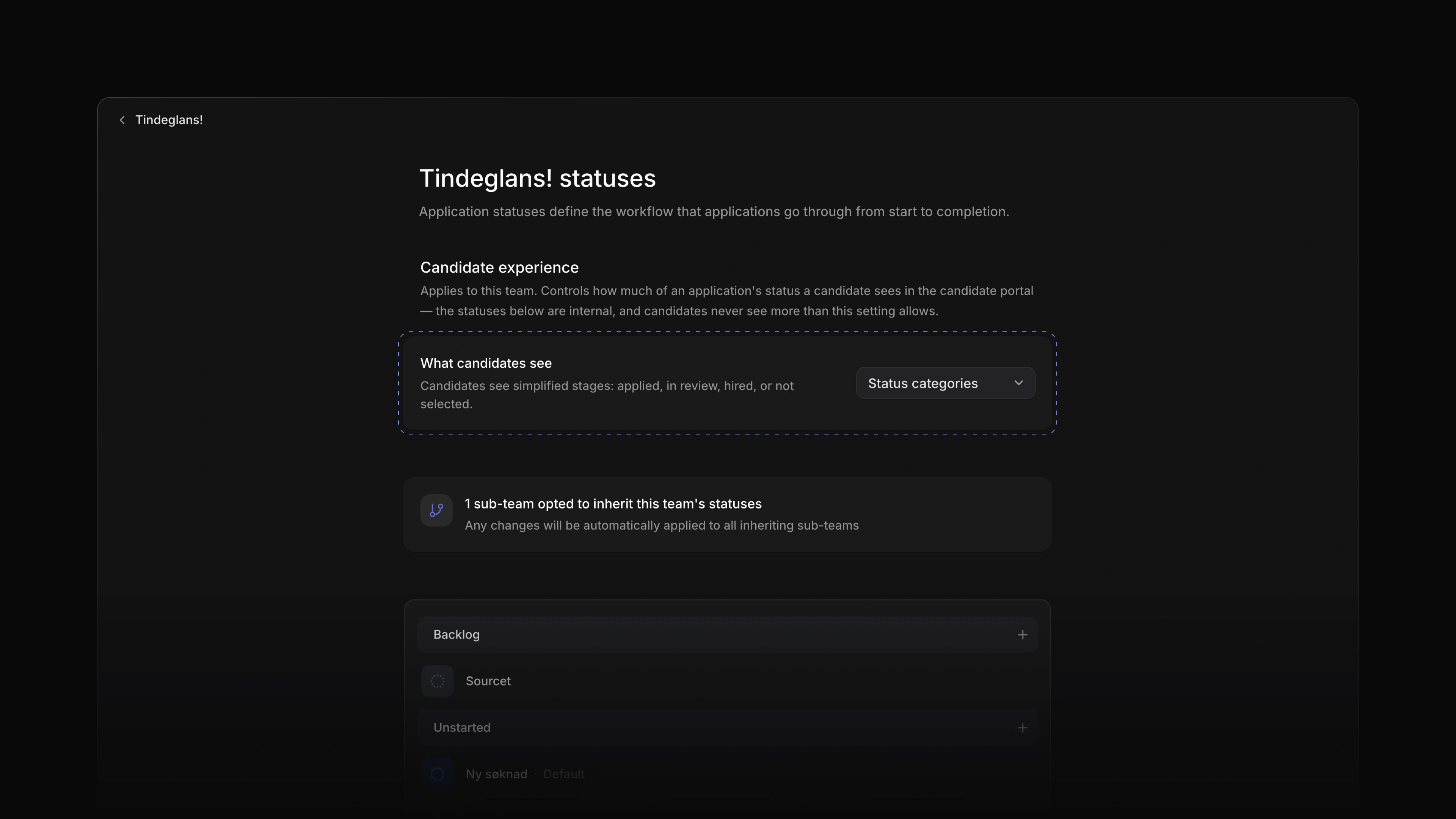
A candidate who applied could not see where their application stood without writing to you. Now they have a candidate account. They sign in with a one-time code sent to their email, with no password, see their applications and the status of each, read the answers they gave, and can withdraw an application. A withdrawn application shows as Withdrawn on the candidate's page in your workspace. The What candidates see setting in Settings decides how much of the status they see: the exact status, a simple stage such as In review or Hired, or only whether the application is submitted or closed.
 Zoom image
- Jobs Added a Phone question type to application questions.
- Jobs Fixed the error message closing on its own before you could read it when a job could not be created.
- Jobs Fixed a new job failing to save when you kept the default icon colour.
- Jobs Fixed a short link to Jobs or Candidates opening an error page instead of the list.