Properties in the row menu
 Zoom image
To change a job's status or an application's assignee from a list, you had to open the record or find the right cell in the table. A board card gave you no way to do it at all.
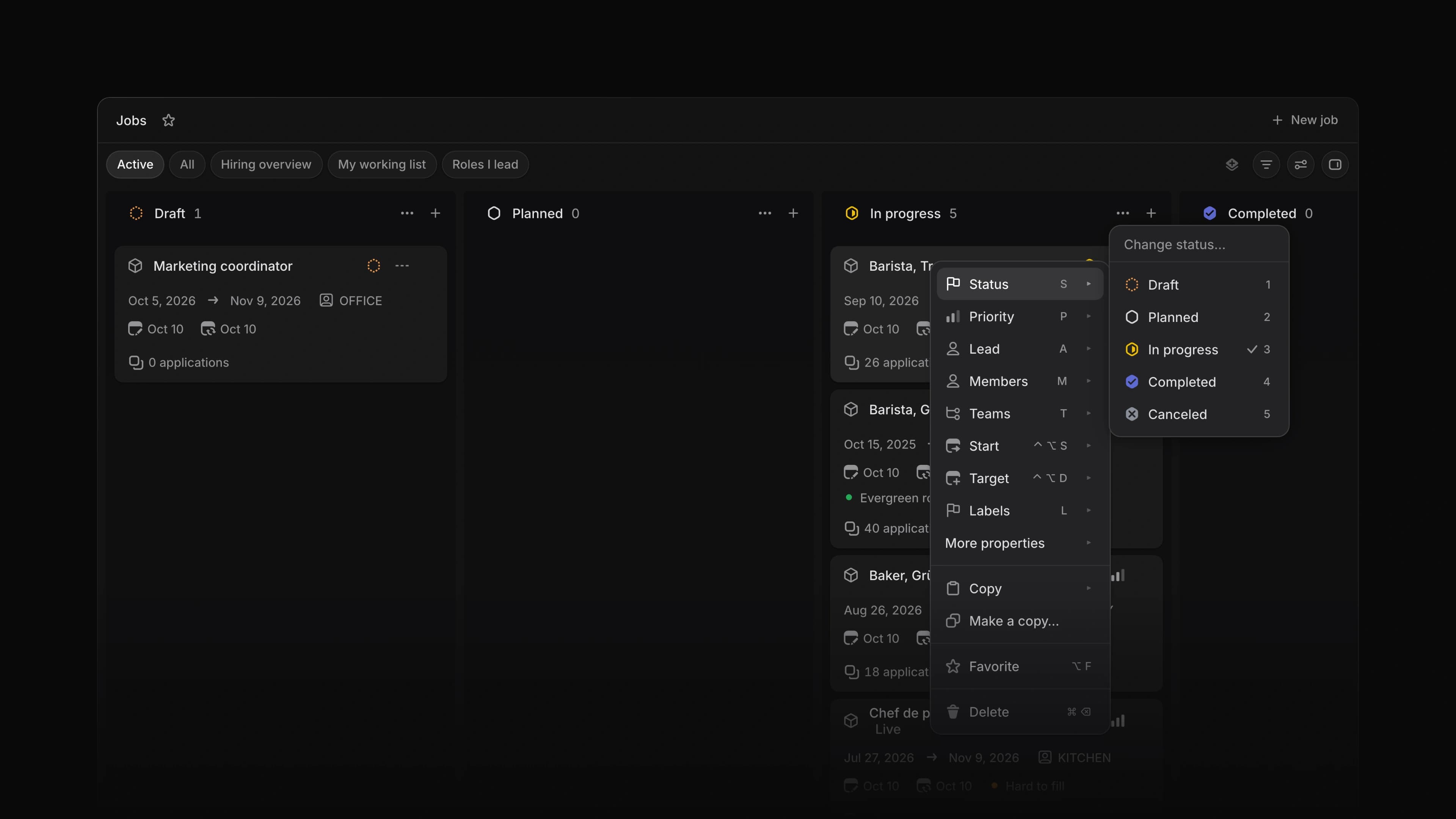
Now the menu you get when you right-click a row holds the properties too. Point at Status, pick a new one, and the row changes. Each submenu has the same letter as the shortcut on the record page, so you can open the menu and press S to go straight to Status.
Say five applications in the Screening column are ready for an interview. Select them, right-click one, choose Status and pick Interview. Attia asks you to confirm, then moves all five.
On jobs
The menu on a job has Status, Priority, Lead, Members, Teams and Labels, with the keys S, P, A, M, T and L, and the start and target dates. Career sites sits under More properties.
On applications
The menu on an application has Status, Assignee, Review and Labels, with the keys S, A, R and L. Labels groups team labels and workspace labels apart.
Pick fast
Every submenu has a filter at the top and a check next to the value the row has now. Type to narrow the list, or press 1 to 9 to pick one of the first nine. In Members, Teams and Labels each value has a checkbox, so you can tick several before you close the submenu. Escape clears the filter first and closes the submenu the second time. The same menu opens when you right-click a card on a board or an item on a timeline.
Copy as Markdown
The Copy submenu on a job, an application and a candidate now has Copy as Markdown, which copies the record's title and properties as text you can paste into a document or a message. Dates come out the way the table shows them. A job also has Copy everything as Markdown, which adds the description. Neither one copies a candidate's email or phone number.
Sidebar peek
With the sidebar hidden, move the pointer to the left edge of the window, and the sidebar slides in over the page, starting below the header. Move away and it slides back out. Shift S now hides and shows the sidebar, and [ still works too.
My loops and All loops
The Loops page has two tabs. My loops shows the Loops you own, and All loops shows every Loop in the workspace. Use Find loops… to search by name. An Owner column shows who owns each Loop, and an admin or the owner can hand a Loop to someone else from that cell.