Job pages
 Zoom image
A job was a row in the Jobs list. There was no page to hold the job ad, the people working on it and the applications it brought in.
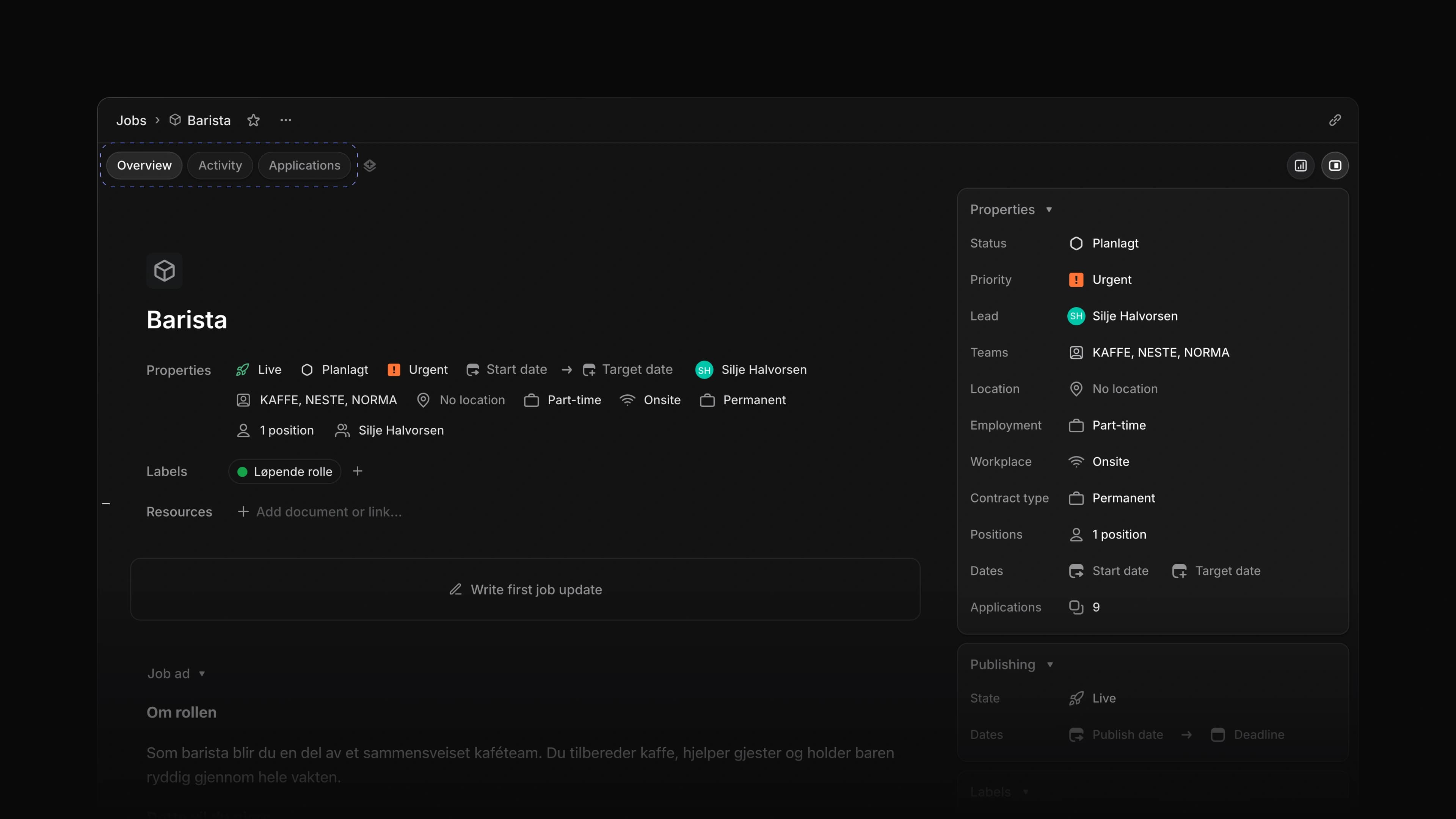
A job now opens as its own page. The Overview tab holds the job ad and its properties, and the Applications tab holds the applications. Each tab has its own link, so you can send a colleague straight to a job's applications.
To start, choose Jobs in the sidebar and open a job.
Overview
Write the title and the job ad right on the page, and Attia saves as you type. Status, priority, lead and teams sit under the title and again in the Properties panel on the right, which you can hide when you want more room.
Under Resources, add a new document or a link to keep the interview guide or the salary sheet with the job. An Applications card counts the applications that came in and splits them by status, assignee and source.
Applications
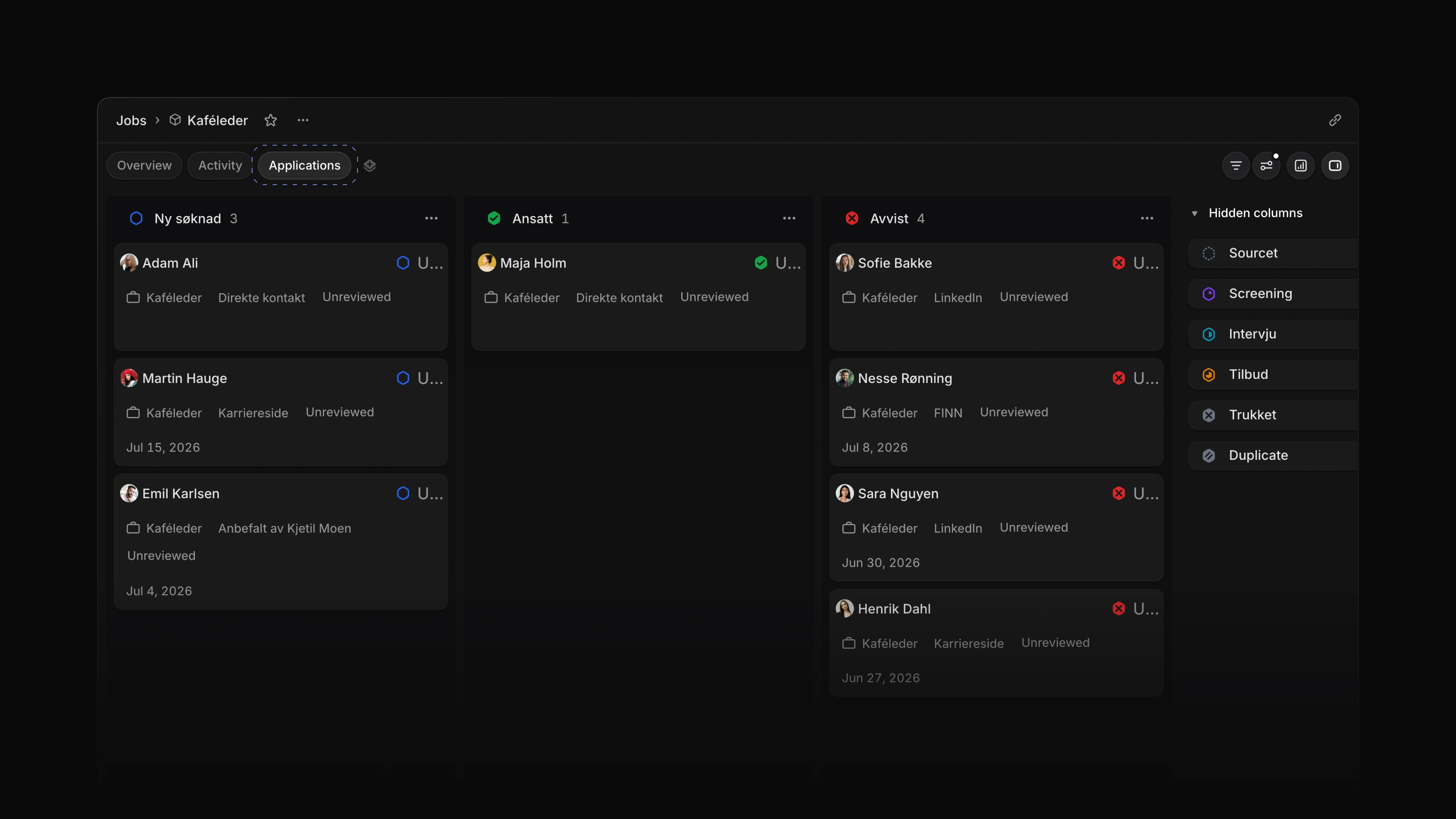
The Applications tab shows the job's applications as a board or a list, one column for each status.
 Zoom image
Candidates
Candidates has its own place in the sidebar. It lists every candidate in the workspace with their location, headline, number of applications, email, phone and dates, as a list or a board.
Comments on documents
Select text in a document and choose Comment to start a thread on that text. Colleagues reply, react and resolve the thread when the question is settled. To write a document, open a job and add a new document under Resources.
Favorites
Choose the star next to a page title to add the page to Favorites in the sidebar. Drag favorites into the order you want, group them in folders, and rename or remove a folder from its menu. Changed your mind? Press Cmd Z, or Ctrl Z on Windows, to undo the last change to your favorites.
- Jobs Improved search in the icon picker, so it also finds an icon by a related word.
- Settings Added Export CSV to the Members page in Settings, so admins can download the members the list shows.
- Settings Added a save status to a team's General settings, which reads Saving…, Saved, Unsaved changes or Some changes failed to save.
- Settings Added a warning when you leave a team's General settings with changes that are not saved.
- Jobs Changed the job shortcuts to single keys:
Sfor status,Pfor priority,Mfor lead,Tfor teams andLfor labels. - Applications Added
Sto change an application's status.
- Views Fixed scrolling a board or list on a touch screen picking up a card; you now press and hold to drag.
- Settings Fixed a team's General settings looking editable to members who are not workspace admins; the page is now read-only and says Contact a workspace admin to manage team settings.
- Settings Fixed screen readers not naming the icon, name and identifier fields in a team's General settings.