Working hours
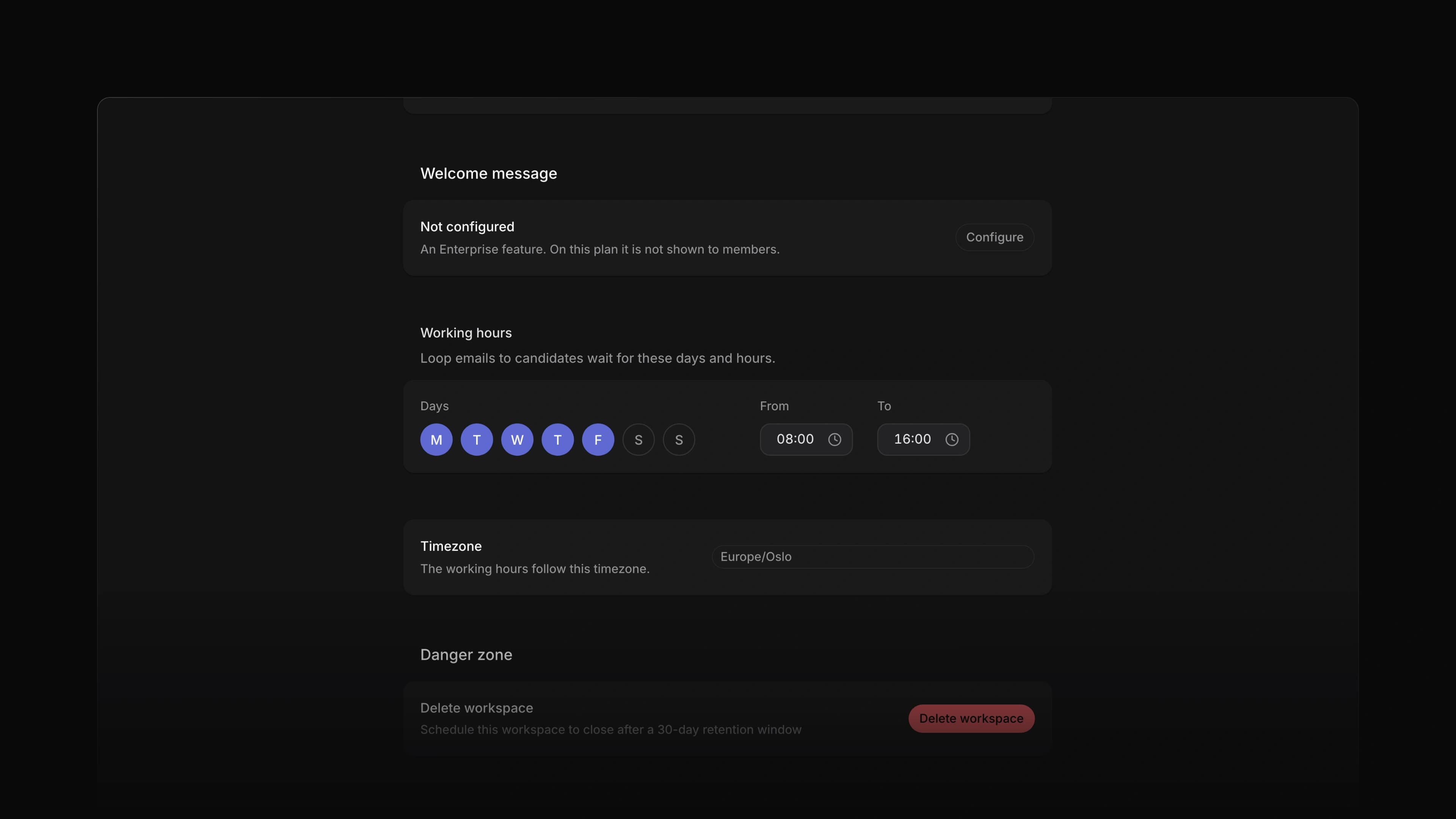 Zoom image
A Loop that emails candidates sent each email the moment its step ran. A candidate who applied close to midnight got your reply before they had closed the tab, and a Saturday application got its answer on Saturday.
Now a Send message step can wait for working hours. Set the days and times your workspace works, and a Loop email that comes due outside them waits until the hours start again.
Say a candidate applies on Saturday evening and your Loop thanks them for applying. With During working hours, the email goes out on Monday at 08:00, and the Loop run shows when it will go. To start, open Settings, choose Workspace and set Working hours.
Workspace and team hours
An admin sets the workspace hours under Settings, Workspace: the days, a From and a To time, and a timezone. Until you change them, the hours are Monday to Friday, 08:00 to 16:00. A team that works other hours turns off Use workspace hours on its General page and sets its own. A Loop in a team with its own hours follows them, and every other Loop follows the workspace.
When to send
Each Send message step has a When to send row with three choices: During working hours, Right away, and On chosen days, where you pick the days and times. A new step starts on During working hours. A step saved before this change keeps sending right away until you change it. Attia Agent can set When to send when it builds a Loop for you.
See when an email goes
While an email waits, the Loop run shows the day and time it will go out.
Desktop app
In Chrome and Edge you can now install Attia as an app on your computer. Open the workspace menu at the top of the sidebar and choose Download desktop app. The app opens in its own window without the browser's address bar. Its title bar takes the colour of your theme and holds the sidebar button, Back and Forward.
Row menu actions
Right-click a job, an application or a candidate, and the menu now has a Copy submenu with Copy ID, Copy URL, Copy title and Copy title as link. On a job, Make a copy… opens a new job filled in from the one you picked, without its career sites and dates. Favorite now works on applications and candidates too, from the menu or with Option F, or Alt F on Windows. Select several rows and right-click one of them, and Favorite acts on every selected row.
- Settings Added Team creation to Security in Settings, where an admin chooses whether only admins or all members can create teams.
- Settings Changed Referrals in Settings to work like Members: Invite opens a dialog for work emails, and a failed send offers Retry.
- Settings Added Country and Org number to Request your company in Settings.
- Agent Added a Written by Agent note under an application summary that Attia Agent wrote.
- Agent Changed the approval card to list each change Attia Agent wants to make to a candidate, one per line, before you choose Approve.
- Agent Lowered the AI credits that Attia Agent and Loops use for most work.
- Command menu Added
OthenTto open a team andOthenVto open a saved view from the command menu.
- Applications Fixed empty review stars disappearing when you hovered them or saw them in a menu.
- Applications Fixed an application summary that failed to save losing your text; it now keeps the text and offers Retry.
- Jobs Fixed application questions on a job that failed to save looking saved; they now stay unsaved and offer Retry.
- Templates Fixed saving a job template overwriting changes someone else had made to fields you left alone.
- Filters Fixed a Status is not filter disappearing when you added another filter.
- Teams Fixed a sub-team that uses its parent's statuses showing the wrong columns on its board.
- Teams Fixed Rename team in the team row menu in Settings doing nothing, and removed Delete team from that menu, which did nothing either.
- Loops Fixed a Loop email to a candidate naming the sender as Hiring team; it now says Attia.
- Accessibility Fixed the keyboard focus outline being cut off on sidebar rows and other controls.