Security and access
 Zoom image
Your Attia account opens CVs and applications, yet Security & access showed only the browser you were using. You could not see where else your account was signed in, or sign out a computer you had left behind.
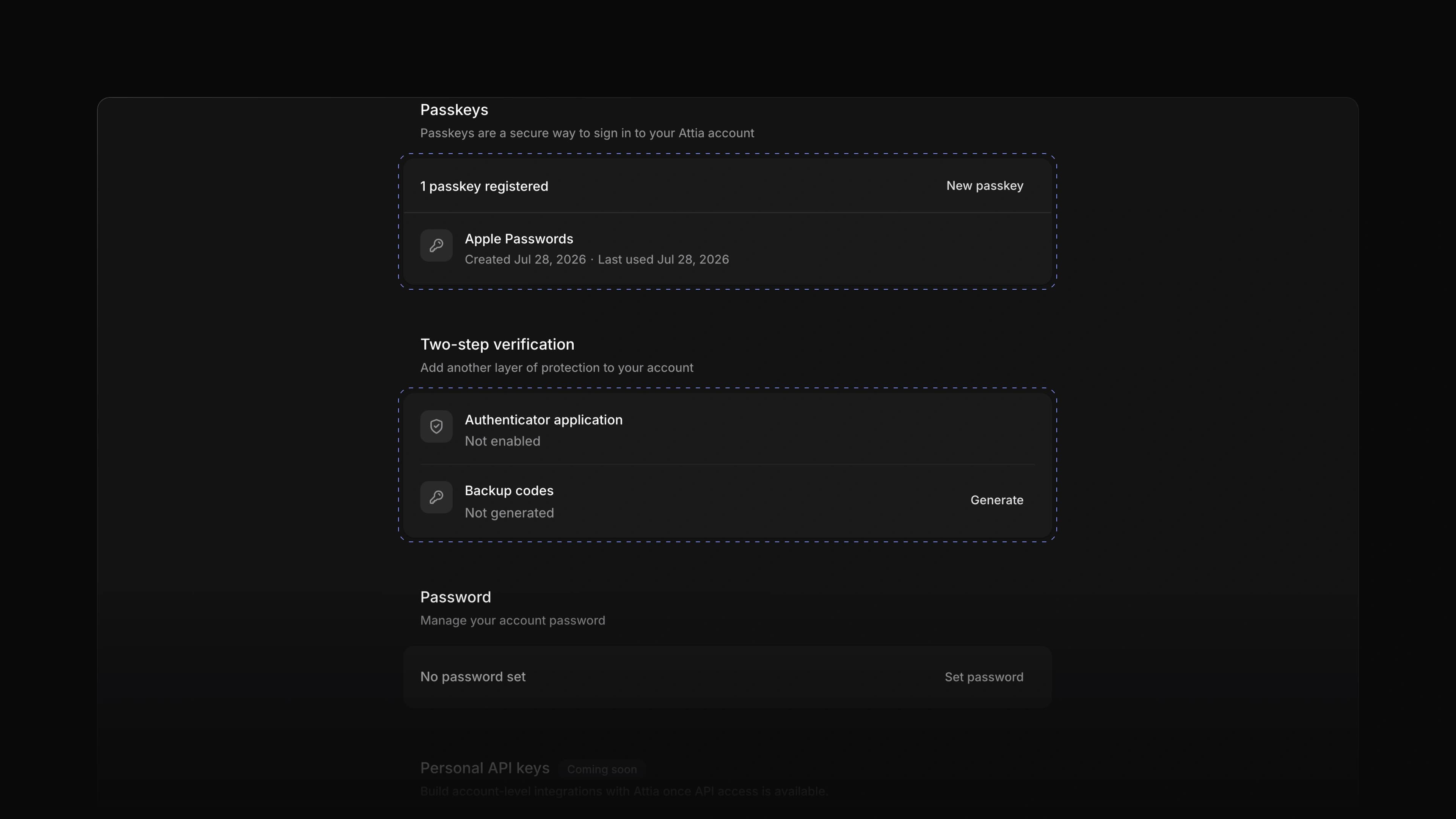
Security & access now lists every device signed in to your account and lets you sign any of them out. On the same page you can add a passkey, create backup codes and set a password.
Say you read applications on the shared computer in the café and forgot to sign out. Open the page on your own laptop, find that computer in the list and choose Revoke. To start, open Settings and choose Security & access.
Signed-in devices
Each device shows its browser and when it was last active. The one you are using comes first, marked Current session. Choose Revoke to sign out another device, or Log out to sign out of the one in front of you.
Passkeys
A passkey lets you sign in with your fingerprint, your face or your device's PIN instead of a password. Choose New passkey and follow your browser's steps. Attia may ask you to confirm it is you first.
Backup codes and password
Under Two-step verification, choose Generate to create backup codes. Store them somewhere safe, because each code works only once. Under Password, choose Set password, or Change password when you already have one.
Teams
Each team has its own settings page. Under Team hierarchy you put a team under a Parent team and see its Sub-teams. Under Members you choose Add a member, Make team lead or Remove from team. In the Danger zone you can choose Leave team, Retire team and later Restore team, or Delete team.
- Settings Changed Profile and Security & access to open inside Settings, next to your workspace settings.
- Settings Added a Change parent team page that shows what moving a sub-team changes before you confirm it.
- Settings Added Labels and Statuses under Jobs in Settings, where you set the labels and statuses your jobs use.
- Settings Added
GthenSto open Settings.
- Settings Fixed Back to app in Settings, which led to the wrong page.
- Settings Fixed Switch workspace listing only the workspace you were in; it now lists every workspace you belong to.