Career site design
 Zoom image
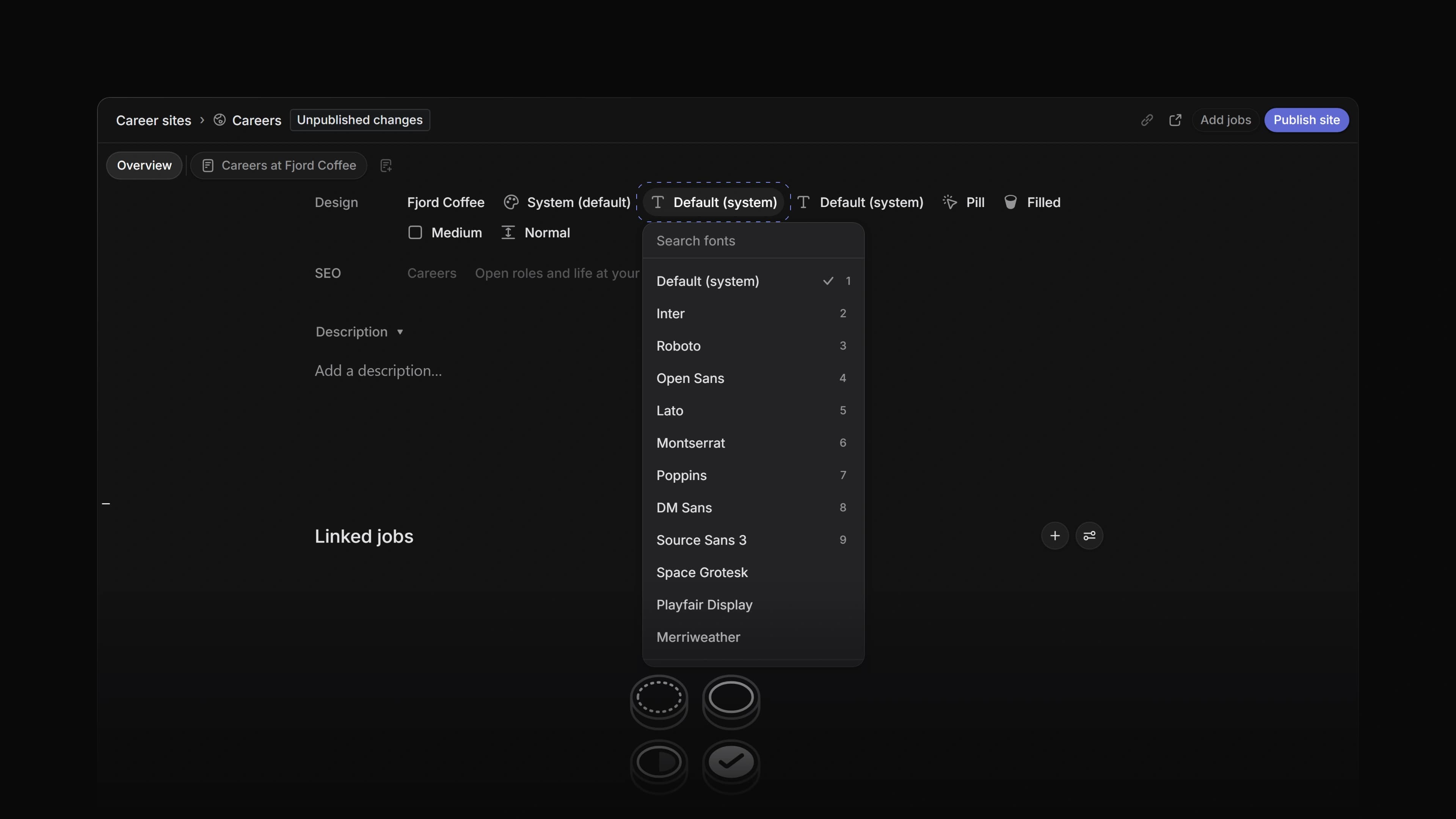
Your career site had one font, a background colour and an accent colour. If your company uses one typeface for headings and another for text, or a brand colour for cards, the site could only come close.
Now you choose a heading font and a body font from the whole Google Fonts library, set the secondary, text and surface colours yourself, and decide how buttons and sections look. Four new blocks add questions and answers, your hiring process, your locations and a sign-up form.
To start, choose Career sites in the sidebar, open a site and use the Design row on its Overview. Visitors see the changes once you publish them.
Fonts
Heading font and Body font are now two settings. Below the fonts we picked for you, Search fonts finds any family under All Google Fonts. Attia keeps its own copy of the font you choose, and your published site loads it from Attia instead of from Google.
Colours and buttons
With the theme set to Custom, you now set Secondary, Text and Surface next to Background and Accent. Attia warns you when a colour has low contrast with the background or the surface. Button fill makes the site's buttons Filled or Outline.
Section spacing
Section spacing sets the room between the sections on every page of the site: Compact, Normal or Roomy.
New blocks
Add block has four new blocks. FAQ holds questions and answers, Hiring process lists the steps a candidate goes through, and Locations shows where you work. Connect is a sign-up form for people who want to hear about new roles. The visitor enters their email, types the code Attia sends them, and is connected to your company without applying for a job.
Reset to published
Reset to published sits next to Publish changes on a page. It throws away the unpublished changes to that page and to the site's theme, fonts, logo, name and navigation, after you confirm. The live site stays as it is.
Remind me
Right-click a job, a candidate or an application, or press Shift H on the selected row, and choose Remind me. Pick An hour from now, Tomorrow, Next week or another preset, or type a time such as "4 pm" or "in 5 weeks". Custom… opens a calendar. When the time comes, the reminder shows up in your Inbox.
Move and manual order
Choose Display options, then Ordering, then Manual, and you can put jobs, candidates and applications in your own order. The row menu has Move with Move to top, Move up, Move down and Move to bottom. The same Move submenu works on the label lists and the team list in Settings.
Companies in the candidate account
A candidate's account now has a Companies page with one row for each company they have applied to or connected with. A company's page shows the applications the candidate sent there and the messages they got, and lets them disconnect. The candidate can also keep private notes about a company and private notes and files on an application. Only the candidate sees them.
- Jobs Added Convert to, then Template…, to a job's row menu. It opens a new job template filled in from the job.
- Jobs Added Open in new tab to the row menu of a published job, which opens the job ad on your career site.
- Jobs Added a card to Insights that counts applicants by gender, for one job or for all of a team's jobs.
- Candidates Added Unlink Attia profile to the menu on a candidate page, for owners and admins. The candidate keeps their applications and contact details.
- Teams Added Settings, Leave team… and, on a sub-team, Delete… to a team's row menu in Settings.
- Teams Changed a team's Visibility so a team owner can set it, not only an admin. This is on the Business plan.
- Settings Added Add label to group to the row menu of a label group in Settings.
- Inbox Changed an Inbox notification about a job's status to say which status the job moved from.
- Loops Changed the picker under Run now to find records that were not loaded yet, and to show the candidate's name on an application you found by job title.
- Views Added
ShiftHto open Remind me on the selected row. - Views Added
Option↑andOption↓to move a row in manual order, andOptionShift↑andOptionShift↓to move it to the top or bottom. On Windows, useAlt.
- Jobs Fixed a job that could not be moved showing the wrong message. It now says Job could not be moved.
- Jobs Fixed a change to a job made just before you reloaded the page waiting about a minute to save.
- Settings Fixed a new status, label or question disappearing for a few minutes when you left the page and came back.
- Settings Fixed right-clicking a label in the job labels in Settings opening the browser's menu instead of the row menu.
- Workspace Fixed date fields not understanding Norwegian words such as "i morgen" when you use Attia in Norwegian.